


Category filter
Enrolling Android devices without Camera or Google Play Store
This guide explains how to manually enroll Android devices into Hexnode UEM when the camera, Google Play Store, or both are unavailable. It provides detailed instructions for Device Admin, Android Enterprise Profile Owner, and Device Owner enrollments, including .apk installation, ADB commands, and manual credential-based enrollment.
What is Standard Enrollment?
Standard enrollment consists of two steps:
- Installation Step: Install Hexnode UEM or Hexnode for Work app (via Play Store).
- Enrollment Step: Open the app and enter the required fields such as, Server URL, username, and password, or scan a QR code if the device has a camera.
Why are alternate methods needed?
- Some devices have Google Play Store disabled, preventing the installation of the Play Store.
- Some devices have no camera or a disabled camera, making QR code scanning impossible.
These limitations often occur in restricted environments such as hazardous zones, military facilities, or sensitive workplaces. In such cases, manual installation and enrollment workarounds are required, which are described in the scenarios below.
Solutions Overview
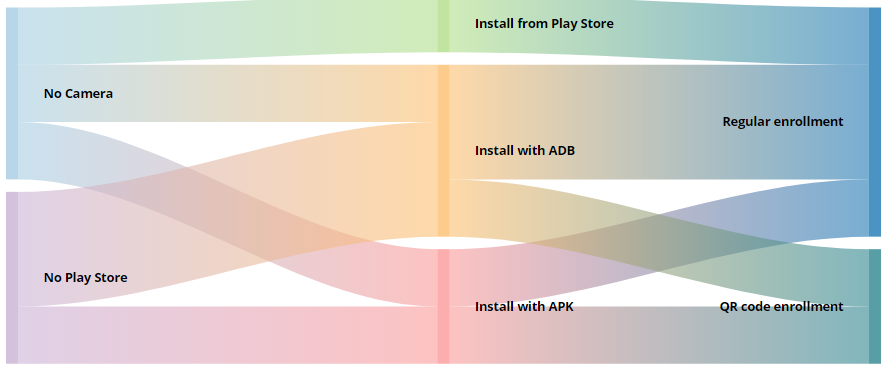
Devices may encounter one of three scenarios:
- Device without camera but has Play Store.
- Device without Play Store but has camera.
- Device without both camera and Play Store.
Each scenario involves specific installation and enrollment methods.
Case 1:Enrollment of Devices Without Camera but With Google Play Store
Devices in this scenario cannot scan QR codes due to the missing or disabled camera. The solution provides an alternate credential-based enrollment method.
Prerequisites:
App Download: The user must download the appropriate Hexnode application from the Google Play Store before starting the enrollment process.
- For Device Admin (generic) enrollment: Download the Hexnode UEM – Legacy app.
- For Android Enterprise Profile Owner mode: Download the Hexnode For Work app.
- For Android Enterprise Device Owner enrollment: Refer to the corresponding Hexnode documentation.
Solution: Use a Different Enrollment Technique
- In the Hexnode UEM portal, you can send the enrollment request from:
- Enroll > Platform-Specific > Android > Android TV & Standard Device > Authenticated Enrollment > Enrollment Request/Self Enrollment > Ownership > QR Code, Email, or SMS
- Enroll → All Enrollments → Invite → QR Code
OR
- The email contains instructions for enrollment without a QR code.
- On the device, open the Hexnode app and enter:
- Server URL
- Username
- Password
This allows enrollment without scanning a QR code.
Case 2: Enrollment of Devices Without Google Play Store but With Camera
The solution for devices lacking the Google Play Store is to manually install the Hexnode application using its APK file and then proceed with any standard enrollment method, including the QR code method, since the device camera is functional. After installation, any enrollment method (including QR code) can be used.
Solution 1: Install from .apk File
This method uses the device’s web browser to download and install the application directly.
- Open a browser on the device.
- Download the appropriate Hexnode app APK file from the provided links:
- For Hexnode UEM – Legacy app (generic/Device Admin)
- For Hexnode for Work app (Profile Owner)
- Install the app.
- Use any enrollment method, including QR code.
Solution 2: Install Using ADB (Android Debug Bridge)
This method requires a desktop system and the use of the Android Debug Bridge command-line tool.
Prerequisites for ADB Installation
- Download and install ADB on the desktop system.
- USB debugging must be enabled on the target Android device.
- The device must be connected to the desktop via a USB cable.
- The appropriate Hexnode APK file must be downloaded to the desktop.
ADB Installation Steps (Command Line)
- Open the terminal or command prompt on the desktop system.
- Use the cd command to navigate to the ADB folder location. For example:
cd C:\adb - Initialize the adb server.
adb start-server - Connect the target device and enable USB debugging if not already enabled.
- Install the HexnodeUEM.apk. file on the device:
adb install ./pathTo/HexnodeUEM.apk/ - Open the installed Hexnode app on the device and continue with the enrollment steps (e.g., using the QR code enrollment method).
Case 3: Enrollment of Devices Without Camera or Play Store
The solution combines the methods from Case 1 and Case 2: manually install the Hexnode application via APK/ADB (due to missing Play Store) and then manually enroll using the Server URL (due to missing Camera).
Solution
Step 1: Install the Hexnode App
- Follow the installation steps detailed in Case 2: Enrollment of Device Without Google Play Store but With Camera (using APK file or ADB).
Step 2: Enroll the Device
- Follow the manual enrollment steps detailed in Case 1: Enrollment of Devices Without Camera but With Google Play Store (using the Server URL, Username, and Password).
Frequently Asked Questions
- Can I use ADB for Android Enterprise Device Owner enrollment?
Yes, ADB is a common tool for Device Owner provisioning, but it requires specific commands and is part of a larger workflow (consult the Device Owner documentation).
- Why does the device not allow APK installation?
You must enable ‘Install from unknown sources‘ in the device’s security settings to manually install APK files outside of the Google Play Store.
- Does Hexnode support virtual Android devices?
Yes, Hexnode UEM allows you to manage virtual Android devices emulated using tools like BlueStacks, Android Studio, and Remote Test Lab, using these manual enrollment methods.


