


Category filter
How to configure browser settings on Windows devices?
In this document you will learn how to configure Google Chrome browser extension settings on Windows devices from Hexnode UEM.
Google Chrome browser extensions are software programs designed to enhance the browsing experience by extending the browser’s functionality. These extensions offer features such as automating tasks, blocking ads, managing passwords, taking notes, proofreading digital content, etc. Adding these capabilities to your web pages improves your browsing experience by simplifying actions and optimizing your workflow.
Using Hexnode UEM’s Browser Settings policy, IT administrators can configure, auto-install, allow, restrict, and enforce specific extensions in the Google Chrome browser on their Windows devices.
Configure Browser Extension settings policy on Windows devices
The following steps will guide you on how to configure and install pre-defined extensions for Google Chrome from Hexnode UEM.
- Log in to your Hexnode UEM portal. Navigate to the Policies tab. Click on New Policy to create a new one. Enter the Policy Name and Description in the provided fields.
(or)
Click on any policy to edit an existing one. - Navigate to Windows. Select Browser Settings under Configurations.
- Click on Configure.
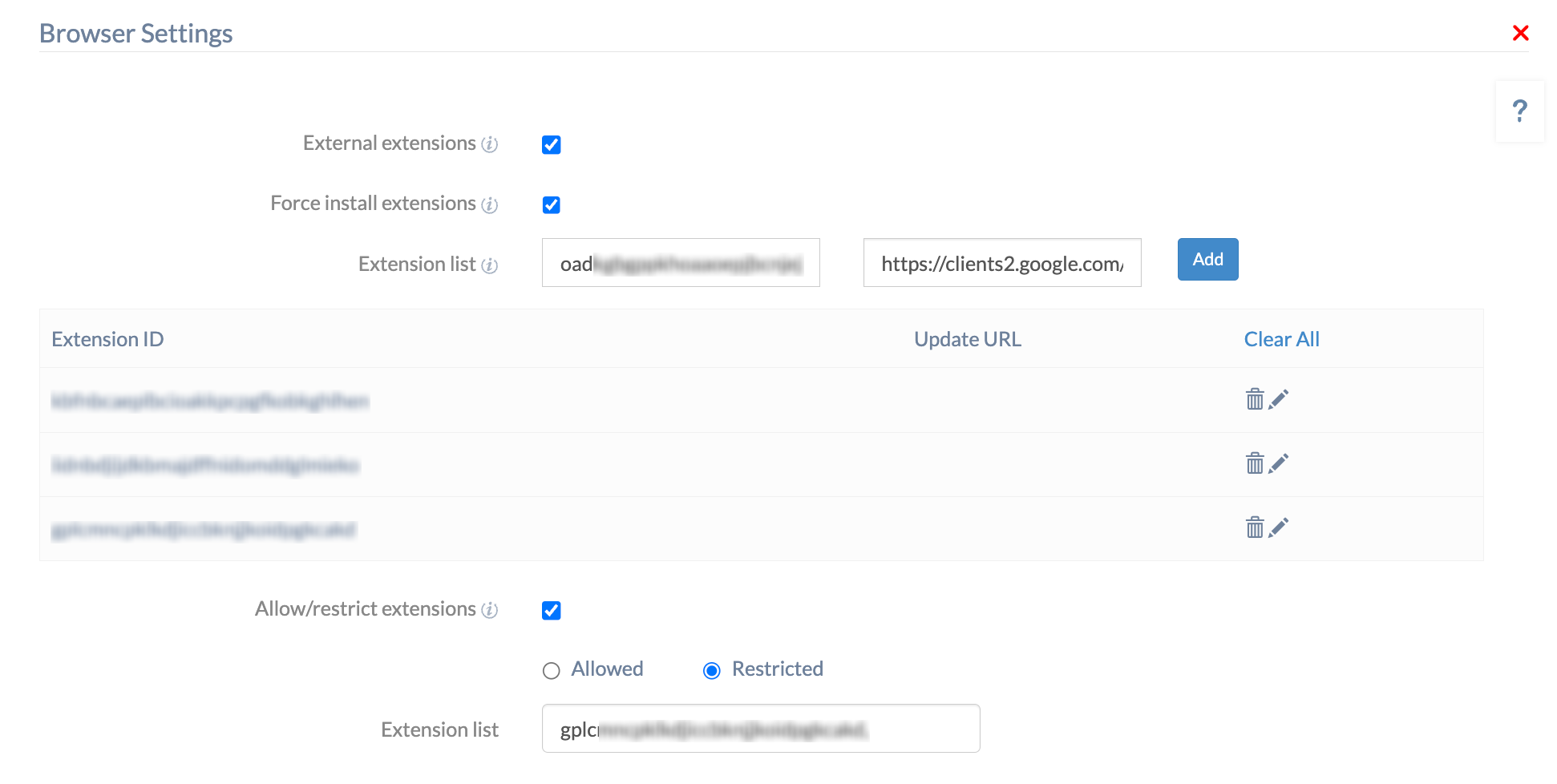
Configure, restrict and install browser extensions for Google Chrome browser using the following settings:
| Settings | Description |
|---|---|
| External extensions | This setting, when unchecked, will prevent the installation of external extensions in the Google Chrome browser. External extensions are Chrome extensions developed by third-party developers that are not listed on the official Chrome Web store. |
| Force install extensions | When checked, this setting enables the option to provide a list of extensions that will be automatically installed and enforced, preventing users from uninstalling or turning them off. |
| Extension list
(Available only when Force install extensions is enabled) |
Provide a list of extensions in the following format:
|
| Allow/restrict extensions | When checked, this setting provides the option to allow or restrict browser extensions. Provide a list of extension IDs, separated by commas, in the field. Use this setting to either allow only the provided extensions or restrict them. |
Apply the Browser settings policy to target entities using Hexnode UEM
There are two ways by which you can associate the policy to configure Google Chrome Browser Extension settings on Windows devices.
If you haven’t saved the policy yet,
- Navigate to Policy Targets.
- Click on + Add Devices.
- Search, and select the devices to which you need to apply the policy. Click OK.
- Click on Save to apply the policies to the devices.
If you’ve already saved the policy and taken to the page which displays the policy list,
- Select the required policy.
- Click on Manage and select Associate Targets.
- Search and select the Devices/ Users/ Device Groups/ User Groups/ Domains to which you need to apply the policy. Click Associate.
What happens at the device end?
Upon associating the policy, start the Google Chrome browser. The extensions configured under the “force install extensions” option will be installed and can be accessed from the top right corner of the browser. They will be labeled as “Installed by your administrators.” The options to uninstall or remove these extensions will be disabled by the browser. Extensions added under the “Allow/restrict extensions” option will be labeled as “Your admin has blocked this item (Extension ID)” in the Chrome Web Store.
Frequently Asked Questions
1. Will force-installed extensions (from Hexnode) be enabled in Incognito mode automatically?
No. By default, Google Chrome disables all extensions in Incognito mode to protect user privacy. Even if the admin force-installs an extension via Hexnode, the device user must manually allow it to run in Incognito mode via the browser’s extension management page.
2. Does the Browser Settings policy apply to all Google Chrome profiles existing on a Windows device?
Yes. Since Hexnode associates the Browser Settings policy at the device level, the extension configurations are written to the system-wide registry. This ensures that every Chrome profile created on the managed endpoint inherits the same forced installation and restriction rules.
Troubleshooting
1. Issue: Force-installed extensions are not appearing on the device even though the Browser Settings policy status is “Success.”
Probable Cause:
The Chrome browser was active when the policy was associated, or the device has not yet synchronized the registry changes with the browser application.
Solution:
The admin should instruct the user to restart the browser. If the issue persists, the admin can use the Scan Device action in the portal and verify the applied settings on the endpoint by navigating to chrome://policy in the browser address bar.
2. Error message: “Your admin has blocked this item” appears in the Chrome Web Store for a required extension.
Probable Cause:
The extension ID has been added to the restriction list in the “Allow/restrict extensions” section of the associated Browser Settings policy.
Solution:
The admin should review the extension list in the policy configuration and ensure that the required Extension ID is removed from the restricted IDs.
Best Practices
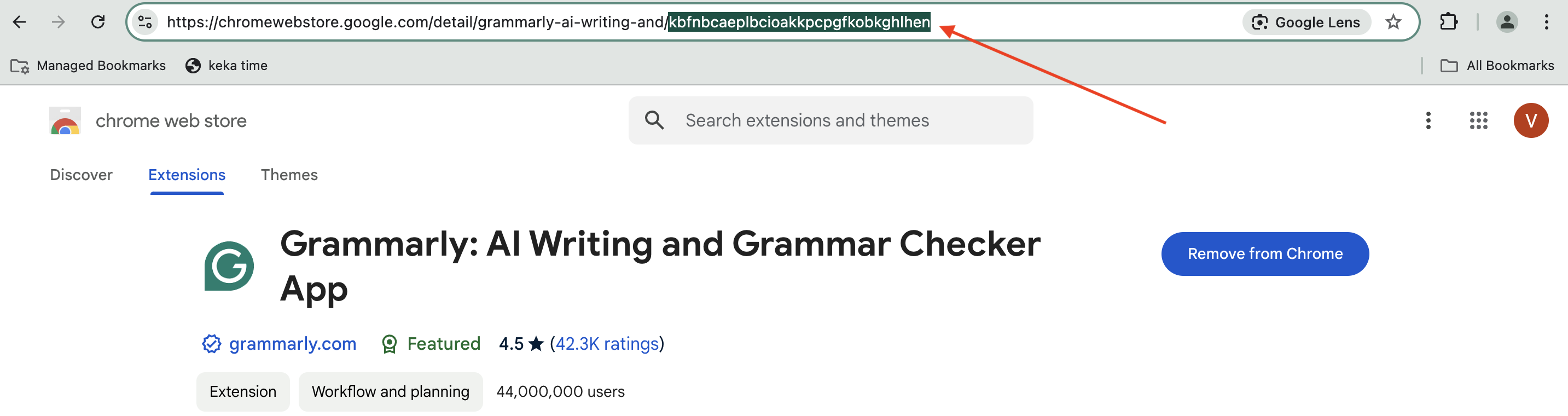
- Validate Extension IDs: The admin should always copy the 32-character extension ID directly from the end of the Chrome Web Store URL to avoid typographical errors that result in policy failure.
- Pilot Group Deployment: Before enforcing extensions across the entire organization, the admin should deploy the policy to a pilot group to ensure that new extensions do not conflict with existing enterprise web applications.


