Category filter
Script to add Windows devices to Active Directory domain
Windows devices can be added to an organization’s Active Directory (AD) domain, so that users can log onto their devices using their AD credentials. Adding devices to the domain can be accomplished by utilizing PowerShell scripts. The scripts provided in this article can confirm successful domain DNS server configuration and resolution, essential for successful domain joining of device. These scripts can be executed from the Hexnode portal using the Execute Custom Script remote action.
PowerShell scripts
Execute the following scripts in sequence for adding the Windows device to the AD domain successfully.
-
Configuring the DNS Server
123456789101112131415161718# Replace with your AD domain controller IP(s)$dnsServers = @("192.168.1.10","192.168.1.11")Write-Output "Configuring DNS servers..."Get-NetAdapter | ForEach-Object {Set-DnsClientServerAddress -InterfaceIndex $_.InterfaceIndex -ServerAddresses $dnsServers}Write-Output "Testing DNS resolution..."try {$result = Resolve-DnsName YourDomain.local -ErrorAction StopWrite-Output "DNS resolution succeeded:"$result | Format-Table -AutoSize} catch {Write-Output "DNS resolution FAILED: $_"}Write-Output "DNS configuration complete."This script configures the target devices to use specific DNS servers (the IP addresses of the Active Directory domain controllers configured in the script). All active network adaptors are updated with the provided DNS addresses (Domain controllers). Further, a resolution test is conducted against
YourDomain.localto confirm domain resolution.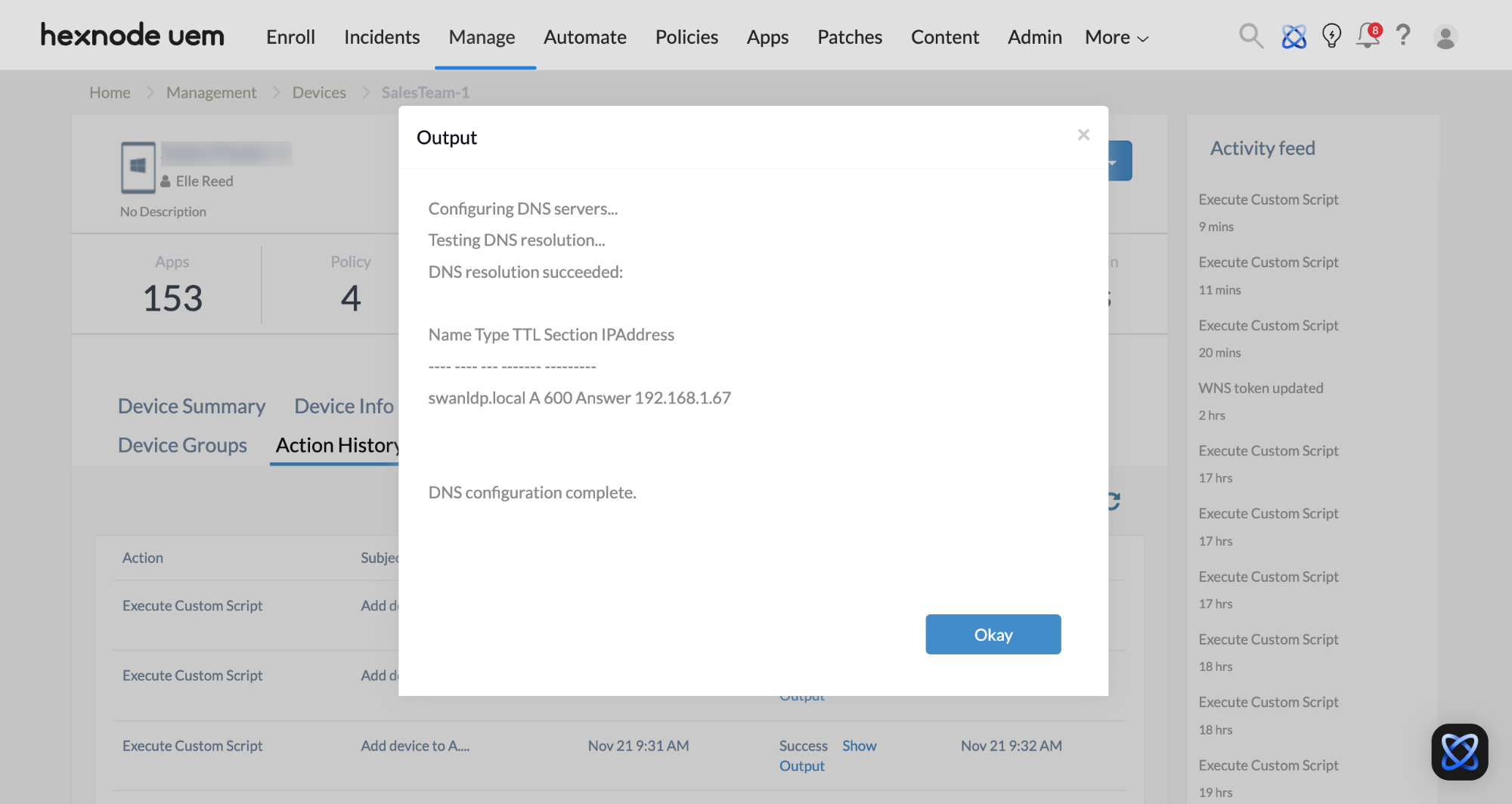
-
Pre-checking AD domain resolution
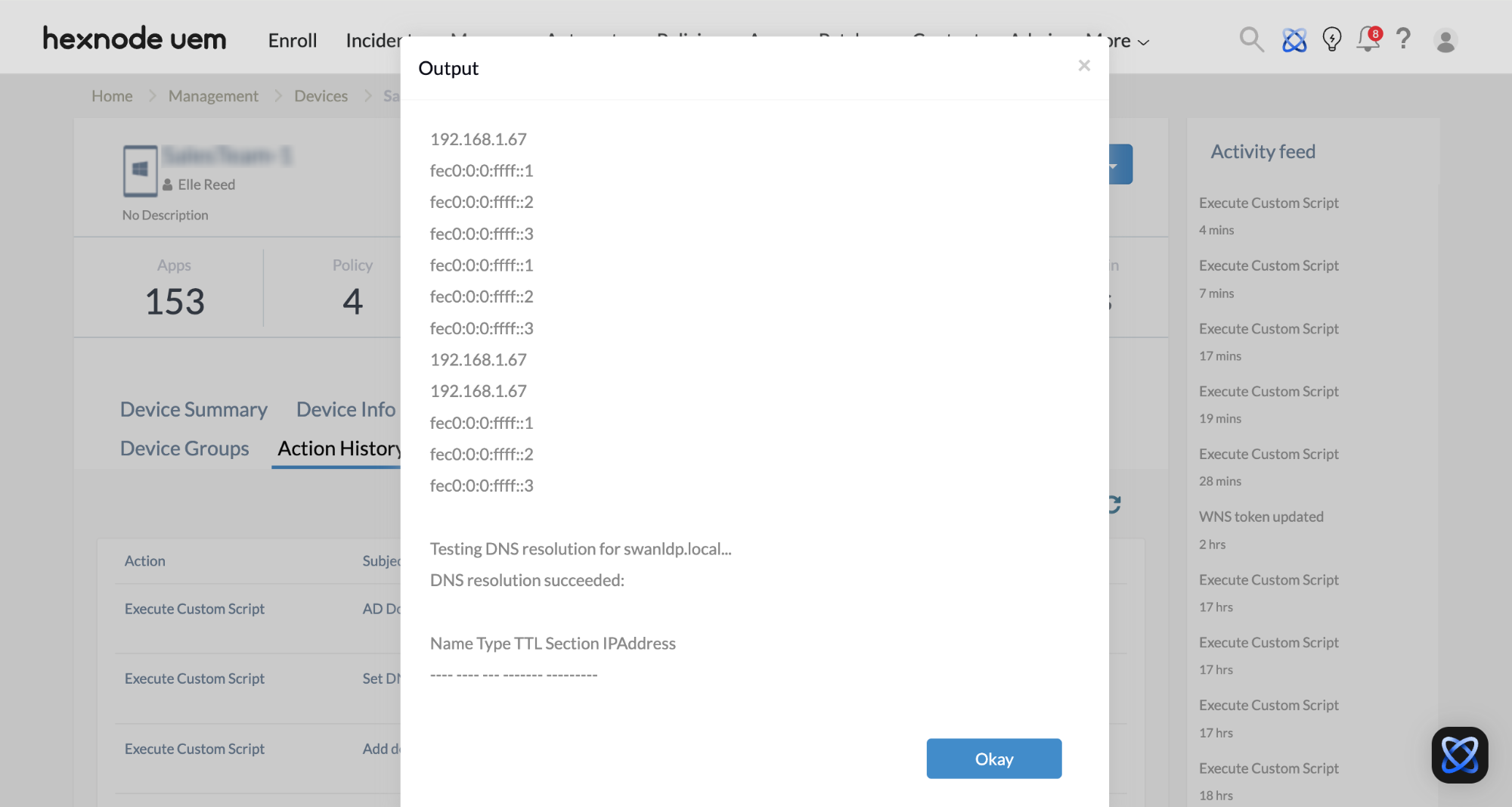
123456789101112131415161718192021222324252627282930313233343536373839404142$domain = "YourDomain.local"Write-Host "Running pre-checks for domain join to $domain..."Write-Host ""# 1. Check current DNS serversWrite-Host "Checking DNS configuration..."Get-DnsClientServerAddress | Select-Object -ExpandProperty ServerAddresses# 2. Test DNS resolution of the domainWrite-Host "`nTesting DNS resolution for $domain..."try {$dnsResult = Resolve-DnsName $domain -ErrorAction StopWrite-Host "DNS resolution succeeded:"$dnsResult | Format-Table -AutoSize} catch {Write-Host "DNS resolution FAILED: $_"}# 3. Check domain controller discoveryWrite-Host "`nChecking for reachable domain controllers..."$dcInfo = nltest /dsgetdc:$domainif ($LASTEXITCODE -eq 0) {Write-Host "Domain controller found:"Write-Host $dcInfo} else {Write-Host "Domain controller discovery FAILED."}# 4. Test network connectivity to DC ports (example: LDAP 389, Kerberos 88)Write-Host "`nTesting connectivity to domain controllers..."$dcName = (nltest /dsgetdc:$domain | Select-String "DC:").ToString().Split()[1]if ($dcName) {Write-Host "Testing connectivity to $dcName..."Test-NetConnection -ComputerName $dcName -Port 389 # LDAPTest-NetConnection -ComputerName $dcName -Port 88 # KerberosTest-NetConnection -ComputerName $dcName -Port 445 # SMB} else {Write-Host "No domain controller name available for port tests."}Write-Host "`nPre-check complete."Before attempting to add a device to the AD domain, the above script checks the resolution of the domain name and attempts the discovery of reachable domain controllers. It then proceeds to check connectivity to key ports such as LDAP (389), Kerberos (88) and SMB (445), if a domain controller is identified.
-
Adding the device to the AD domain
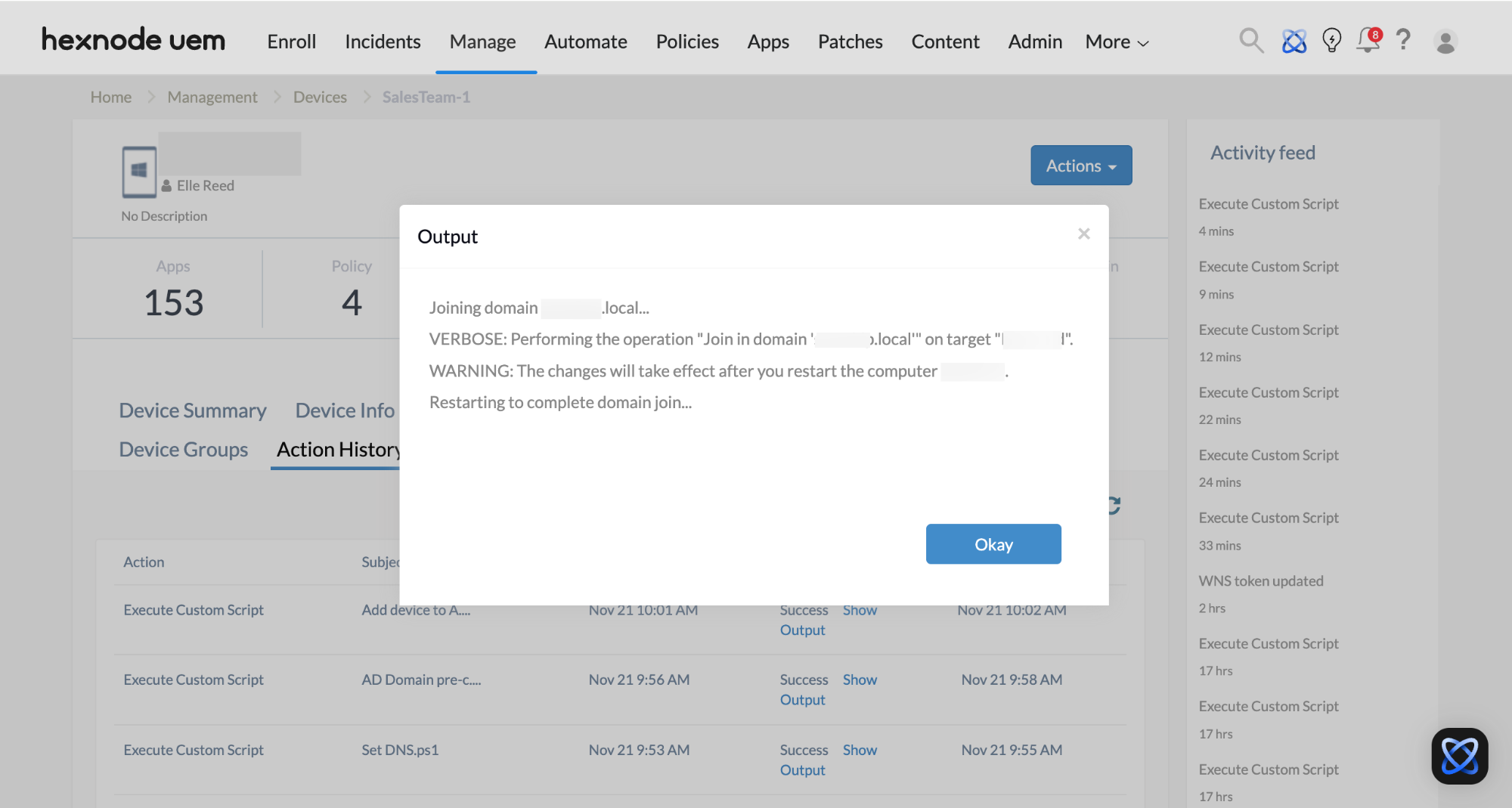
12345678910111213141516171819202122# --- Configuration ---$domain = "YourDomain.local" # Replace with your AD domain$user = "YourDomain\Username" # Account with rights to join computers$password = "P@ssword!" # Plain text password (replace securely!)$ou = "OU=Computers,DC=YourDomain,DC=local" # Optional: target OU# --- Convert password to secure string ---$securePassword = ConvertTo-SecureString $password -AsPlainText -Force# --- Create credential object ---$credential = New-Object System.Management.Automation.PSCredential ($user, $securePassword)# --- Check if already domain-joined ---$computerSystem = Get-WmiObject Win32_ComputerSystemif (-not $computerSystem.PartOfDomain) {Write-Host "Joining domain $domain..."Add-Computer -DomainName $domain -Credential $credential -OU $ou -Force -VerboseWrite-Host "Restarting to complete domain join..."Restart-Computer -Force} else {Write-Host "Device is already domain-joined."}Administrators can add the device to the Active Directory (AD) domain once the DNS is configured and validated for resolution.In the script, configure the domain name (
$domain), user with administrator privileges to join a device to the domain ($user), the user password ($password) and the OU ($ou– if required). TheAdd-Computercmdlet is used to facilitate the joining. The device is forcefully restarted to complete domain join.
What happens at the device end?
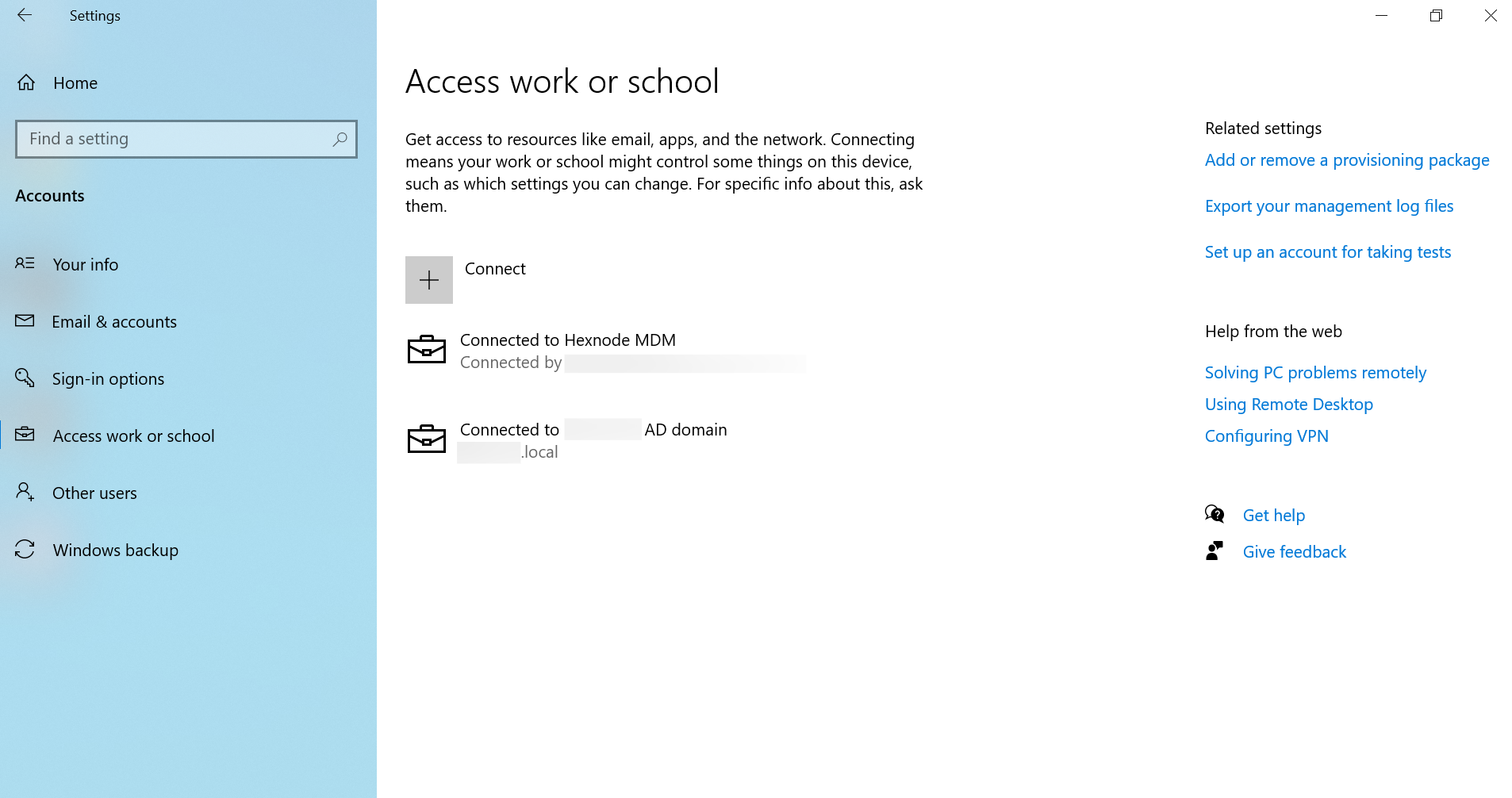
Upon successful execution of the script, the device will undergo an automatic restart. Afterwards, the device is joined to the Active Directory (AD) domain, allowing users to log in to the device using their AD credentials. Upon login, checking Settings > Accounts > Access work or school confirms the connection to the designated AD domain.