


Category filter
Architecting VM Scalability: Preventing Identity Collision in Cloned Environments
In a virtualized environment, administrators often clone a “Master” VM to rapidly deploy new endpoints. However, if this Master VM is already enrolled in Hexnode, cloning it creates a critical conflict known as Identity Collision.
Hexnode identifies devices using a Unique Device Identifier (UDID), which is calculated based on the device’s hardware signatures (BIOS Serial, MAC Address) and the Hexnode Agent’s local database.
If you clone an enrolled VM without “generalizing” it:
- Duplicate UDIDs: The new clone wakes up with the exact same identity as the Master.
- Console Flapping: Hexnode cannot distinguish the Clone from the Master. Both machines report the same device record in the console. When “VM-A” checks in, the record updates. When “VM-B” checks in 5 minutes, it overwrites the record.
- Policy Failure: Commands sent to “VM-A” may be executed by “VM-B” (or neither), leading to compliance failures.
This guide outlines the two strategic workflows to prevent this: the Golden Image Strategy (Recommended) and the Enrolled Clone Remediation (Recovery).
Strategy A: The “Golden Image” Workflow (Recommended)
The safest strategy is to ensure the Hexnode Agent is never installed on the Master Image before cloning. This ensures every clone generates a pristine, unique identity upon its first boot.
The Workflow:
- Build the Master: Create your Windows VM and install necessary business applications/configurations.
- Do Not Enroll: Do not install the Hexnode Agent or sign in to “Access Work or School”.
- Shutdown & Clone: Power off the VM and use your hypervisor (vCenter/Hyper-V) to create clones.
- Enroll the Clones: Use a startup script or Windows Provisioning Package (PPKG) to enroll the clones automatically upon their first boot.
- Why this works: Since the agent installs after the clone is created, it calculates the UDID based on the unique hardware of the new VM, creating a 1:1 mapping in Hexnode.
Strategy B: Cloning an Enrolled Device (Remediation)
If you must clone a VM that is already enrolled (e.g., to preserve complex policy configurations), you must “strip” its identity before the clone goes live. Failure to do this will result in the “Flapping” issue described above.
The “Generalize” Protocol:
You must reset the identifiers on the Master VM so the clone is treated as a “New” device.
Step 1: Remove the Agent (Software Level)
- On the Master VM, uninstall the Hexnode Agent application.
- Note: Simply uninstalling may not be enough if registry keys remain. Ensure the Agent ID is cleared from the registry.
Step 2: Generalize the OS (Hardware Level)
- Run the native Windows Sysprep tool:
- Open Command Prompt as Admin.
- Run: %WINDIR%\system32\sysprep\sysprep.exe
- Select System Cleanup Action: Enter System Out-of-Box Experience (OOBE).
- Critical: Check the Generalize box.
- What this does: This resets the Windows Security ID (SID) and clears hardware-specific configurations.
Step 3: Hypervisor Settings
- When creating the clone in your hypervisor (VMware/Hyper-V), ensure you select the option to “Generate New Identity” (New MAC Address and BIOS UUID).
Hexnode Configuration: Handling Re-enrollment
Even with unique hardware IDs, you must configure how Hexnode reacts when it sees a device that looks like a previous record.
Navigate to: Enroll > Settings > Re-enrollment Options.
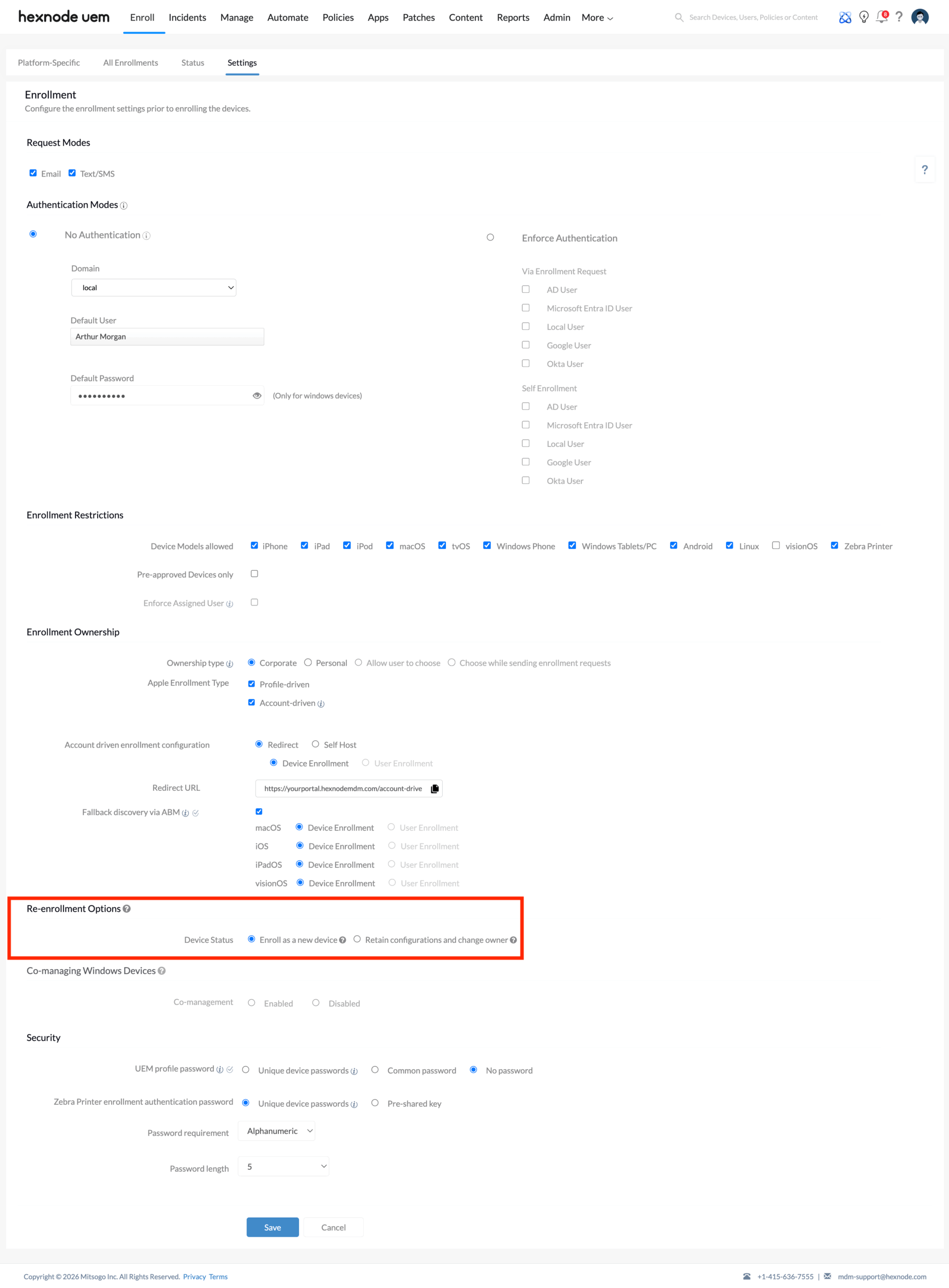
| Setting | Recommendation | Behavior |
|---|---|---|
| Enroll as a new device | Required for Cloning | Hexnode treats the clone as a fresh entry (e.g., “VM-02”), separate from the Master. |
| Retain configurations | Avoid | Hexnode attempts to match the device to an old record. If the clone shares any identifier with the Master, it may hijack the Master’s record, causing data corruption. |


