


Category filter
Threema Work managed app settings for iOS
Threema Work is a secure, GDPR (General Data Protection Regulation)-compliant instant messaging solution designed for businesses to enable fast, efficient, and secure communication among employees. With robust end-to-end encryption, Threema Work ensures the safe exchange of confidential and sensitive information.
This guide provides step-by-step instructions on deploying the Threema Work app to iOS devices using Hexnode UEM, ensuring seamless and secure communication within your organization.
Steps to deploy Threema Work
Adding a License for the MDM System
If your company uses managed devices, you’ll need to add a license for the MDM system.
- Log in to Threema Work Admin Console.
- Navigate to Enter Management Cockpit > User Management.
- Click Add or Add First Users and select License for MDM System.
- Set a username and password as desired.
- You can save the password in plain text or as a hash.
- Plain text: Allows password retrieval later. To do this, navigate to User Management > License for MDM Systems, locate the specific license, click its vertical ellipsis icon, and select Copy Password from the dropdown.
- Hash: Provides additional security but prevents password recovery from the Threema Work Admin Console.
- You can save the password in plain text or as a hash.
- Specify the number of licenses required for the devices that will use Threema Work.
This process will successfully create a license for your MDM system.
Adding the Threema Work app to Hexnode UEM
- Log in to the Hexnode UEM console.
- Navigate to the Apps tab.
- Click + Add Apps and select Store App from the dropdown menu.
- In the dialog box, search for “Threema Work. For Companies” and click Add next to the app listed under iOS.
This adds the Threema Work app to your list of managed apps in Hexnode UEM.
Deploying the app
- Go to the Policies tab.
- Click Device Polices > New Policy > Create a fully custom policy to create a new one or select an existing policy to edit.
- Enter the Policy Name and Description in the provided fields.
- Navigate to iOS > App Management > Required Apps and click Configure.
- Click +Add > Add App and search for the “Threema Work. For Companies” app.
- Select the app and click Done.
Configuring app settings
- Under App Configurations, click Configure to set up the Threema Work app.
- Click +Add New Configuration, choose “Threema Work. For Companies” and click Select. This opens the Configure Application dialog box.
- Click Choose File to upload the XML file customized with the app settings. Once uploaded, click Done and then Save.
- Click Save to apply the changes.
Sample XML configuration
|
1 2 3 4 5 6 7 8 9 10 11 12 13 14 15 16 17 18 19 20 21 22 23 24 25 26 27 28 29 30 31 |
<?xml version="1.0" encoding="UTF-8"?> <!DOCTYPE plist PUBLIC "-//Apple//DTD PLIST 1.0//EN" "http://www.apple.com/DTDs/PropertyList-1.0.dtd"> <plist version="1.0"> <dict> <key>th_license_username</key> <string>eden_pierce</string> <key>th_license_password</key> <string>********</string> <key>th_nickname</key> <string>Eden</string> <key>th_linked_email</key> <string>edenpierce1990@gmail.com</string> <key>th_linked_phone</key> <string>+1-212-456-7890</string> </dict> </plist> |
Threema Work App settings
You can customize how the Threema Work app behaves on iOS devices by setting various restrictions and preferences. These settings help align the app with your organization’s security and usage requirements.
Below is a categorized list of supported settings for iOS that you can configure.
Chat contents
| Settings | Description |
|---|---|
| th_disable_export | If the value is set to true, the user cannot export chats. |
| th_disable_save_to_gallery | If the value is set to true, media files will not be auto-saved to the local gallery. |
| th_disable_message_preview | If the value is set to true, the message preview in push notifications will be disabled. |
| th_disable_share_media | If the value is set to true, saving and sharing media and other files outside of Threema Work will be prevented. |
| th_keep_messages_days | Specify a time span (1 week to 10 years in days) after which old chat messages will be automatically deleted. |
Communication
| Settings | Description |
|---|---|
| th_disable_create_group | If the value is set to true, the user cannot create groups. |
| th_disable_web | If the value is set to true, the desktop app, the web client (Threema Web), and the option to link devices are disabled. |
| th_disable_multidevice | If the value is set to true, the user will not be able to link other devices. |
| th_disable_calls | If the value is set to true, all Threema call types (voice, video, and group) are disabled. Joining group calls is also not possible. |
| th_disable_group_calls | If the value is set to true, all group calls will be disabled. |
| th_disable_video_calls | If the value is set to true, video functionality is disabled for one-to-one calls but not for group calls. |
| th_web_hosts | Specify the servers that the desktop app and web client are allowed to connect to. Provide a comma-separated list of hostnames. To allow connections to all subdomains with a specific suffix, use an asterisk (*) as a wildcard prefix.
Example: signaling.threema.ch,*-signaling-test.threema.ch — this allows exact matches for signaling.threema.ch and any hostname ending with -signaling-test.threema.ch. |
Contacts
| Settings | Description |
|---|---|
| th_contact_sync | If the value is set to true, synchronization with the local address book will be enabled. |
| th_hide_inactive_ids | If the value is set to true, inactive IDs (not used for at least three months) and revoked IDs are hidden. |
| th_block_unknown | If the value is set to true, unknown contacts (not in the device’s contact list) will be blocked. |
| th_disable_add_contact | If the value is set to true, the user cannot manually add contacts. Contacts can only be added through contact sync, the company directory, or by receiving messages from unknown contacts. |
| th_disable_work_directory | If the value is set to true, access to the internal company directory will be denied. |
Backups
| Settings | Description |
|---|---|
| th_safe_enable | If the value is set to true, Threema Safe must be used. If the value is set to false, Threema Safe cannot be used. If the value is not set, Threema Safe remains optional. |
| th_disable_backups | If the value is set to true, the user cannot create any kind of backup. This setting overrides th_safe_enable, th_disable_data_backups, th_disable_system_backups, and th_disable_id_export. |
| th_disable_system_backups | If the value is set to true, Threema data is excluded from iTunes/iCloud backups. |
| th_disable_id_export | If the value is set to true, the user cannot export their Threema ID. |
| th_safe_restore_id | Specify the Threema ID to restore from Threema Safe if th_safe_restore_enable is true. If th_safe_password is also set, the ID is restored without user interaction. |
| th_safe_restore_enable | If the value is set to false, Threema Safe backups cannot be restored. If the value is set to true, restoring a backup in the setup wizard is optional (if th_safe_restore_id is not set) or mandatory (if th_safe_restore_id is set). |
| th_safe_password_message | Set the error message shown if the password entered by the user for Threema Safe doesn’t match the pattern defined in th_safe_password_pattern. |
| th_safe_password_pattern | Regular expression (Regex) that defines the allowed password format for Threema Safe. If not set, only a minimum length of 8 characters is enforced. Note that regex must be compatible with NSRegularExpression. |
| th_safe_server_password | Password for HTTPS authentication on the Threema Safe server defined in th_safe_server_url, if required. |
| th_safe_server_url | URL of the custom Threema Safe server (e.g., examplecompany.com/threemasafe). |
| th_safe_server_username | Username for HTTPS authentication of the Threema Safe server defined in th_safe_server_url, if required. |
| th_id_backup | Provide precalculated key pairs (Threema IDs) and restore ID backups (“ID exports” in newer versions). |
| th_id_backup_password | Set the password for the ID backup/export defined in th_id_backup. |
| th_safe_password | Set the password to encrypt (or restore, if th_safe_restore_id is set) Threema Safe backups. |
Profile
| Settings | Description |
|---|---|
| th_license_username | Set the username required to activate the app. |
| th_license_password | Set the password required to activate the app. |
| th_lastname | Specify the last name of the user. |
| th_firstname | Specify the first name of the user. |
| th_category | Specify the user category (e.g., group, department). |
| th_department | Specify the department of the user. |
| th_job_title | Specify the job title of the user. |
| th_nickname | Specify the nickname. The nickname appears in contact details and push notifications. |
| th_linked_email | Specify the email address linked to a Threema ID. It is used for contact synchronization. |
| th_linked_phone | Specify the phone number linked to a Threema ID (must be in international format, e.g., +41555114900). It is used for contact synchronization. |
| th_csi | Specify the CSI (Customer Specific Identifier). This can be any value (e.g., an internal employee ID). It appears in the management cockpit and company directory and helps uniquely identify employees, especially in cases of similar names. |
| th_readonly_profile | If the value is set to true, the user is prevented from editing their nickname, profile picture, linked email/phone, exporting/deleting their ID, and setting an ID revocation password. |
| th_skip_wizard | If the value is set to true, the setup wizard that appears on the first app launch is skipped. |
| th_disable_send_profile_picture | If the value is set to true, the user’s profile picture will not be shared with others. |
Associating the policy
If the policy has not been saved,
- Navigate to Policy Targets > +Add Devices.
- Choose the target devices and click Ok. Click Save.
- You can also choose to associate the policy with Device Groups, Users, User Groups, or Domains/OUs from the left pane of the Policy Targets tab.
If the policy has been saved,
- Go to the Policies tab under Device Policies and choose the desired policy.
- Click on the Manage drop-down and select Associate Targets.
- Choose the target entities and click Associate.
Using Install Application remote action:
Updating App Configuration
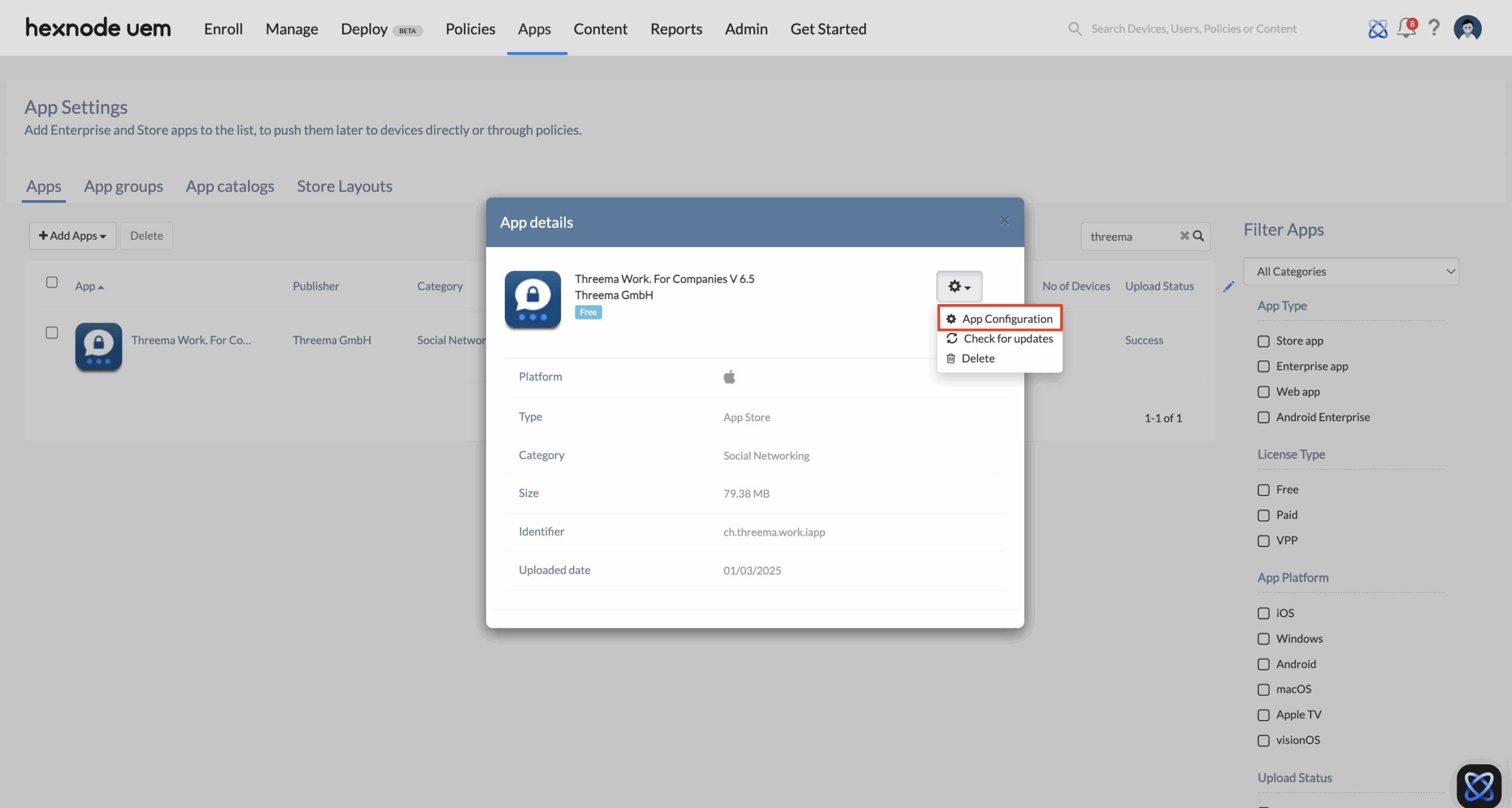
- Navigate to the Apps tab, search for “Threema Work. For Companies” and click on it to open the App Details dialog box.
- Click the gear icon in the top-right corner and select App Configurations.
- Choose Update App Configuration, then click Choose File to upload the XML file with your customized app preferences.
- Click Save.
Deploying the app to devices
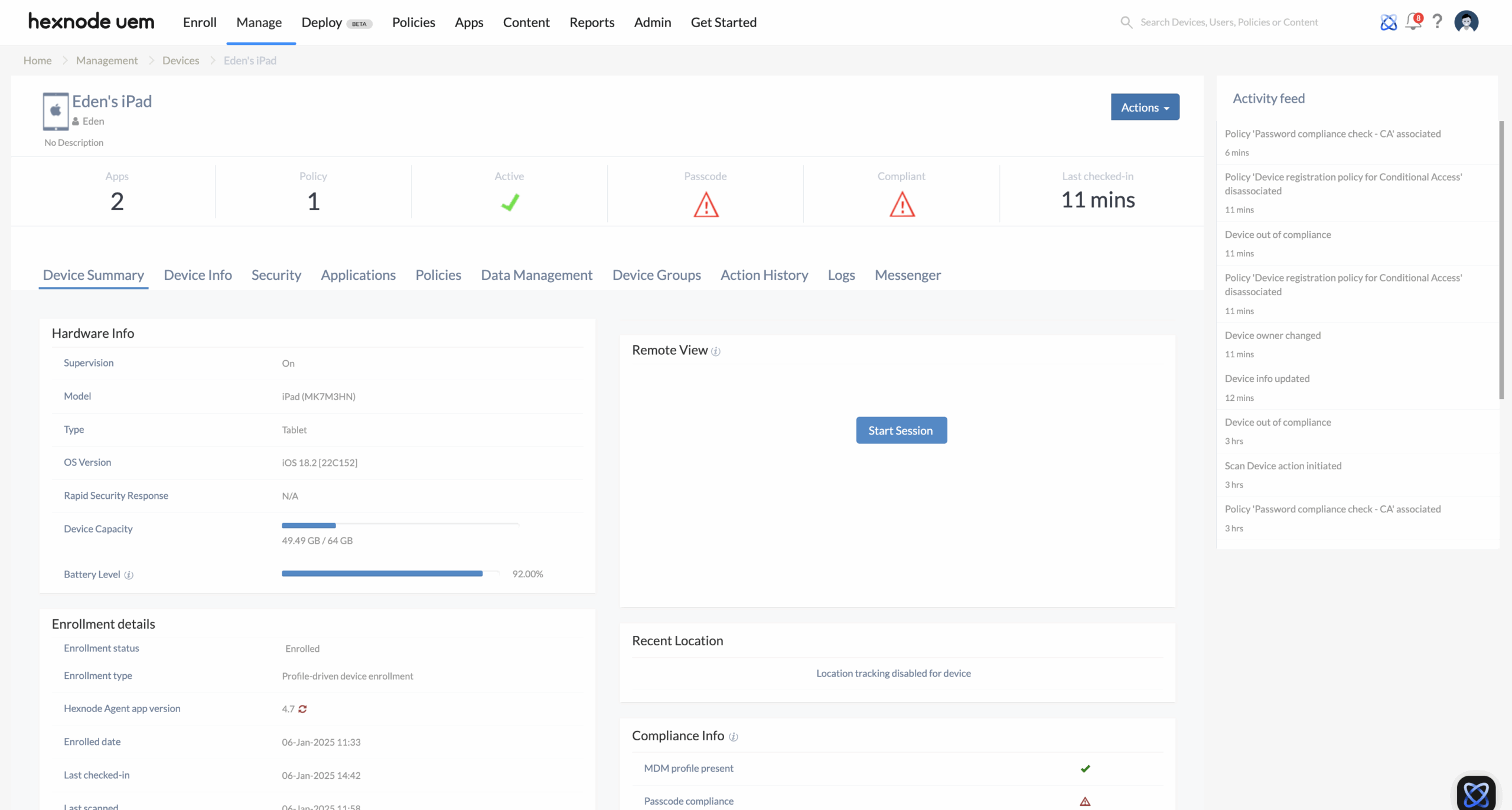
- Go to the Manage tab.
- Select the iOS device to which you want to deploy the app.
- Click Actions and choose Install Application.
- Search for “Threema Work. For Companies“, select the app, and click Install.
What happens at the device end after deploying the Threema app configurations?
On the device:
- The “Threema Work. For Companies” app will be automatically installed.
- Open the app and tap Start Setup.
- Move your fingers on the screen to generate a unique Threema ID, which will be exclusive to the user.
- Enter a new password for the profile and confirm it by re-entering the password.
- Your nickname, phone number, and email address will be pre-filled, along with other settings based on the configuration defined in the XML file.
- Complete the setup by tapping Finish.
The Threema Work app will now be successfully deployed and configured on the iOS devices.


