


Category filter
Set up Account driven enrollment for Apple devices
Account-driven enrollment is the modern, user-friendly method for enrolling Apple devices (Mac, iPhone, iPad) into Hexnode UEM. This process streamlines device setup by allowing end-users to enroll simply by signing in with their Managed Apple Account directly in the device’s settings, eliminating the need to download MDM profiles via external links.
Key Benefits and Supported Types
This method is highly effective for:
- BYOD Scenarios: Easy access to corporate resources from personal devices.
- Non-ADE Corporate Devices: Offers a seamless alternative for organization-owned devices not enrolled in Apple’s Automated Device Enrollment (ADE).
Account-driven enrollment supports two primary deployment types:
- Account Driven User Enrollment (mdm-byod): Intended for BYOD, enabling management of personal devices with privacy restrictions.
- Account Driven Device Enrollment (mdm-adde): Intended for company-owned devices (Corporate), offering broader management control.
Prerequisites
Before setting up Account-Driven Enrollment on Apple devices, ensure the following requirements are met.
- Managed Apple Account: A Managed Apple Account is mandatory for account driven enrollment.
- APNs Certificate: Ensure a valid APNs certificate is configured in the Hexnode UEM portal.
- Profile-Driven Deprecation: Note that Profile-driven User Enrollment is no longer supported on iOS 18+ devices.
- Unsupervised Devices Only: Account-driven enrollment is not supported on Supervised devices.
- OS Version Support:
- User Enrollment: Supported on iOS 15, iPadOS 15, macOS 14, and visionOS 1.1 or later.
- Device Enrollment: Supported on iOS 17, iPadOS 17, macOS 14, and visionOS 1.1 or later.
Steps to Perform Account-Driven Enrollment
Step 1: Set up Service Discovery (Web Server Hosting)
Before starting the Hexnode portal configuration, you must prepare the web server to enable Service Discovery, allowing the device to find the Hexnode UEM enrollment portal.
1. Process Overview (How Service Discovery Works)
When a user signs in with a Managed Apple Account (e.g., john@mycompany.com):
- The device extracts the domain information (mycompany.com).
- The device sends an HTTP request to the corresponding web server for the enrollment information.
- The device uses this information to redirect the user to the Hexnode enrollment portal.
2. Configuration Type Choice
The method depends on the Account driven enrollment configuration chosen in Step 2:
- Self-host: Requires creating and hosting a JSON file on your web server (details below).
- Redirect: When enabled, the devices are redirected to Hexnode’s MDM enrollment service through a redirect URL, eliminating the need to create the JSON file manually. You must copy the URL provided in the Hexnode portal and configure it on your web server.
3. Creating the JSON File (Self-Host Method Only)
For the device to communicate with the Hexnode UEM server, you must create a JSON file defining the Version (enrollment type) and the Base URL (Hexnode portal URL):
For Account Driven User Enrollment (mdm-byod):
|
1 2 3 4 5 6 7 8 |
{ "Servers": [ { "Version": "mdm-byod", "BaseURL": "https://PortalName.hexnodemdm.com/userenroll/" } ] } |
For Account Driven Device Enrollment (mdm-adde):
|
1 2 3 4 5 6 7 8 |
{ "Servers": [ { "Version": "mdm-adde", "BaseURL": "https://PortalName.hexnodemdm.com/enroll/" } ] } |
Remember to replace PortalName with your organization’s actual Hexnode UEM portal name.
Web Server Hosting Requirements
- You can host the Hexnode UEM enrollment information on any secure web server.
- If the verified domain used for Managed Apple Accounts is already configured to host files, you can place the enrollment information there.
- If the domain is not set up for hosting, you will need to create a web server to store and serve the enrollment information.
- Setting up this server can be tricky. Please ask your company’s web services or IT team for help to make sure it’s done correctly and securely.
4. Requirements for Hosting
The enrollment information must be hosted on a web server meeting these strict criteria:
- The web server must support HTTPS GET requests.
- The web server URL must be in the exact format: https://company.com/.well-known/com.apple.remotemanagement
- “company.com” must match the verified domain associated with the Managed Apple Accounts.
- The SSL certificate for the web server must be issued by a trusted certificate authority. For a list of trusted root certificates on iOS devices, see lists of available trusted root certificates in iOS from Apple’s support website.
Step 2: Configure Enrollment Settings in Hexnode UEM
- Login to your Hexnode UEM portal.
- Navigate to Enroll > Settings.
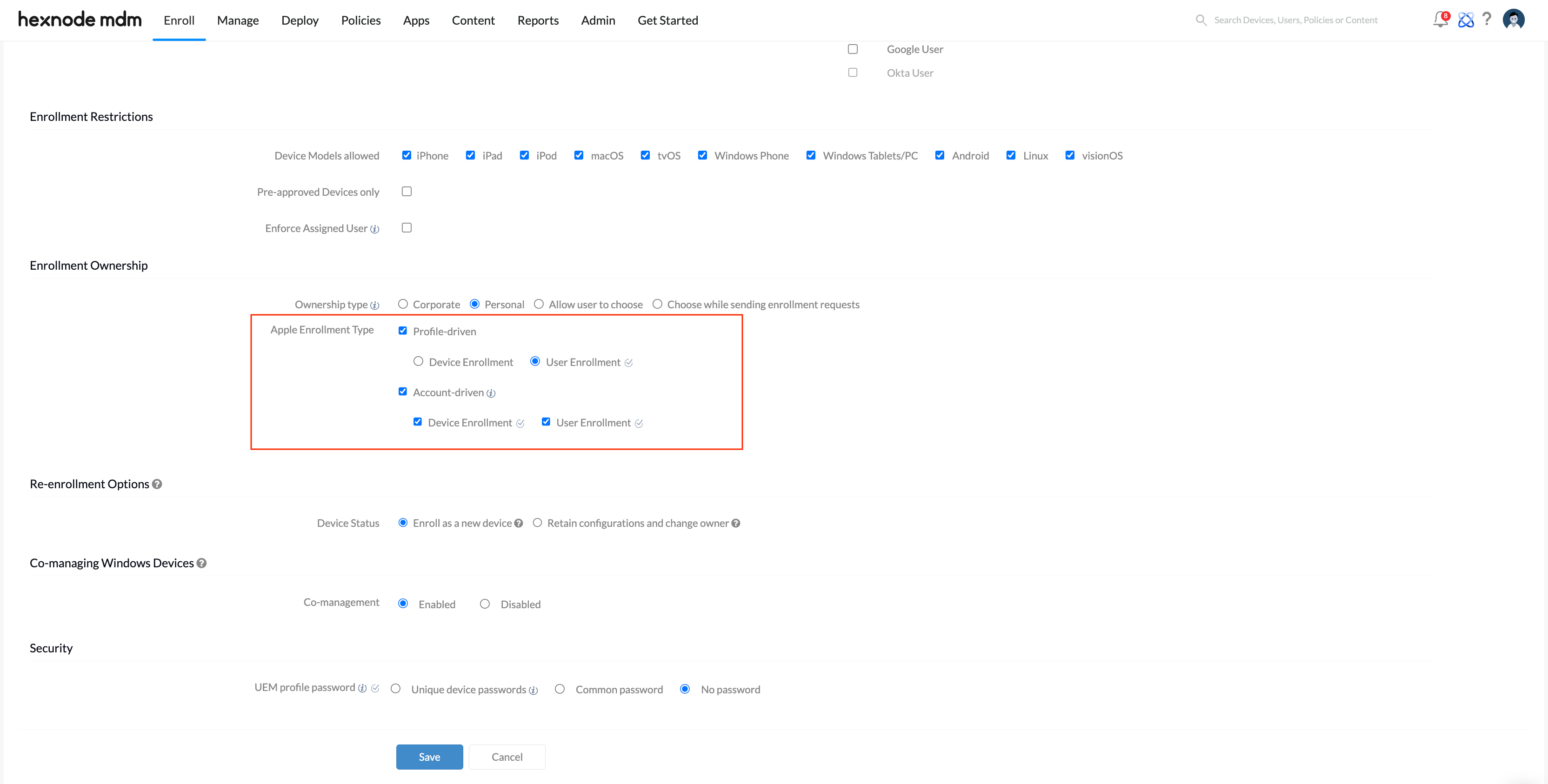
- Scroll to the Enrollment Ownership section and configure the Apple Enrollment type based on your Authentication Mode:
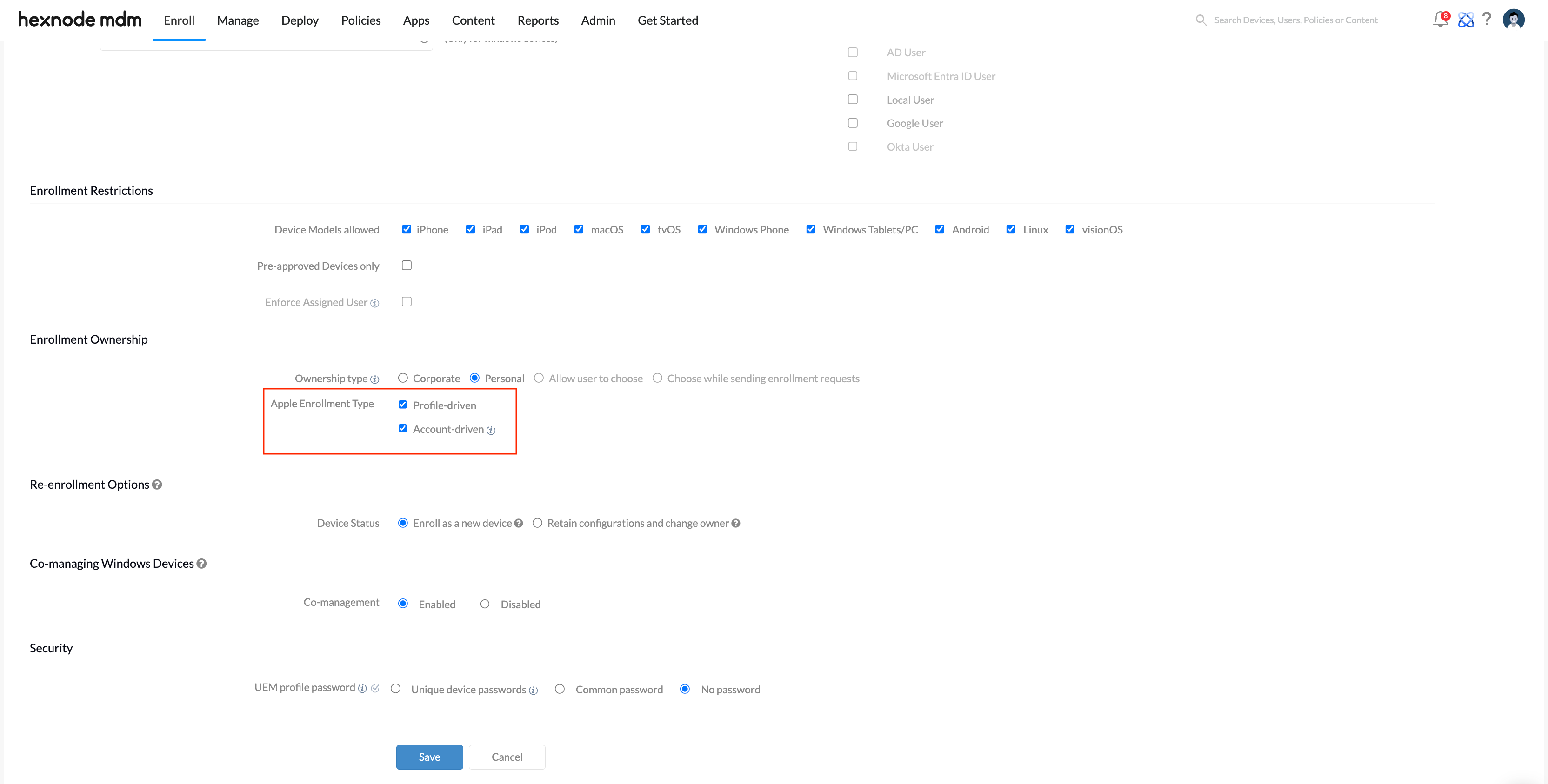
Authentication Mode Ownership Check Account driven Option Profile-Driven Section Note No Authentication Corporate and Personal Yes N/A Enforce Authentication Corporate and Personal Yes For Personal and Choose while sending enrollment requests, you can select both Device and User Enrollment under the Account driven section.
Choose Configuration Type: Under Account driven enrollment configuration:- Select Redirect if you are using Hexnode’s generated URL.
- Select Self-host if you created and hosted the JSON file.
- Fallback Discovery: Optionally enable Fallback discovery via ABM (for iOS/iPadOS 18.2+, macOS 15.2+, visionOS 2.2+) to allow devices to contact ABM for the MDM server if the primary discovery URL fails.
- Click Save.
Configuration Matching is Critical:
- The domain used in the Managed Apple Account must be verified and assigned to the MDM server in Apple Business Manager.
- The enrollment type configured in your Managed Apple Account must match the enrollment type selected in the Hexnode UEM portal. Any mismatch (e.g., Portal set to Device Enrollment, but ABM domain set to User Enrollment) will cause the enrollment to fail.
Step 3: Initiate Enrollment from the Device
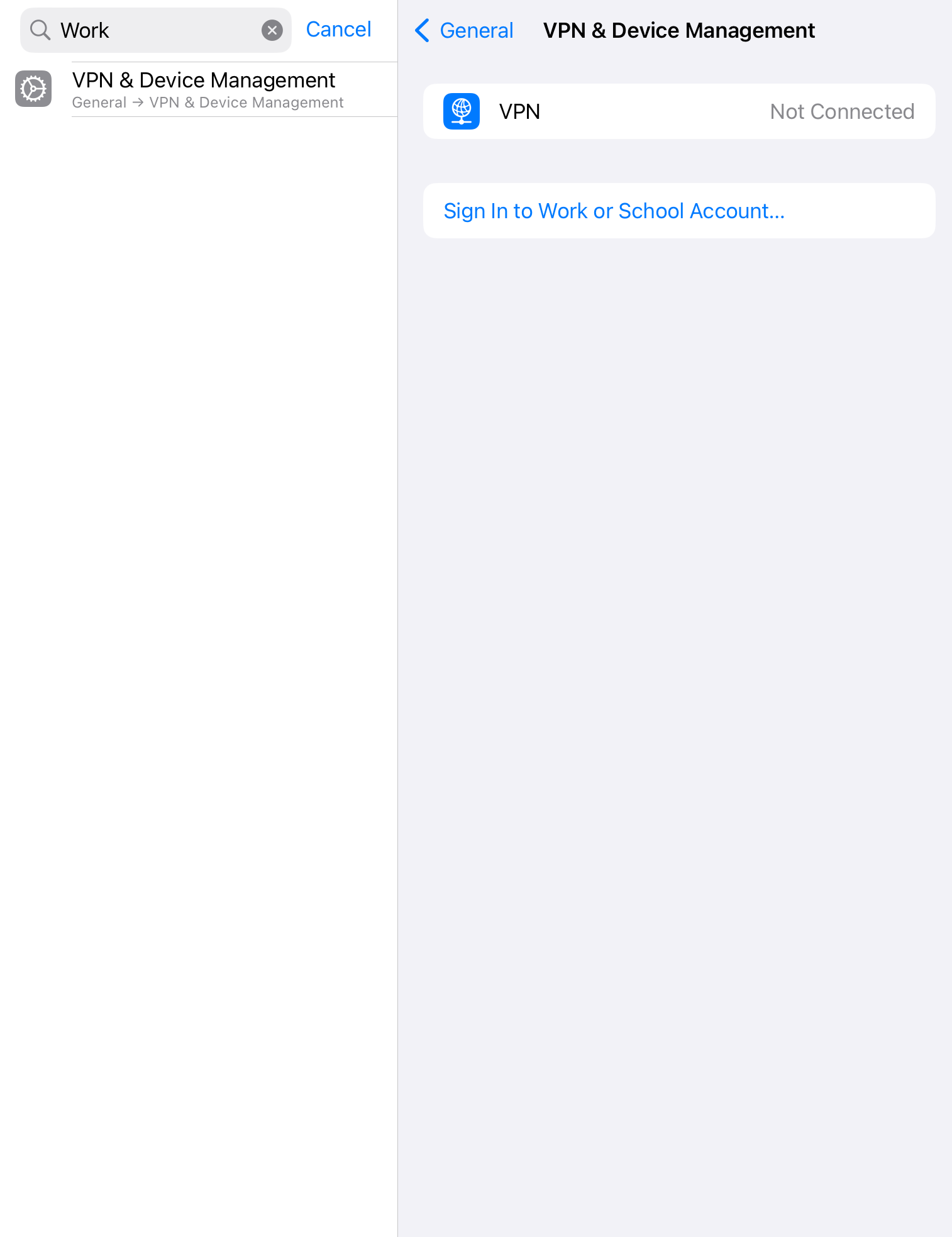
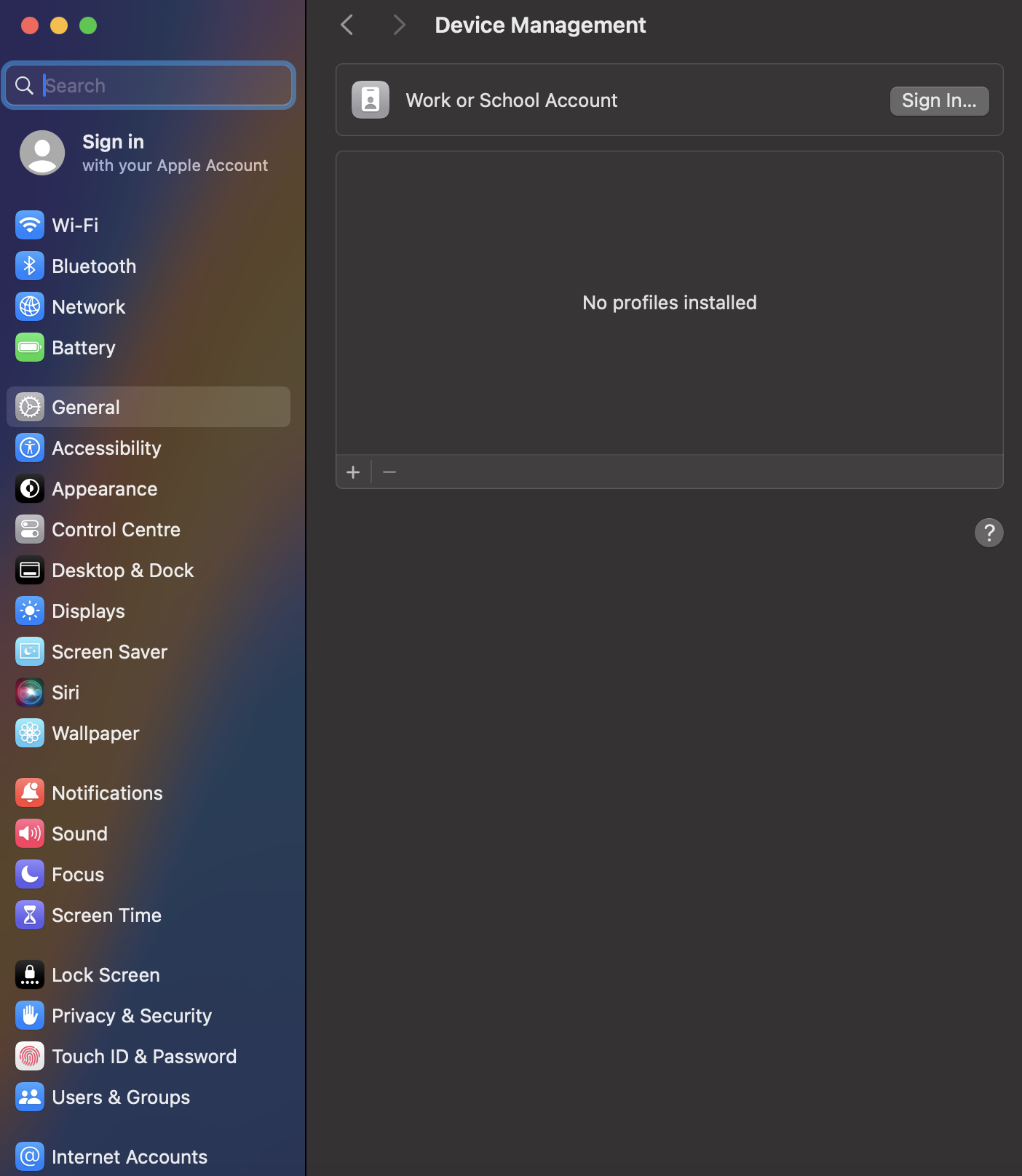
The user initiates the Account-Driven Enrollment process directly from the device settings:
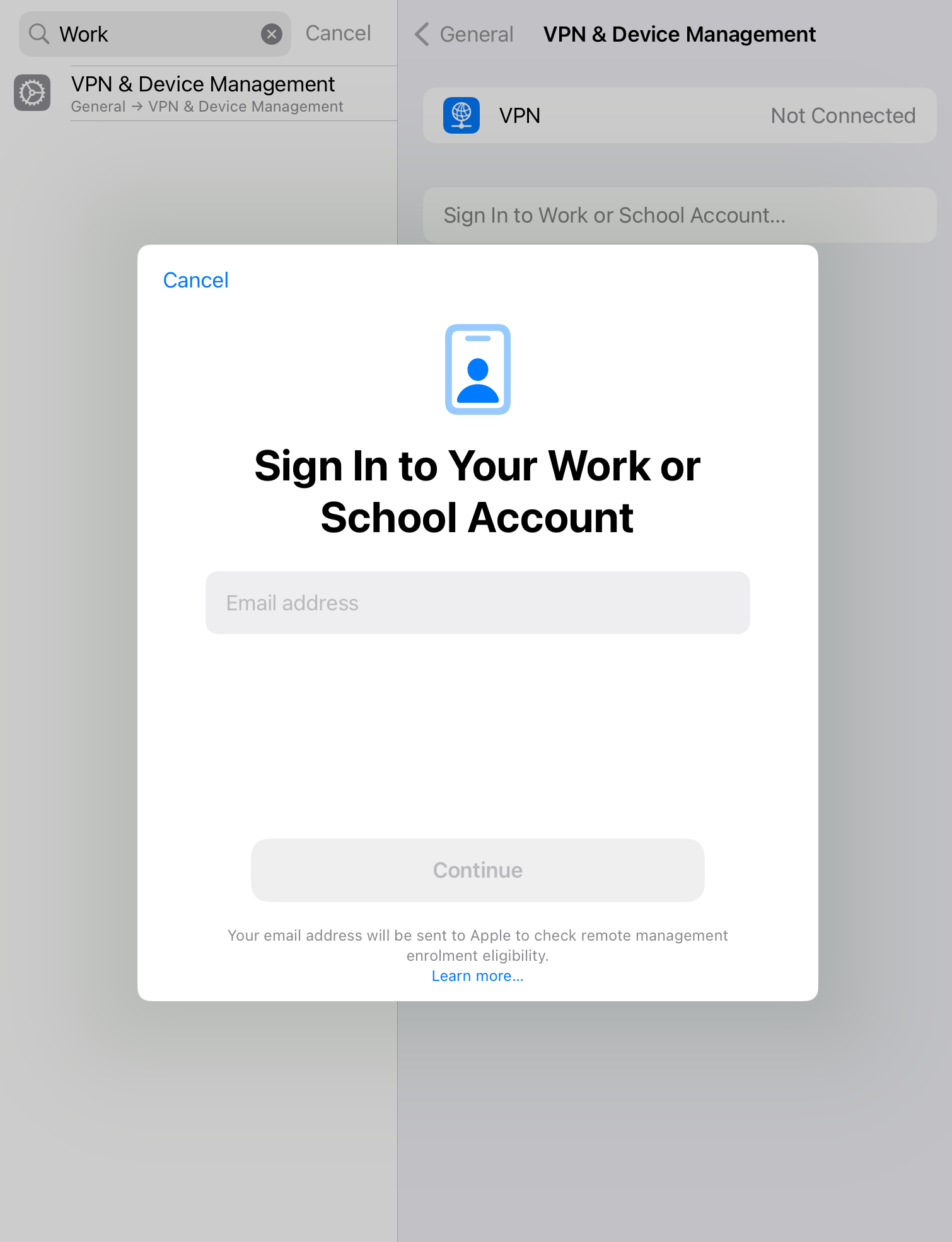
- On iPhone/iPad: Navigate to Settings > General > VPN & Device Management > Sign in to Work or School Account.
- On Mac: Navigate to Settings > General > Device Management > Work or School Account > Sign In.
- Enter the Managed Apple Account and tap Continue.
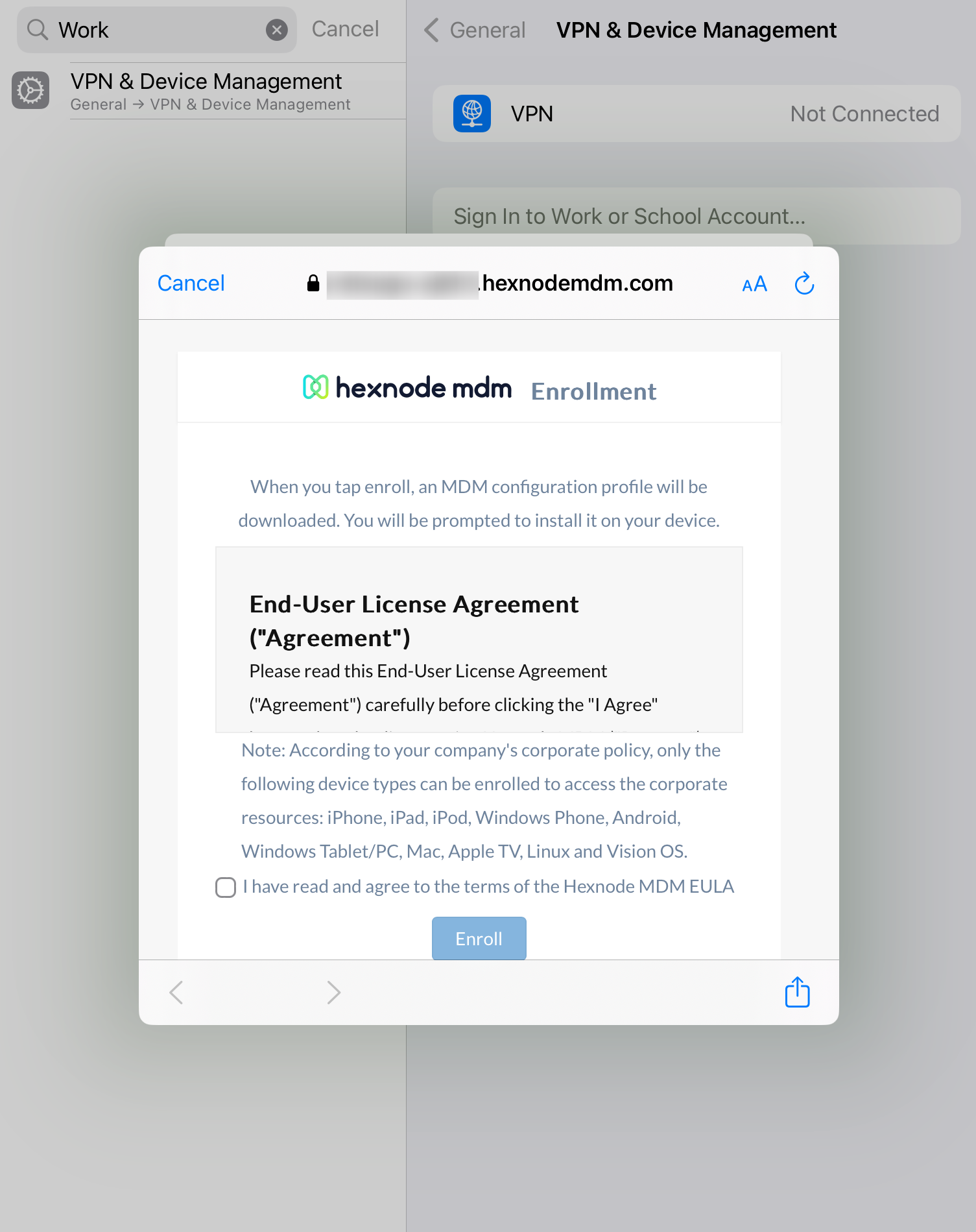
- The device performs service discovery and redirects to the Hexnode enrollment page (with the EULA). Review and click Enroll.
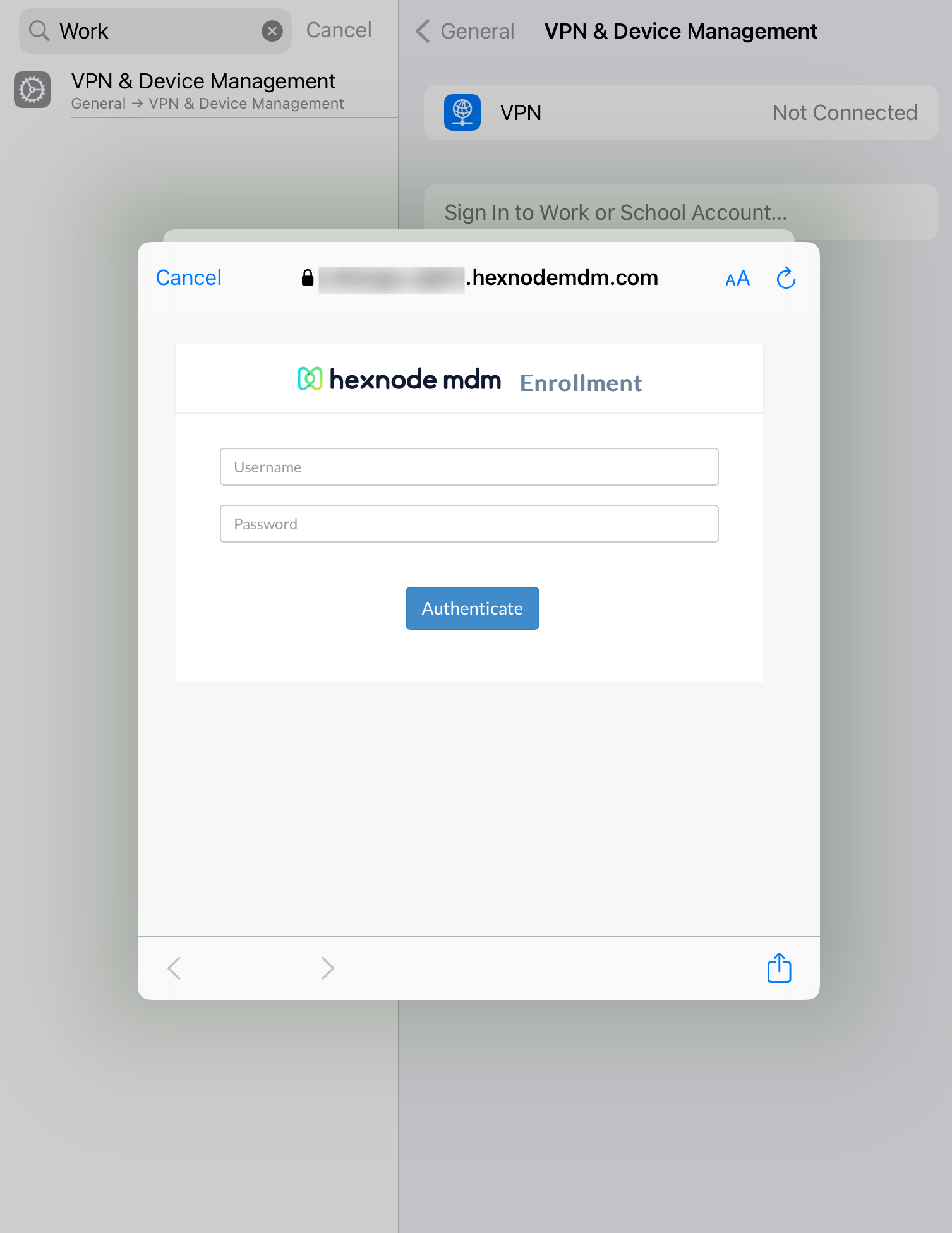
- If Authentication is enforced in the portal, the user will be prompted to authenticate; otherwise, the enrollment proceeds.
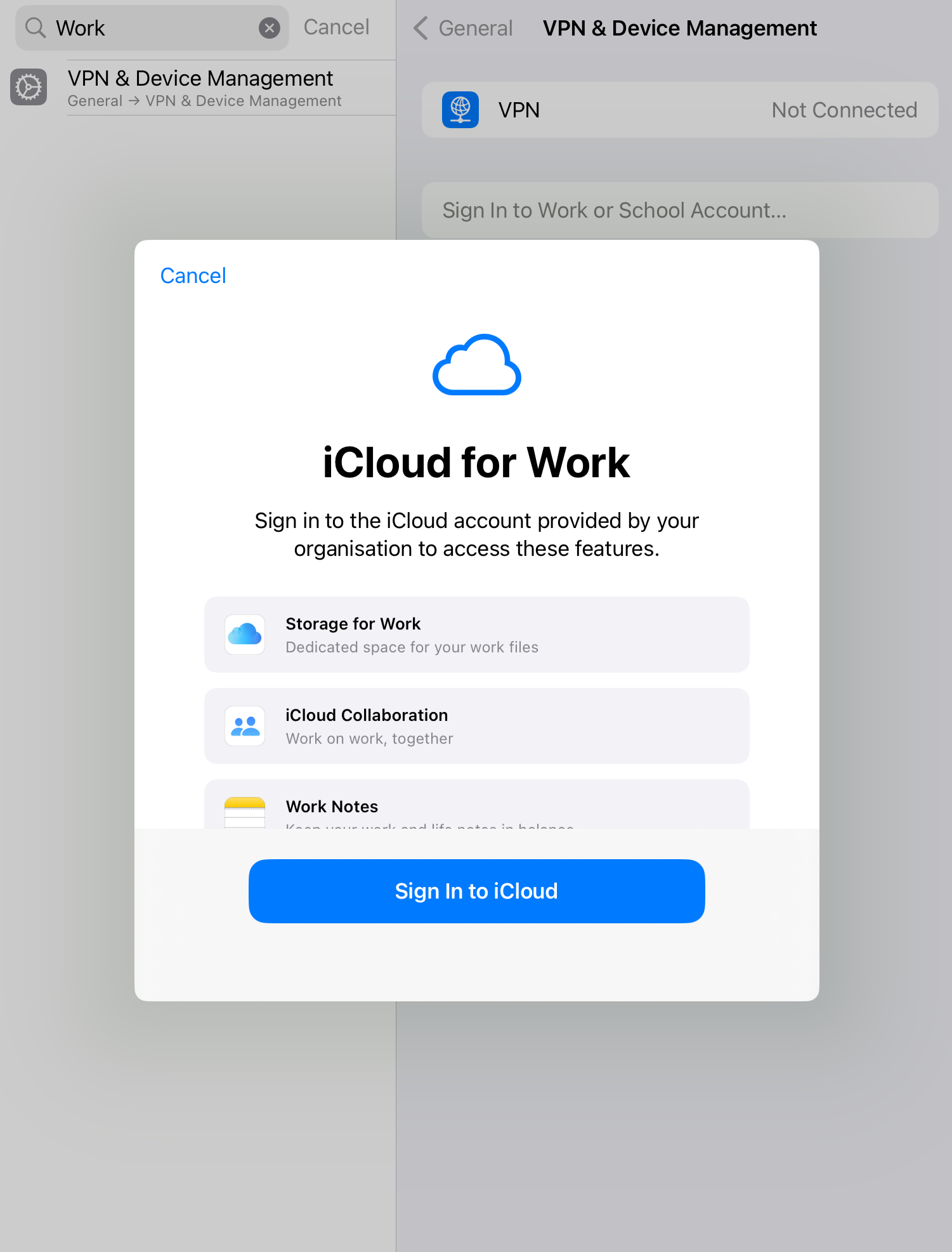
- The device prompts the user to sign in to iCloud using the Managed Apple Account password.
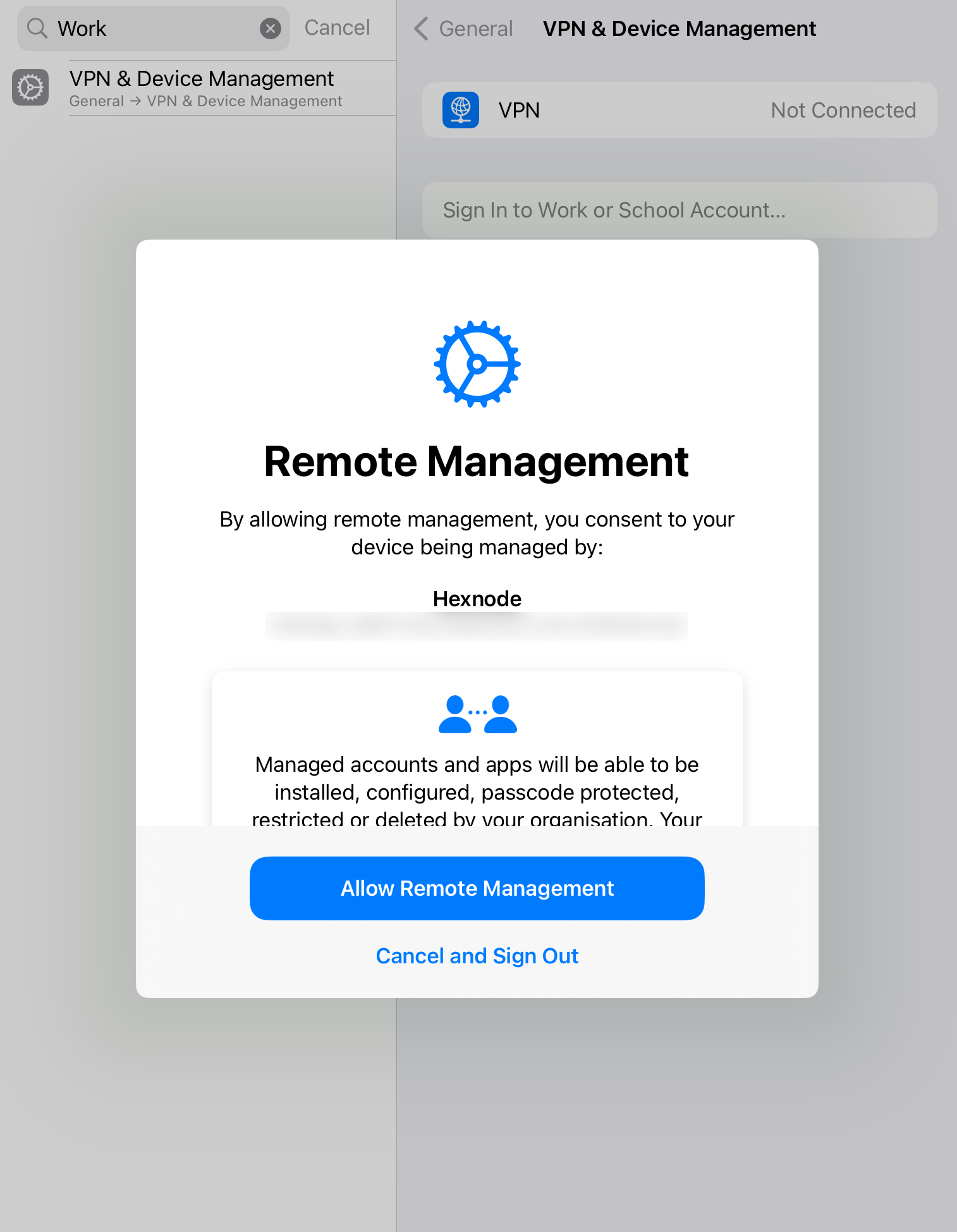
- Tap Allow when prompted for Remote Management.
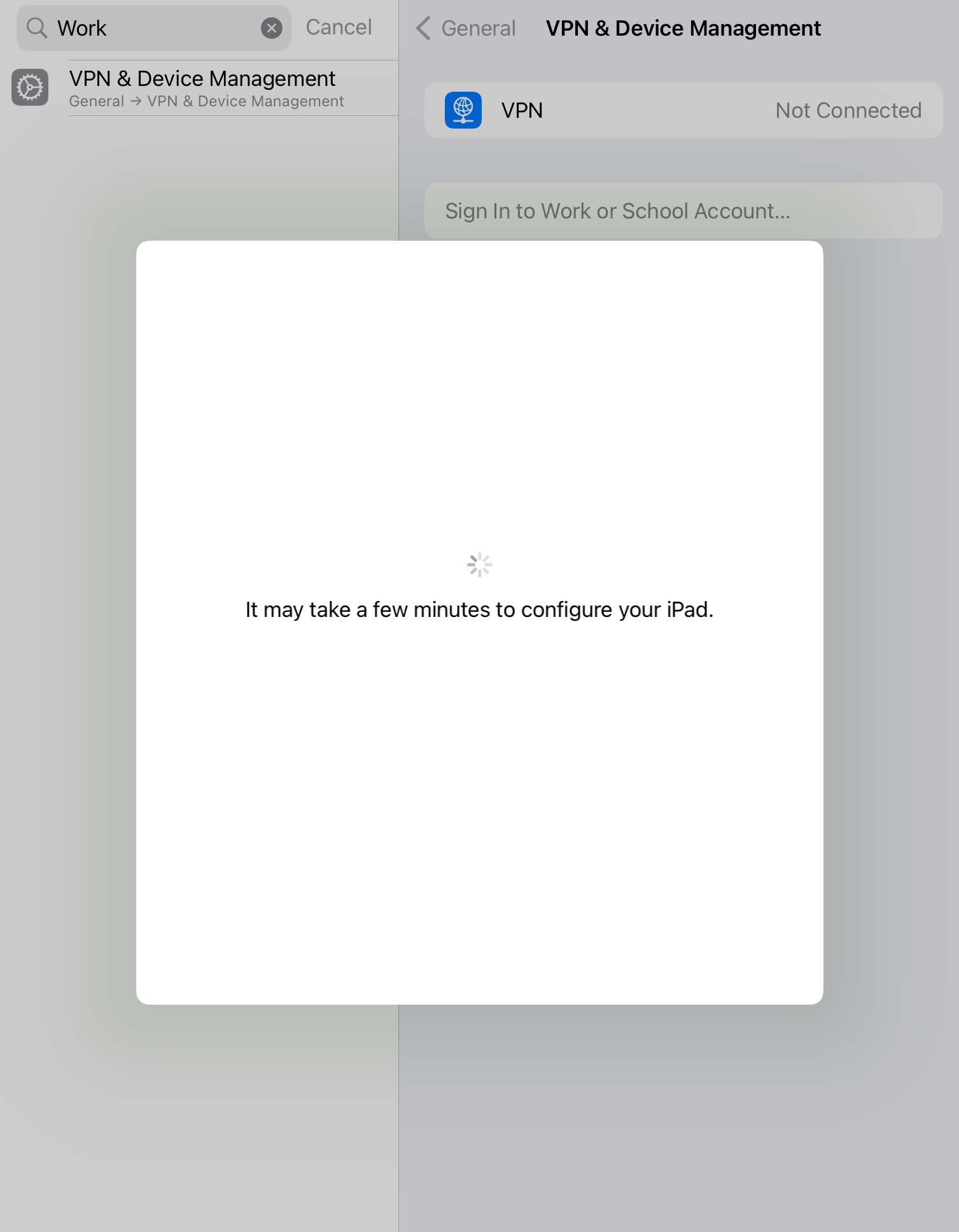
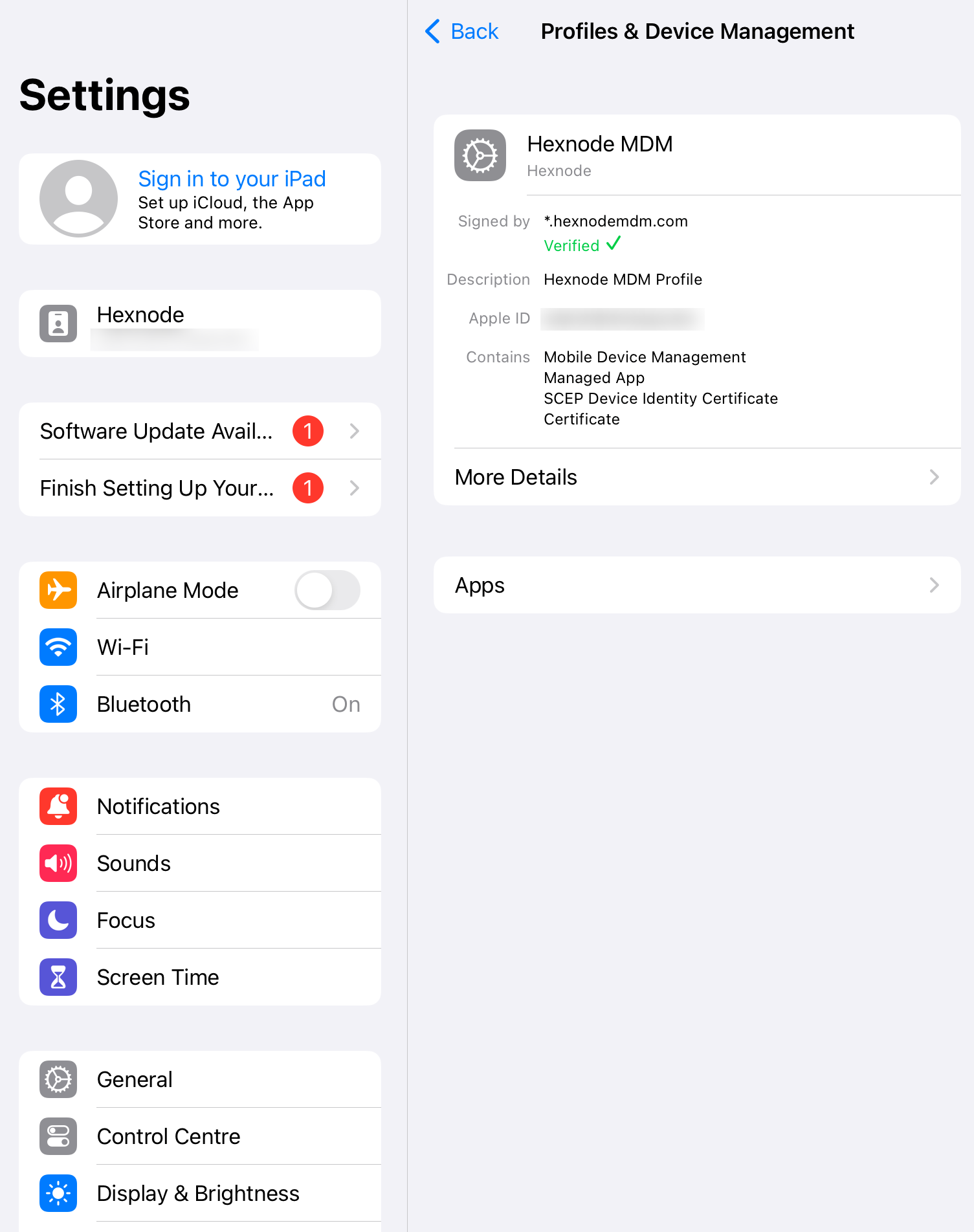
- The device completes enrollment and the managed account will be visible in the Profile & Device Management section.
Post-Enrollment Verification
After successful enrollment:
- User Action (iOS/iPadOS): Users will be prompted to install the Hexnode UEM app.
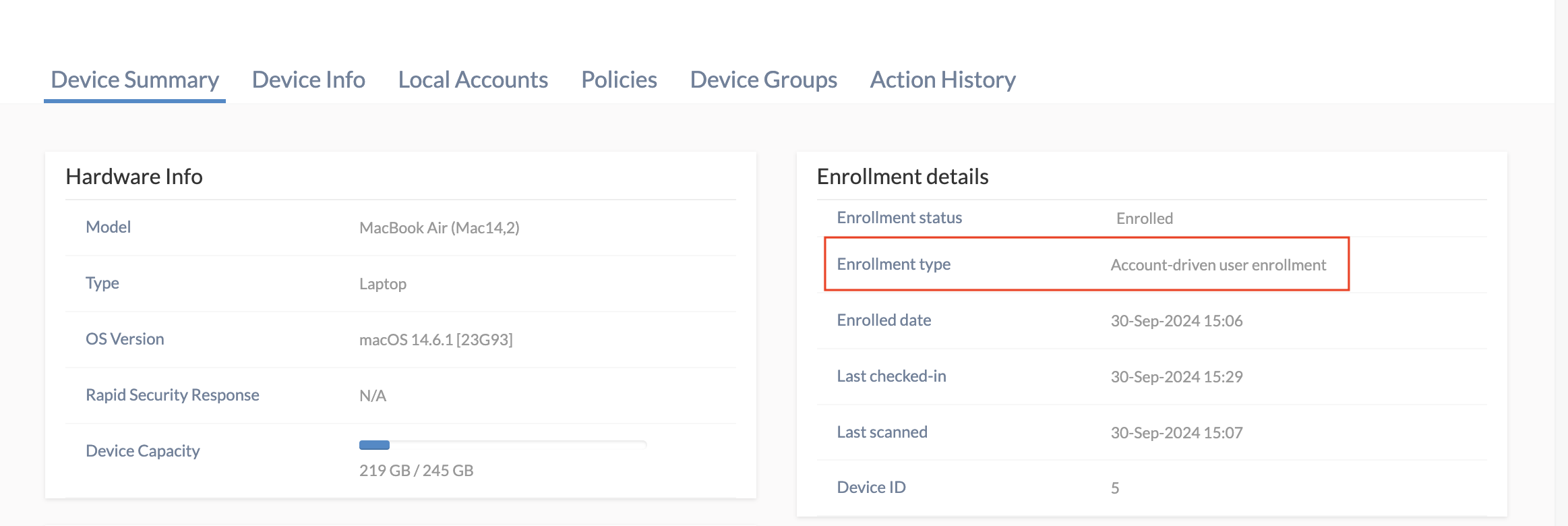
- Admin Action: The device will be listed in the Hexnode UEM portal under the Manage > Devices section. The full enrollment details, including the enrollment type (mdm-byod or mdm-adde), are available in the Device Summary > Enrollment Details section.
Frequently Asked Questions (FAQs)
Q1. Is a JSON file always required for Account-Driven enrollment?
No. If you select Redirect as the Account driven enrollment configuration type in Hexnode UEM, you only need to configure the Redirect URL on your web server; you are not required to create the JSON file.
Q2. Why is Account-Driven Enrollment failing with a configuration mismatch error?
This usually means the enrollment type configured in Hexnode UEM (e.g., Device Enrollment) does not match the enrollment type assigned to your organization’s domain within your Managed Apple Account/ABM portal. Both must be set to the same type (Device or User Enrollment).


