


Category filter
Integrate ServiceNow with Hexnode UEM
Understanding ServiceNow
ServiceNow is a cloud-based platform that helps organizations automate and streamline their IT and business workflows. It provides tools for IT Service Management (ITSM), IT Operations Management (ITOM), and IT Asset Management (ITAM) to improve service delivery. Beyond IT, ServiceNow also supports HR, customer service, and security operations. Overall, ServiceNow helps enterprises digitize workflows, enhance efficiency, and improve employee and customer experiences.
For IT teams, ServiceNow acts as a centralized system for managing service requests, incidents, and changes. It ensures that employee-reported issues are tracked and resolved efficiently while maintaining accountability across processes. However, when these issues relate to user devices or applications, technicians often need more context about the affected endpoint. Integrating ServiceNow with a unified endpoint management solution like Hexnode UEM closes this gap by linking user incidents with real-time device and user data.
Why integrate ServiceNow with Hexnode UEM?
The ServiceNow integration with Hexnode UEM creates a two-way connection between endpoint and service management systems. From the Hexnode console, technicians can view ServiceNow incidents linked to users or devices. In ServiceNow, technicians can access synced user and device details from Hexnode and perform remote actions on devices based on raised incidents.
Overview of the ServiceNow–Hexnode integration setup
The ServiceNow–Hexnode UEM integration can be configured in one or both directions, depending on how your organization wants to connect the two platforms. Each direction serves a specific purpose and can be enabled independently or together for full synchronization.
Configure the integration in one or both directions to match your workflow:
| Integration Type | Configured From | Purpose | Where the Action/Incident is viewed or performed |
|---|---|---|---|
| Hexnode → ServiceNow | From the Hexnode console | Allows ServiceNow technicians to view incidents linked to Hexnode users and perform remote actions on the devices associated with those users directly from the incident form in ServiceNow. | ServiceNow (from the Incident form’s Hexnode Actions section) |
| ServiceNow → Hexnode | From the ServiceNow instance | Enables Hexnode technicians to view ServiceNow-generated user incidents directly in the Hexnode console to improve context and resolution time. | Hexnode console (under Manage > User details or Configured Integrations > ServiceNow) |
Once configured, both platforms stay synchronized, enabling unified incident tracking and endpoint management.
Let’s see how to set up the integration from Hexnode and ServiceNow.
Integrate Hexnode UEM in ServiceNow
To configure Hexnode UEM with ServiceNow, generate an API key from the Hexnode console. This key allows technicians to perform Hexnode remote device actions directly from the ServiceNow incident form.
The integration setup involves two steps completed from the Hexnode console. First, create a Hexnode API key to link to your ServiceNow instance. Then, configure the integration in ServiceNow using that key. Follow the steps below.
Step 1: Generate the Hexnode API key
- Log in to your Hexnode UEM console.
- Navigate to Admin > Integrations > Available Integrations.
- Select the ServiceNow tile from the list of available integrations.
- On the integration page, under Create Hexnode API Key, configure the following options:
- Instance Name: Specify a name to identify this integration. All actions performed using this setup will be tagged with the specified name.
- Instance URL: Enter the URL of the ServiceNow instance where the integration will be configured.
- Expiry Date: Set an expiry date for the generated API key.
- Notify Admin via Email on API Expiry: Select this option to notify the admin by email when the API key expires.
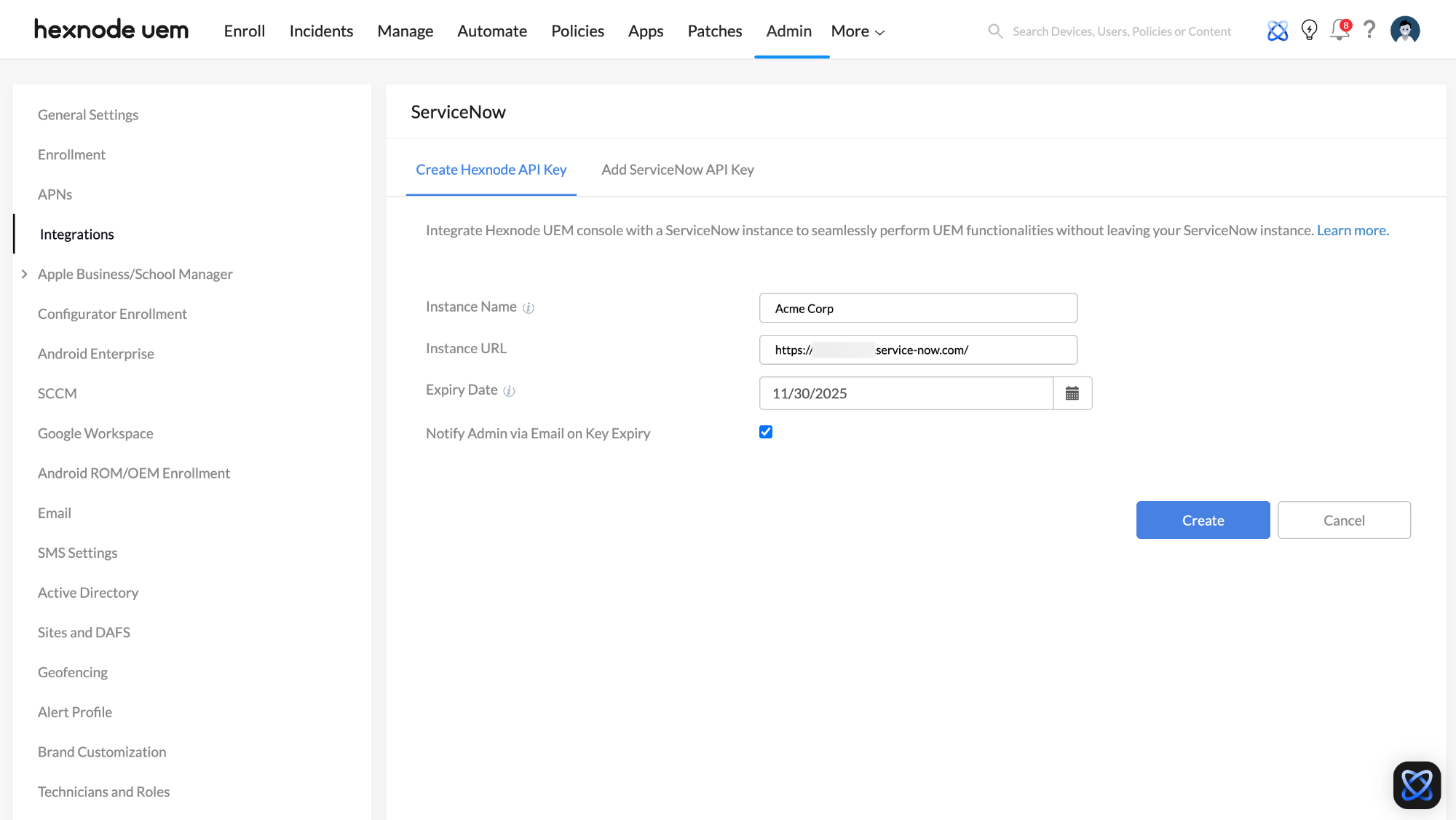
- Click Create to generate the API key.
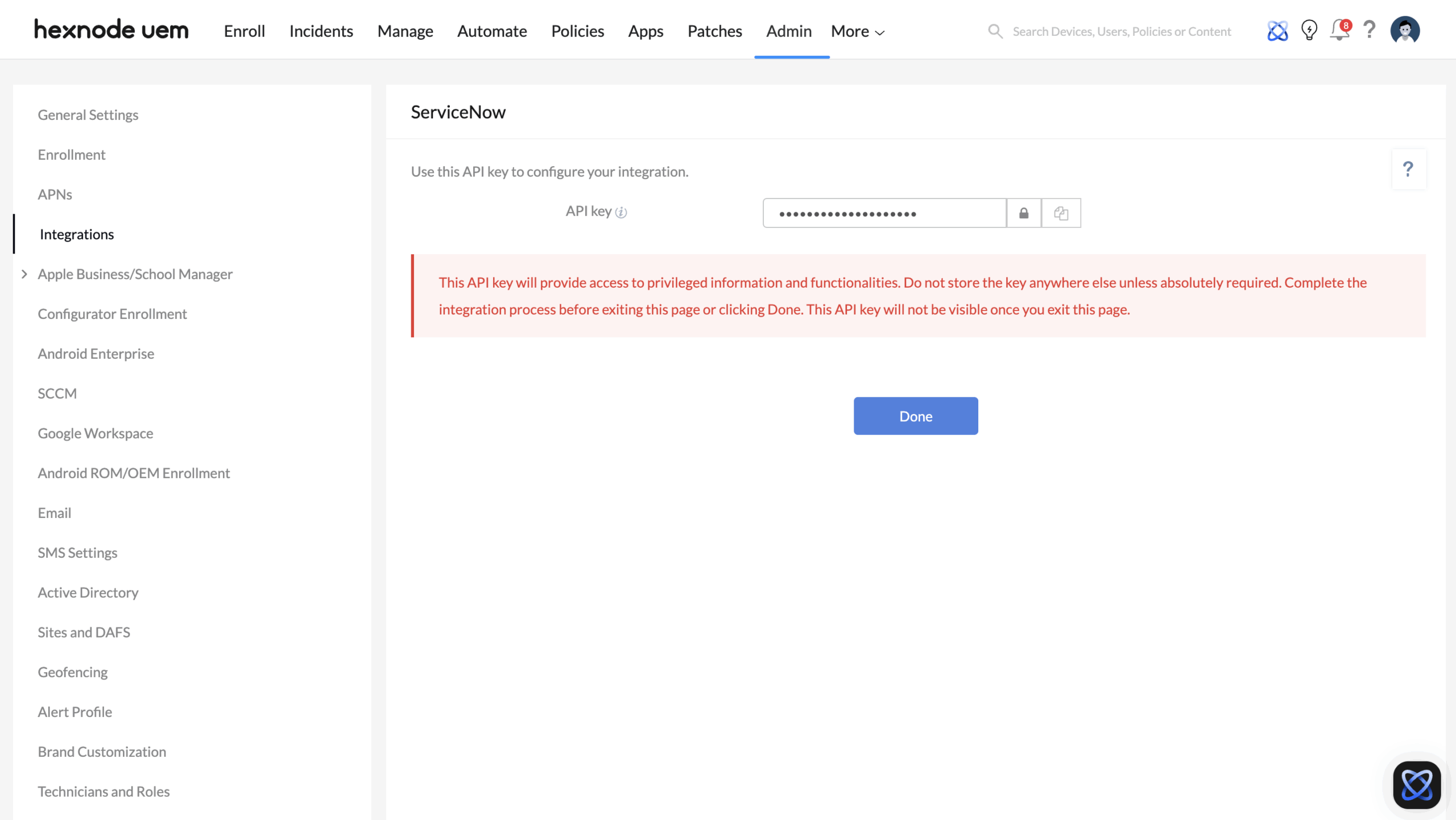
Use the API key to configure the integration in ServiceNow
Once created, the API key appears on the screen. Use this key to configure the Hexnode UEM app in your ServiceNow instance. Follow the steps below to complete the integration in ServiceNow while remaining on this page. The API key will no longer be visible once you exit by clicking “Done”, so ensure the setup is completed before leaving.
Now, proceed to the ServiceNow console to complete the integration using the generated API key.
Step 2: Configure the integration in ServiceNow
- Sign in to the ServiceNow Store and search for Hexnode Integration.
- Click Get to add the Hexnode Integration application to your ServiceNow instance.
If you are not logged in, you will be prompted to sign in. Once authenticated, the application will be added and you will be redirected to your ServiceNow console. - From the dashboard, click All, search for Hexnode, and select Hexnode Integration.
- On the Configure Integration page, enter the following details:
- Server: Enter the URL of your Hexnode UEM console, for example, https://example.hexnodemdm.com/
- API Key: Paste the API key generated from your Hexnode UEM console and click Next.
- Choose whether to grant access to all technicians or only to specific technicians.
- Click Submit to complete the integration.
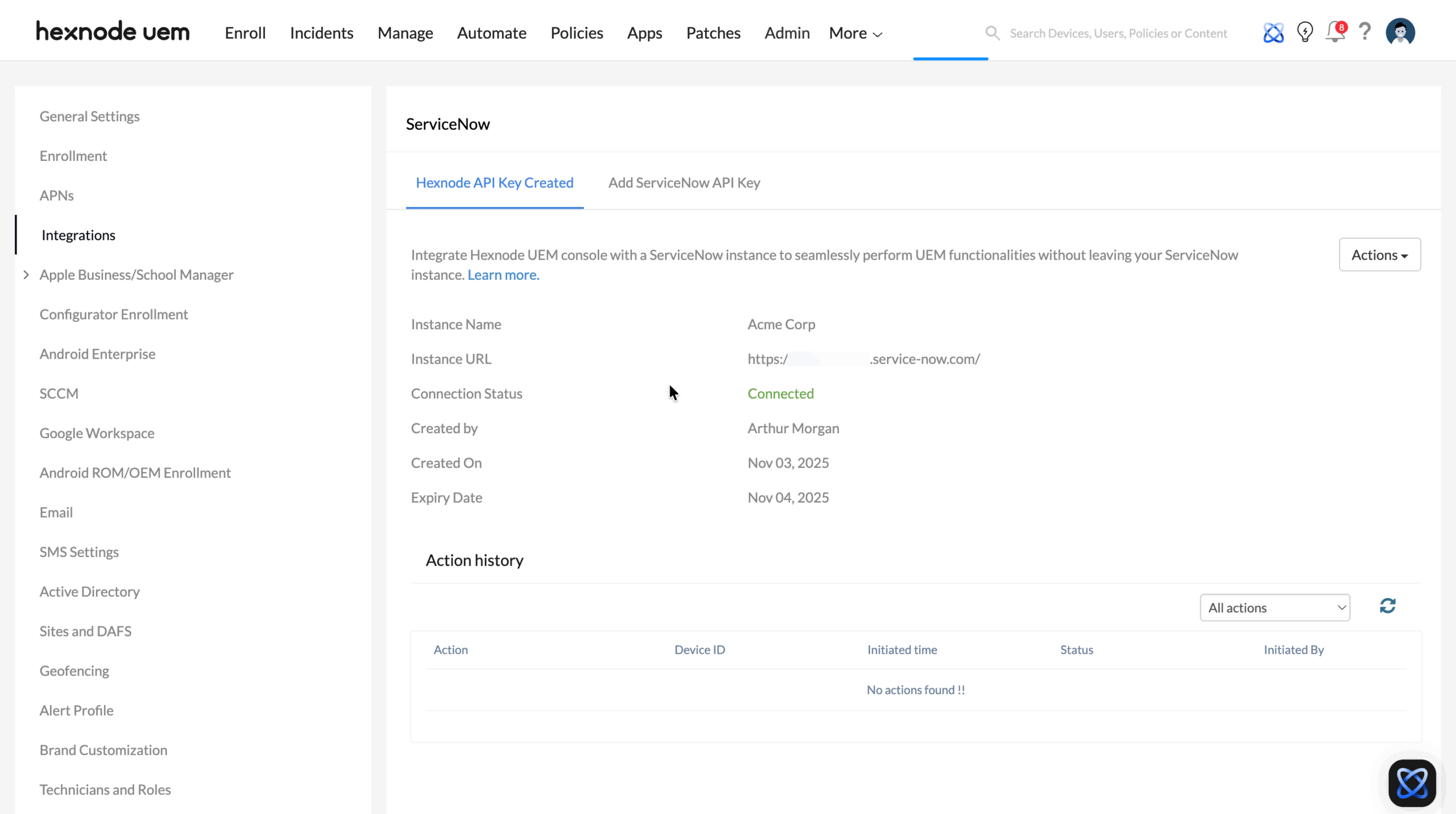
After completing the configuration in ServiceNow, navigate back to the Hexnode UEM console page where the API key was generated and kept open during the integration setup. Click Done once the integration is completed. The summary page will display the connection status, technician details, and the action history of remote actions performed from ServiceNow.
Verify the integration in ServiceNow
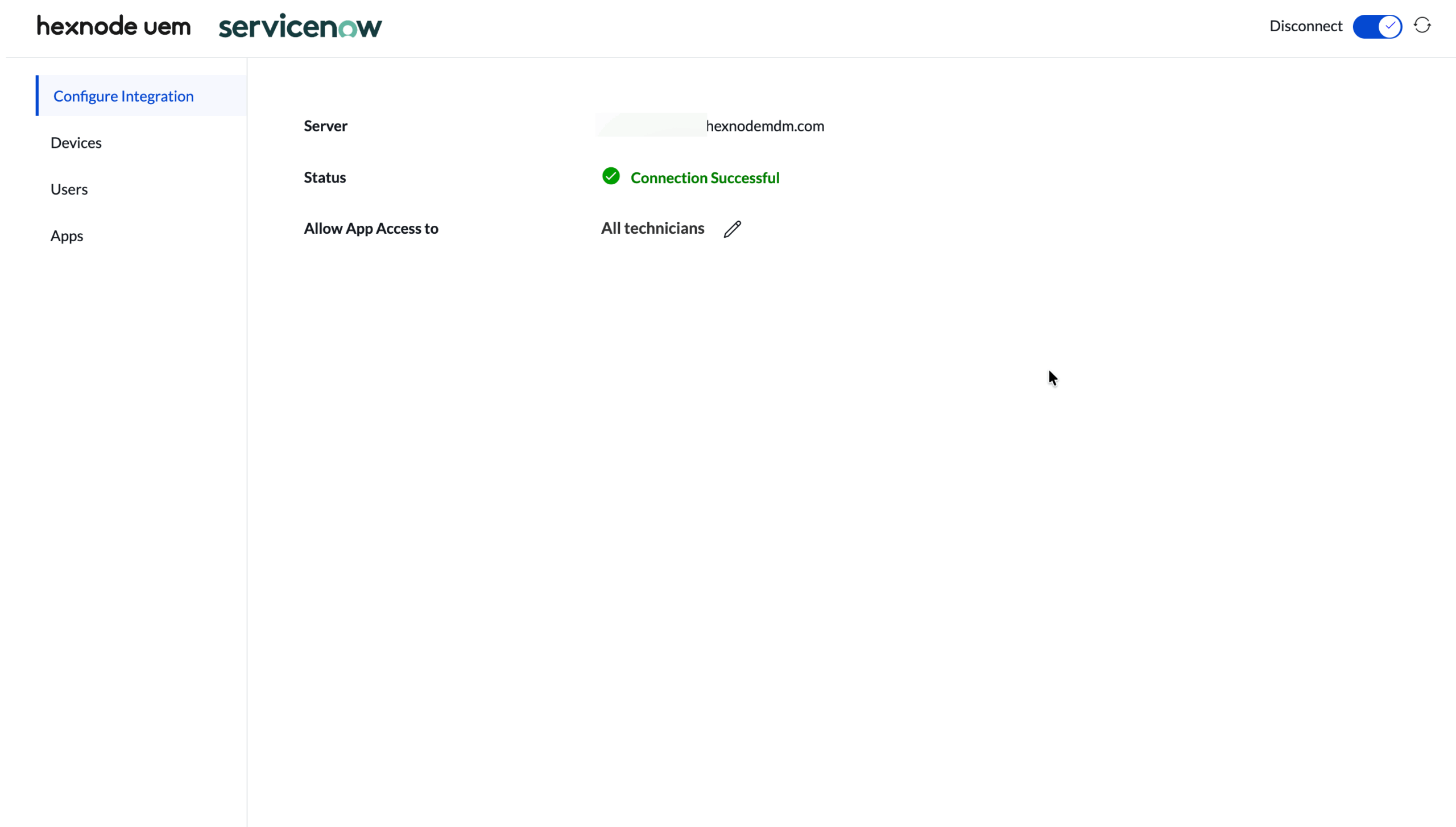
Once the integration is active, the list of devices, users, and applications managed in Hexnode will sync with your ServiceNow instance. From the dashboard, click All, search Hexnode, and open Hexnode Integration. The Configure Integration page in ServiceNow displays the connection details between Hexnode UEM and the ServiceNow instance. You can also navigate to additional integration data using the sidebar options.
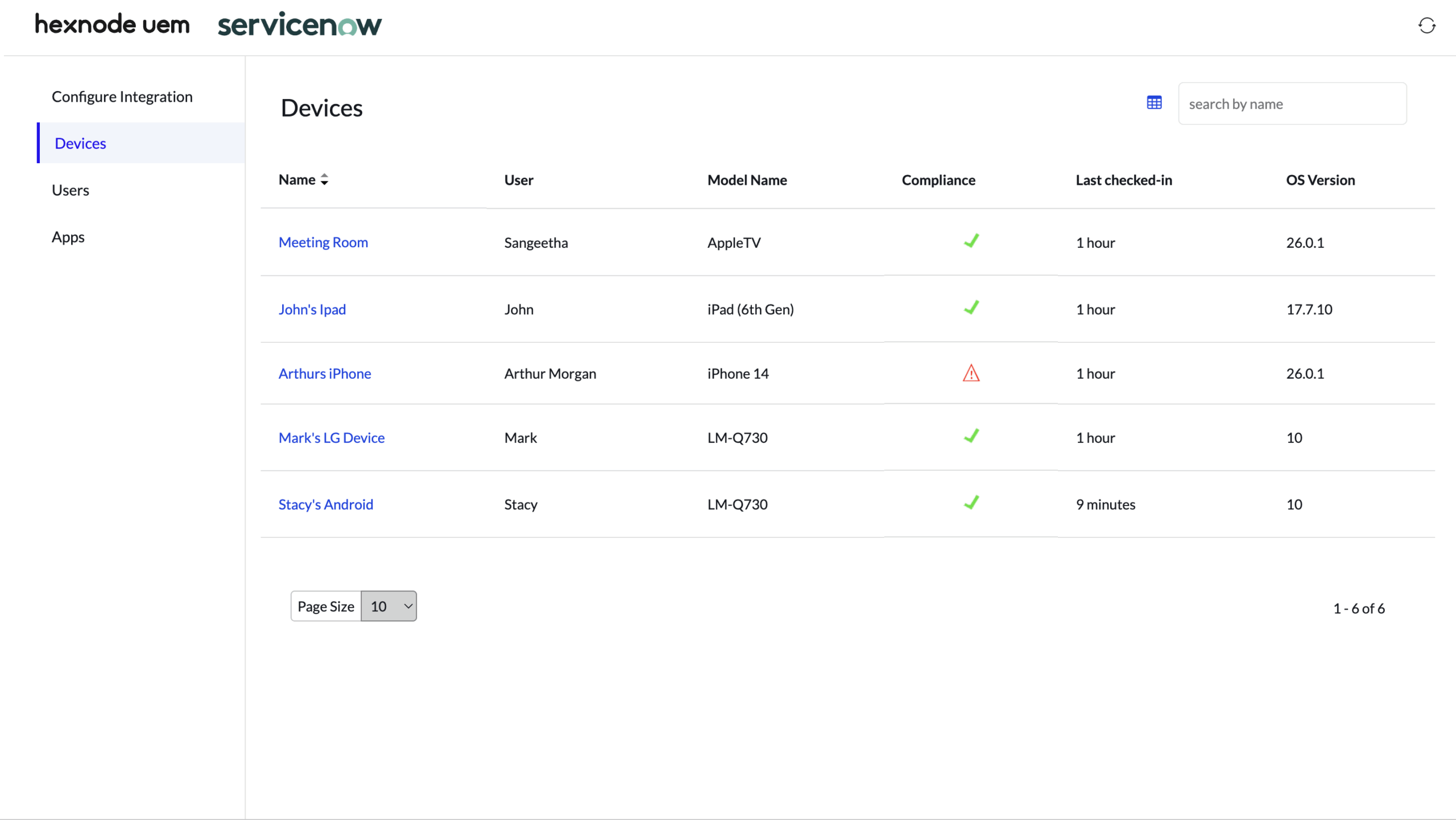
View synced devices
The Devices section lists all Hexnode-managed devices that have been synced into ServiceNow. Click on any device name to view its details, including device status, ownership, and assigned user.
View synced users and applications
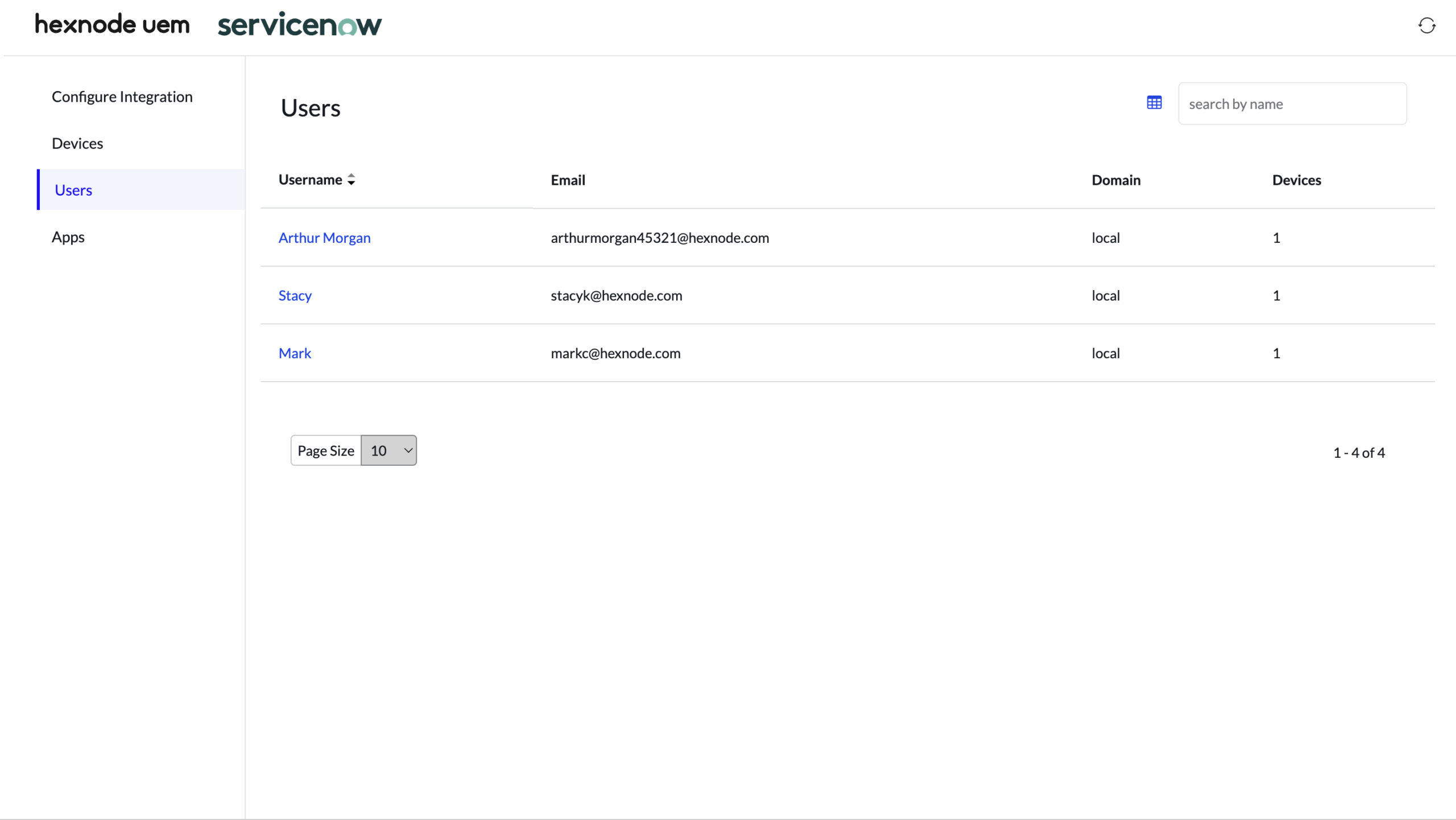
The Users section displays all users synced from Hexnode along with the devices assigned to them.
The Apps section lists the applications synced from Hexnode.
Step 3: View and manage incidents in ServiceNow
In ServiceNow, an incident represents a user-reported issue, such as a device problem or an app malfunction, or any other. After the integration is set up, ServiceNow technicians can view incidents.
When users experience an issue, they can report it through ServiceNow (for example, through the Service Portal or by contacting the help desk). This creates an incident record in ServiceNow. The Caller field on the incident form identifies the user who reported the issue. If this Caller is a user synced from Hexnode and that user has one or more devices enrolled in Hexnode, an option named Hexnode Actions will appear on the incident form.
The Hexnode Actions option allows the technician to perform Hexnode’s remote actions (such as locking, restarting, or locating the device and more) directly from within ServiceNow. This helps technicians resolve device-related issues faster without switching to the Hexnode console.
Perform Hexnode’s remote actions in ServiceNow
To view user incidents and perform remote actions:
- From the ServiceNow console, click All and search for Incidents.
- Select Incidents under Service Desk.
- A list of user incidents will appear. Click on any incident number to open it.
- The incident details page will display all related information.
- Click non Hexnode Actions to perform remote actions on devices assigned to the user.
- The devices associated with the user will be listed. Select the desired devices by checking the box next to them.
- From the Select Action drop-down menu, choose the required remote action and click OK.
After saving, copy the:
- Client ID
- Client Secret
You will use the above values in the Hexnode console.
Step 3: Add the ServiceNow API Key in Hexnode to complete the integration
- Log in to your Hexnode UEM console.
- Navigate to Admin > Integrations > Available Integrations.
- Select the ServiceNow tile from the integrations list. Or, if a ServiceNow integration already exists from the previous setup, go to the Configured Integrations page. Under ServiceNow, if a tile displays Hexnode API Key – Connected, it indicates only one-way integration is enabled. Click the tile and select Add ServiceNow API Key to continue. In this case, the Instance Name and Instance URL fields auto-populate using the values configured under Hexnode API Key Created (Instance URL cannot be changed).
- Go to the Add ServiceNow API Key section and configure the following options:
- Click Done to complete the integration.
| Settings | Description |
|---|---|
| Instance Name | Name used to identify the connected ServiceNow instance in Hexnode. It auto-populates if already configured under Hexnode API Key Created and can be modified if required. |
| Instance URL | URL of the ServiceNow portal used for connection. For Example, https://yourinstance.service-now.com/. It auto-populates if already configured and cannot be changed because the instance URL is tied to the existing Hexnode API key configuration. |
| Client ID | Enter the Client ID generated in the OAuth Application Registry in your ServiceNow instance. |
| Client Secret | Enter the Client Secret generated in ServiceNow along with the Client ID. |
| Priority | Select which incident priorities should sync into Hexnode. All priorities are selected by default. Check or uncheck the required levels based on your needs. Available priority values include Critical, High, Moderate, Low, Planning. |
| State | Select which incident states should sync into Hexnode. All states are selected by default. Check or uncheck based on your requirements. Available state values include New, In Progress, On Hold, Resolved, Closed, Canceled. |
| Category | Select which incident categories should sync into Hexnode. All categories are selected by default. Check or uncheck based on your requirements. Available category values include Inquiry, Software, Hardware, Database, Network. |
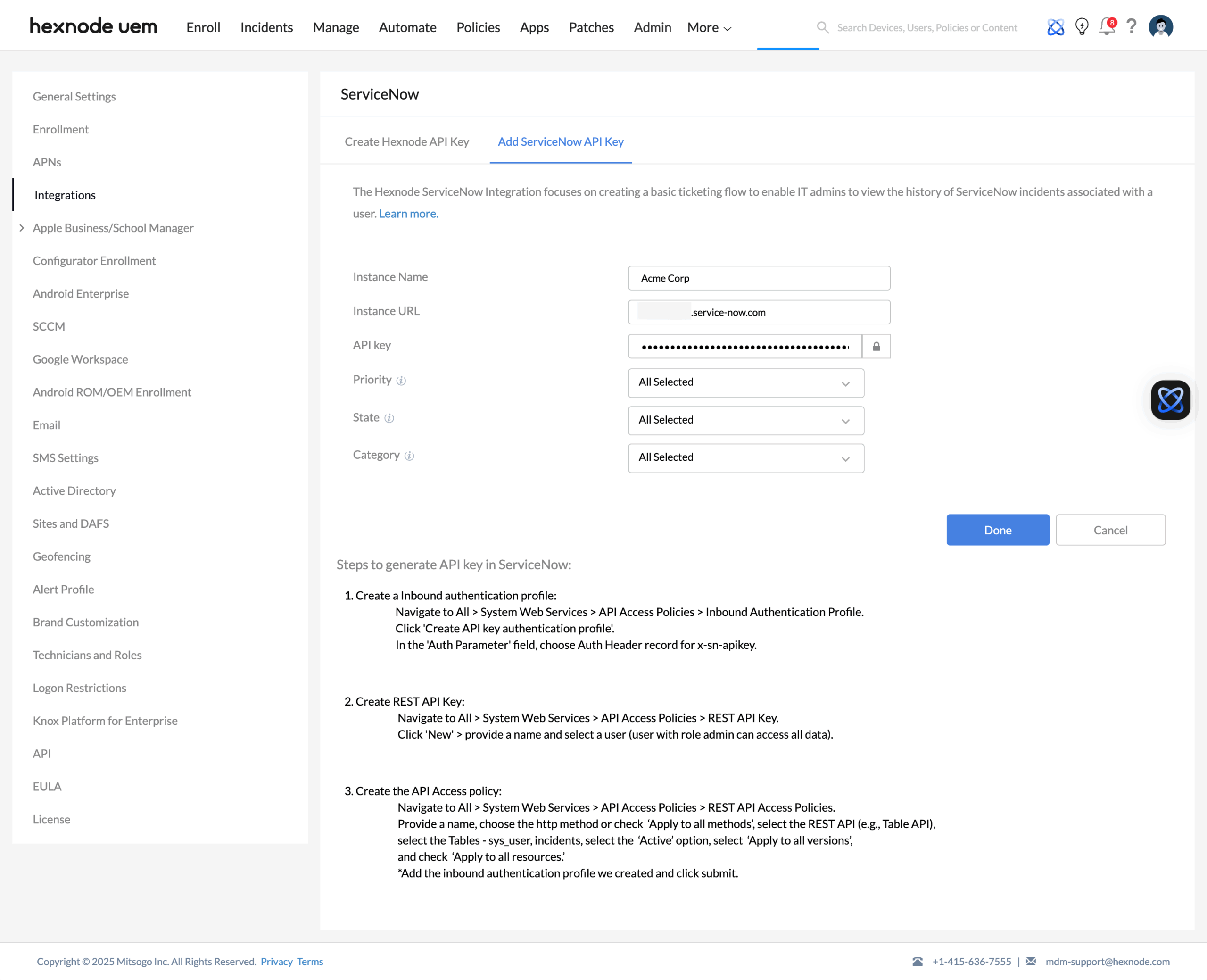
Once the ServiceNow integration is configured, the Configured Integrations summary page displays the connection status, the technician who created this integration, and the list of synced incidents.
How to view incidents in Hexnode?
After completing the integration, incidents synced from ServiceNow can be viewed in two places within the Hexnode console.
From the Integrations tab
- Go to Admin > Integrations > Configured Integrations.
- Click on the configured ServiceNow integration tile.
- Open the ServiceNow API Key Added section.
- Scroll down to view the synced incidents.
You may filter incidents using Priority, State, Category, or Caller to narrow the list. Click any value in the Number column to open the incident in the connected ServiceNow instance.
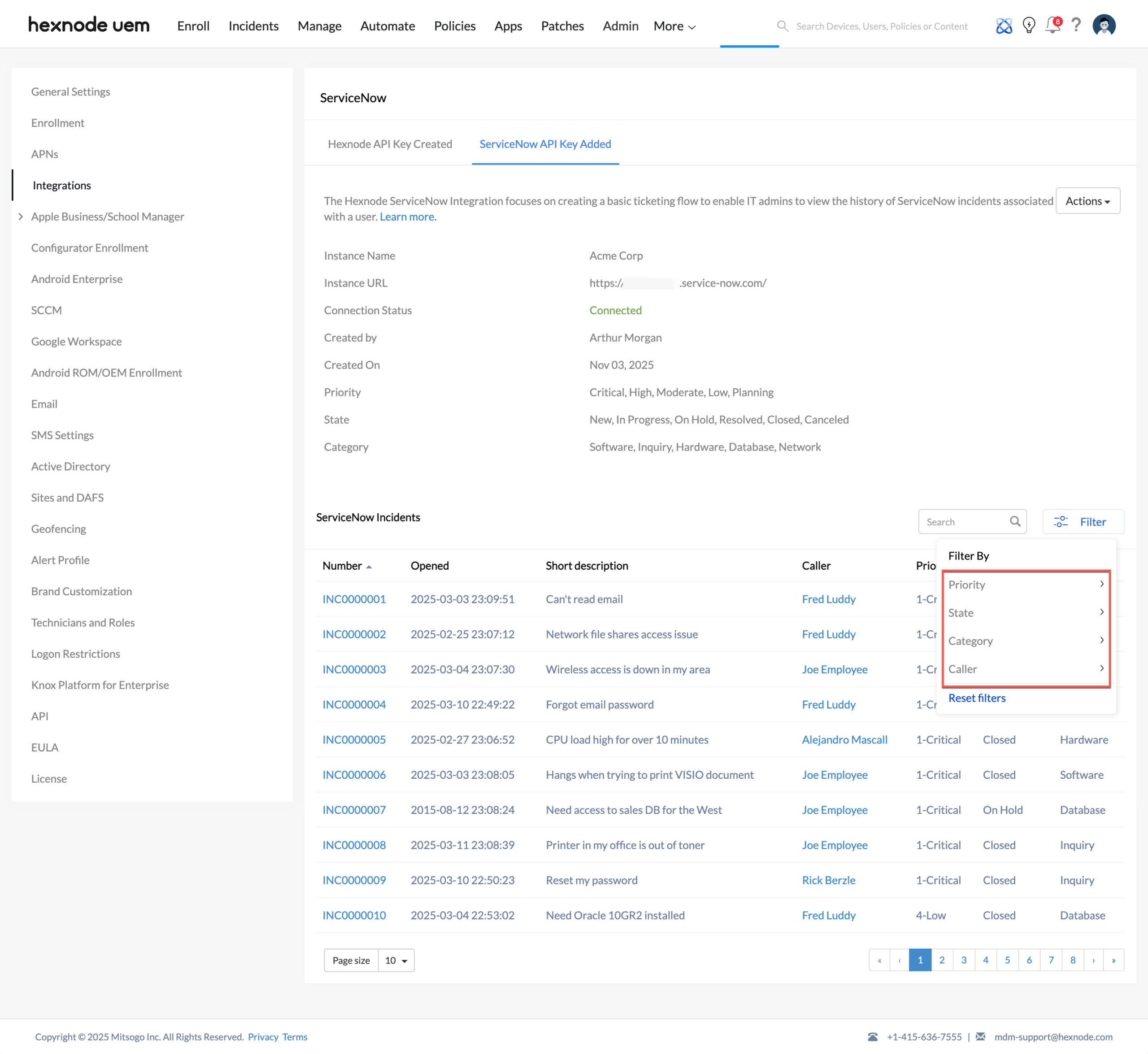
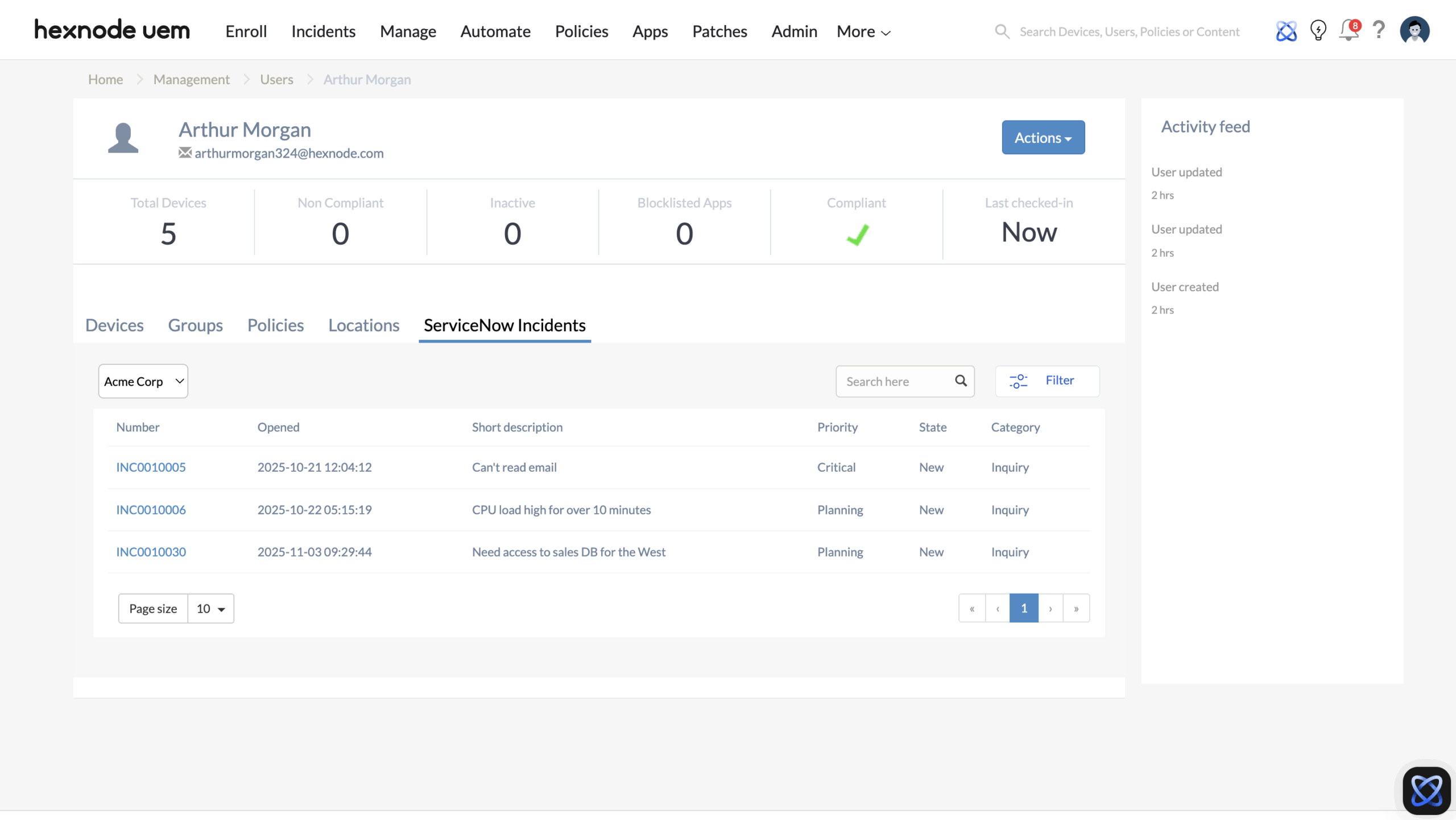
Technicians can also view incidents for a particular user from Manage > Users in the Hexnode console. By selecting a user, the ServiceNow Incidents section under the user details displays all synced incidents associated with that user. If multiple ServiceNow instances are configured, a dropdown appears above the Number column. Technicians can use this dropdown to filter and view incidents from a specific ServiceNow instance.
Actions on configured instances
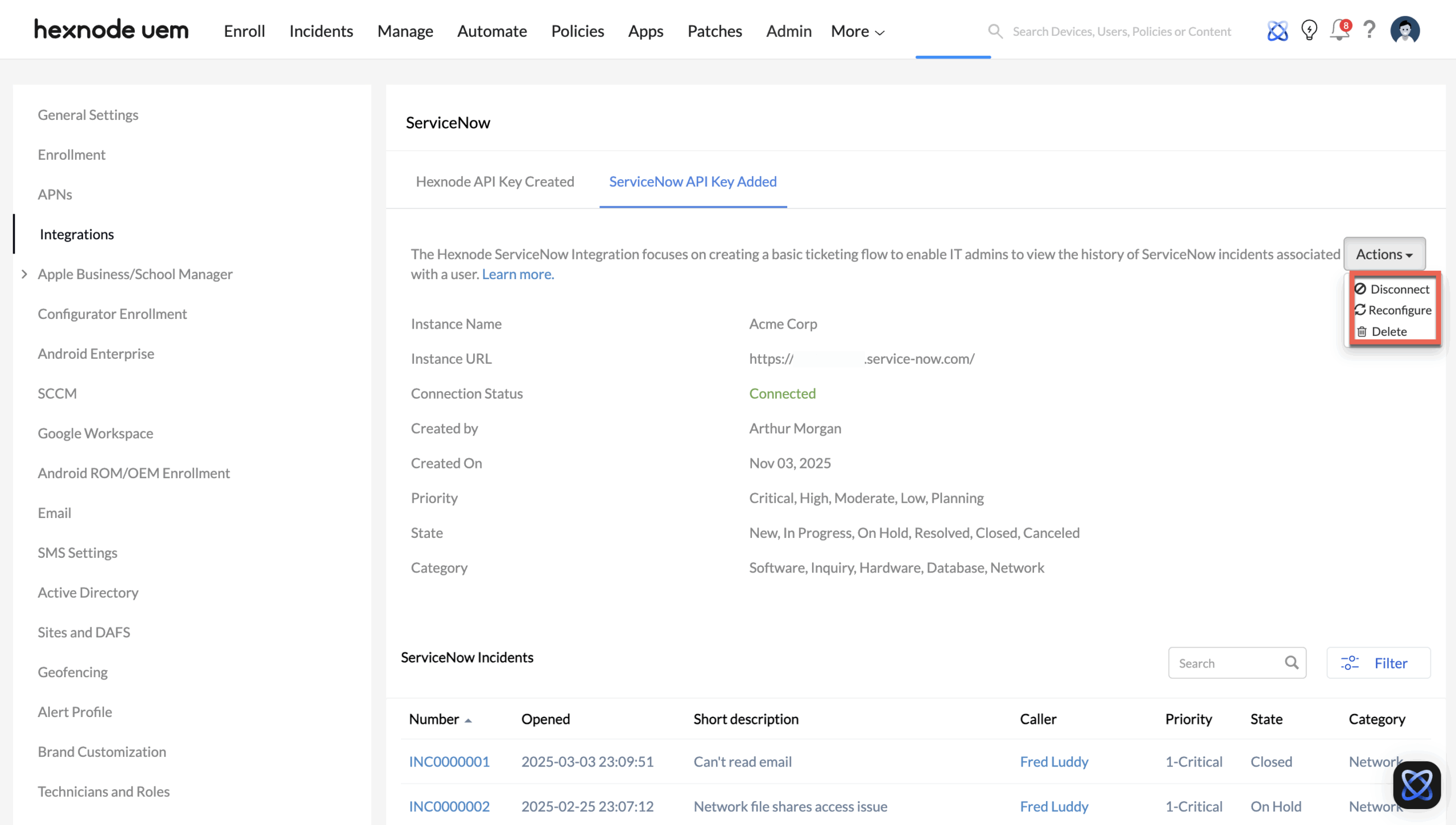
The following management actions are available for both configured integration types in Hexnode, which are Hexnode API Key Created (for using Hexnode in ServiceNow) and ServiceNow API Key Added (for viewing incidents in Hexnode).
- Disconnect: Temporarily stops communication between the configured ServiceNow instance and Hexnode. Remote actions from ServiceNow to Hexnode and incident visibility for ServiceNow in Hexnode will be paused until reconnected.
- Reconfigure: Allows updating configuration settings, including authentication details and sync filters. The Instance URL cannot be changed because it is linked to the existing authentication setup.
- Delete: Permanently removes the integration with that ServiceNow instance. This disables Hexnode in ServiceNow (remote actions) and ServiceNow in Hexnode (incident synchronization and visibility).
Configure multiple ServiceNow instances in Hexnode
Hexnode supports integrating multiple ServiceNow instances. Organizations with more than one ServiceNow domain can manage all users and incidents from one console.
To configure additional instances:
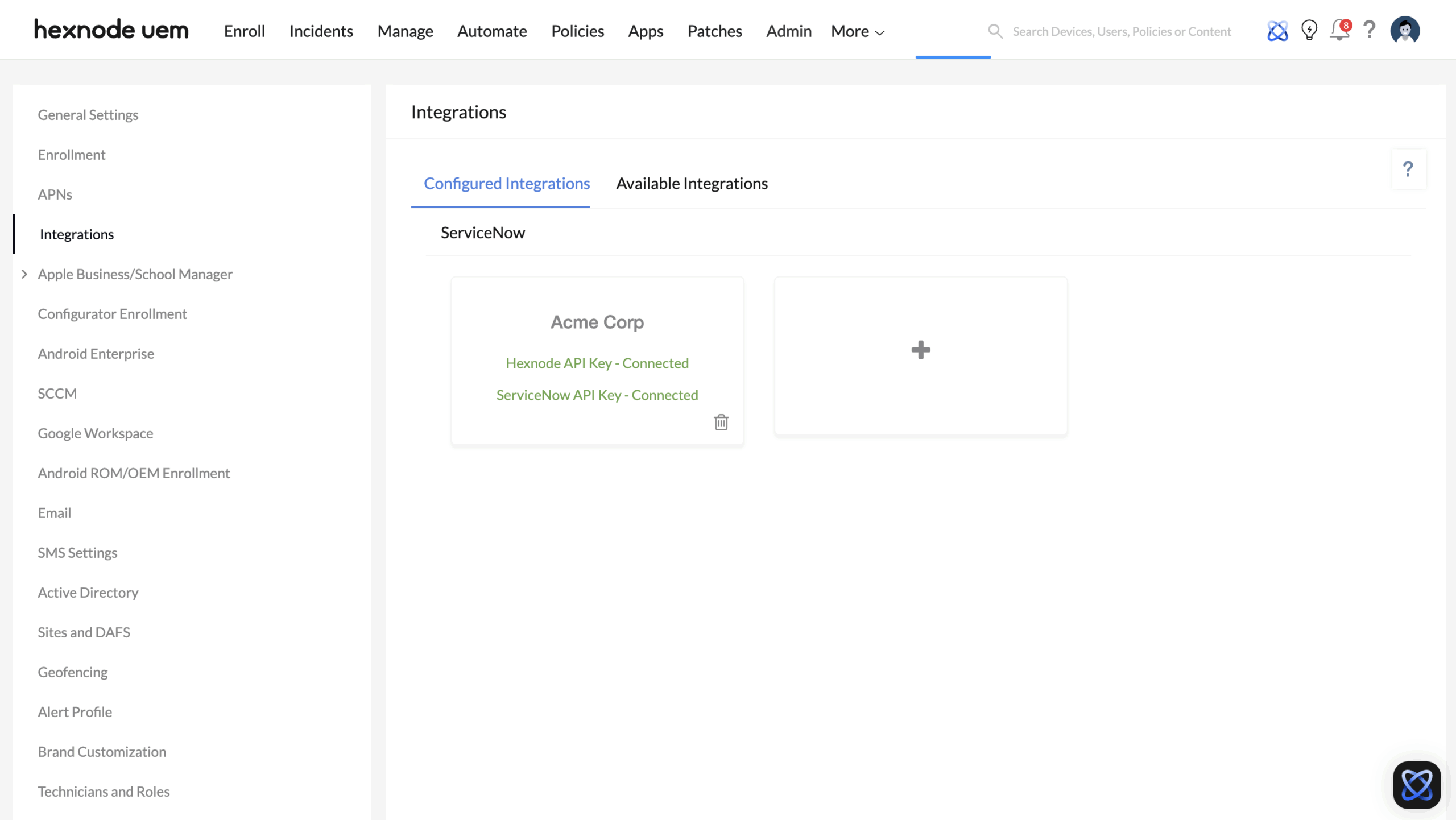
- Go to Admin > Integrations > Configured Integrations.
- Under ServiceNow, click the + icon to add a new instance.
- Follow the same configuration steps by following the same steps used to integrate Hexnode UEM in ServiceNow and ServiceNow with Hexnode UEM.
Frequently Asked Questions (FAQs)
1. Why doesn’t the Hexnode Actions section appear in the ServiceNow incident form?
1. Why doesn’t the Hexnode Actions section appear in the ServiceNow incident form?
The Hexnode Actions section only appears when the Caller field on the incident form is assigned to a user synced from Hexnode. If the user is not synced or has no associated devices, this section will not be displayed.
2. How frequently does Hexnode sync incidents from ServiceNow?
Incident data is synced from ServiceNow to Hexnode periodically in the background. If needed, Hexnode admins can manually refresh the sync by navigating to Admin > Integrations > Configured Integrations > ServiceNow in the Hexnode console and selecting the desired instance.
3. What happens if the ServiceNow or Hexnode API key expires?
When an API key expires, data synchronization and remote actions stop functioning. To restore connectivity, generate a new API key, update it in the Hexnode console, and click Reconfigure to reactivate the integration.
4. How is data security maintained between Hexnode and ServiceNow?
All communication occurs via HTTPS using API keys for mutual authentication. No credentials are stored in plain text, and tokens are encrypted according to the platform’s security standards.
5. How does role-based access control affect integration?
To configure the integration and perform Hexnode’s Remote Actions, the user must have:
| Platform | Required Role | Purpose |
|---|---|---|
| Hexnode UEM | Technician with admin role with full privileges and access to all the features in the portal. | Allows the technician to execute Hexnode’s Remote Actions on enrolled devices. |
| ServiceNow | Technician with incident-management permissions | Allows the technician to access incident records and trigger integrated actions. |
6. Are remote actions reversible from ServiceNow?
No. Once a remote action (like Lock or Wipe) is initiated, it is executed via Hexnode and cannot be undone from ServiceNow. However, all actions are logged for visibility and accountability.
7. Can incident visibility in Hexnode be limited based on criteria?
Yes. During integration setup, technicians can define filters by Priority, State, and Category. Only incidents matching the selected filters will appear within the Hexnode console.


