


Category filter
Remote Monitoring, Management, and Troubleshooting: A Strategic Guide
Remote Monitoring and Management (RMM) functions as a continuous operational layer across enterprise endpoint ecosystems. Rather than operating as a task-driven toolset, RMM establishes persistent system awareness across devices, operating systems, and network boundaries. This model is designed for environments where endpoint scale, geographic distribution, and security posture prevent reliance on location-bound or incident-driven workflows.
In large organizations, RMM is typically positioned alongside device management, identity systems, and security tooling to provide real-time insight into endpoint behavior, configuration drift, and operational risk.
Enterprise Context and Operational Drivers
Modern enterprise infrastructures exhibit characteristics that fundamentally challenge legacy IT service models:
- Endpoint fleets distributed across corporate offices, remote locations, and home networks
- Heterogeneous operating systems and device ownership models
- Time-zone fragmentation and follow-the-sun operations
- Business-critical dependency on endpoint availability and performance
Within this context, RMM serves as the operational mechanism that maintains visibility and control across environments where physical access is infeasible, and reactive response introduces unacceptable latency.
Evolution of IT Service Delivery
The adoption of RMM marks a structural shift in how IT operations are executed, moving away from reactive service workflows toward centralized, preemptive operational control.
1. The Legacy “Break-Fix” Model
Earlier IT service delivery followed a reactive model commonly referred to as Break–Fix. This approach was characterized by:
- Incident-Triggered Response: Action occurred only after a confirmed system failure or user-reported issue.
- Physical Dependency: Diagnostics and corrective actions required technician presence at the device location.
- Linear Cost Scaling: Operational effort, response time, and cost increased proportionally with incident frequency and geographic distance.
While effective for small or localized environments, this model introduced visibility gaps and response delays as infrastructure scale increased.
2. The RMM Paradigm
As enterprise environments expanded and workforces became decentralized, the Break–Fix approach reached practical limits. RMM addresses these constraints through:
- Continuous System Awareness: Ongoing visibility into endpoint state, resource utilization, and system signals prior to failure conditions.
- Centralized Operational Control: A unified interface for executing actions and tracking asset status across the entire device fleet.
- Location Independence: Diagnostic and corrective workflows that operate without reliance on physical site access.
This shift reorients IT operations from incident response to system-state awareness and proactive remediation.
Hexnode’s Role in RMM Operations
Hexnode facilitates high-level Remote Monitoring and Management (RMM) by providing a robust suite of tools designed for both interactive and non-interactive remediation. This dual-category approach allows IT administrators to choose the appropriate level of intervention based on the severity of the issue and the need for user productivity.
Functional Categories of Remote Operations
Hexnode’s RMM capabilities are categorized by the level of visibility and interaction required during the troubleshooting process.
1. Interactive Remote Access (Disruptive)
These tools are designed for scenarios requiring direct visual confirmation or collaborative troubleshooting between the admin and the end-user. These actions impact the active user session.
- Remote Access (View Only): Allows administrators to view the device screen in real-time. This is primarily used for observing user behavior, verifying UI-specific errors, or guiding users through complex workflows.
- Remote Control: Grants the administrator full input capability (keyboard and mouse/touch control) over the remote device. This is essential for complex configurations or deep-level troubleshooting where the administrator must take over the session to resolve an issue.
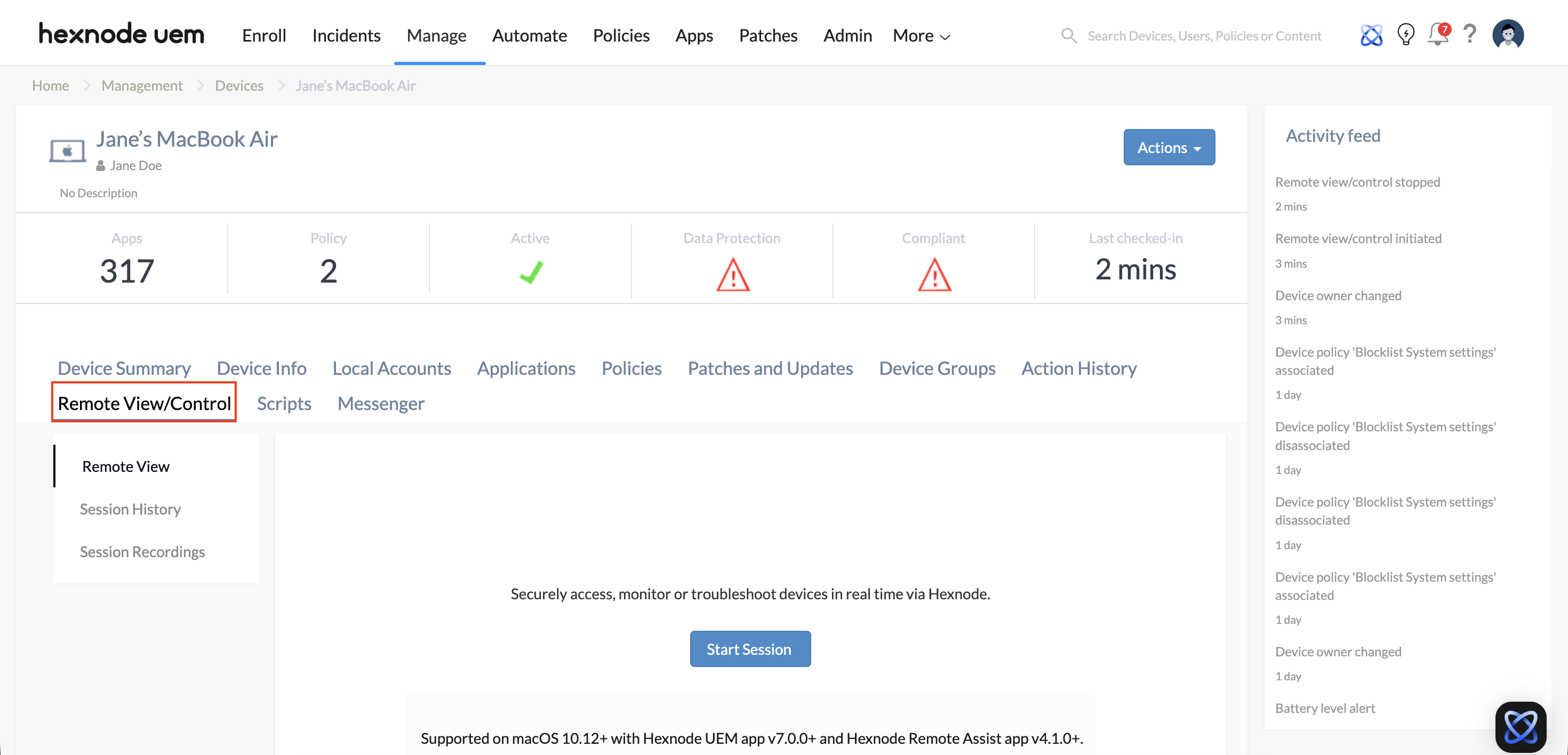
| Feature | Description | Key Use Cases | Supported Platforms |
|---|---|---|---|
| Remote View | Observe a device’s screen in real-time without taking control. Ideal for non-intrusive monitoring. |
|
Android, iOS, Windows, macOS, ChromeOS |
| Remote Control | Directly interact with the device (click, type, navigate). |
|
Android, Windows, macOS, ChromeOS |
2. Non-Interactive (Background) Access
Non-interactive tools are the hallmark of efficient RMM. They allow for “silent” remediation, meaning the administrator can perform technical tasks without disrupting the end-user’s productivity or even requiring them to be present at the device.
- Live Terminal: Provides a direct command-line interface (CLI) to the remote endpoint. Administrators can execute scripts, query system logs, and manage background processes using PowerShell (Windows), Bash (macOS/Linux), or Terminal commands.
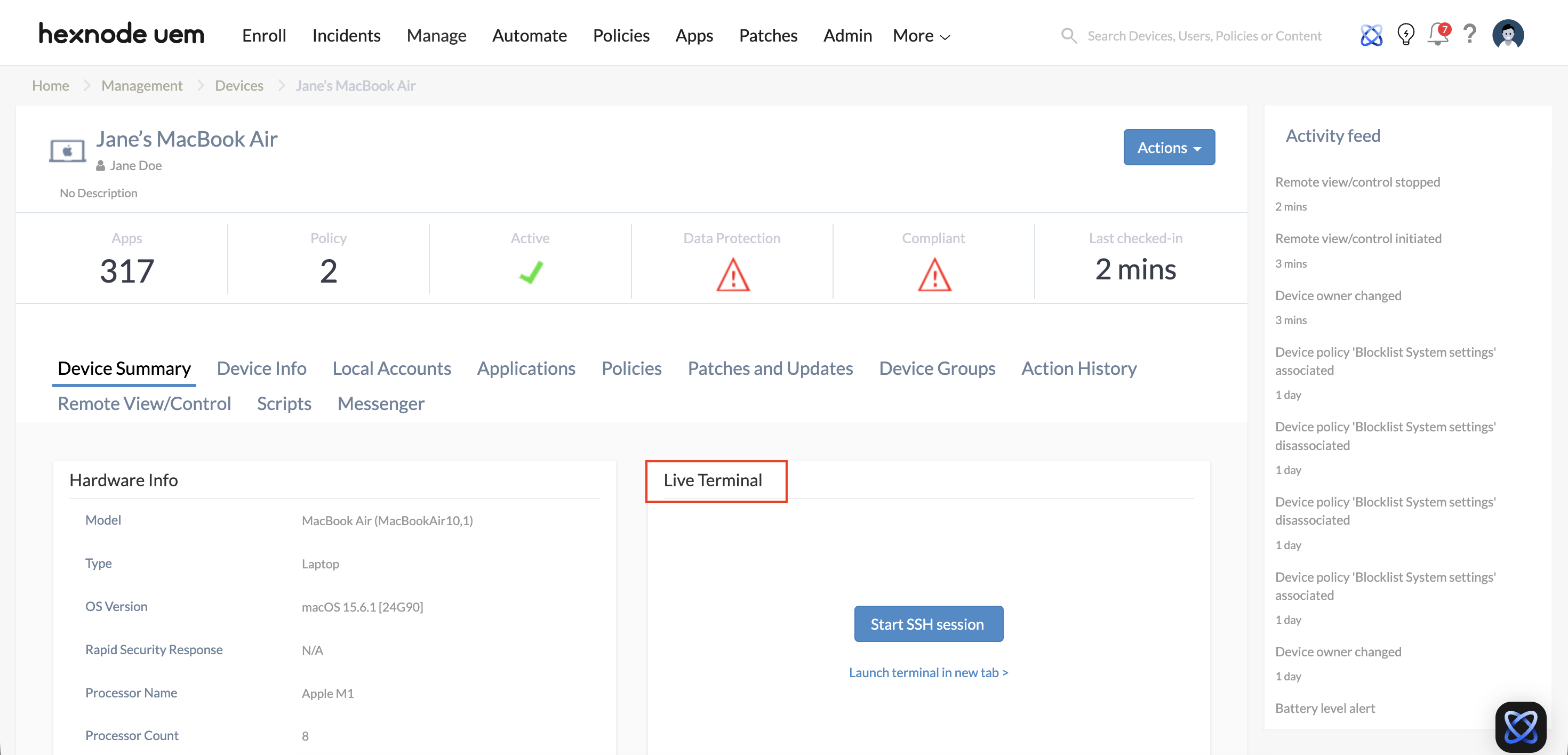
- File Explorer: Enables a dedicated file management interface. Admins can navigate the remote file system, and perform actions such as moving, copying, downloading, or deleting files and folders.
It also offers visibility into device storage usage, supporting enterprise scenarios such as remote troubleshooting, data retrieval, and storage management without end-user involvement.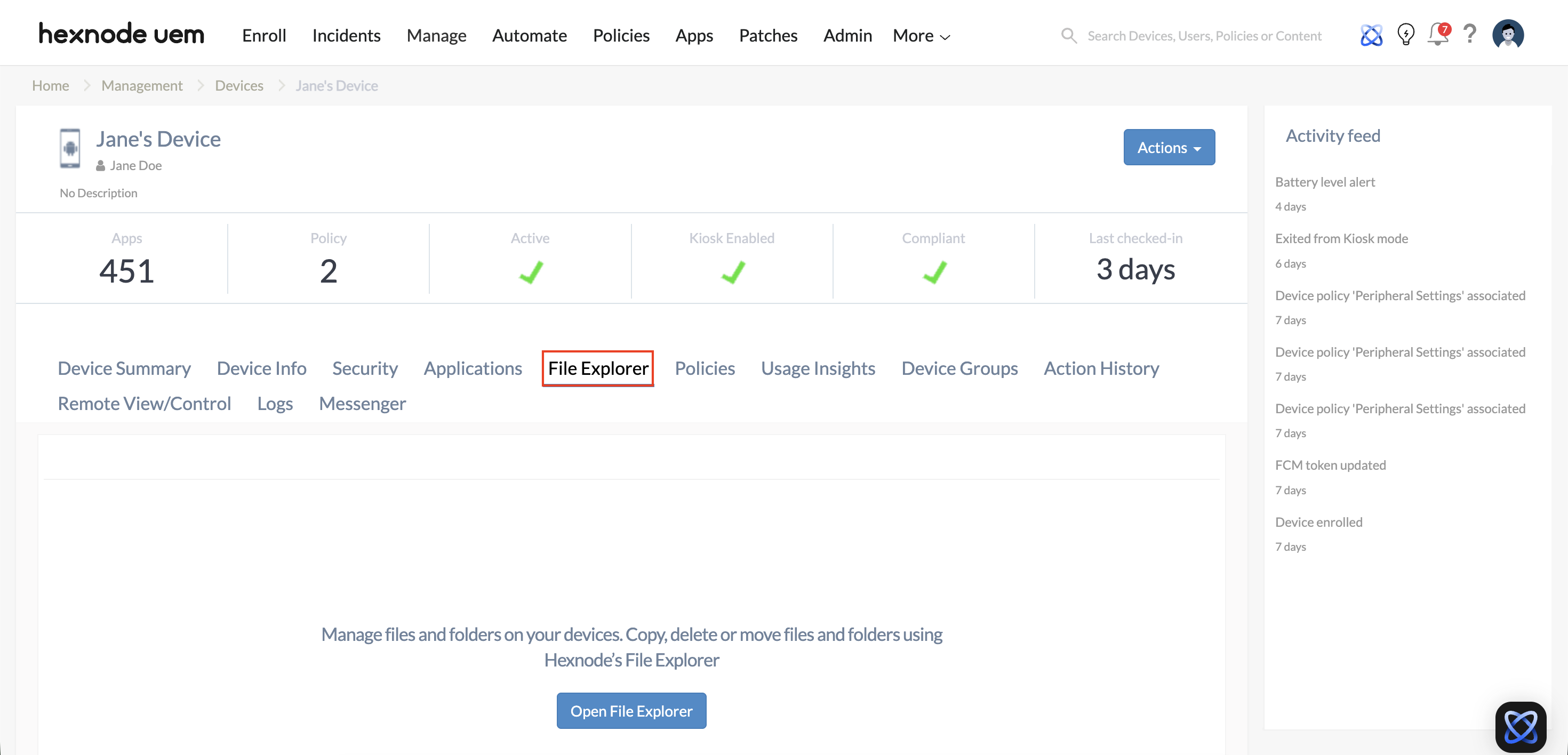
| Feature | Description | Key Use Cases | Supported Platforms |
|---|---|---|---|
| Live Terminal | Remote command-line access to execute scripts and diagnostics. |
|
macOS, Linux, Windows |
| File Explorer | Manage the file system (move, copy, download, or delete files). |
|
Android |
Comparative Operations Table
| Feature | Interaction Type | User Interruption | Primary Use Case |
|---|---|---|---|
| Remote Control | Interactive | High | Hands-on repair & UI troubleshooting |
| Remote View | Interactive | Medium | Training and visual diagnostics |
| Live Terminal | Non-Interactive | None | Automated scripting & process management |
| File Explorer | Non-Interactive | None | Move, copy, download or delete files and folders on Android devices |
3. AI-Driven Automation: Hexnode Genie
Hexnode introduced Hexnode Genie, an AI assistant that simplifies the complex scripting side of RMM.
- Natural Language Scripting: Instead of writing complex Bash or PowerShell scripts, admins can ask the Genie to “Create a script to clear cache on all macOS devices with less than 5GB available.”
- Auto-Remediation: Hexnode can detect a compliance drift and automatically deploy the corrective script without manual intervention.
4. The “Incidents Tab”: Simplified Alerting
One of the biggest headaches in RMM is “alert fatigue.” Hexnode simplifies this through its Incidents Tab:
- Proactive Monitoring: It monitors system health (battery, storage, performance bottlenecks) and flags them before they lead to hardware failure.
Contextual Alerting: It groups related events (e.g., multiple failed logins and a location change) into a single “Incident” rather than flooding you with 20 separate emails.
Best Practices & Security Protocols for RMM Operations
This section details the operational standards and security frameworks required to maintain a secure and efficient RMM environment using Hexnode.
Troubleshooting Workflows: The “Silent-First” Strategy
To maximize organizational productivity, IT departments should follow a tiered remediation workflow that prioritizes non-interactive tools to minimize end-user downtime.
Level 1: Background Diagnostics (Non-Interactive)
- Initial Triage (macOS/Linux): Use Live Terminal to query system health (e.g., top or Get-Process) and check for resource bottlenecks without interrupting the user.
- Automated Fixes (macOS/Windows/Linux): Deploy pre-validated scripts via the terminal to clear caches, restart services, or update configurations silently.
- File System Inspection and Management (Android): Remotely access and manage files and folders, move or copy data, create directories, and monitor storage without disrupting the end user.
Level 2: Guided Support (Interactive – View Only)
- Visual Confirmation: If background diagnostics are inconclusive, initiate Remote View to observe the issue as it occurs in the user’s session.
- End-User Education: Use the view-only mode to guide the user through a process via built-in communication channels, ensuring they learn the resolution steps.
Level 3: Full Remediation (Interactive – Remote Control)
- Direct Intervention: Escalated to only when manual configuration of the GUI is required or for complex software repairs that background scripts cannot handle.
- Administrative Tasks: Switch to System-level access when prompted to handle UAC (User Account Control) windows or deep system changes.
Frequently Asked Questions (FAQs)
- What is the best tool for observing or guiding users without taking control?
Remote View is ideal for visual confirmation, training, or guided troubleshooting. It allows administrators to observe the device screen in real-time while leaving control with the end user.
- When should Remote Control be used instead of Remote View?
Use Remote Control when direct interaction is required to resolve issues, such as configuring applications, navigating the UI, or performing hands-on repairs. Remote View is limited to observation and cannot make changes.
- How does File Explorer support background troubleshooting?
File Explorer enables remote access to the file system on Android devices for moving, copying, downloading, or deleting files and folders. It also provides storage visibility, helping IT teams manage device data without interrupting the end user.


