


Category filter
How to generate and analyze Location history reports?
Location Reports in Hexnode UEM provide administrators with auditable, timestamped data on the physical whereabouts of managed devices. This functionality is crucial for asset tracking, compliance verification (e.g., confirming delivery routes), and performing remote actions.
Prerequisites: Enabling Location Tracking
For the system to generate any location reports, Location Tracking must be enabled on the Hexnode console.
What is a Location History report?
A Location History report is a built-in Hexnode UEM report that logs the geographical coordinates (Latitude and Longitude) of enrolled devices, along with a precise timestamp and user-provided notes (if available).
Procedure: Generating a Location Report
Use this standardized procedure to access the report.
- Log In: Log into your Hexnode UEM console.
- Navigate: Go to the Reports tab.
- Select: Choose Built-in Reports from the left navigation panel.
- Access: Click on Location Reports.
- Choose: Select the Location history report type.
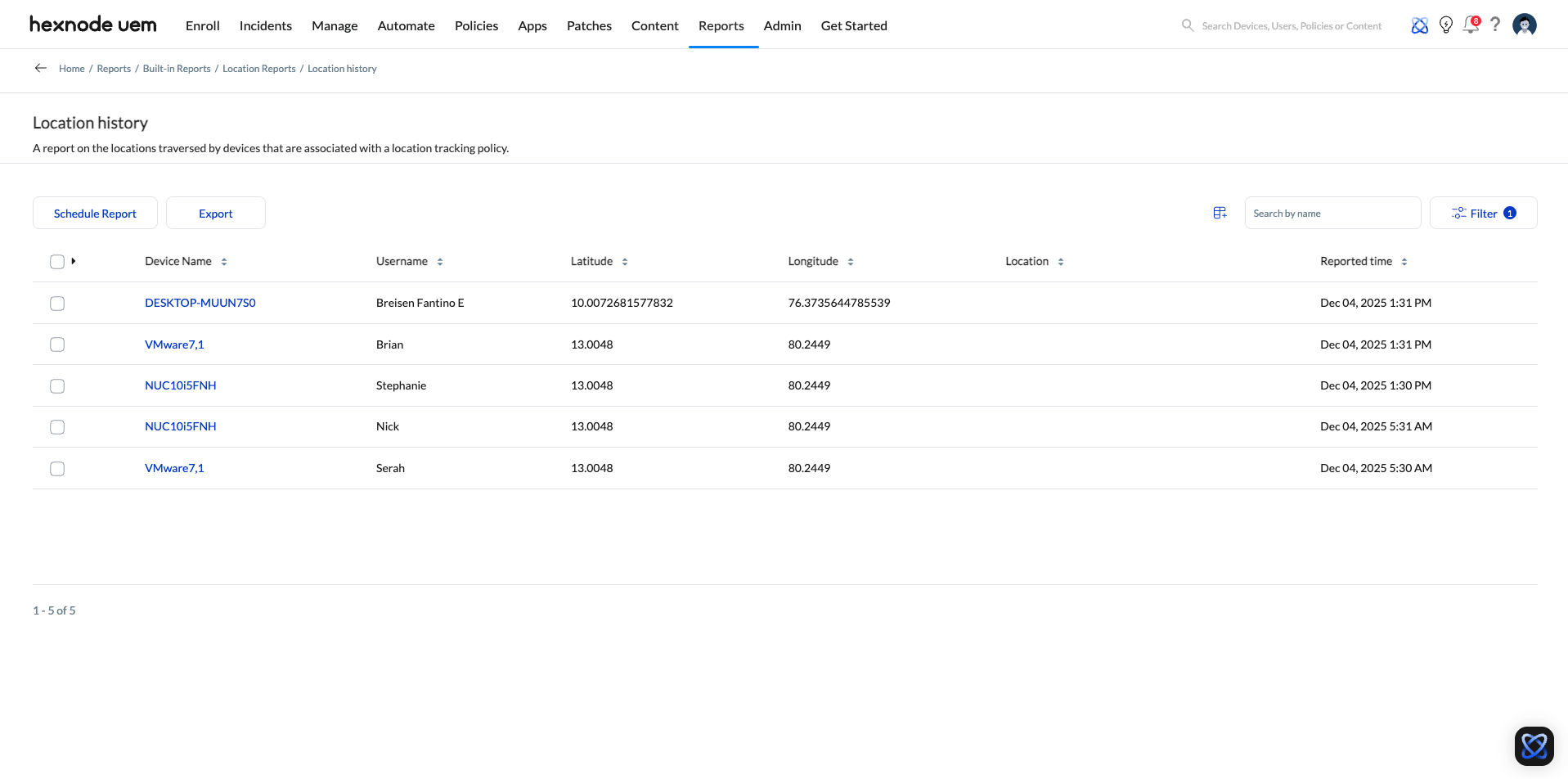
- Customize (Optional): Click the edit icon to include or omit required data columns.
- Generate: Generate the final report for viewing.
Data Columns Available in Location History reports
This table lists the attributes available for location history reports. These fields are essential for mapping the device’s movement and history.
| Data Column Field | Description |
|---|---|
| Device Name | The friendly name assigned to the device. |
| Serial Number | The hardware serial number of the device. |
| Username | The user currently assigned to the device. |
| Latitude | The latitude coordinates of the reported location. |
| Longitude | The longitude coordinates of the reported location. |
| Reported Time | The precise date and time the location was recorded in the Hexnode portal. |
| Location Note | Any notes entered by the user during a manual location check-in. |
| Location | The resolved physical address (where available). |
Available Filters for Location History
| Filter Name | Segmentation Criteria |
|---|---|
| Reported Time | Filter results by time range: All, Today, Yesterday, Last 7 days, Last 30 days, or a Custom duration (Start/End dates). |
Distribution and Management Options
Once generated, the location report can be distributed or stored using the following methods:
| Action | Description |
|---|---|
| Export | Download the report data to your local device as a PDF or CSV file. |
| Schedule | Configure the report to automatically run at specific intervals and be sent to designated recipients via email. |
Troubleshooting
Why are device locations not updating?
Verify that Location Tracking is enabled in the policy applied to the device group and ensure the device has an active internet connection (Wi-Fi or cellular data). Location services must also be active on the device itself.
Why does the Location Note column show as empty?
The Location Note is only populated when a device user performs a manual check-in from the Hexnode UEM app. It will be empty for automatically recorded data points.
Frequently Asked Questions
How accurate is the location data?
Accuracy depends on the device’s connection method. GPS provides the highest accuracy, followed by Wi-Fi, and finally cellular tower triangulation (which is the least accurate).


