


Category filter
Hexnode UEM: Managing User Reports and Activity Audits
User Reports Overview and Purpose
User Reports provide administrators with a consolidated view of the entire workforce and the devices associated with them. This is essential for HR and IT audits, allowing teams to ensure that specific user groups (like Active Directory users or BYOD employees) adhere to company policies, without needing to check each device individually.
Initiating and Exporting a User Report
To generate and export any Built-in User Report from the Hexnode console:
- Login: Access the Hexnode UEM portal using administrator credentials.
- Navigate: Go to the Reports tab.
- Select Category: Choose the Built-in Reports section, then select User.
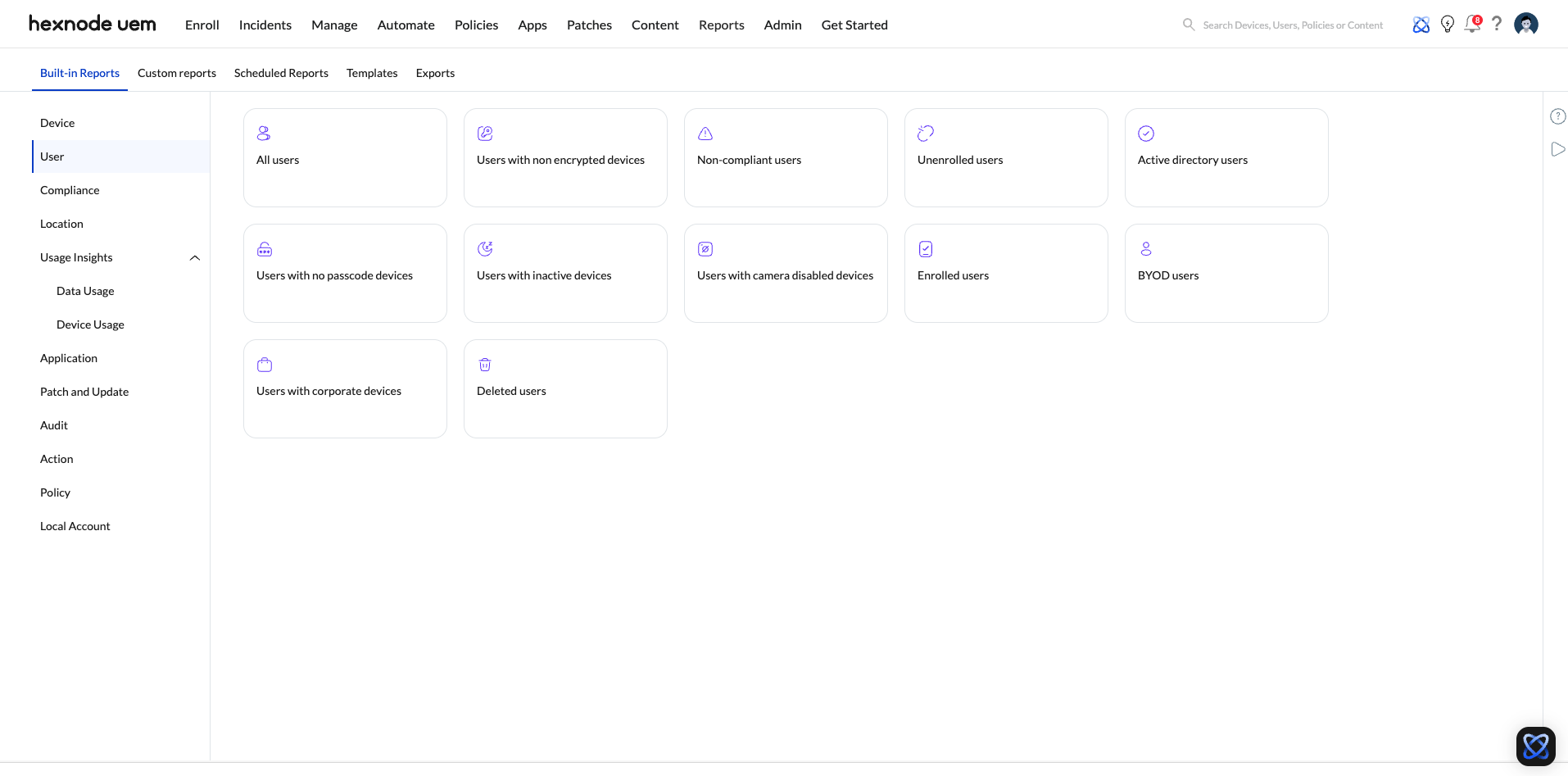
- Select Report: Click on the specific report name (e.g., Users with Corporate Devices).
- Apply Filters: Use the available contextual filters (e.g., Device Inactivity, Device Type, or Ownership) to scope the data as needed. Available filters are:
- Activity status: Based on whether the devices are Active or Inactive.
- Device type: Based on whether the device is a Smartphone, Tablet, Laptop, Desktop, PC or Smart TV.
- Ownership: Based on whether the device ownership is Corporate or Personal.
- User Type: Based on the type of users – Active Directory user, Microsoft Entra ID user, Google User, Local user or Okta user.
- Enrollment Status: Disenrollment Pending, Disenrolled, Pre-approved, User deleted, or Enrolled.
- School Individuals: Students, Admin, Manager, Instructors.
- Export: Click the Export button to download the report file in PDF or CSV format.
Or,
click the Schedule Report button to schedule reports to be sent to technicians.
Available Built-in User Reports
Hexnode UEM provides numerous reports categorized by the specific criterion used to segment the users:
1. General User Status Reports
| Report Name | Description and Utility | Key Filter Criteria |
|---|---|---|
| All Users | Lists every user managed in the Hexnode portal, regardless of enrollment status. | User Type, Enrollment Status. |
| Enrolled Users | Lists users who have at least one device actively enrolled in the console. | Enrollment Status. |
| Unenrolled Users | Lists users who are added to Hexnode but have not yet enrolled any devices. | Enrollment Status. |
| Non-compliant Users | Lists users who have devices that do not meet organizational compliance rules. | Device Compliance Status. |
| Users with Inactive Devices | Lists users whose devices are marked as inactive (lost communication with the UEM server). | Device Activity Status. |
2. Ownership and Risk Reports
| Report Name | Description and Utility | Key Filter Criteria |
|---|---|---|
| Users with Corporate Devices | Lists users assigned company-owned devices (COPE). | Device Ownership (Corporate). |
| BYOD Users | Lists users assigned personal devices, following Bring Your Own Device policies. | Device Ownership (Personal). |
| Users with Non-encrypted Devices | Lists users assigned devices lacking mandatory disk/volume encryption. | Device Encryption Status. |
| Users with No Passcode Devices | Lists users assigned devices without a passcode. | Device Passcode Status. |
| Users with Camera Disabled Devices | Lists users whose devices have the camera function disabled by policy. | Device Restriction Status. |
3. Directory Service User Reports
| Report Name | Description and Utility | Key Filter Criteria |
|---|---|---|
| Active Directory Users | Lists users imported from the Active Directory integration. | User Type (Active Directory). |
Data Columns for User Reports
Hexnode User Reports feature an extensive set of data fields, often drawing information directly from connected directory services for accuracy.
1. User Identity and Hexnode Status
| Data Field | Description | Source |
|---|---|---|
| Hexnode Username | Username specifically associated with the user in Hexnode. | Hexnode Portal |
| Email / Alternate Email | Primary and secondary email addresses associated with the user. | Directory Service |
| User type | Classification of the user account (e.g., AD, Microsoft Entra ID, Google Workspace, Local). | Integration Source |
| No. of Devices | Total number of devices currently associated with the user. | Hexnode UEM Console |
| Domain name | Designation of the email host or the domain used for authentication. | Directory Service |
2. Directory Service Attributes
These attributes are pulled directly from the synchronized directory service (Active Directory, Entra ID, Google Workspace, etc.).
| Data Field | Description | Source |
|---|---|---|
| sAMAccountName | The Security Account Manager (SAM) account name used in Active Directory. | Active Directory (AD) |
| Title (AD) | The user’s job title. | Active Directory (AD) |
| Department (AD) | The user’s assigned department. | Active Directory (AD) |
| Office Location (AD) | The physical office location of the user. | Active Directory (AD) |
| User Group | The groups the user has been added to within the directory service. | Directory Service |
| Phone number | Phone number of the user. | Directory Service |
View full specifications for User Reports
All Users
Lists all the users being managed by Hexnode. You can filter the report based on User Type and Enrollment Status. This report can include details such as Username, Phone Number, Email, Domain, sAMAccountName, Devices, Department (AD), Title (AD) and Office Location (AD).
Users with non-encrypted devices
Lists the users with non-encrypted device(s). You can filter the report based on Device Inactivity, Type and Ownership. This report can include details such as Username, Phone Number, Email, Domain, sAMAccountName and Devices.
Non-compliant users
Lists the users with device(s) not meeting the compliance criterion. Devices can be marked as “non-compliant” if they do not meet any of the selected compliance checks under Compliance Policies.
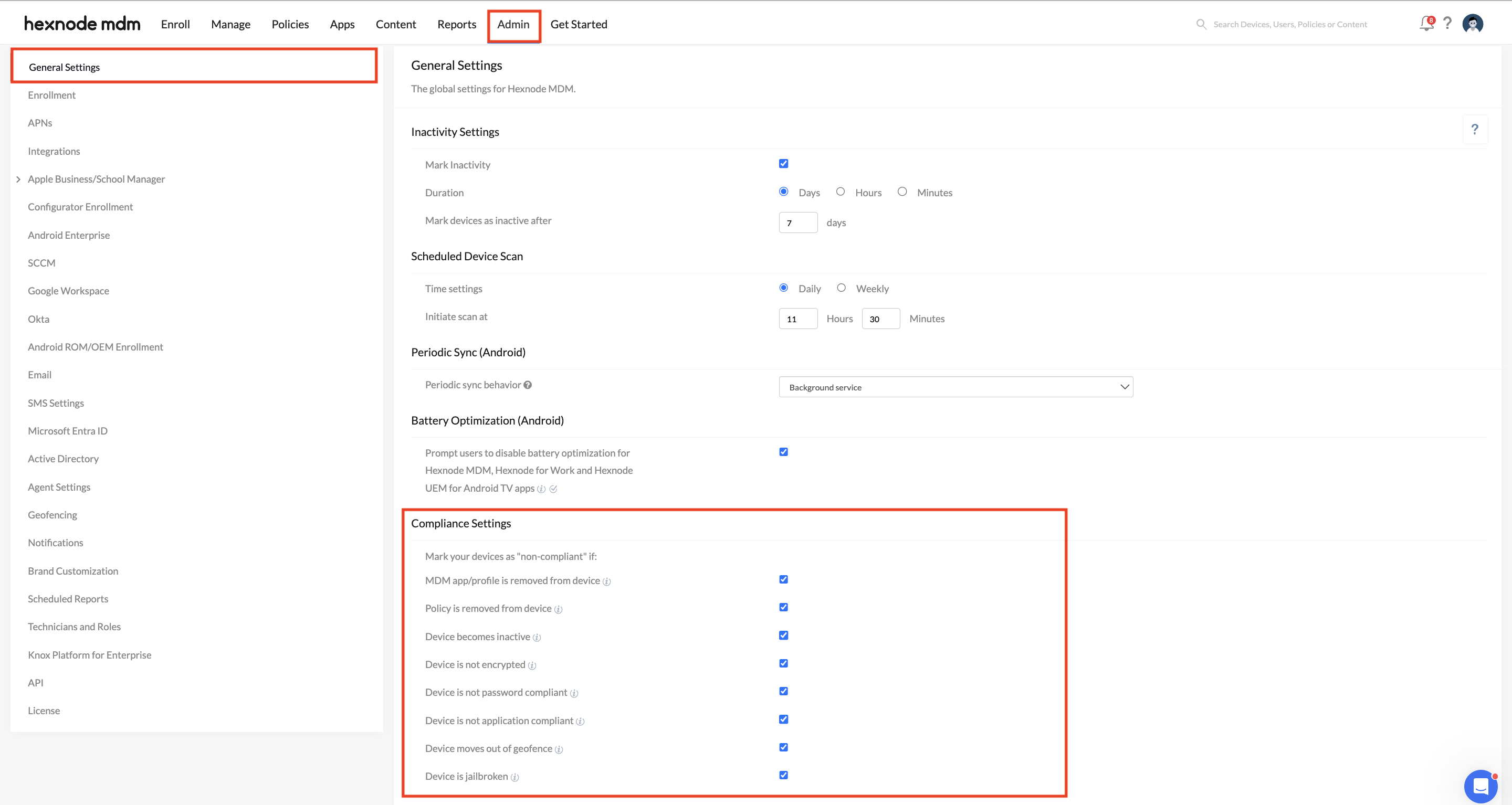
You can filter the report based on Device Inactivity, Type and Ownership. This report can include details such as Username, Phone Number, Email, Domain, sAMAccountName and Devices.
Unenrolled users
Lists the users without device(s) enrolled in the Hexnode portal. You can filter the report based on User Type. This report can include details such as Username, Phone Number, Email, Domain, sAMAccountName, Department (AD), Title (AD) and Office Location (AD).
Active directory users
Lists the users who are integrated via Active Directory. You can filter the report based on Enrollment Status. This report can include details such as Username, Phone Number, Email, Domain, sAMAccountName, Devices, Department (AD), Title (AD) and Office Location (AD).
Users with no passcode devices
Lists the users having device(s) without a passcode. You can filter the report based on Device Inactivity, Type and Ownership. This report can include details such as Username, Phone Number, Email, Domain, sAMAccountName and Devices.
Users with inactive devices
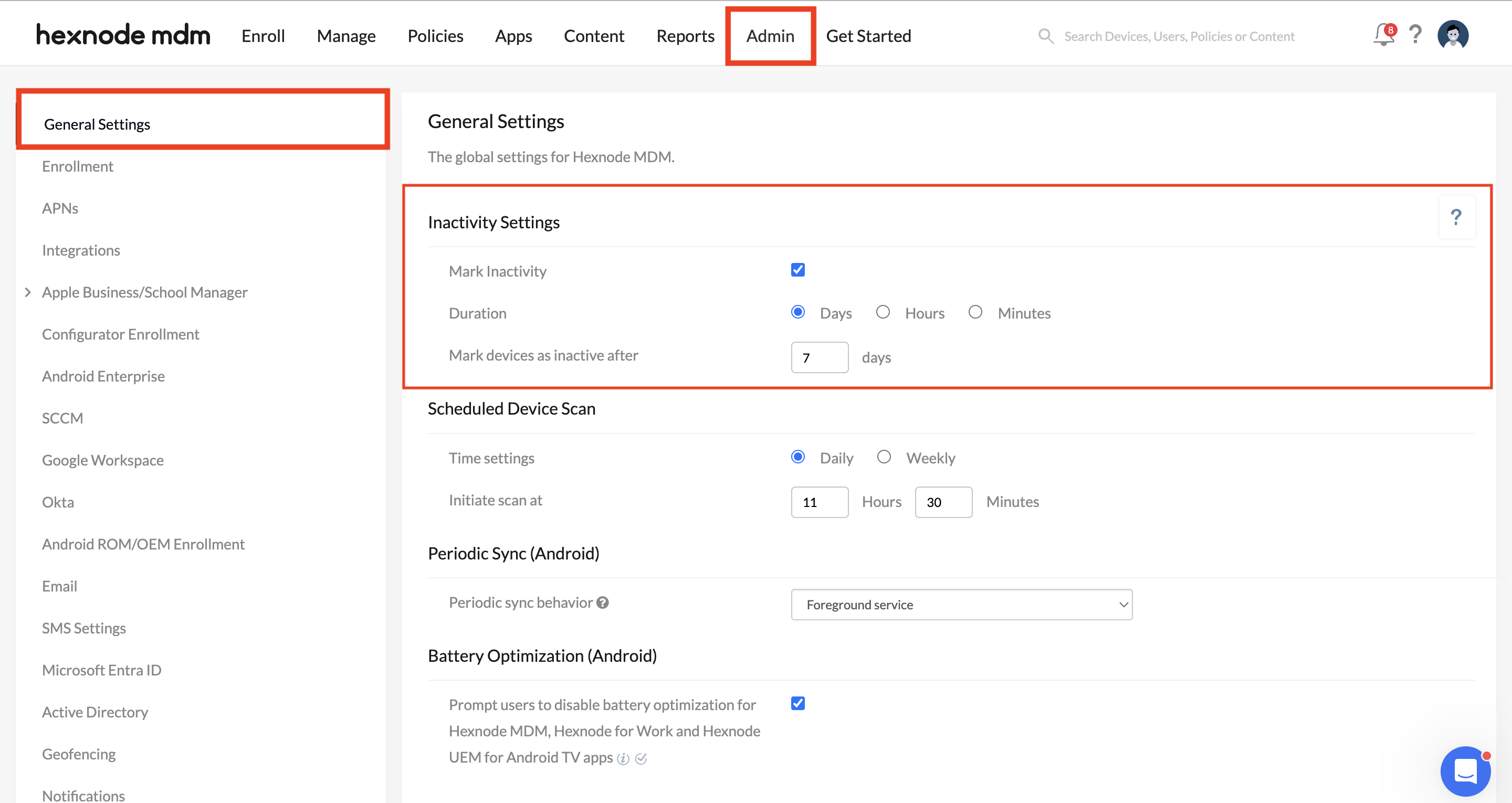
Lists the users with device(s) marked as inactive as configured under Admin > General Settings. ‘Inactive’ indicates that the enrolled device has lost communication with the MDM server for more than the specified duration. You can filter the report based on Type and Ownership. This report can include details such as Username, Phone Number, Email, Domain, sAMAccountName and Devices.
Users with camera disabled devices
Hexnode UEM enables you to disable camera on devices via policy. This report lists the users with such device(s). You can filter the report based on Device Inactivity, Type and Ownership. This report can include details such as Username, Phone Number, Email, Domain, sAMAccountName and Devices.
BYOD users
Lists the users who have enrolled their device(s) as personal in Hexnode UEM. You can filter the report based on Device Inactivity and Type. This report can include details such as Username, Phone Number, Email, Domain, sAMAccountName and Devices.
Enrolled users
Lists the users with device(s) enrolled in Hexnode. You can filter the report based on Device Inactivity, Type and Ownership. This report can include details such as Username, Phone Number, Email, Domain, sAMAccountName and Devices.
Users with corporate devices
Lists the users who are assigned company-owned/corporate device(s). You can filter the report based on Device Inactivity, Type and Ownership. This report can include details such as Username, Phone Number, Email, Domain, sAMAccountName and Devices.
Frequently Asked Questions
| Concept | Definition | Core Purpose for IT Admins |
|---|---|---|
| User Reports | A category of Built-in Reports that classifies users and their devices based on criteria like enrollment, compliance, and ownership. | User-Centric Auditing and comprehensive review of organizational assets. |
| Data Source | Data is generated from users added manually or imported via directory services (AD, Microsoft Entra ID, Google Workspace, Okta). | Facilitates management of users added via AD, Microsoft Entra ID, Google Workspace, or Okta. |
| Report Utility | Enables filtering user data based on critical device attributes (e.g., type, ownership, activity status). | Proactively identify users associated with security risks (e.g., non-compliant devices). |


