


Category filter
The Administrative Gateway: Secure Login to Hexnode UEM
The Hexnode UEM Console serves as the centralized command center for an organization’s entire endpoint fleet. Accessing this console or Hexnode UEM login is the first step in establishing a secure management perimeter across iOS, Android, Windows, macOS, ChromeOS, visionOS and Linux devices.
1. Authentication Architecture
Hexnode utilizes a multi-layered authentication framework designed to balance administrative ease with enterprise-grade security.
- Portal URL Structure: Every organization is assigned a unique, dedicated subdomain in the format: portalname.hexnodemdm.com.
- Identity Provisioning: Access is granted to a Super Admin (the account creator) and designated Technicians.
- Persistent Security: To prevent unauthorized concurrent access, Hexnode restricts a single technician session to one browser or machine at a time.
2. Step-by-Step Login Protocol
Phase 1: Accessing the Portal
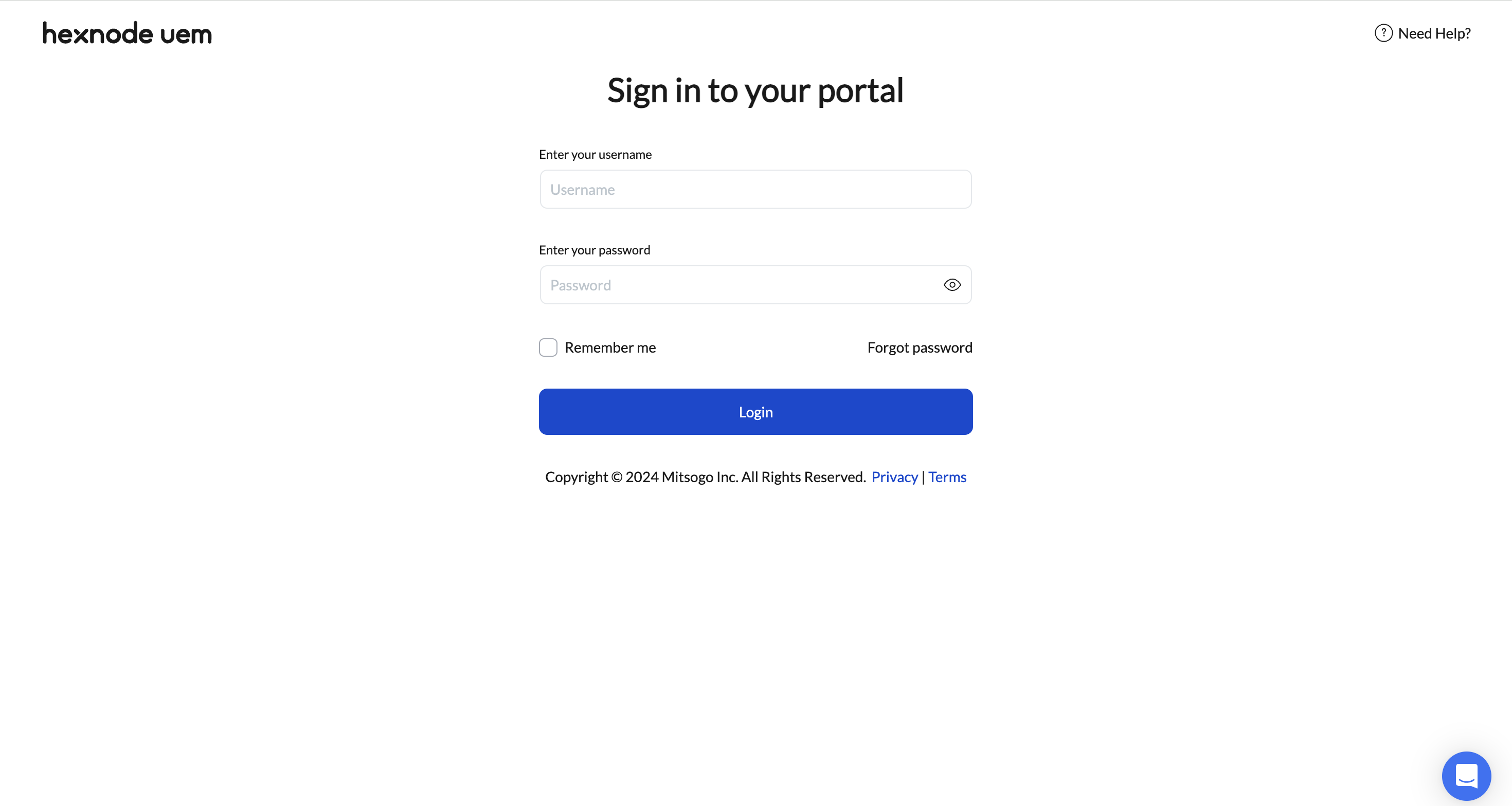
Navigate to your organization’s unique URL. If you have forgotten your portal name, use the “GET PORTAL INFO” tool on the Hexnode Sign-in page.
Phase 2: Credential Entry
- Username: Enter your registered work email address.
- Password: Enter your unique alphanumeric password.
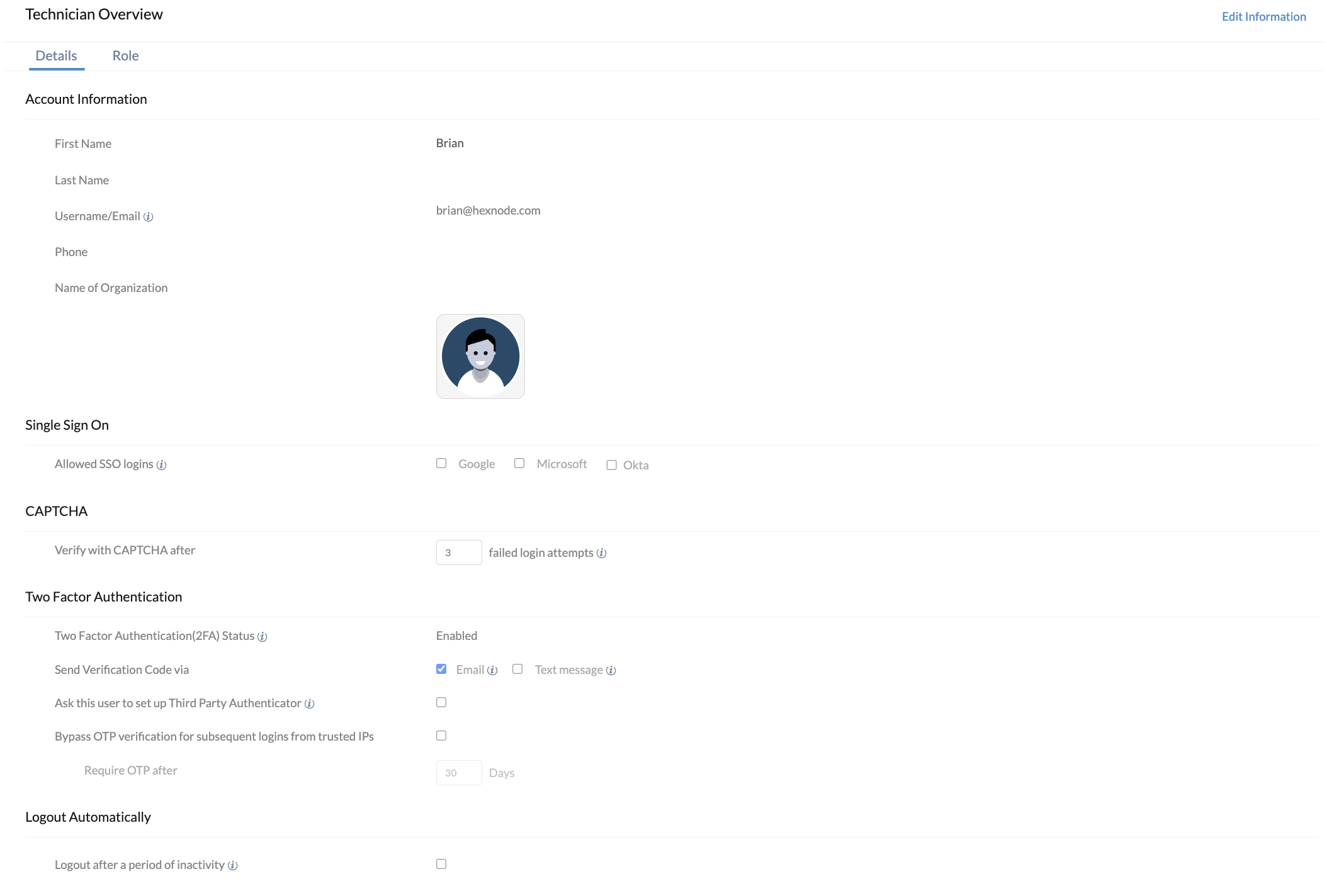
- CAPTCHA: Complete the visual verification if prompted (typically triggered after multiple failed attempts to prevent brute-force attacks).
Phase 3: Secondary Authentication (MFA)
If Two-Factor Authentication (2FA) is enabled, you will be prompted for a second verification step:
- Email/SMS OTP: A time-sensitive code sent to your registered contact.
- Authenticator App: A 6-digit code generated by Google Authenticator or Microsoft Authenticator.
3. Advanced Identity & Access Management (IAM)
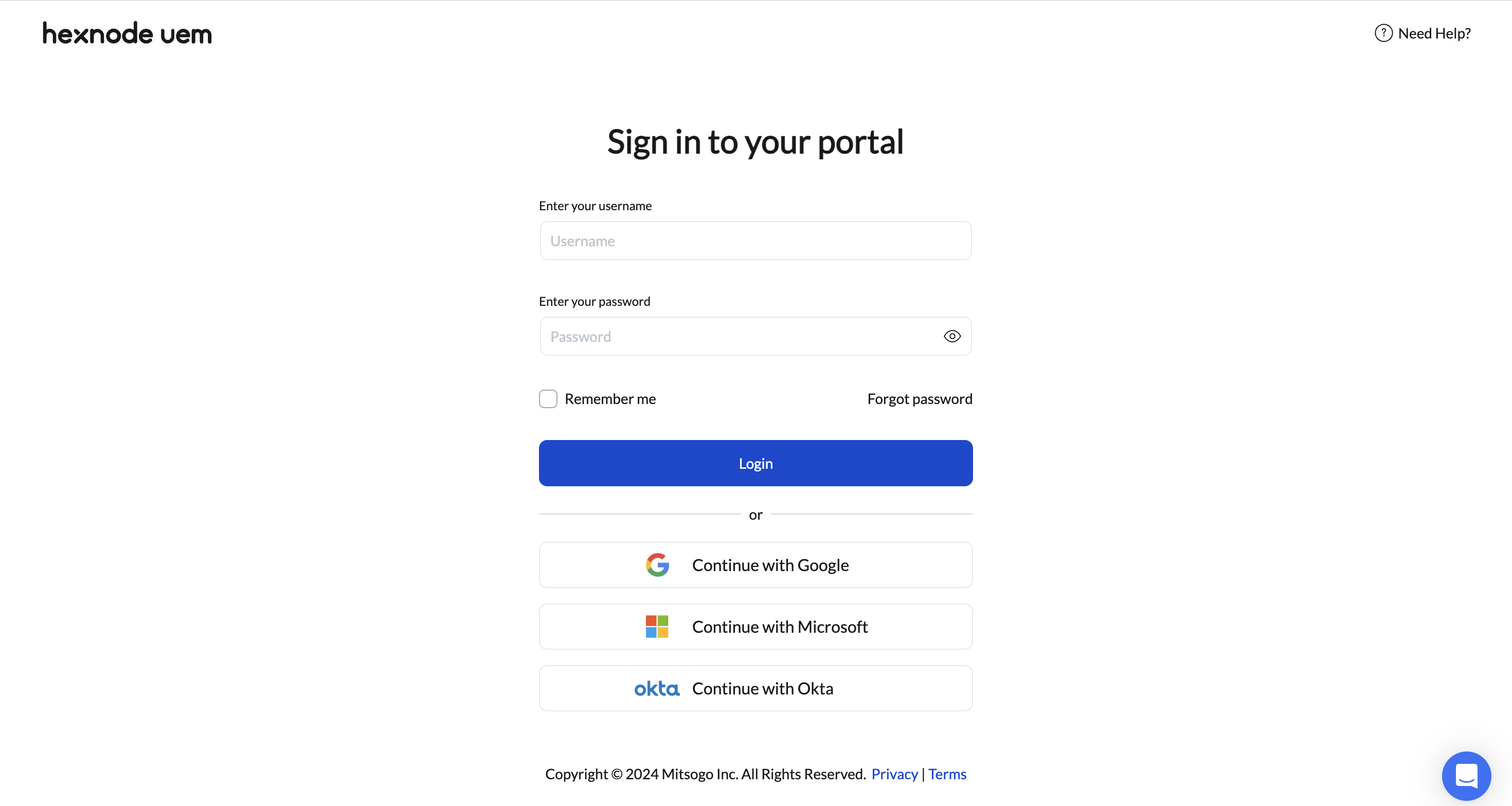
Hexnode provides a strategic advantage over traditional MDMs by integrating natively with global Identity Providers (IdPs), allowing for Single Sign-On (SSO).
Enterprise SSO Integrations
Administrators can bypass local Hexnode credentials by leveraging:
- Microsoft Entra ID (formerly Azure AD): Log in using corporate Microsoft 365 credentials.
- Google Workspace: Authenticate via managed Google accounts.
- Okta: Centralize access through the Okta Identity Cloud.
Role-Based Access Control (RBAC)
Not all users require full system access. Hexnode allows the Super Admin to define granular roles:
-
Admin: Full access to all tabs.
Reports Manager: Access restricted to audit logs and compliance data.
Custom Roles: Tailored permissions (e.g., “Helpdesk” role with only Remote View capabilities).
4. Security Best Practices & Troubleshooting
Password Recovery & Resets
- Forgot Password: Use the link on the login page to receive a secure reset email.
- Admin-Led Resets: A Super Admin can manually trigger a password reset for any technician via Admin > Technicians and Roles.
Login Troubleshooting Matrix
| Issue | Likely Cause | Resolution |
|---|---|---|
| “Invalid Portal Name” | Typo in subdomain. | Verify URL in the welcome email or use “Get Portal Info.” |
| Locked Account | Excessive failed attempts. | Wait for the lockout period or contact a Super Admin to reset. |
| MFA Code Not Received | Network delay or spam filter. | Check spam folders or use a backup/recovery code if configured. |
| SSO Redirection Error | Expired IdP token. | Clear browser cache or re-authenticate with the IdP directly. |
5. Strategic Summary for IT Admins
By centralizing login through a custom portal URL and reinforcing it with conditional SSO, Hexnode ensures that the “keys to the kingdom” are protected by the same security standards as the rest of the enterprise. This unified approach reduces password fatigue for IT staff while maintaining a strict audit trail of all console activity.


