


Category filter
Standardizing Incident Lifecycle Management for Global Fleets
In an enterprise environment, the difference between a minor hiccup and a major security breach often comes down to how effectively you handle the “noise.” Administrators are bombarded with alerts from forgotten passcodes to potential data exfiltration, and without a structured approach, critical warnings can slip through the cracks. This is where Incident Lifecycle Management becomes essential.
This guide moves beyond simple troubleshooting. It establishes a standardized framework for detecting, resolving, and documenting security events within Hexnode UEM. By treating every alert as a lifecycle event with a beginning, middle, and end, you not only solve the immediate technical issue but also create the immutable “Chain of Custody” required for strict compliance standards like HIPAA, SOC2, and ISO 27001.
Stages of Incident Lifecycle Management
Hexnode’s native Incidents tab serves as your central command center. However, an alert in the console is just data; it only becomes an “incident” when a human administrator takes ownership. To ensure accountability, every security event must move through three distinct stages.
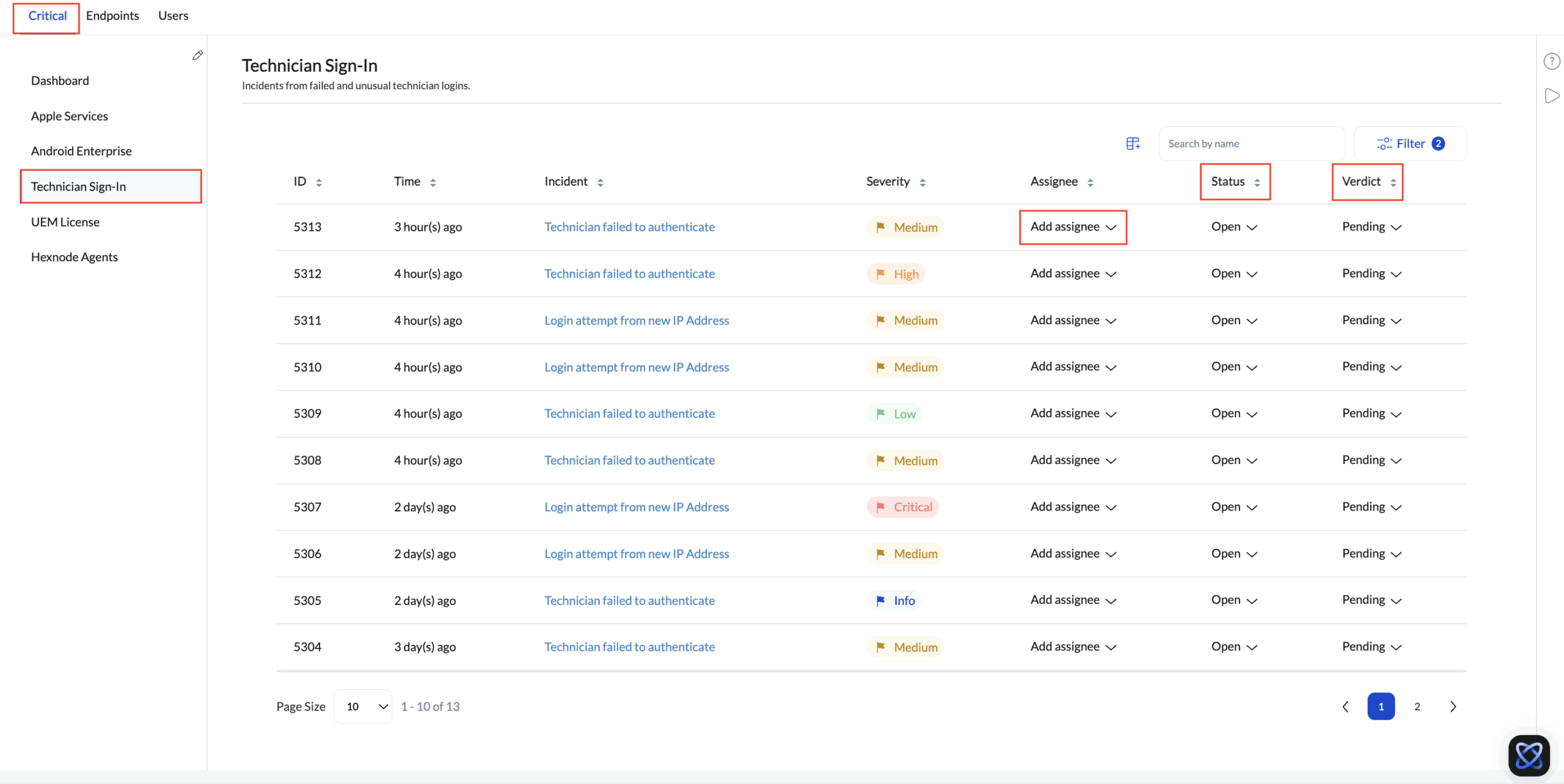
1. Open (Detection & Triage)
The lifecycle begins when Hexnode detects an anomaly such as a “Geofence Violation” or “Malware Detected” and flags it in the console. At this stage, the incident is unmanaged.
- The Action: The administrator must review the severity and click “Add Assignee” to claim ownership of the ticket.
2. In Progress (Investigation)
Once assigned, the incident enters the investigation phase. The technician is actively working to remediate the threat.
- The Action: Remediation often involves executing remote commands (e.g., Remote Wipe, Lock Device) or contacting the user. Crucially, admins should document their findings in the Device Notes section to explain the “why” behind their actions.
3. Resolved (Verdict & Closure)
The risk has been mitigated. However, closing a ticket in Incident Lifecycle Management requires more than just clicking “Done.” You must assign a Verdict to categorize the outcome for future audits:
- Fixed: The issue was legitimate and was successfully resolved.
- False Positive: The alert was incorrect (e.g., GPS drift causing a geofence alert).
- Pending: The issue is acknowledged but requires long-term monitoring.
Categorizing Incidents for Better Visibility
Effective Incident Lifecycle Management relies on prioritization. You cannot treat a license expiry with the same urgency as a single device missing a check-in. Hexnode groups incidents into three core dashboards to help you triage effectively:
- Critical (Infrastructure Level): High-severity issues that affect your ability to manage the entire fleet, such as Apple APNs Certificate Expiry or ABM Token Failure. These require immediate attention.
- Endpoints (Device Level): Failures on individual devices, such as a non-compliant passcode or a device rooted/jailbroken status.
- Users (Identity Level): Behavioral anomalies, such as a user exceeding the limit of assigned devices or logging in from geographically impossible locations (“Impossible Travel”).
Internal Auditing: The Chain of Custody
For compliance auditors, a “Resolved” status is not enough. They need proof of action. You must be able to reconstruct the timeline of the event.
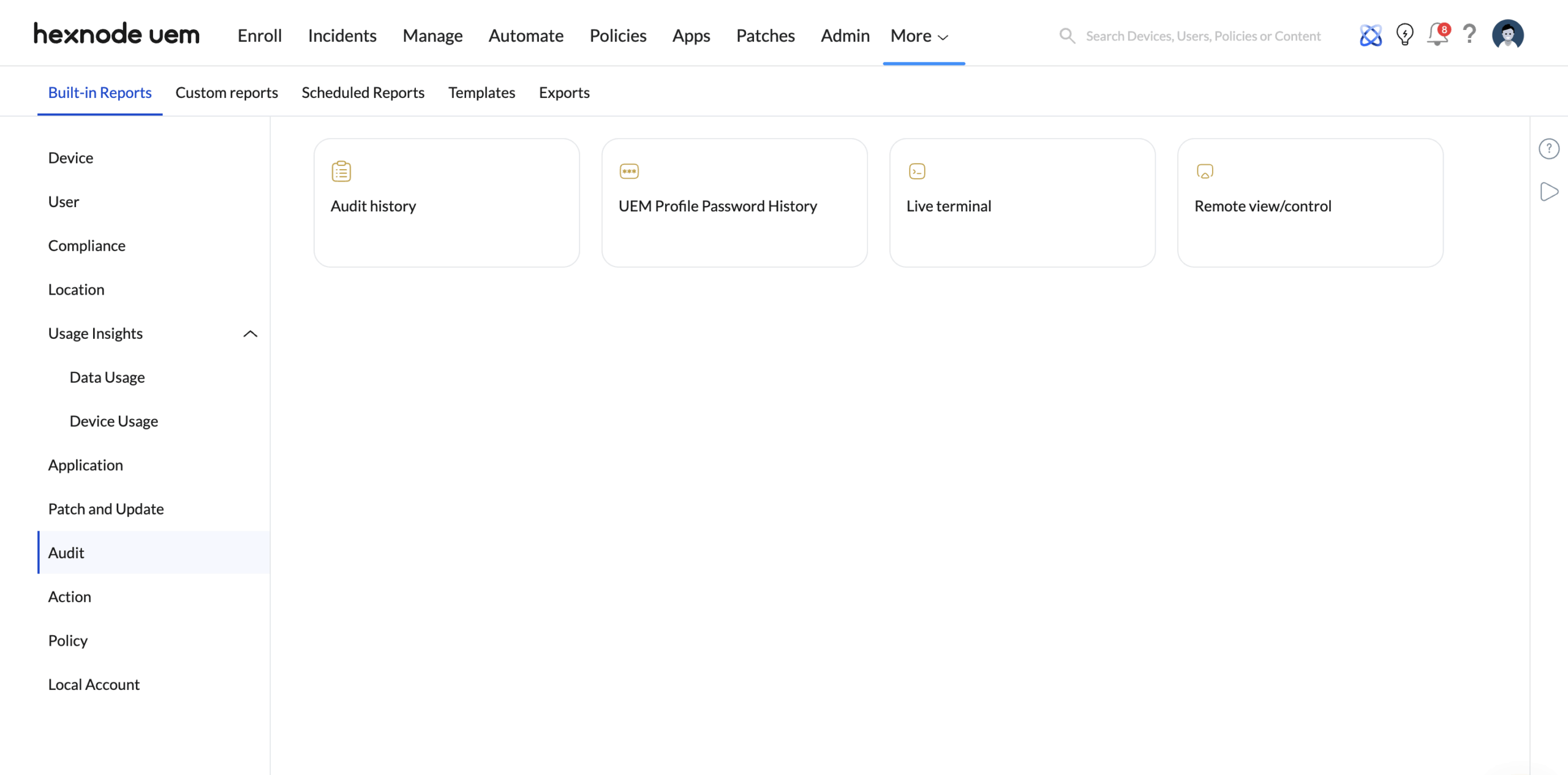
“Audit History” Report
This is your immutable log. It tracks every click made by an administrator, providing the definitive “who, what, and when.”
- Location: Reports > Audit Reports > Audit History
- What it proves: It verifies, for example, that “Technician A initiated a ‘Wipe’ command on Device B at 10:00 AM.”
Verification via Action History
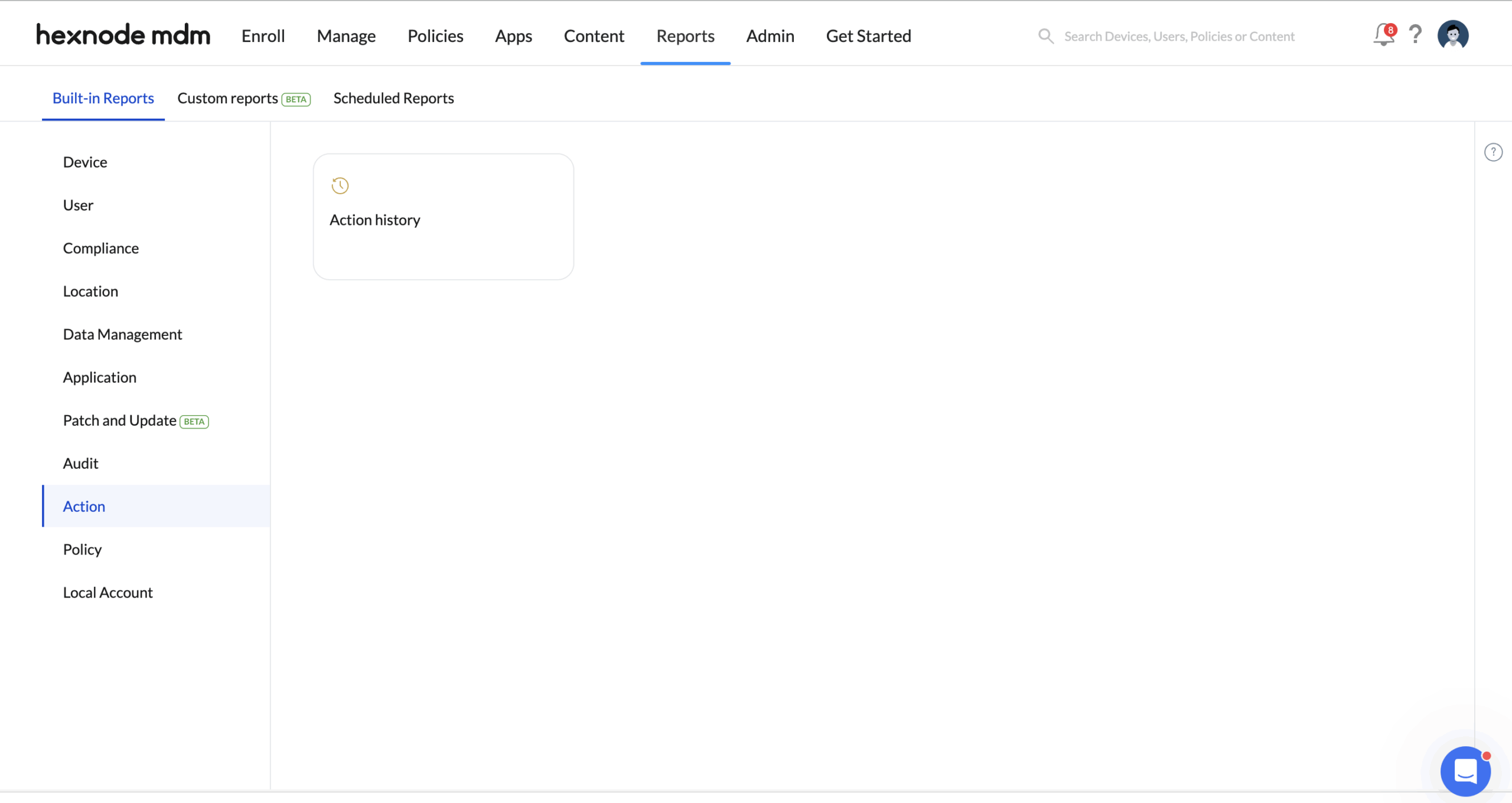
While the Audit Log proves the admin clicked on the button, the Action History proves the device received it.
- Location: Reports > Action History
- The Audit Check: Cross-reference these two reports. If the Audit Log shows a wipe was sent, but Action History shows it “Failed,” the lifecycle is not complete.
Workflow Scenario: The “Lost Device” Protocol
To see Incident Lifecycle Management in action, consider a scenario where a healthcare tablet containing patient data is reported lost.
- Triage (Incidents Tab): Locate the user-reported alert in Incidents > Endpoints. Assign the ticket to yourself and mark it “In Progress.”
- Narrative (Device Notes): Navigate to the device summary and add a note.
- Remediation (Action): Execute the Wipe Device command via the Actions menu.
- Verification (Closing the Loop): Verify in Action History that the wipe status is “Success.” Only then, return to the Incidents tab, set the status to “Resolved,” and mark the Verdict as “Fixed.”


