


Category filter
How to Enroll Fire OS Devices in Hexnode UEM?
Enrollment is the foundational process of adding devices to a Unified Endpoint Management (UEM) console for centralized administration. Hexnode offers multiple platform-specific enrollment methods for Fire OS, allowing organizations to scale based on security preferences, user authentication requirements, and deployment size.
1. Enrollment Without Authentication
This is the easiest and quickest enrollment technique involving no user authentication; any device can be enrolled by entering the server name. Devices are assigned to a default user, though the owner can be changed later via the Hexnode portal.
In Hexnode UEM Portal:
- Navigate to Enroll > All Enrollments > Quick > Open Enrollment > Change enrollment method.
- User Domain: Choose the domain; only users from this domain can be selected as the default user.
- Default User: Select an existing user or click +Add New User.
- Default Password: Enter a password.
Note: While mandatory for proceeding (logic used for Windows enrollment), it is not required on the device for Fire OS enrollment.
- Ownership: Select either Corporate or Personal.
- Click Continue.
At the Device End:
- Open Amazon Appstore and install the Hexnode UEM application.
- Enter the Server Name (e.g., yourportal.hexnodemdm.com).
- Enable: Device administration, Usage access, and Notification access.
- Click Next to complete enrollment.
2. Authenticated Enrollment
Enforces security by requiring credentials sent by the administrator. This guarantees only valid users add devices.
Method A: Email or SMS Enrollment
In the Hexnode Console:
- Navigate to Enroll > All Enrollments > Invite > Email/QR Code/SMS.
- Select user types via Enrollment Request.
- Set Ownership: Corporate, Personal, Let the user choose, or Choose it later.
- Click Continue. Once the “Enrollment settings successfully updated” message appears, choose the Domain.
- Send Request: Toggle between Single User or Bulk User (uploading a CSV). Click Send.
Method B: Self Enrollment
Allows users to use Active Directory (AD), Microsoft Entra ID, Google, or Okta credentials. Admins can also manually create a default user/password.
- Navigate to Enroll > All Enrollments > Invite > Email/QR Code/SMS.
- Select user types via Self Enrollment.
- Follow the same Ownership and Domain steps as the Email/SMS method above.
At the Device End (For Both Authenticated Methods):
- Install Hexnode UEM from Amazon Appstore.
- Enter Server Name and click Next.
- Authentication Selection:
- Local Users: Select Authenticate with Hexnode, choose ‘local’ domain, enter username/password.
- AD Users: Select Authenticate with Hexnode, choose AD domain.
Note: Use NetBiosName\SAMAccountName if domain isn’t selected; use SAMAccountName if it is.
- Microsoft Entra ID: Click Authenticate with Microsoft.
- Google Users: Click Authenticate with Google.
- Okta Users: Click Authenticate with Okta.
- Click Next.
- Enable Device administration, Usage access, and Notification access. Click Next.
- Your device will now be enrolled on Hexnode UEM.
3. QR Code Enrollment
Manual enrollment involving the portal name, username, and password can be a tiring process. To simplify this, Hexnode UEM supports QR Code Enrollment, allowing users to add their Fire OS devices by simply scanning a code with the device camera.
Quick Enrollment
Open Enrollment allows for rapid deployment by entering an enrollment URL or scanning a bulk QR code directly from the administrator’s portal. This is the fastest way to get multiple devices into the system.
- In the Hexnode UEM Portal:
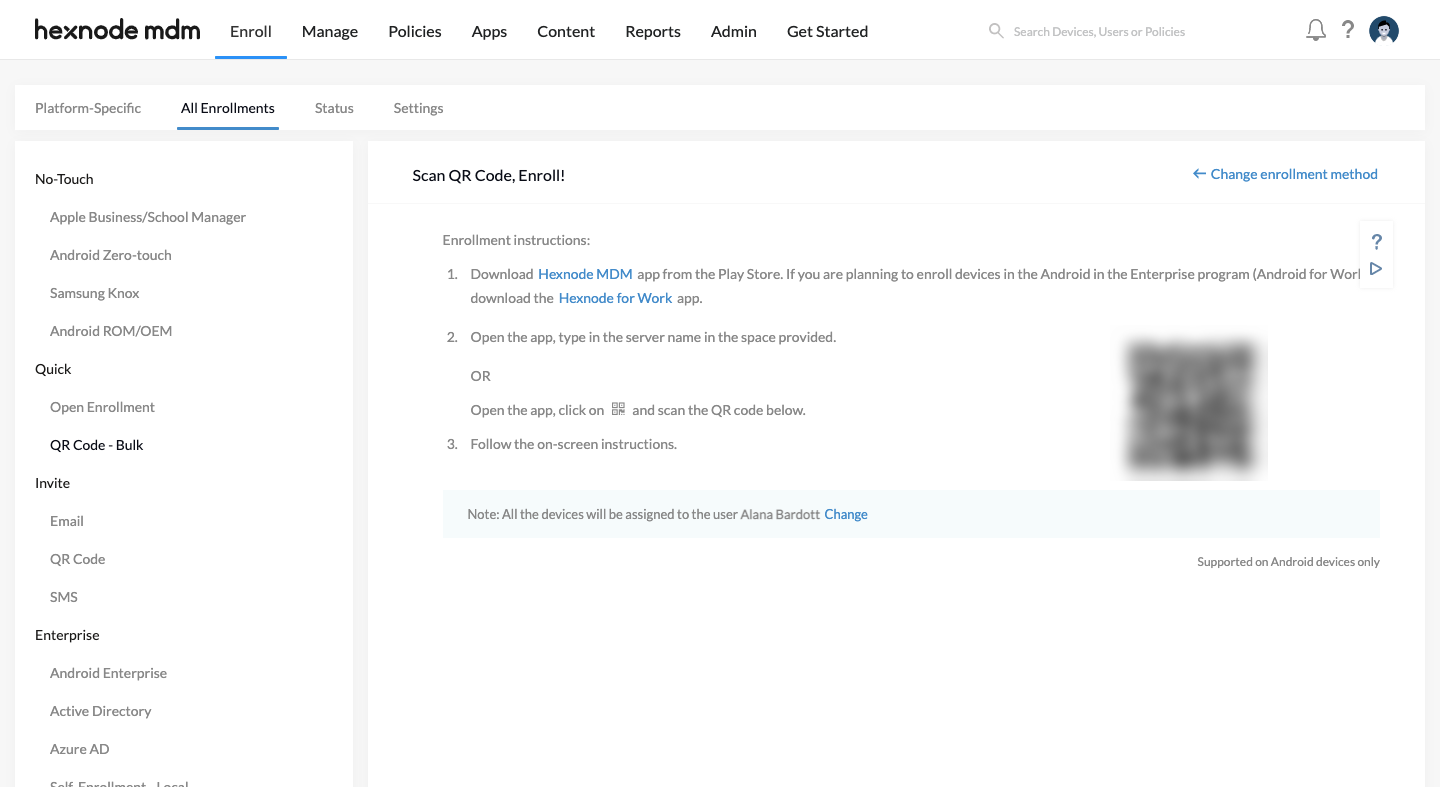
- Log in and navigate to Enroll > All Enrollments > Quick > QR Code – Bulk.
- At the Device End:
- Download the Hexnode UEM app from the Amazon Appstore.
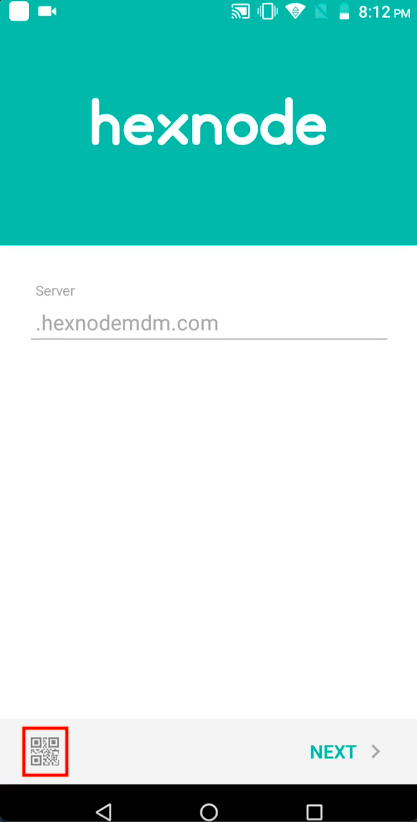
- Open the app and tap the QR code icon located at the bottom left of the screen.
- Scan the QR code displayed on the Hexnode portal and follow the on-screen instructions to finalize enrollment.
QR Code Enrollment with Authentication
This method adds a layer of security by requiring user-specific authentication. In this workflow, a unique QR code is generated and sent directly to the user via email.
Step 1: Prerequisites (Enable Authentication)
Before sending requests, you must ensure the portal is configured to enforce authentication:
- Go to Enroll > Settings.
- Under Request Modes, select Email.
- Under Authentication Modes, check the box for Enforce authentication.
- Click Save.
Step 2: Sending the Enrollment Request
- Navigate to Enroll > All Enrollments > Invite > QR Code.
- Select the User(s) to be enrolled.
- Set the Ownership (Corporate, Personal, Let the user choose, or Choose it later).
- Click Continue. A confirmation message, “Enrollment settings successfully updated,” will appear.
- Choose the appropriate Domain, select the specific user to assign the device, and click Send.
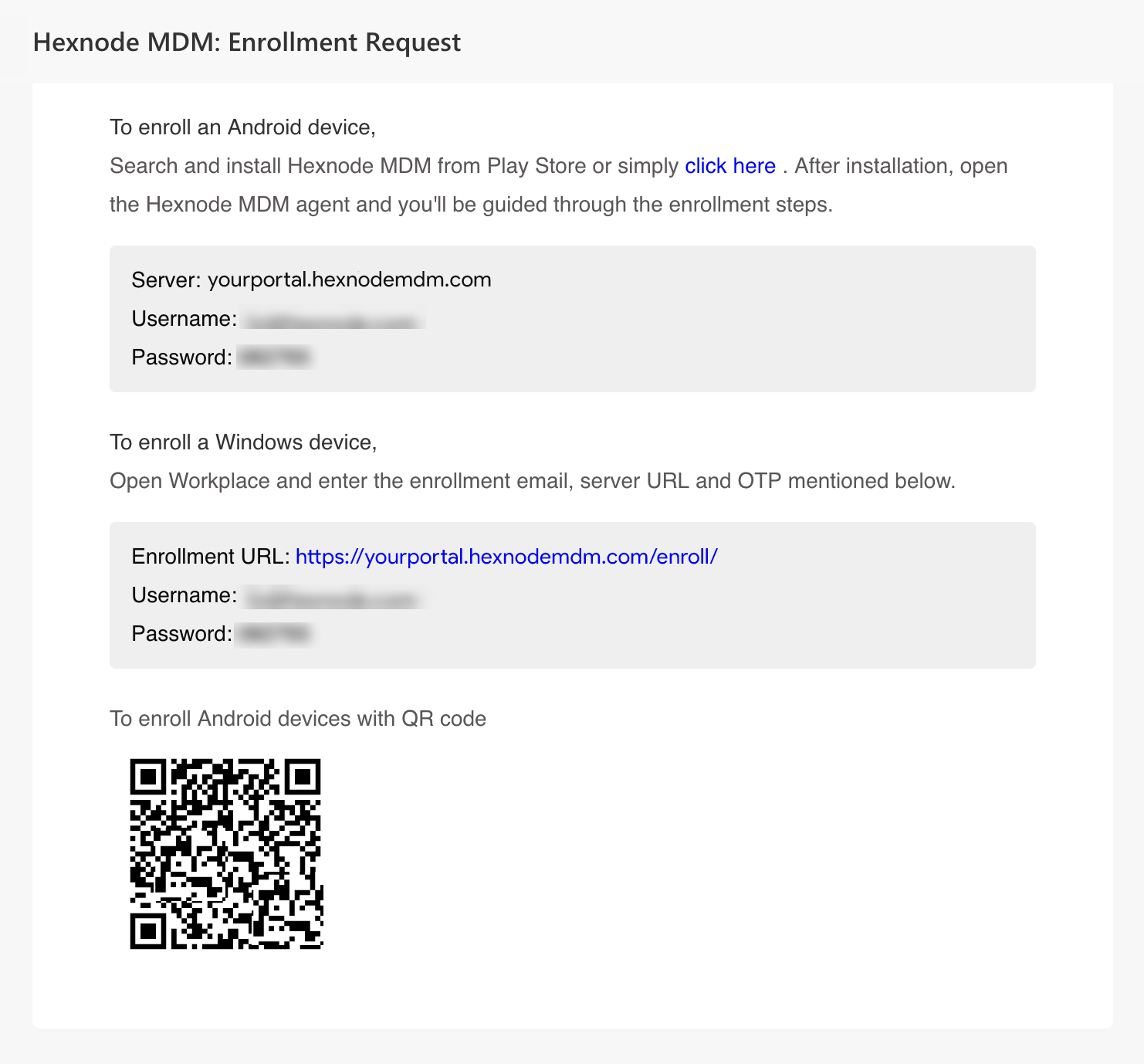
- An enrollment request email containing the unique QR code will be sent to the user.
Step 3: At the Device End
- Install the Hexnode UEM app from the Amazon Appstore.
- Open the app and tap the QR Code icon at the bottom left of the screen.
- Scan the QR code received in the enrollment email.
- Click Agree on the terms.
- Enable Permissions: You must toggle on Device administration, Usage access, and Notification access.
- The device will now be successfully enrolled in Hexnode UEM.
Note: Authenticated QR codes are valid for one-time use only. Once a device is successfully enrolled using a specific code, that QR code becomes invalid.
4. Pre-Approved Enrollment
Pre-Approved Enrollment is a specialized bulk enrollment technique. It allows administrators to import device details into the Hexnode UEM portal before the user ever begins the process on the device end. This is particularly useful for tracking inventory that hasn’t been deployed yet.
Configuration Steps in Hexnode Portal:
- Navigate to Enroll > All Enrollments > Enterprise > Pre-approve.
- Select the appropriate Domain.
- Prepare the Data: Click Download sample CSV file. You can either create a new file following this template or edit the sample.
- Data Requirements: Ensure the CSV contains mandatory information: Name, Email, Ownership, Serial Number, and Platform.
Note: Even though these are Amazon devices, the Platform field in your CSV must be set to Android.
- Upload & Map: Click Choose file to upload your CSV.
- If the data contains errors, an error message will appear for correction.
- Hexnode automatically identifies keys like Name, Email, Mobile, Ownership, Device Name, Serial Number, and Platform. If any auto-mapping is incorrect, you must map the keys manually.
- Review: The portal will display the uploaded data for a final check. Click Next.
- Finalize: Choose to send the enrollment requests via Email or SMS and click Send.
Post-Enrollment View:
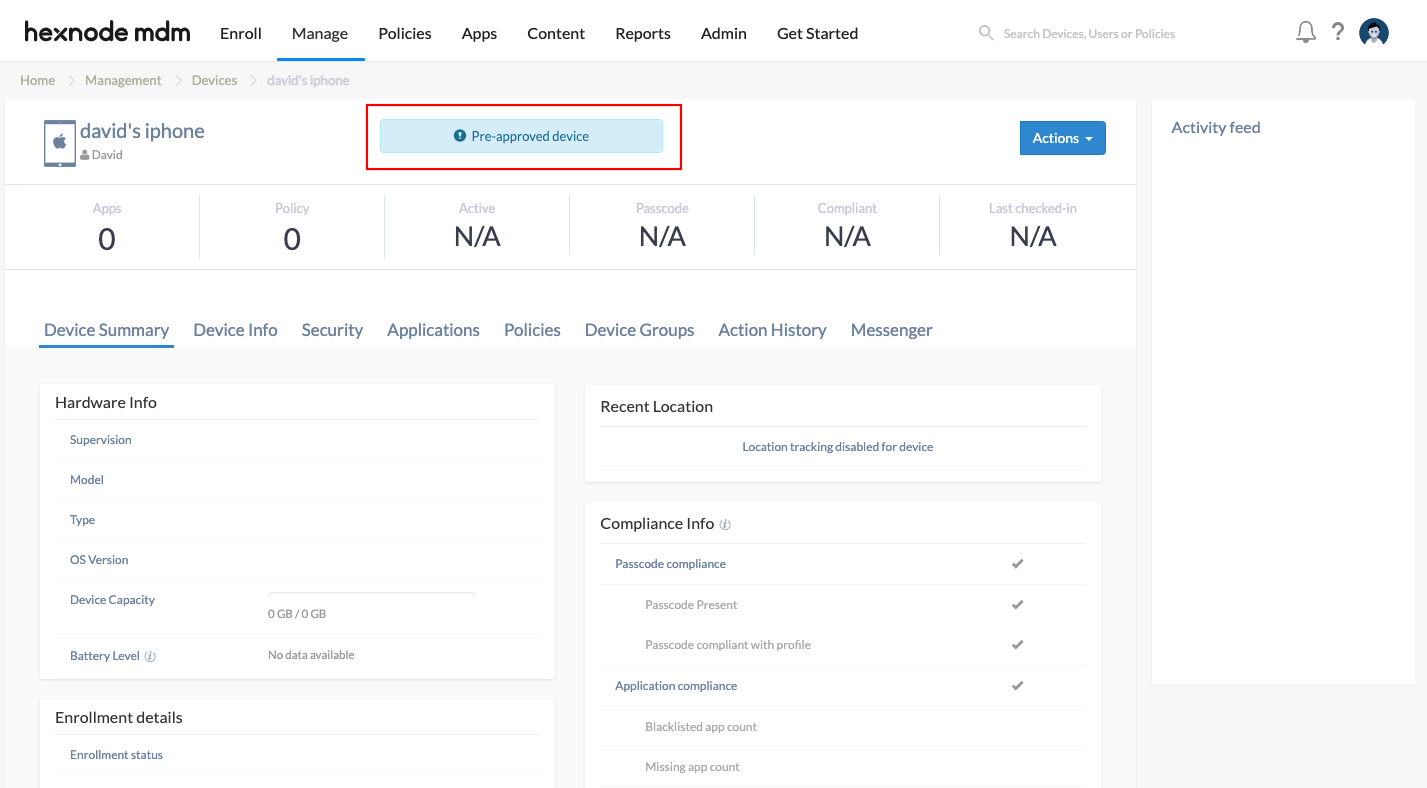
Once the request is sent, all pre-approved devices are listed in the Hexnode portal immediately. These entries will retain a ‘Pre-approved device’ banner until the user completes the setup on the device end.
5. Bulk Enrollment
Authenticated enrollment is secure, but sending individual requests to a large number of users can be a “tiring job” for an administrator. Bulk Enrollment solves this by allowing you to import a CSV file containing all user details and sending enrollment requests to everyone in a single action.
In the Hexnode Portal:
- Navigate to Enroll > All Enrollments > Invite > Email.
- Under the Send enrollment request to option, toggle the button to Bulk User.
- Upload CSV: Click Download sample CSV file to ensure your formatting is correct. The following details are mandatory for the import to succeed:
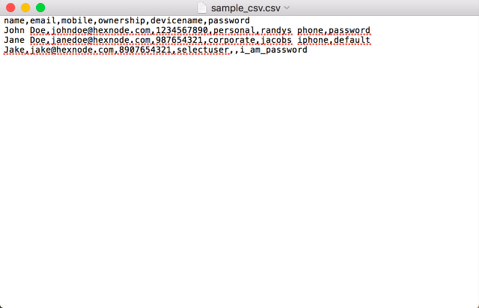
Field Name Description Name Description Name Provide the full name of the user. Email The email address where the enrollment request will be sent. Mobile Number The user’s mobile number for SMS-based enrollment requests. Ownership Specify the device ownership type as either Personal or Corporate. Device Name Provide a suitable name to identify the device within the portal. Password Set the specific password required for the user’s authentication. - Click Next to verify the details of the uploaded CSV.
- Choose your preferred mode for sending the requests (Email/SMS) and click Send.
At the Device End:
Once the user receives their specific credentials:
- Open the Amazon Appstore on the Fire OS device.
- Download and install the Hexnode UEM application.
- Open the app and enter your Server Name (e.g., yourportal.hexnodemdm.com) and click Next.
- Authenticate: Enter the unique Username and Password provided in the enrollment email or SMS.
- Grant Permissions: To finish, the user must enable:
- Device administration
- Usage access
- Notification access
- Click Next, and the device will be fully enrolled in Hexnode UEM.
Frequently Asked Questions (FAQs)
Q1: What exactly is Fire OS?
Fire OS is a forked version of Android developed by Amazon. It runs on Fire tablets and phones. The main difference is that it uses Amazon’s services (Amazon Appstore, Amazon Maps) instead of Google’s (Google Play, Google Maps).
Q2: Will my Android apps work on Fire OS?
Generally, yes. Since Fire OS is based on Android, most apps are compatible. However, apps that rely strictly on Google Mobile Services (GMS) may need adjustments. You can check compatibility using Amazon’s App Testing Service.
Q3: Does Hexnode support all Android features on Fire OS?
Hexnode supports most Android management features on Fire OS, but there are some exceptions due to the OS architecture:
- Unsupported Enrollment Methods: Fire OS does not support Android Zero-Touch enrollment or enrollment via Google Workspace.
- Unsupported Management Frameworks: Features specific to Android Enterprise and Samsung Knox are not supported.
- Location: Must be set to “High Accuracy” to function correctly.
- Kiosk Mode: The Hexnode Kiosk Browser is not supported on all Amazon devices. Digital Signage is limited to images (no video streaming), and screensavers only support images.
Q4: Can I control network settings on Fire OS?
Yes, basic network configurations work the same as Android. However, granular restrictions like “Users can turn mobile data on/off” or “Choose preferred network type” are device-specific and may not apply to all Fire OS models.


