


Category filter
How to Enroll ChromeOS Devices in Hexnode UEM
ChromeOS is a Linux-based operating system developed by Google, designed to run web applications, Android apps (via Google Play Store), and Linux tools. While primarily found on Chromebooks, it can also be installed on Windows and macOS hardware using ChromeOS Flex, making it a versatile choice for enterprise environments.
To manage these endpoints effectively, administrators must enroll ChromeOS devices in Hexnode UEM. Enrollment establishes a secure communication channel between the device and the Hexnode UEM server, enabling remote policy application, app management, and security compliance.
Hexnode supports management for:
- Chromebooks: Standard hardware running ChromeOS.
- ChromeOS Flex: PCs or Macs converted to run the ChromeOS operating system.
Prerequisites for ChromeOS Enrollment
Before attempting to enroll ChromeOS devices, ensure the following requirements are met:
- Google Workspace Integration: Your organization must have a Google Workspace (formerly G Suite) account integrated with Hexnode UEM.
- Licensing: You must possess Chrome Enterprise Upgrade licenses for every device you intend to manage.
- Configuration: Necessary APIs and OAuth scopes must be configured in the Google Admin Console to allow Hexnode management.
- Device State: The device must be in a factory-fresh state (Powerwashed) before enrollment begins.
Enrollment Methods
Hexnode supports multiple ways to onboard devices:
- General Enrollment: Manual enrollment for standard Chromebooks or PCs/Macs converted using ChromeOS Flex.
- Bulk Enrollment: Automated enrollment via Android Zero-Touch pre-provisioning partners.
Step-by-Step Guide: How to Enroll ChromeOS Devices
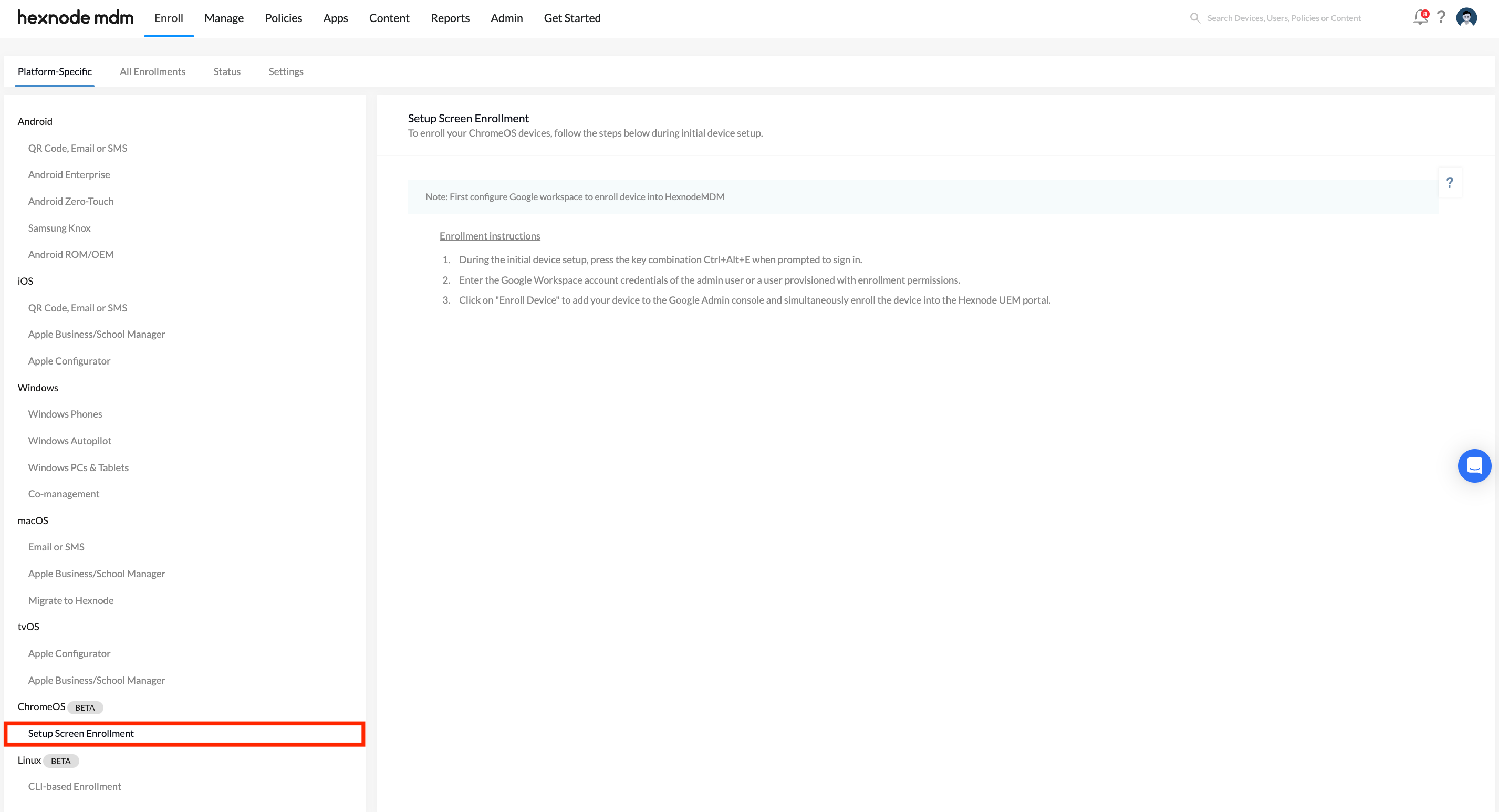
Follow these steps to perform a General Enrollment.
Step 1: Prepare the Device
The device must be in a clean factory state.
- If the device is new, proceed to Step 2.
- If a user account is already logged in, you must Powerwash (reset) the device to factory settings before proceeding.
Step 2: Connect to Network
- On the initial setup screen, connect to Wi-Fi manually or scan the QR code to connect automatically.
Step 3: Initiate Enrollment
- Once connected, select For Work regarding the device purpose.
- Click on Enroll the device.
Step 4: Authenticate and Enroll
- Enter your Google Workspace account credentials.
- Click Enroll enterprise device.
- Upon seeing the “Enterprise enrollment complete” page, click Done.
Step 5: Device Provisioning
- The device is now added to your organization. It will automatically Powerwash to initiate the enrollment.
- After the restart, connect to the network again if prompted.
- You will be directed to the Device enrollment page.
- Enter the Google Workspace credentials of a user with enrollment permissions.
- (Optional) Enter device information if requested.
- Click Enroll enterprise device.
Step 6: Final User Setup
- Choose to Sign in to your Chromebook or Browse as Guest.
- Review and accept the Google Terms and Sync preferences.
- Set a password or continue with your Google Account Password.
- Click Get started. Your device is now enrolled and ready for use.
Verifying Enrollment
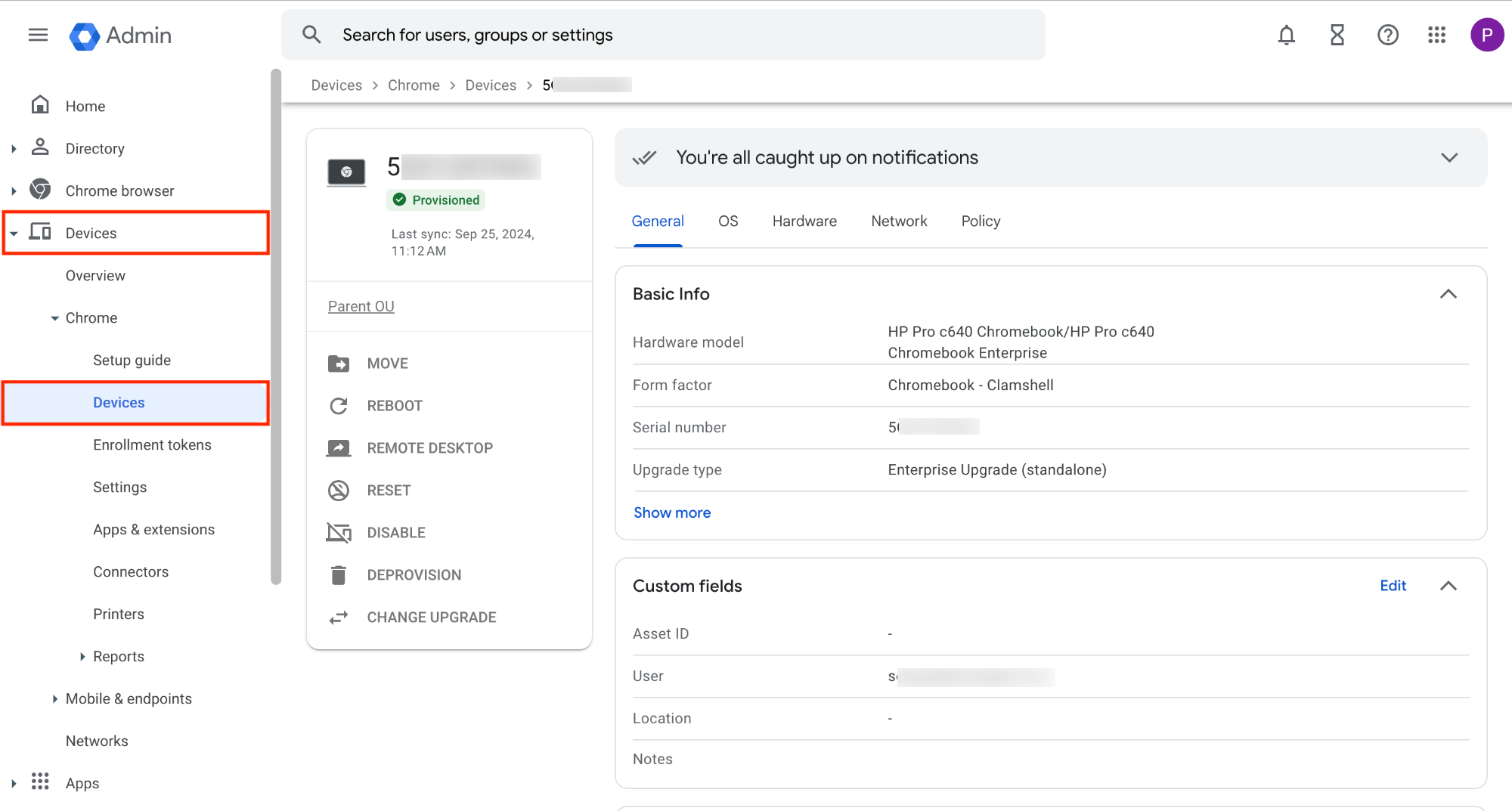
In Google Admin Console
- Log in to the Google Admin Console.
- Navigate to Devices > Chrome > Devices.
- Verify the device appears in the list.
In Hexnode UEM
Devices added to Google Admin Console sync to Hexnode.
- Log in to your Hexnode UEM portal.
- Navigate to Admin > Google Workspace.
- Click the Sync icon (top right corner beside Actions drop-dowm) to pull the latest data from Google.
- Once synced, go to Manage > Devices.
- Use the “Filter by” on the right by checking ChromeOS under the listed platforms and select ChromeOS to view your newly enrolled devices.
Frequently Asked Questions (FAQs)
Q1: Can I enroll a device with a personal Gmail account?
No. Enterprise enrollment requires a Google Workspace domain account (e.g., user@company.com). Personal Gmail accounts cannot trigger the enterprise management capabilities needed for Hexnode.
Q2: Does Hexnode support ChromeOS Flex?
Yes. ChromeOS Flex devices (Windows PCs or Macs converted to ChromeOS) are treated similarly to standard Chromebooks. Ensure the hardware model is on Google’s [Certified Models List] before installing.
Q3: What is the CTRL + Alt + E shortcut for ChromeOS devices?
This is a system-level keyboard shortcut used on the initial setup screen. It forces the device to switch from the consumer setup flow (“Who is using this device?”) to the Enterprise Enrollment flow. Use this if the “For Work” option is missing.
Q4: What happens if I don’t powerwash a used ChromeOS device before enrollment?
Enterprise enrollment requires a clean state. If you do not powerwash, the device will remain associated with the existing personal user account and cannot be managed by the organization.
Troubleshooting
1. Device Enrolled in Google but Not Showing in Hexnode
Symptom: The device appears in the Google Admin Console but is missing from the Hexnode UEM portal even after a sync.
Cause 1: Outdated Integration Scopes:
Google has updated the API permissions required to sync devices, and your current Hexnode integration needs to be re-authorized to include these new scopes.
Resolution:
Follow the steps in our integration guide to update your settings: How to integrate Google Workspace with Hexnode?
Cause 2: License Limit Exceeded (Hexnode):
Your Hexnode UEM portal has reached its maximum number of managed devices. New devices cannot sync until capacity is freed or the limit is raised.
Resolution:
- Free up capacity: Go to Manage > Devices, select an unused device, and click Actions > Device Control > Disenroll Device.
- Increase limit: Navigate to Admin > License to purchase additional device licenses.


