


Category filter
Create local user accounts on Linux devices enrolled in Hexnode UEM
The Create User Account remote action in Hexnode UEM allows IT administrators to remotely provision local user accounts on managed Linux endpoints, facilitating secure multi-user access and administrative privilege delegation.
Why Remotely Create Local User Accounts on Linux?
Remote account provisioning centralizes identity management and secures system resources by ensuring individual access credentials. This eliminates the need for physical device access and ensures consistent account configurations across the organization.
- Multi-User Management: Enables separate workspaces and file isolation for multiple employees sharing a single device.
- Security Control: Allows administrators to define specific account privileges and login shells remotely.
- Access Delegation: Facilitates the immediate onboarding of new users without on-site IT intervention.
Prerequisites
| Requirement | Description |
|---|---|
| Platform | Managed Linux devices enrolled in the Hexnode UEM portal. |
| Permissions | Administrator access to the Hexnode UEM console. |
Step-by-Step Guide: How to Create a Local User Account
Follow these steps to deploy a new user account to a target Linux device:
- Log in to the Hexnode UEM portal.
- Navigate to the Manage tab and select Devices.
- Choose the required Linux device from the inventory.
- Select Actions > Policies & Accounts > Create User Account.
- In the Create User Account dialog box, configure the following parameters:
Field Requirement Full Name Specify the full name of the user. Account Name Enter the username (automatically populated based on the Full Name). Password Configure a secure password for account authentication. Verify Password Re-enter the password to confirm accuracy. Login Shell Select a shell from the drop-down menu (e.g., /bin/bash, /bin/zsh). Grant Superuser Privileges Enable this checkbox to grant the user administrative (sudo) rights. - Click Create to execute the remote action.
Supported Linux Login Shells
The following shells are available for selection during account creation:
- /bin/bash (Default for most distributions)
- /bin/sh
- /bin/csh
- /bin/tcsh
- /bin/ksh
- /bin/zsh
- /bin/ash
- /bin/dash
What Happens at the Device End?
Once the Create User Account action is successfully executed on the Linux endpoint:
- The new username becomes visible on the system login screen.
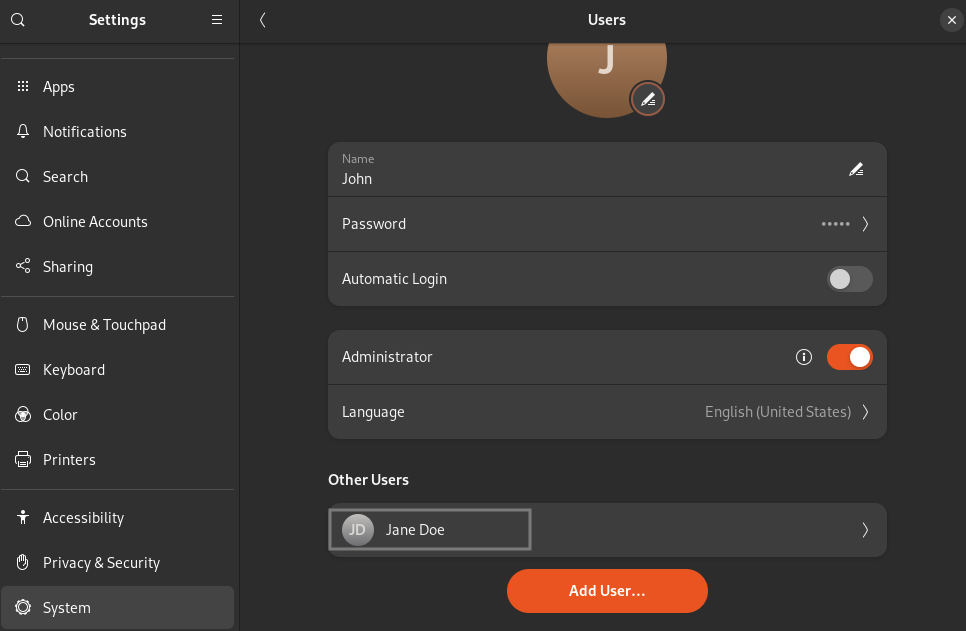
- The account and its configuration can be verified locally by navigating to Settings > System > Users.
- The user can immediately log in using the credentials defined in the Hexnode console.
Frequently Asked Questions (FAQ)
Is it possible to grant administrative rights to the new Linux user?
Yes. During the creation process, selecting the Grant Superuser Privileges option assigns administrative rights to the local account.
Which login shells are supported when creating a Linux account via Hexnode?
Supported shells include standard options such as bash, sh, zsh, ksh, csh, tcsh, ash, and dash.
How is the Account Name generated in the Hexnode console?
The Account Name (username) is automatically generated by the system based on the string entered in the Full Name field, though it can be modified manually if necessary.
Where can the new account be verified on the Linux device?
Verification is possible via the local GUI by navigating to Settings > System > Users or through the terminal using standard user management commands.


