


Category filter
Implementing Hidden Emergency Access Accounts on macOS/Windows
In an enterprise landscape where identity is centralized in the cloud, the
Create User Account remote action in Hexnode UEM serves as more than just a utility—it is a critical fail-safe. For IT Architects and CISOs, this action provides a “Just-in-Time” (JIT) entry point to physical hardware when standard Single Sign-On (SSO) or Identity Provider (IdP) connections fail.
This guide outlines the strategic creation of emergency access accounts for high-resilience Break-Glass scenarios on Windows and macOS.
Strategy: The “Just-in-Time” Rescue Account
Enterprise resilience requires a two-tiered approach to local access:
- Active-Standby (The Lifeboat): A hidden admin account pre-staged during enrollment (ADE or Autopilot).
- Just-in-Time (The Rescue Helicopter): Using the Create User Account action to inject an entry point after a crisis has begun (e.g., an IdP outage).
Enterprise Use Cases & Scenarios
Use Case A: The “Identity Deadlock” Recovery
The Scenario: Your organization uses Hexnode Access to link Entra ID or Okta to macOS/Windows logins. A global outage hits the IdP, preventing users from logging in because cached credentials have expired or been purged.
- The Action: IT triggers the Create User Account action to add a temporary local admin account to the affected fleet.
- The Connection: Admins provide these local credentials to users via a secure secondary channel. Users log in locally, bypassing the broken SSO screen, to continue critical operations.
Use Case B: Hostile Offboarding & Asset Retrieval
The Scenario: An employee with local administrator privileges is terminated under hostile circumstances. You suspect they may attempt to lock the device or wipe corporate data before the device is returned.
- The Action: IT instantly creates a new, unique local admin and simultaneously uses the “Delete User” action on the former employee’s account.
- The Result: IT seizes “Root” control of the hardware, ensuring the device remains manageable and the data is retrievable during the legal hold process.
Technical Framework: Connecting Action to Scenario
| Feature | Windows 10/11 Configuration | macOS (10.13+) Configuration |
|---|---|---|
| Account Type | Administrator (For system repair) | Administrator (For system repair) |
| Visibility | Default (Visible at login) | Hidden (Recommended for Break-Glass) |
| Secure Token | N/A | Grant Secure Token (Must be enabled) |
Implementation: The “Secret Entrance” Strategy
For emergency access accounts, the account should be functional but invisible to the daily user.
- Configure Hidden Status: Check “Hide account from Login Window and Users & Groups.” This keeps the emergency door invisible to anyone physically looking at the device.
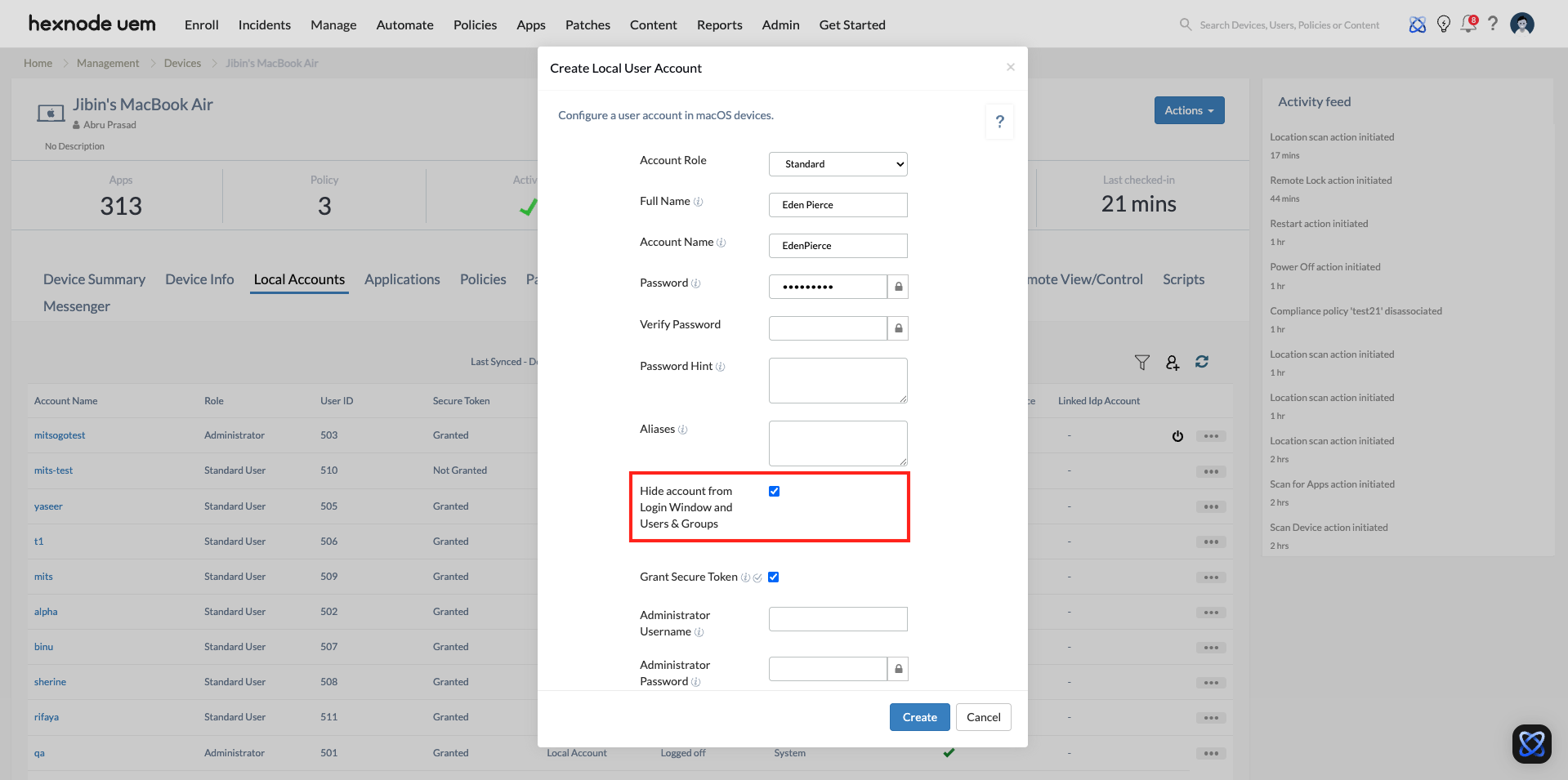
- Access Gesture: On macOS, IT can access this hidden account by clicking any user at the login window and pressing Option + Return to bring up a manual username/password prompt.
- Secure Token Authorization: In the “Create User Account” action, always enter the credentials of an existing token-enabled admin to establish the Chain of Trust.


