


Category filter
Change local account password for Windows
Overview
Managing local administrator or user accounts on Windows endpoints is a critical security task. While many UEMs require manual scripting to update local credentials, Hexnode UEM provides a native, streamlined Remote Action to change Windows local account password across the fleet instantly.
Why Hexnode has the Upper Hand
Unlike traditional MDM solutions (like Microsoft Intune or basic GPOs), Hexnode simplifies the “Last Mile” of Windows management:
- No Scripting Required: While competitors force admins to write and debug PowerShell scripts to change local passwords, Hexnode offers a Native UI Action.
- Bypass CSP Limitations: Hexnode’s agent-based architecture ensures the password change is executed even when Windows MDM CSPs (Configuration Service Providers) become unresponsive.
- Instant Execution: Commands are pushed via a persistent notification channel, ensuring the change happens in seconds, not during the next “sync cycle.”
Prerequisites for Windows Password Management
Before executing a password change, ensure the following:
- Device Enrollment: Windows 10/11 devices must be enrolled in Hexnode UEM.
- Hexnode Agent: The device must have the Hexnode Windows Agent installed (automatically handled during enrollment).
- Account Knowledge: You must know the exact Username of the local account you wish to modify.
Step-by-Step Guide: How to change Windows Local Account Password
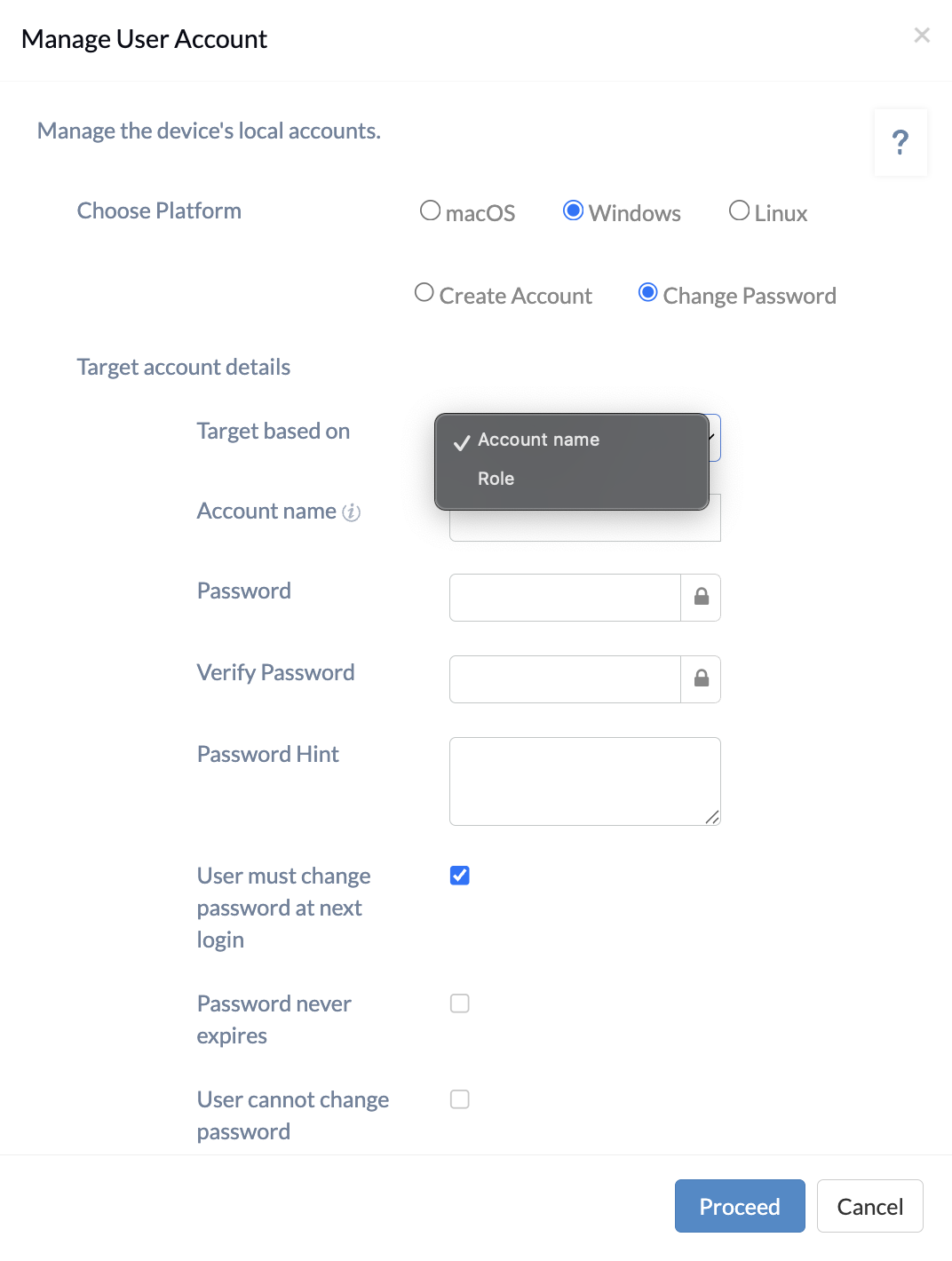
Administrators can change local account passwords for individual devices or in bulk directly from the Hexnode console.
- Log in to your Hexnode UEM console.
- Navigate to Manage > Devices.
- Select the Windows device(s) for which you want to reset the user password.
- Click Actions.
- Navigate to Policies & Accounts actions > Manage user account > Windows > Change Password.
- Configure the password settings in the dialog box (see Configuration Parameters below).
- Click Change Password to execute the action.
Configuration Parameters for changing Windows local account password
When executing the Change Password action, the following settings determine the target users and password properties.
Target Selection
| Setting | Description |
|---|---|
| Target based on | Determines how the system identifies the user accounts to update. Select one of the following options:
|
Password Properties
| Setting | Description |
|---|---|
| Password | Specify the new password for the selected accounts. |
| Verify Password | Re-enter the new password to confirm accuracy. |
| Password Hint | Provides a clue to help the user recall the password during login. |
Account Restrictions & Policies
| Setting | Description |
|---|---|
| User must change password at next login | Forces the user to set a new password immediately after their next successful login. |
| Password never expires | Ensures the new password remains valid indefinitely. |
| User cannot change password | Restricts the user from manually changing their password in the future. |
What Happens at the Device End?
Once the remote action is successfully executed:
- The password is immediately updated on the target Windows device.
- The user will be required to enter the new password during their next login attempt.
- If “User must change password at next login” was enabled, the user will be prompted to create their own password immediately after authenticating.
Frequently Asked Questions (FAQ)
Can I target specific users without affecting the Administrator account?
Yes. By using the Target based on setting, you can select Account Name and enter the specific username you wish to update. This allows for granular control over individual accounts rather than applying changes to all accounts with a specific role.
Can I change the password of a Domain Account (Active Directory)?
No. This specific feature is designed for Local Accounts. Domain account passwords must be managed through Active Directory (AD) or Entra ID (formerly Azure AD). Hexnode manages the local “break-glass” admin accounts frequently used by IT.
What if the “Change Password” action fails?
Ensure the device is online. If the local account username contains special characters or spaces, ensure they are typed exactly as they appear in net user on the local machine.
Does the user get notified of the password change?
No. The password change happens silently at the system level. This is vital for IT teams who need to regain control of a device without user intervention.
How is this more secure than a script?
When you use a script in other UEMs, the password is often visible in the script body or logs. Hexnode encrypts the password command during transit and execution, ensuring the plain-text password is never exposed in the portal logs.


