


Category filter
Automation templates: Custom and Pre-Configured Workflows
Automation templates in Hexnode UEM are reusable workflow blueprints that define a set of automation actions along with their associated configurations and schedules. These templates can be:
- Customized by administrators to address specific organizational needs.
- Pre-configured by Hexnode for common administrative scenarios.
While creating an automation, you can either create it from scratch or choose a template.
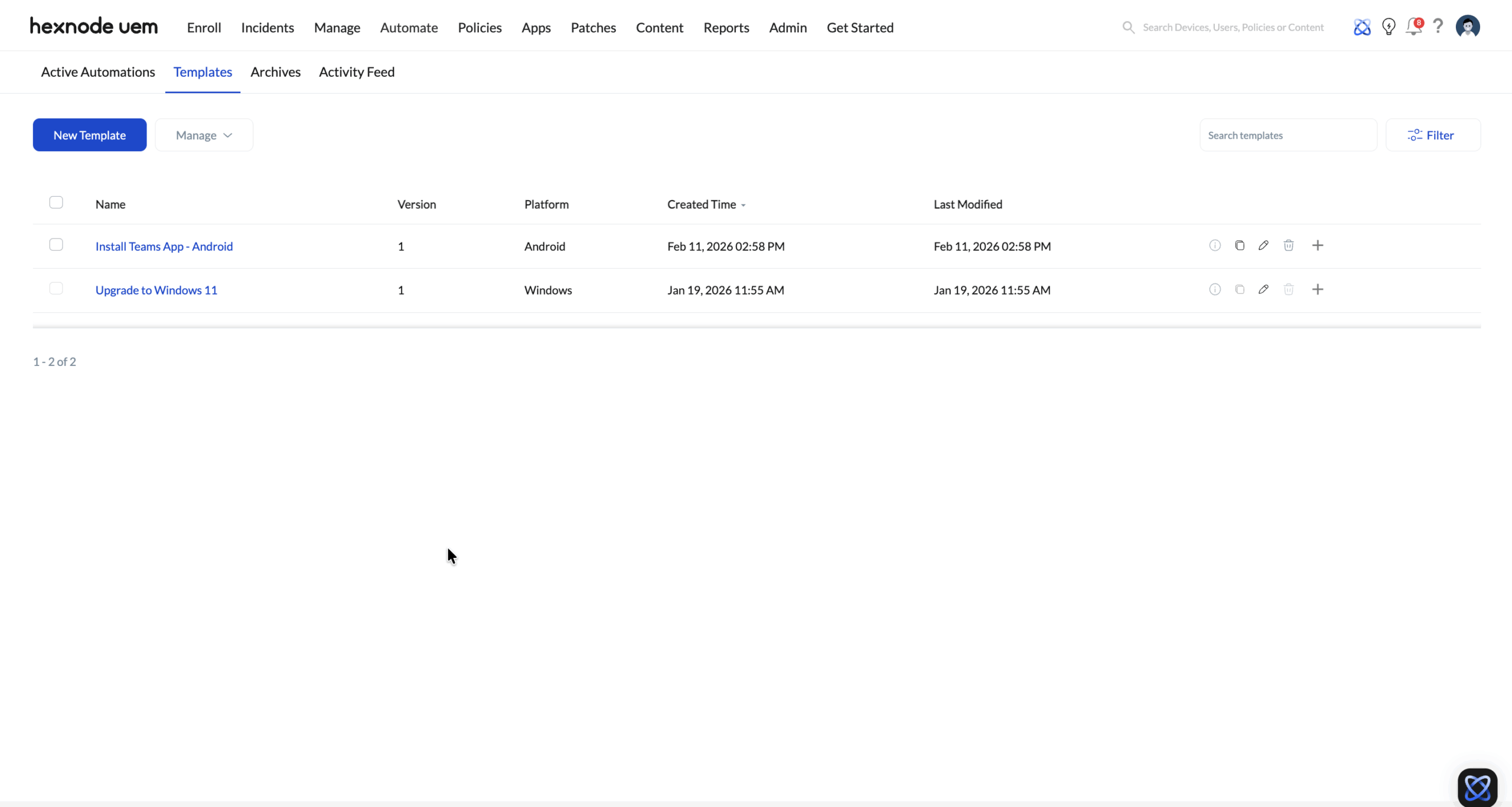
How to create custom automation templates?
Custom automation templates let you create automation workflows tailored to your organizational needs.
Steps to create a new automation template
- Log in to the Hexnode UEM portal.
- Navigate to either:
- Automate > Templates > New Template.
- Automate > Active Automations > New Automation > Choose from templates > Create new Automation Template.
Or - Select the required platform.
- Click the Edit icon next to Untitled Template and provide a template name and description.
- Click Add New Action to include the actions to automate and then click Next.
- Set the automation Settings and Schedule and click Next.
- Review the template. If changes are required, click Edit to access the corresponding section and make changes as necessary.
- After reviewing, click Save to save the template.
Actions available for automation templates
Navigate to Automate > Templates to perform these actions:
1. Modify an existing template
- You can edit an existing template using any of the following methods:
- Select the template from the list, click Edit and modify the required settings.
- Click the Template summary (Information) icon, review the template details, and click Edit.
- Click the Edit Template icon corresponding to the template and make the required changes.
OrOr - After editing, configure the automation Schedule and settings.
- Review the template. Click Edit if further changes are needed. Click Save.
2. Clone a template
To create a copy of an existing template:
3. Delete a template
To delete a single template:
- Click the Delete icon corresponding to the template.
To delete multiple templates:
- Select the templates.
- Click Manage > Delete.
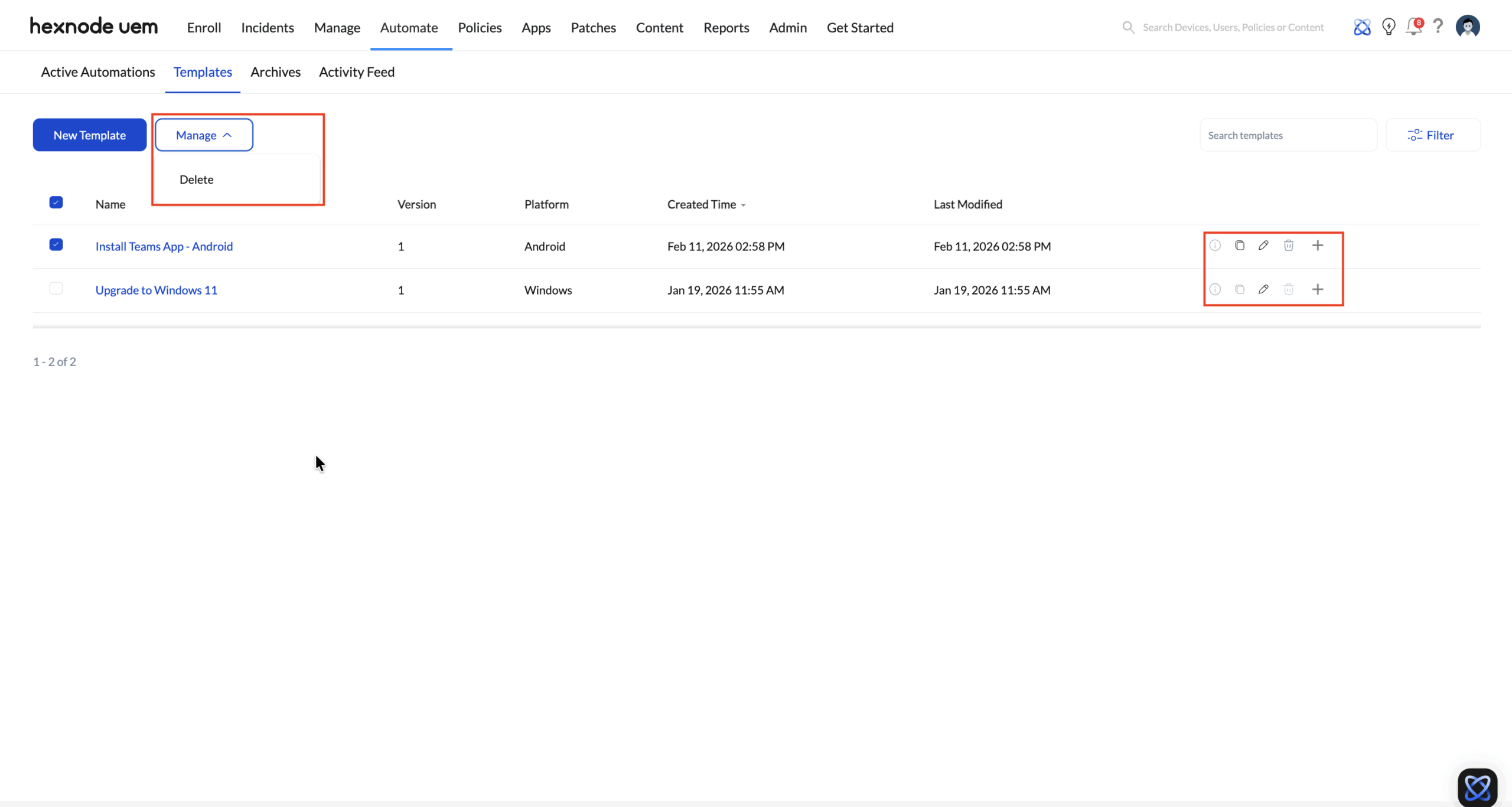
Pre-configured automation templates in Hexnode UEM
Hexnode UEM provides pre-configured automation templates designed to simplify common and critical IT operations. These templates provide standardized workflows with recommended settings, helping administrators deploy automations quickly and reliably.
Upgrade to Windows 11
Migrating an organization’s device fleet from Windows 10 to Windows 11 can be complex and time-sensitive. Administrators often face challenges such as manual scripting, deployment failures, inconsistent OS versions, and delayed upgrades that can introduce security risks.
The Upgrade to Windows 11 automation template is a ready-made solution that enables administrators to create and schedule Windows OS upgrades with minimal effort. This template includes pre-configured actions to install the latest Windows 11 build while respecting defined maintenance windows.
Key capabilities include:
- Eliminates the need for custom scripts with a standardized OS upgrade workflow.
- Ensures upgrades occur only within approved maintenance windows.
- Automatically manages reboot behaviour with user notifications.
- Prevents users from postponing mandatory restarts to ensure compliance.
- Suppresses device-side failure and status notifications during the download phase to avoid user disruption.
Edit Upgrade to Windows 11 automation template
You can modify the Upgrade to Windows 11 automation template and configure the following settings:
- Configure automation rules
Setting Description Require update approval When enabled, only administrator-approved patches are deployed to devices. Enabled by default. Install and reboot only during maintenance window Ensure devices reboot automatically only during the defined maintenance window after updates are installed. Notifications can be customized using Configure device end notifications. Enabled by default. Configure technician notifications Enables notifications to selected technicians about installation failures and status updates. The technician notification options are: - Notify installation failures every – Define the interval (in hours) to notify technicians about installation failures.
- Notify installation status every – Define the interval (in hours) to notify technicians about installation progress or status.
- Choose technicians to notify – Select the technicians who should receive these notifications.
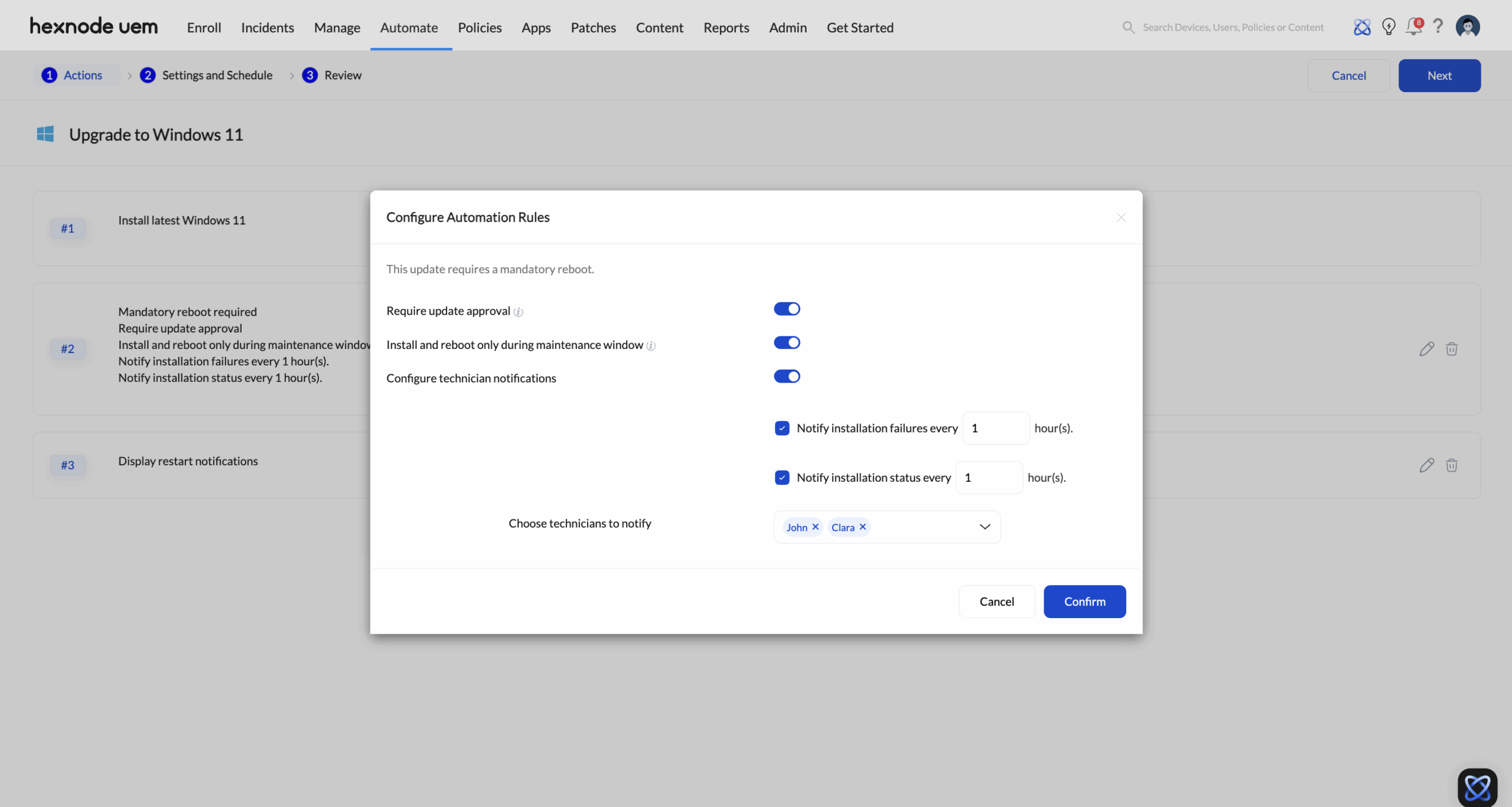
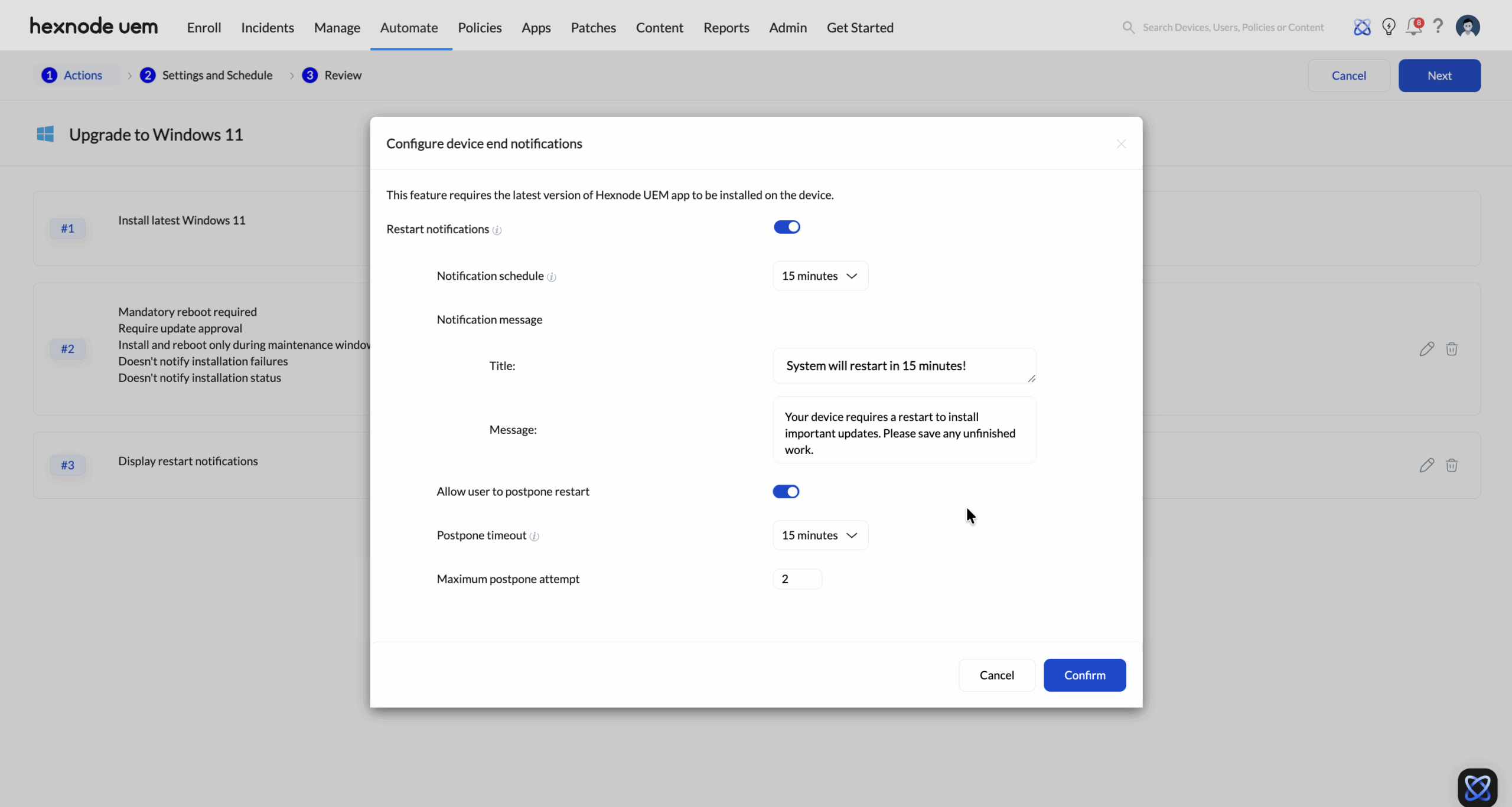
- Configure device end notifications
Setting Description Restart notifications When enabled, users receive default notifications about upcoming restarts, even if restart notifications are disabled elsewhere. Enabled by default. Notification schedule Define how long before the restart users are notified. Notification message Customize the notification title and message displayed to users Allow user to postpone restart Disabled by default. When enabled, users can postpone restarts using the following options: - Postpone timeout – Duration after which the restart prompt reappears. Default is 15 minutes.
- Maximum postpone attempts – Number of times a user can postpone the restart. Default is 2.
Create a new automation from a template
To create an automation using a template:
- Navigate to:
- Automate > Templates > Click the Add (+) icon corresponding to the required template.
- Automate > Active Automations > New Automation > Choose from templates and select the template.
Or - If needed, edit the automation name, choose action(s) to automate > click Next.
- Configure the Settings and Schedule > click Next.
- Apply the Target Filters > click Next.
- Review the automation > click Save.
The new automation is saved under Active Automations.


