


Category filter
Application Reports in Hexnode UEM
Application Reports in Hexnode UEM provide administrators with comprehensive visibility into the app inventory across all enrolled devices. These reports are crucial for managing app installations, enforcing application compliance (blocklist/allowlist), and monitoring application usage.
1. Procedure: Generating an Application Report
All application reports are accessed from the same location within the Hexnode console.
- Log In: Log into your Hexnode UEM portal.
- Navigate: Go to the Reports tab.
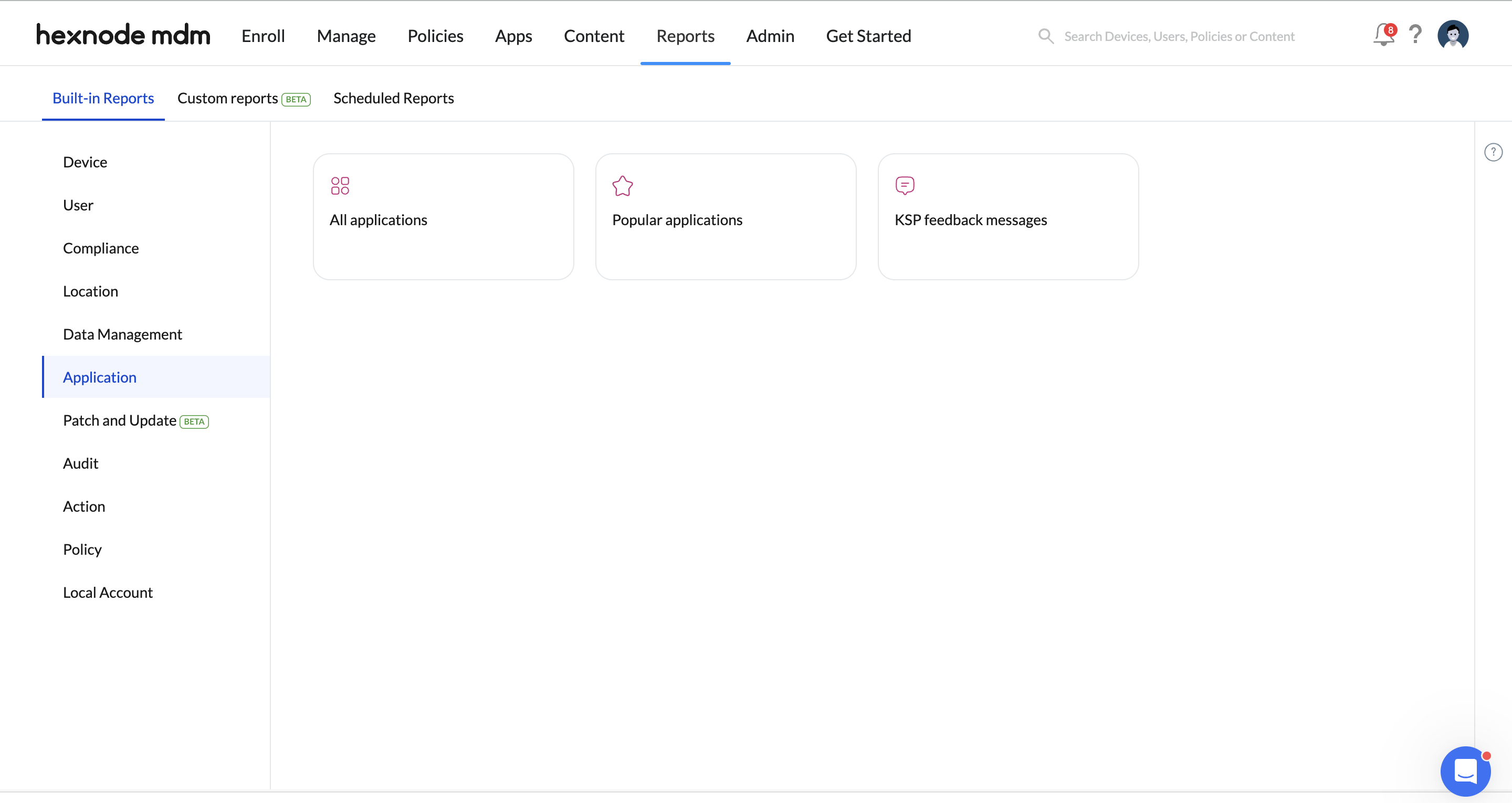
- Select: Choose Built-in Reports from the left navigation.
- Access: Click the Application Reports category.
- Choose Report Type: Select the desired report type:
- All applications: Lists every app installed across the fleet.
- Popular applications: Lists the most frequently used apps.
- KSP Feedback Messages: Lists feedback from Samsung Knox Service Plugin devices.
2. Types of Application Reports and Data
Hexnode provides different report views based on the required focus — inventory versus usage statistics.
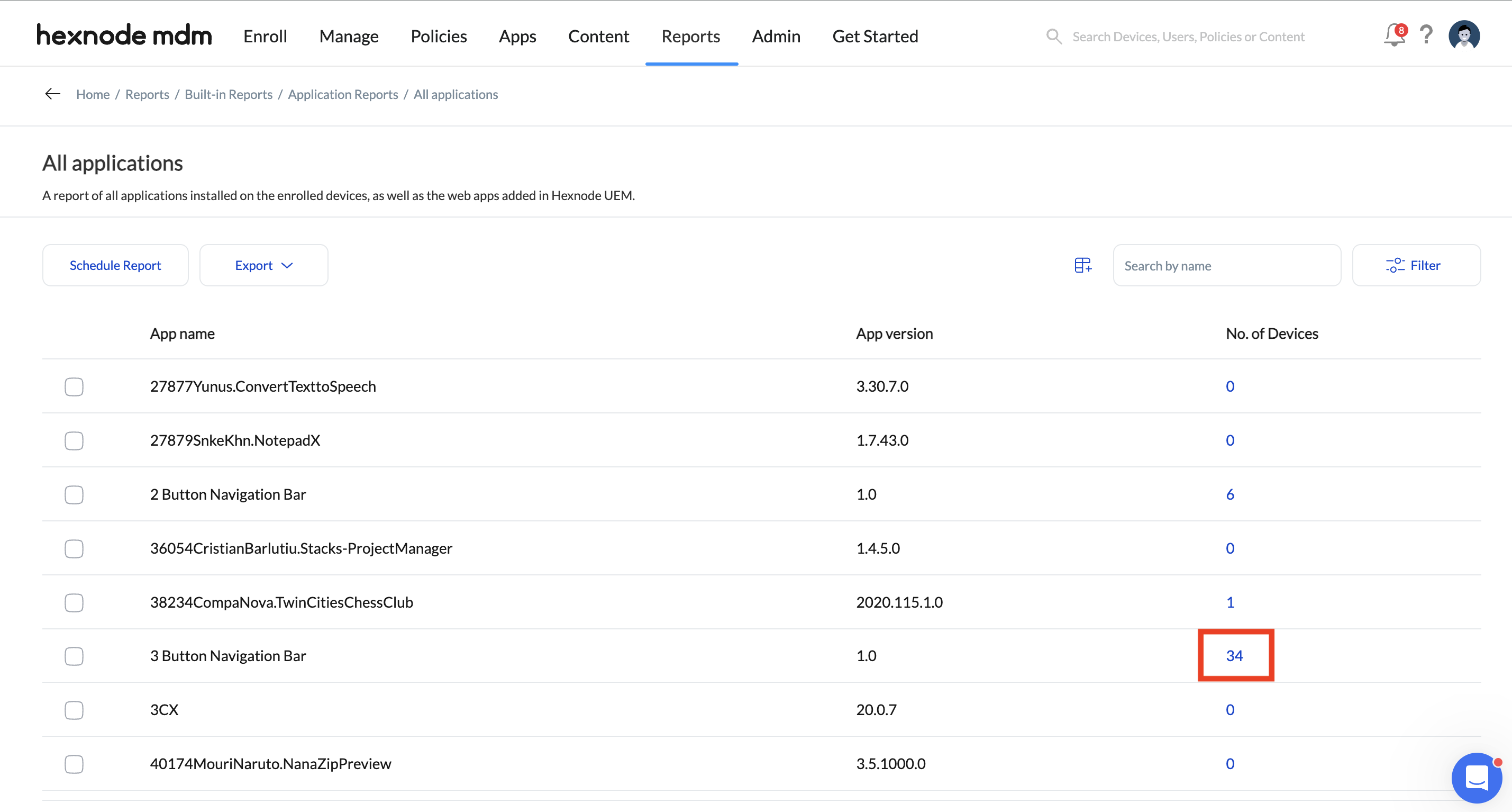
1. All Applications Report
- Purpose: Provides a master list of all software installed on enrolled devices.
- Granularity: Allows administrators to click the device count adjacent to any app to generate a detailed sub-report showing *which specific devices* have that application installed.
2. Popular Applications Report
- Purpose: Identifies the applications with the highest usage frequency across the device fleet.
- Value: Useful for auditing resource allocation and validating necessary software licenses.
3. KSP Feedback Messages Report
- Purpose: Provides a log of specific feedback messages for Knox Service Plugin app received from Samsung Knox devices.
- Action: Clicking the device count associated with a message provides a list of the specific Samsung Knox devices that sent the feedback.
3. Export and Scheduling Options
Application reports support comprehensive export functionality for offline auditing and sharing.
| Action | Export Scope | Format Options |
|---|---|---|
| Export Complete List | Generates a report of all applications installed on the device fleet. | PDF or CSV |
| Export Device List of Selected Apps | Generates a detailed list of only the selected applications, including the device information for each app. | PDF or CSV |
| Schedule Report | Configures automatic generation of reports at specified time intervals. | Automatic email delivery to designated recipients. |
Frequently Asked Questions (FAQ)
1. How can admins see which devices have a specific app installed?
Navigate to All applications report, find the desired app, and click the device count displayed in the corresponding column. This generates a sub-report listing the devices.
2. Is the Popular Applications report based on installation count or actual usage?
The Popular Applications report is based on the most used applications, reflecting actual user engagement rather than just installation count.
3. Can admins share these reports with external auditors?
Yes. Use the Export option to download the report in CSV or PDF format, which can then be shared with auditors or compliance teams.


