


Category filter
Apple School Manager
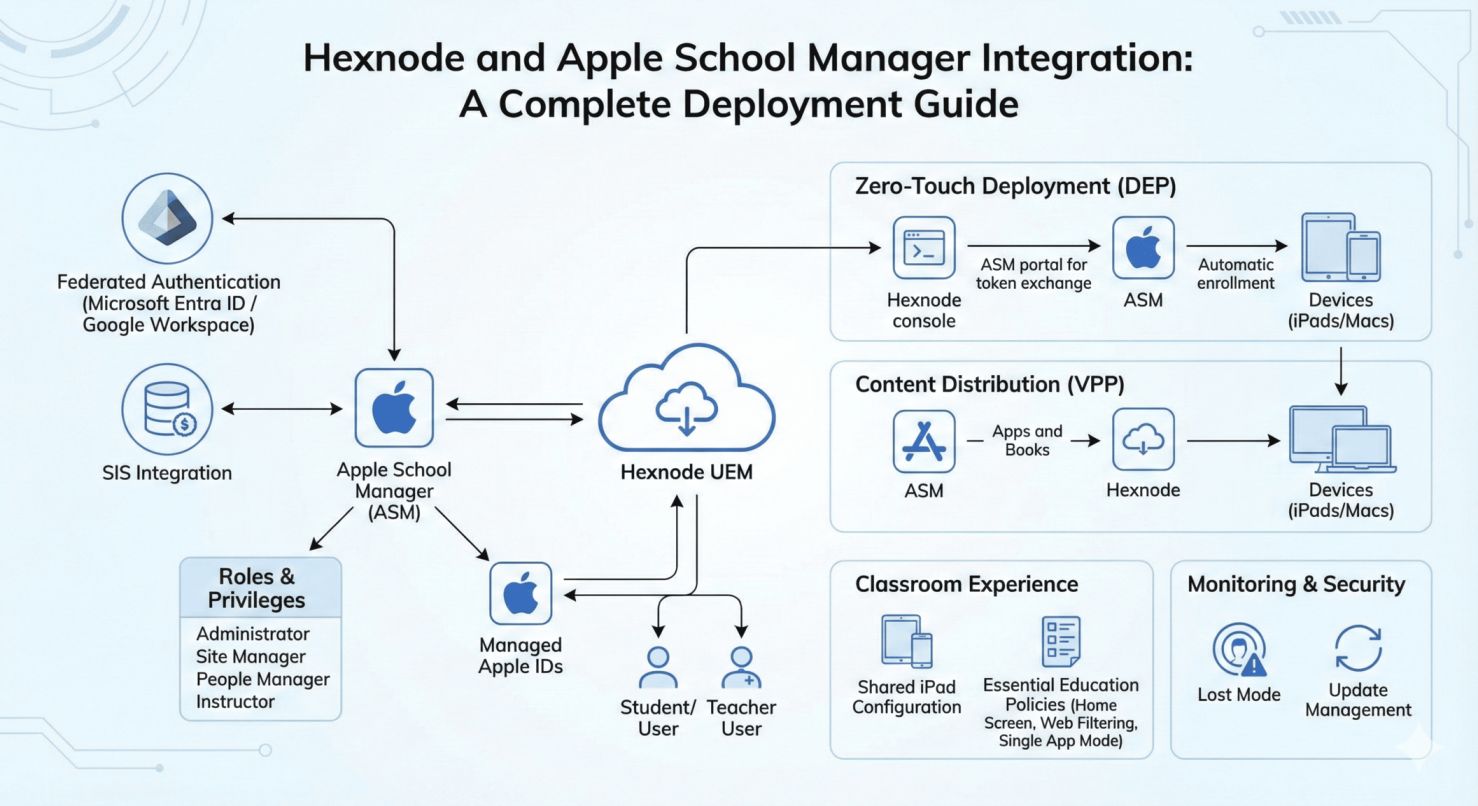
Apple School Manager (ASM) is the cornerstone of modern educational technology. It is a web-based portal that unifies device deployment, user management, and content distribution for schools. When paired with Hexnode UEM, it creates a seamless ecosystem where iPads and Macs are ready for learning the moment they are unboxed.
This complete deployment guide of Apple School Manager serves as your technical blueprint for building a secure, optimized digital classroom.
Part 1: Identity & Role Management
Before deploying devices, you must establish the digital identities of your students and staff. ASM streamlines this through Managed Apple Accounts.
Understanding Managed Apple Accounts
Unlike personal Apple Accounts, Managed Apple Accounts are owned and controlled by the school. They provide access to iCloud, Apple Classroom, and Schoolwork while disabling commerce features (like App Store purchasing) to keep students focused.
- Federated Authentication: Link ASM with Microsoft Entra ID (formerly Azure AD) or Google Workspace to automatically create Managed Apple Accounts using existing school credentials.
- SIS Integration: Sync directly with your Student Information System (SIS) to import rosters and student data automatically.
Roles and Privileges
ASM uses a hierarchical role structure to ensure security.
| Role | Key Privileges | Best For |
|---|---|---|
| Administrator | Full access to all settings, VPP, and DEP. | IT Directors |
| Site Manager | Manage devices and content for a specific location/campus. | Campus Tech Leads |
| People Manager | Create and edit Managed Apple Accounts. | School Registrars |
| Instructor | Use Apple Classroom and Schoolwork apps. | Teachers |
Part 2: Zero-Touch Device Deployment (ADE)
Automated Device Enrollment (ADE) is the driving force behind Apple School Manager, serving as the foundation for your zero-touch deployment strategy. It allows you to ship devices directly to classrooms without IT ever touching them.
Step-by-Step Integration with Hexnode
- Navigate to Enroll > Platform – Specific > iOS/macOS/tvOS > Apple Business/School Manager.
- Click Next.
- Enter the name for the ADE account and download the certificate file.
- Sign in to your Apple School Manager portal. The account should have either of the roles Administrator, Site Manager, or Device Enrolment Manager.
- Add an MDM server to the Apple School Manager portal by heading on to Settings > Device Management Settings > Add MDM Server.
- Provide a name for the MDM server.
- Upload the certificate file you have downloaded from the Hexnode UEM portal.
- Click Save.
- Click Download Token to download a new server token.
- Go back to the MDM ADE settings page and upload the token.
- Create and associate a Configuration Profile with the devices. The profile consists of the device configurations to be associated with the devices once they are turned on.
- Specify the authentication settings specific to the user from the UEM console.
- Finally, assign the devices to the given MDM server from the Apple School Manager console.
- Log in to the Apple School Manager account.
- Select the necessary devices under Devices. Choose the MDM server to assign the devices by clicking on the Choose device management option.
- On your Hexnode UEM portal, the assigned devices will be listed under Enroll > All Enrollments > No-Touch > Apple Business/School Manager > ADE Devices. If the devices do not appear here, click Sync with ADE to sync with Apple School Manager.
Result: When a student turns on the iPad, it automatically enrolls in Hexnode, installs required configurations, and skips unnecessary setup screens (like Siri or Apple Pay).
Part 3: Content Distribution (Apps & Books)
Forget manual Apple Accounts for app downloads. Use the Volume Purchase Program (VPP) to push content silently.
Purchasing & Deploying Content
- Buy Licenses: In ASM, go to Apps and Books. Search for an educational app (e.g., Duolingo or Swift Playgrounds) and purchase licenses (free or paid) for your specific location.
- Sync to Hexnode:
- Download the VPP Token from ASM Settings.
- Upload it to Hexnode under Admin > Apple Business/School Manager > Apple VPP.
- Distribute:
- Go to Manage > Devices in Hexnode.
- Select the target iPads (or device groups like “Grade 5”).
- Click Actions > Install Application and select the VPP app.
- Note: On supervised devices, apps install silently without user interaction.
Part 4: The Classroom Experience
Optimizing the device for education goes beyond just installation.
Shared iPad ConfigurationShared iPad allows multiple students to use the same device while keeping their data separate.
- How it works: Students sign in with their Managed Apple ID. Their data is cached locally or pushed to iCloud. When they log out, the device is ready for the next student.
- Hexnode Config: Enable “Shared iPad” in the ADE profile settings within Hexnode before enrollment.
Essential Education Policies
- Home Screen Layout: Define exactly where apps appear on the dock and home screen to ensure uniformity across all class devices.
- Web Content Filtering: Use Hexnode to allowlist educational sites and block distractions or inappropriate content.
- Single App Mode: Lock an iPad into a specific app (e.g., a testing app) for exam scenarios.
Part 5: Monitoring & Security
Schools have a duty of care to protect devices and data.
- Lost Mode: If a device goes missing, enable Lost Mode via Hexnode. This locks the device, displays a custom message (e.g., “Property of Lincoln High School”), and reports its geolocation.
- Update Management: Schedule iOS/iPadOS updates to occur outside of school hours to prevent downtime during lessons.
Frequently Asked Questions (Education Edition)
Q1. Is it possible to use Apple School Manager with devices donated to the school?
A. Yes, but with a caveat. Devices purchased from authorized resellers appear in ASM automatically. Donated or older devices must be manually added to ASM using the Apple Configurator app on a Mac or iPhone.
Q2. What happens to student data when they graduate?
A. Managed Apple Accounts are owned by the school. When a student leaves, the Administrator can deactivate or delete the account. Data in their Managed iCloud Drive can be inspected by the school if necessary for compliance or safety audits.
Q3. Does this guide apply to Mac labs as well?
A. Absolutely. This complete deployment guide – apple school manager applies to macOS devices too. You can use ADE for zero-touch imaging of Mac labs and VPP to distribute Mac App Store apps like Xcode or Final Cut Pro.


