


Category filter
Building a Secure Administrative Perimeter in Hexnode UEM
In the modern threat landscape, administrative credentials are a high-value target. Hexnode UEM allows you to move beyond simple passwords by establishing robust Administrative Perimeter Security through advanced Logon Restrictions. By anchoring access to specific locations (IPs), identity providers (SSO), and human-verification checks (CAPTCHA), you ensure that your management console—the “keys to the kingdom”—remains secure.
1. Establishing the Network Perimeter (IP Restrictions)
IP restrictions allow you to define exactly where an administrator must be physically or virtually located to access the Hexnode portal.
Technical Implementation
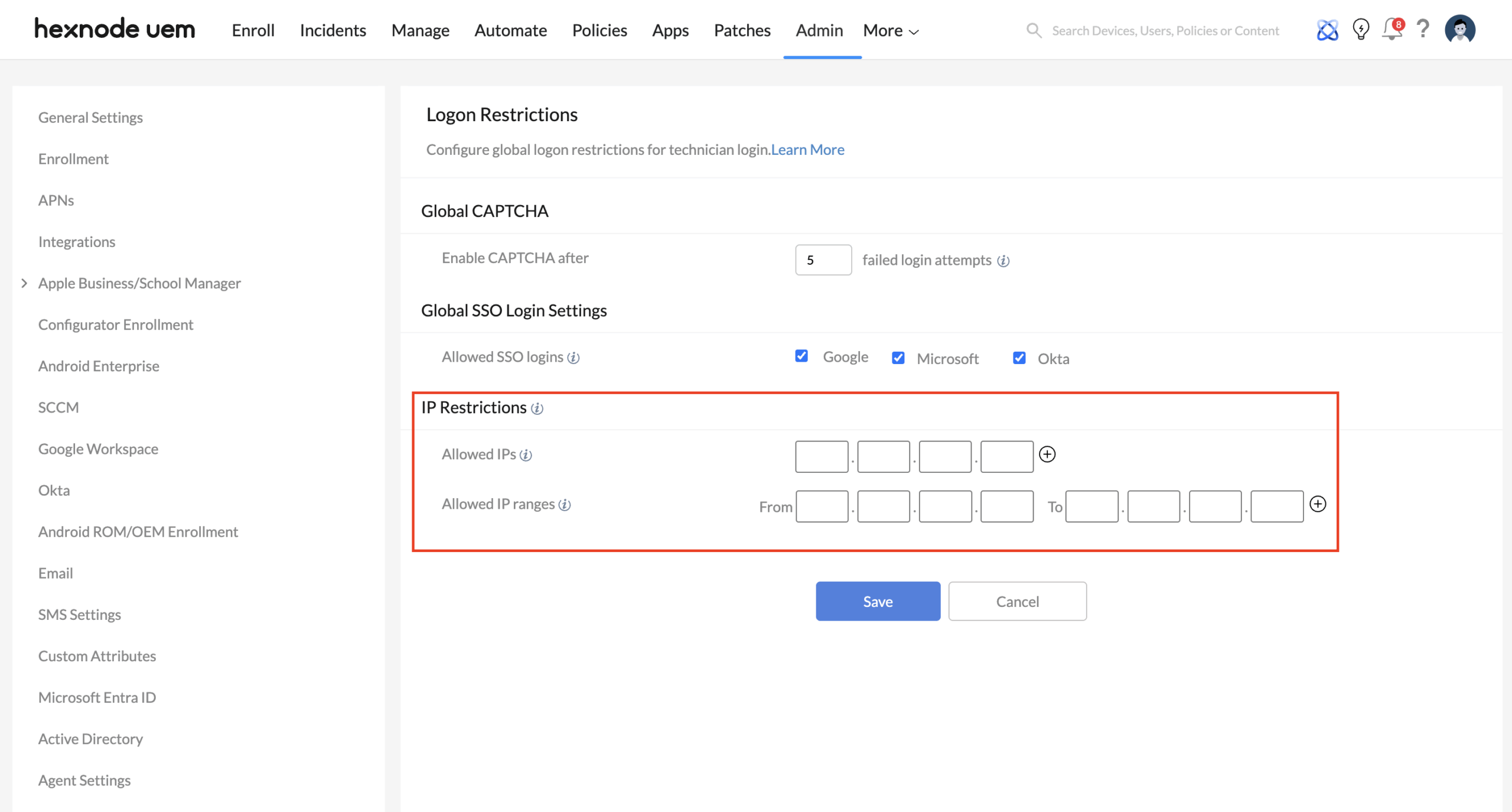
Navigate to Admin > Logon Restrictions > IP Restrictions. You can specify individual Allowed IPs or entire Allowed IP Ranges.
Use-Case: The Secure Hybrid Perimeter
- The Scenario: Your IT team works from the main office but occasionally needs emergency access from home.
- The Strategy: Instead of whitelisting technicians’ home IPs (which are dynamic and insecure), whitelist the Public IP of your Corporate VPN.
- The Result: Technicians can only log in if they have first established a secure, encrypted tunnel to the corporate network. This ensures that even with a stolen password, an attacker cannot access the portal from a generic residential or public IP.
2. Zero-Trust Identity Integration (Global SSO)
Relying on local portal passwords creates “identity silos.” SSO integration allows you to centralize admin access within your primary Identity Provider (IdP).
Technical Implementation
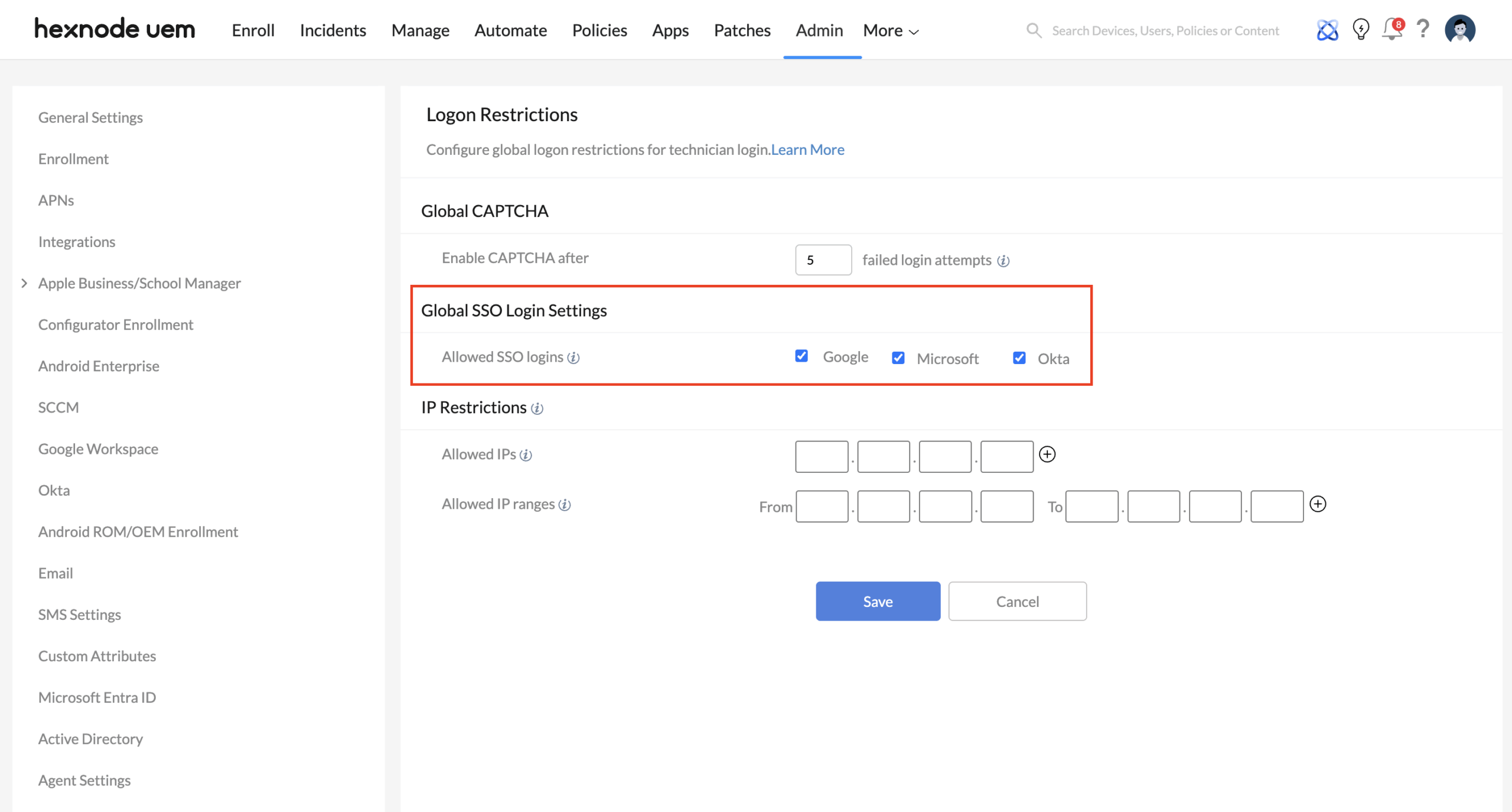
Under Admin > Logon Restrictions > Global SSO Login Settings, select your authorized providers: Google, Microsoft, or Okta.
Use-Case: Immediate Offboarding & Compliance
- The Scenario: A senior admin leaves the company unexpectedly.
- The Strategy: By mandating SSO via Okta or Microsoft, the moment HR disables the user’s primary corporate account, their access to the Hexnode UEM portal is automatically revoked.
- The Result: You eliminate the “orphan account” risk where a former employee might still have access to the UEM portal because their local Hexnode credentials weren’t manually deleted. This provides an ironclad audit trail for compliance frameworks like SOC2 or ISO 27001.
3. Thwarting Automated Attacks (Global CAPTCHA)
Even with strong passwords, portals are frequently targeted by “credential stuffing” and brute-force bots. CAPTCHA provides a lightweight but effective layer of friction.
Technical Implementation
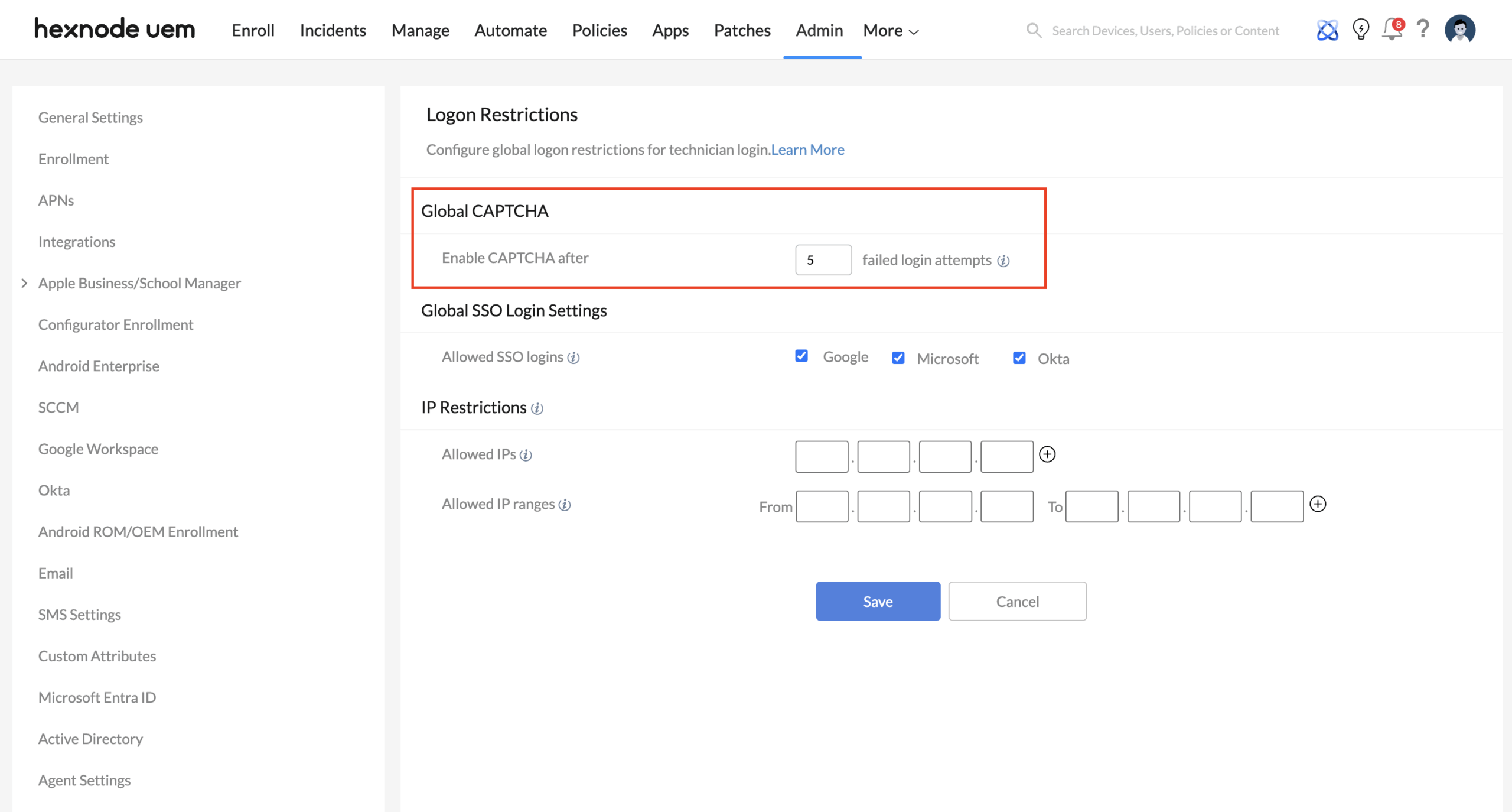
Go to Admin > Logon Restrictions > Global CAPTCHA. Set the Enable CAPTCHA after ‘x’ failed attempts value (range: 1–10).
Use-Case: Bot Mitigation during Security Audits
- The Scenario: Your portal is undergoing a routine external penetration test or is being targeted by a scripted brute-force attack.
- The Strategy: Set the Global CAPTCHA to trigger after just 3 failed attempts.
- The Result: After three incorrect guesses, any automated script will hit the CAPTCHA wall, which it cannot solve. This preserves your portal’s resources and alerts you to the suspicious activity in your Audit Logs before a breach occurs.


