


Category filter
Supervise iOS device without data loss
What is supervision?
Supervision is a deployment strategy by Apple that enables organizations to fully control their corporate-owned iOS, macOS, and tvOS devices. It allows businesses to enforce device restrictions, remotely configure settings, and manage security profiles through Unified Endpoint Management (UEM) solutions like Hexnode. However, supervision often involves resetting the device, resulting in potential data loss, which is a major concern for businesses looking to preserve important information while ensuring devices are secure and compliant.
This guide outlines the steps to supervise iOS devices without data loss, covering methods like Apple ADE Enrollment, Apple Configurator Enrollment, and iCloud Backup.
Why is supervision important?
Supervision ensures that the device remains under the control of the organization, even after a wipe. This is especially useful for managing corporate devices and ensuring they are used in compliance with organizational policies. Supervised devices are typically locked down with restrictions, and sensitive data can be kept secure.
However, supervision requires a device reset, which can lead to data loss. This guide shows you how to manage and restore data during the process.
Pre-requisites for enabling supervision without data loss
To supervise an iOS device without losing data, you will need the following:
- Primary Device: The iOS device to be supervised and enrolled in Hexnode.
- Temporary Device: A backup iOS device that will hold the data during the supervision process.
- Mac with macOS Catalina 10.15 or later: For using Apple Configurator and managing device backups.
- Find My iPhone: Make sure this is turned off on both the primary and temporary devices.
Steps to enable supervision without data loss
1. Backup the primary device using a Mac
- Connect the primary device to Mac:
- Use a USB cable to connect your iPhone or iPad (Primary device) to your Mac.
- Launch Finder on your Mac from the Dock.
- Under the Locations section in the Finder sidebar, locate and select the connected primary device.
- Both the Mac and the Primary device will prompt you to enable trust. Click Trust on both devices to establish the connection.
- Backup Data:
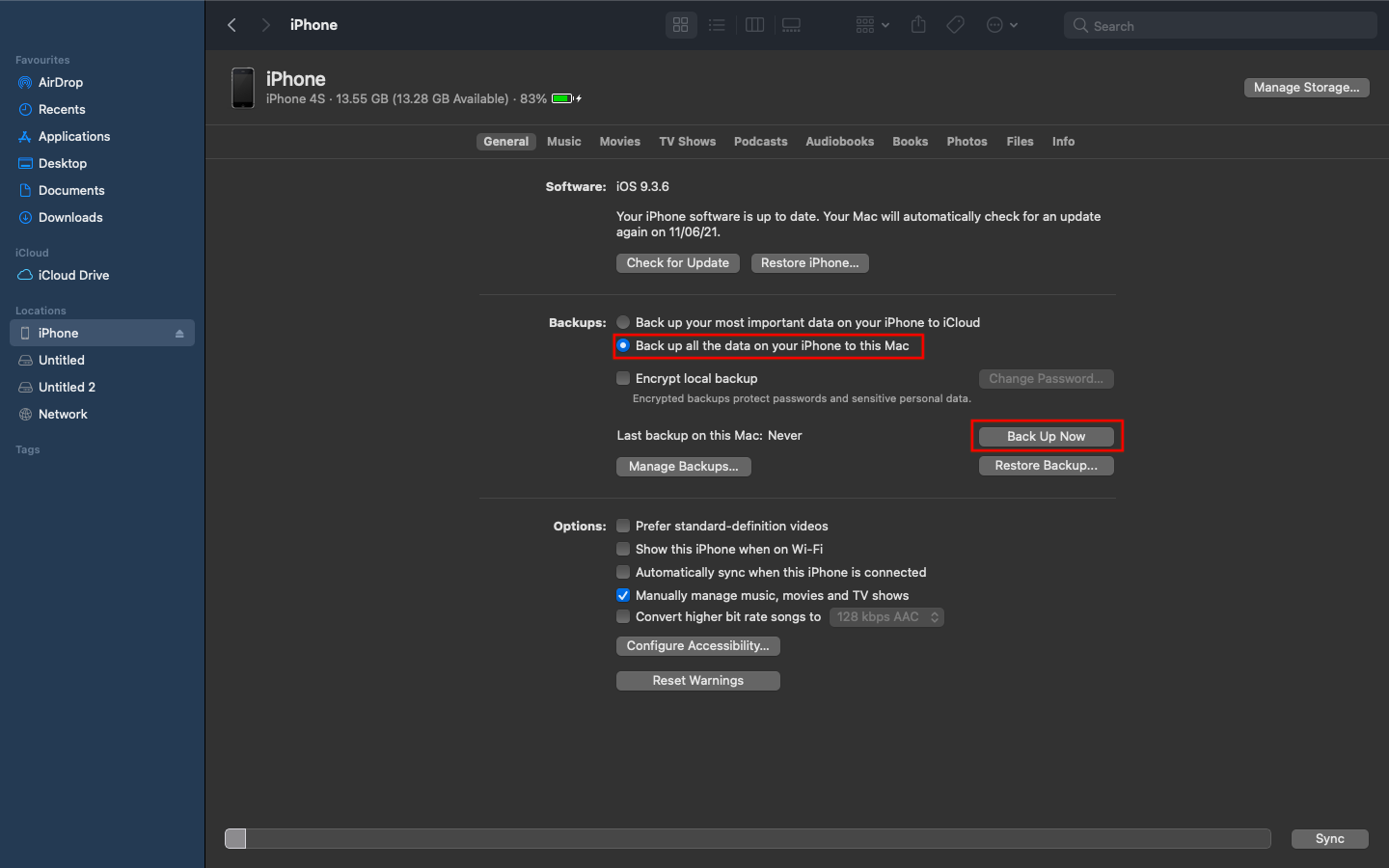
2. Restore the backup to the temporary device
- Connect temporary device: Connect the temporary device to the Mac and establish trust between devices.
- Restore backup: In Finder, go to General > Restore Backup, then choose the backup created in the previous step.
- Sync device: Wait for the process to complete, and then sync the device with the Mac. After the restart, disconnect the device.

3. Backup the temporary device
Back up the temporary device by repeating the same procedure, and be sure to note the backup timestamp for future reference.
4. Supervise the primary device using Apple Configurator
- Prepare the Primary Device:
- Connect the primary device to the Mac using Apple Configurator.
- Go to Finder and restore the last backup of the Temporary device on to the primary device (Follow step 2).
- Create a new Blueprint and add the Wi-Fi profile.
- Prepare the Blueprint and apply it to the primary device.
- Complete Supervision:
- Once the device prompts for configuration, select Apply Configuration to finish the supervision process.
- The device will be enrolled into Hexnode in supervised mode, with data restored from the backup.
5. Supervise the primary device using Apple ADE
If your organization uses Apple ADE (Automated Device Enrollment) for automated device provisioning, follow these steps:
- Integrate ADE with Hexnode:
- Ensure the ADE profile is set up in Hexnode.
- Ensure the ADE profile is set up in Hexnode.
- Sync with ADE:
- Initiate a sync with the ADE server.
- Initiate a sync with the ADE server.
- Backup Restoration:
- Connect the primary device to the Mac and restore the backup from the temporary device.
Backup and restore iOS using iCloud
1. Create a backup of the primary device:
- Connect the primary device to a Wi-Fi network.
- Navigate to Settings > [Your Name] > iCloud > iCloud Backup.
- Select Back Up Now to initiate the backup process.
2. Use a temporary device to restore the backup:
- On the temporary device, go to Settings > General > Reset > Erase All Content and Settings.
- Set up the device and select Restore from iCloud Backup when prompted.
- Once the restore is complete, you can back up the temporary device as needed.
3. Reset the primary device to factory settings:
- On the primary device, go to Settings > General > Reset > Erase All Content and Settings.
- Confirm the reset to return the device to factory settings.
4. Supervise the primary device using Apple Configurator:
- Use Apple Configurator to add the primary device to Automated Device Enrollment (ADE).
- During blueprint preparation, ensure that the following steps are selected for the user:
- Apps & Data
- Apple ID
- Restore Completed
- When setting up the device, in the Apps & Data setup screen, select Restore from iCloud Backup.
- Enter the Apple ID associated with the old device to restore the iCloud backup.
Restoring data from an ADE enrolled device to a new device
1. Backup data from the enrolled device to iCloud:
- On the enrolled device, go to Settings > [Your Name] > iCloud > iCloud Backup.
- Tap Back Up Now to back up your data to iCloud.
2. Configure ADE Profile in Hexnode:
- Log in to the Hexnode portal and go to Enroll > Platform-Specific > iOS > Apple Business/School Manager > Automated Device Enrollment > Enrollment Profiles.
- Create and configure a ADE Enrollment Profile ensuring the following steps are included during setup:
- Apple ID
- Restore from iCloud Backup
3. Add the new device to Hexnode server:
- Add the new device to the Hexnode server and associate the configured ADE Profile to the device.
4. Set up the new device:
- Power on the new device and follow the on-screen instructions.
- When you reach the Apps & Data screen, select Restore from iCloud Backup.
- Enter the Apple ID associated with the old device to restore the backup.
- After completing the initial setup, the ADE Enrollment Profile configured in Hexnode will be applied to the new device, and data from the old device will be restored.
Frequently Asked Questions (FAQs)
- Can these steps be performed on multiple devices at once?
Yes, many of these processes can be automated using Hexnode’s Bulk Enrollment and ADE Integration, but each device must be managed individually for backup and restore.
- How can data loss during supervision be avoided?
A full backup of the device should be performed before applying supervision. Using either iCloud or Finder on Mac ensures that data can be restored after supervision.
- Will supervision affect app configurations?
Supervision will reset the device to factory settings, causing any installed apps to be removed. However, app configurations and data can be restored from a backup.
- How should supervision be handled if the device is already supervised with another UEM?
The device should first be disenrolled from the current UEM platform, and any existing supervision profiles should be removed to avoid conflicts during backup and restore actions.
- Can supervision be done without a Mac?
No, supervision through Apple Configurator or Finder requires a Mac running macOS Catalina (10.15) or later. However, iCloud Backup can be used as an alternative for backup and restore.
- Apps & Data
- Apple ID
- Restore Completed
- Apple ID
- Restore from iCloud Backup
Yes, many of these processes can be automated using Hexnode’s Bulk Enrollment and ADE Integration, but each device must be managed individually for backup and restore.
A full backup of the device should be performed before applying supervision. Using either iCloud or Finder on Mac ensures that data can be restored after supervision.
Supervision will reset the device to factory settings, causing any installed apps to be removed. However, app configurations and data can be restored from a backup.
The device should first be disenrolled from the current UEM platform, and any existing supervision profiles should be removed to avoid conflicts during backup and restore actions.
No, supervision through Apple Configurator or Finder requires a Mac running macOS Catalina (10.15) or later. However, iCloud Backup can be used as an alternative for backup and restore.


