


Category filter
Pre-Approved Enrollment of devices
Pre-Approved Enrollment allows IT administrators to import devices into the Hexnode UEM portal before they are physically enrolled by the user. By bulk importing device identifiers (like Serial Numbers), admins can proactively group devices and assign policies, configurations, and apps. Once the user enrolls the device, these policies take effect immediately.
For enhanced security, organizations can enforce a “Pre-approved devices only” restriction, ensuring that no unauthorized hardware can join the corporate network.
Core Benefits of Pre-enrollment
- Instant Management: Policies and apps are ready for the device the moment it is powered on and enrolled.
- Security & Restrictions: Admins can restrict enrollment to only pre-approved devices, preventing unauthorized or personal devices from entering the corporate portal.
- Bulk Readiness: Hundreds of devices can be imported and organized into Device Groups simultaneously via CSV upload.
- Zero-Touch Potential: It serves as the foundation for automated deployment programs like Apple ADE.
OS Support & Limitations
Before proceeding, note that Pre-Approved Enrollment is not supported on the following platforms:
- Android 10+ devices enrolling via generic methods (Email or SMS, Self enrollment or QR code enrollment).
- Android 12+ devices enrolling in Android Enterprise Profile Owner mode.
- Windows devices.
How to Import Pre-Approved Devices
Step 1: Upload the Device List
- Navigate to Enroll > All Enrollments > Enterprise > Pre-approve.
- Select the Domain.
- Click Choose file and upload your CSV file containing the device details.
- Tip: Click Download sample CSV file to get the correct template.
- Click Next.
Step 2: Map and Validate Data
- Hexnode will attempt to automatically map the CSV columns to system fields. Verify that fields like Display Name, Email, Serial Number, and Platform are mapped correctly.
- If errors exist in the CSV, the system will prompt you to correct and re-upload the file.
Step 3: Send Enrollment Requests
- Review the list of imported users/devices. You can uncheck specific users if you do not wish to send them an invite immediately.
- Duplicate Handling: If a user already exists in the portal, you will be asked to either Replace the existing details or Skip adding them.
- Choose the invitation method (Email or SMS) and click Send.
CSV File Requirements
To avoid upload errors, ensure your CSV file adheres to these specifications. Note: All fields are case-sensitive.
| Name | Description |
|---|---|
| Name | Name of the device user. |
| User’s email address. | |
| Ownership | Device ownership type. Values: personal or corporate. |
| Serial number | The unique device serial number.
Critical: Must match the device exactly (case-sensitive). |
| Platform | OS Platform. Values: android, ios, macos, linux, tvos. |
| SAMAccountName | Active Directory login name. |
| Mobile | User’s phone number. |
| Device name | Custom name for the device in the portal. |
| Password | One-time password for enrollment. |
Securing Enrollment: Restrict to Pre-Approved Only
To ensure only the devices you imported can enroll:
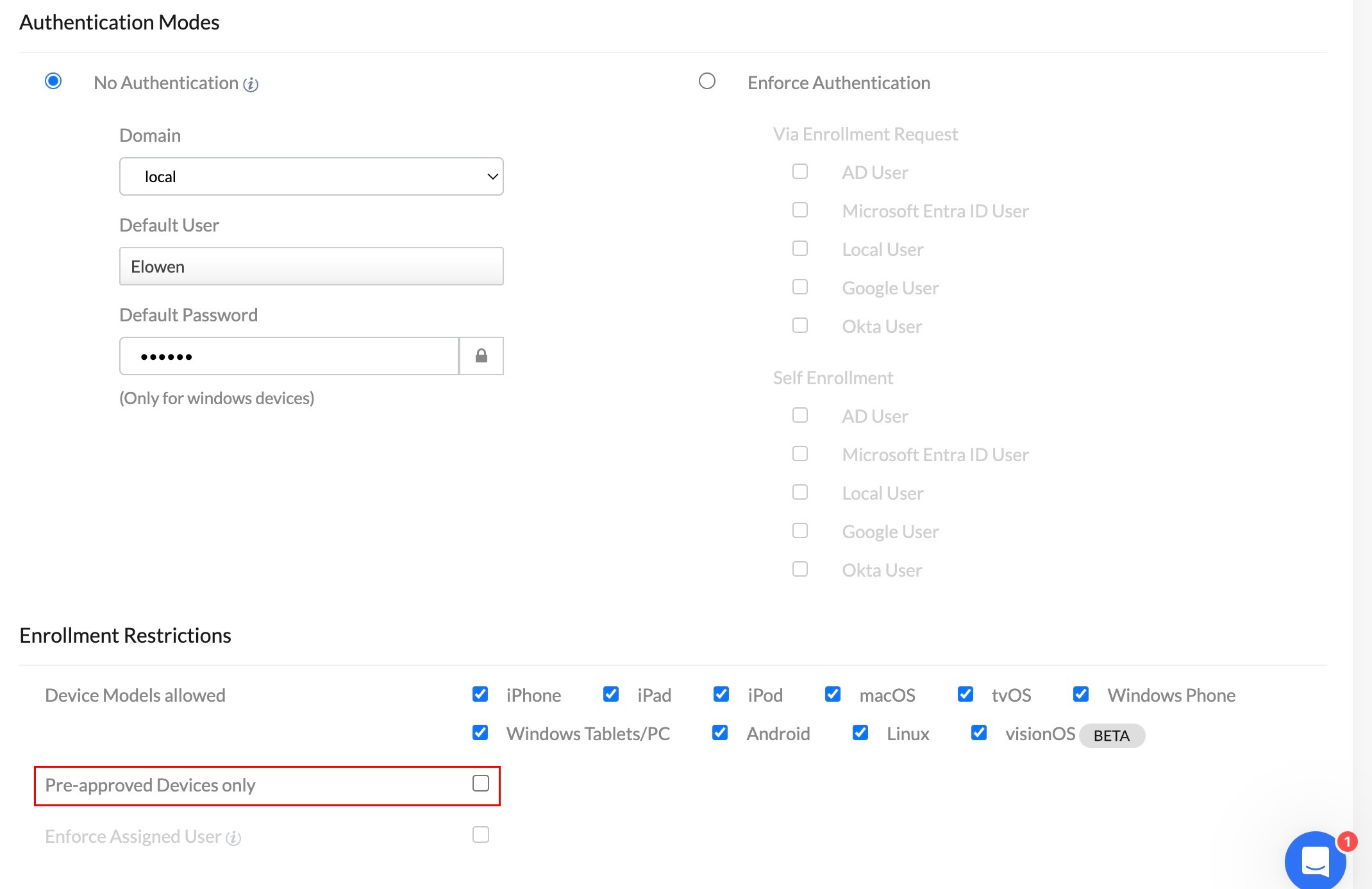
- Go to Enroll > Settings.
- Scroll to Enrollment Restrictions.
- Check the box Pre-approved Devices Only.
- Click Save.
Managing Pre-Approved Devices
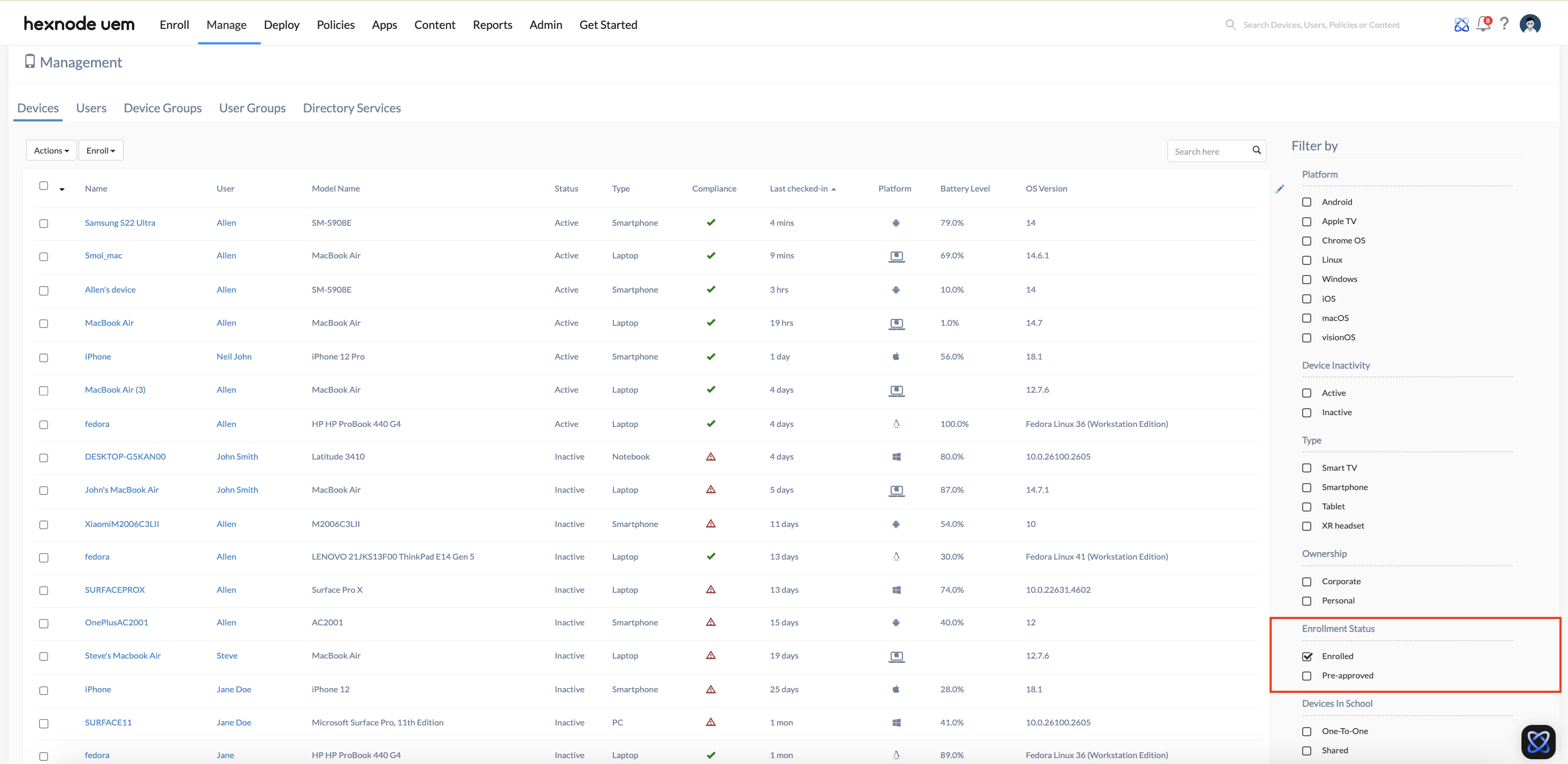
- Viewing Devices: Pre-approved devices do not appear in the main list by default. Go to Manage > Devices, click Filter by, select Enrollment Status, and choose Pre-approved.
- Device Details: Clicking on a pre-approved device will show a banner labeled “Pre-approved Device“.
- Note: Location and detailed hardware info are not available until the device actually enrolls.
Apple ADE Pre-Approval
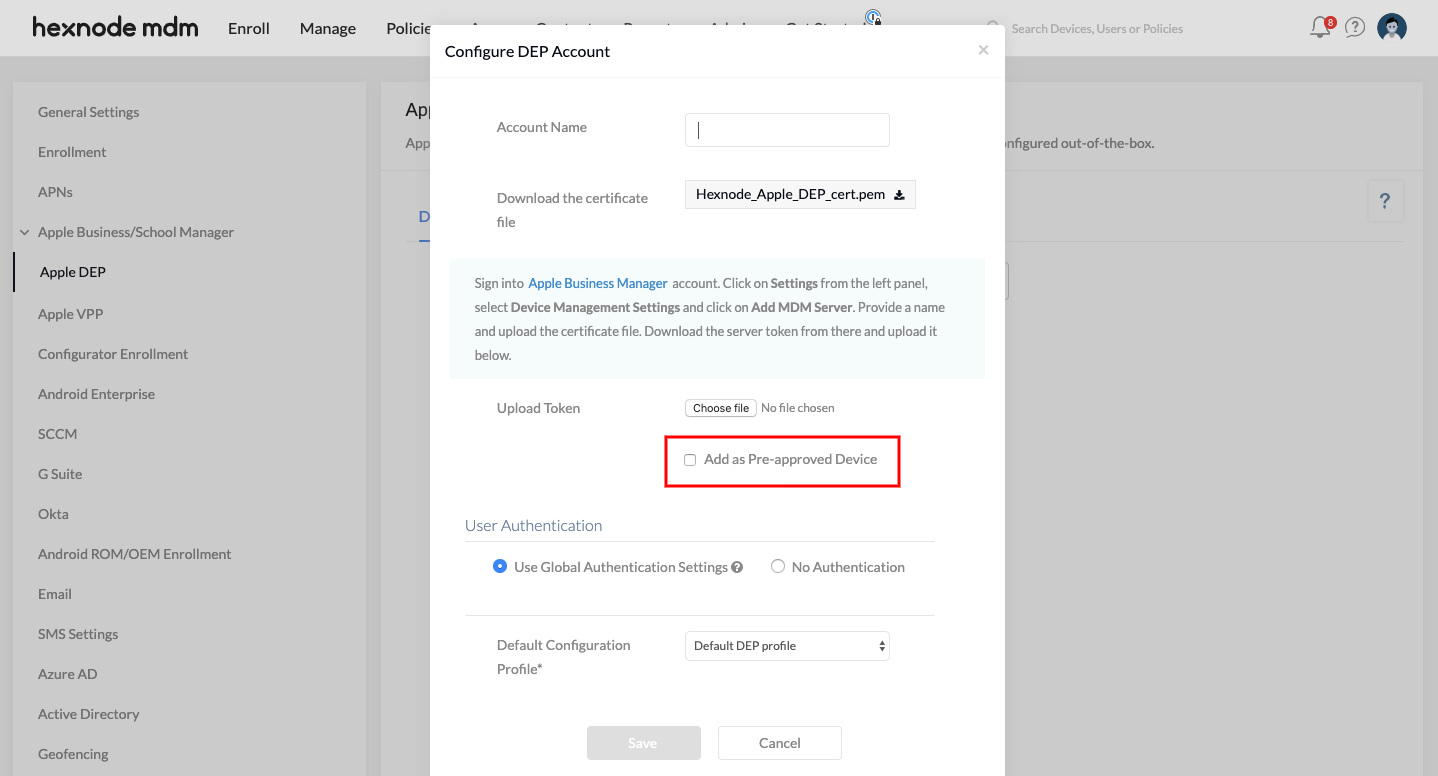
Devices from Apple Business Manager (ABM/ADE) can also be marked as pre-approved automatically.
- Go to Admin > Apple Business/School Manager > Apple ADE.
- When adding a new ADE account, check the option Add as Pre-approved Device.
Frequently Asked Questions (FAQs)
Q1: What happens if I upload a CSV with duplicate emails?
Hexnode will update the user details based on the last entry in the CSV corresponding to that email. However, it will send an enrollment request for every row. For example, 5 rows with the same email = 5 emails sent to that user.
Q2: Can I pre-approve Windows devices?
No. Pre-approved enrollment is currently not supported for Windows devices.
Q3: Can I see the location of a pre-approved device?
No. Since the device has not yet communicated with the server (it is only imported logically), no live data like location, battery, or IP address is available until the user completes the enrollment.


