


Category filter
Enable Device Owner Mode on ROM-Enrolled Android Devices
If you have deployed Android devices with custom ROMs and find them limited to legacy Device Admin privileges, you can now elevate them to full Device Owner status with ease. The Enable Device Owner remote action for ROM-enrolled Android devices grants you deep security controls and advanced policy management, eliminating the need for manual ADB commands or firmware reflashing.
Prerequisites for Device Owner Elevation
Before initiating the remote action, ensure the following conditions are met:
- Root Access: The device must be rooted.
- Agent Privileges: The Hexnode UEM agent must be granted root permissions on the device.
- ROM Status: The device must be enrolled via a custom ROM.
How to Enable Device Owner Mode via Hexnode UEM
Follow these steps to elevate your devices to full management status remotely:
- Select Devices: Log in to your Hexnode UEM portal, go to the Manage tab, and select the target device(s).
- Trigger Action: Click the Actions button, navigate to Device Control, and select Enable Device Owner.
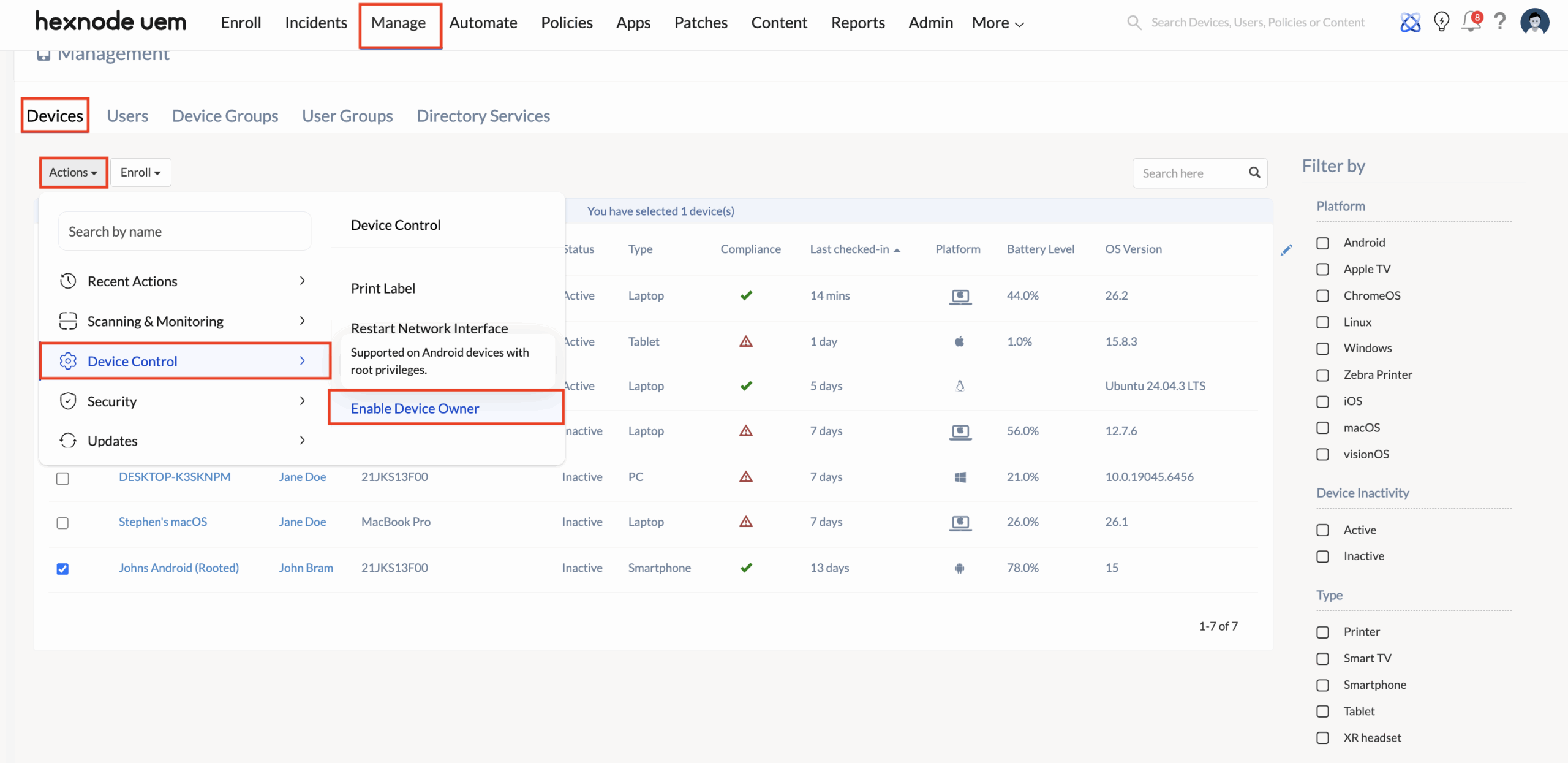
- Authenticate: Click Proceed. You will be prompted to enter your Hexnode portal password for security verification.
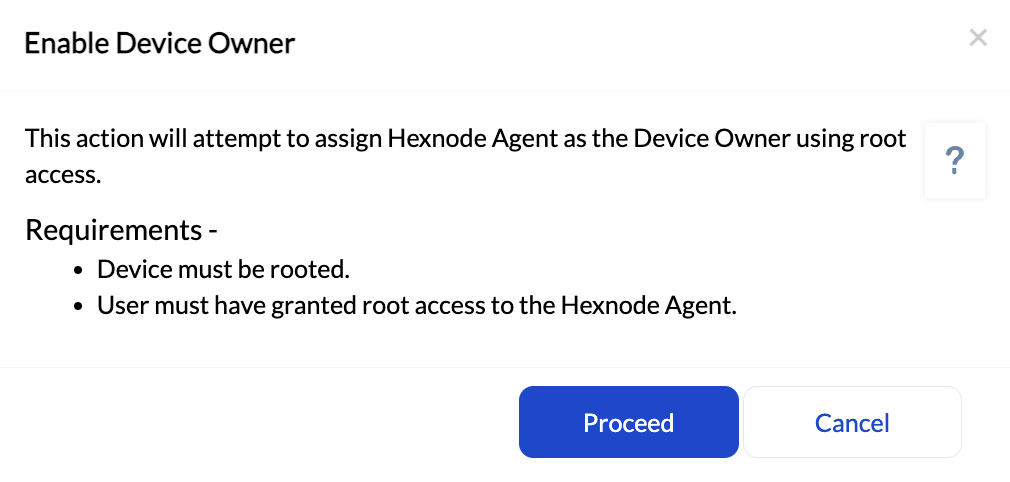
- Confirm: Once authenticated, the command is sent instantly. The device will transition from legacy management to Device Owner mode without a data wipe.
Troubleshooting Common Issues
| Issue | Potential Cause | Recommended Solution |
|---|---|---|
| Action Failed | Root access was denied to the Hexnode app. | Check the Superuser/Root management app on the device and ensure Hexnode is “Allowed.” |
| Action Not Visible | The device is not recognized as ROM-enrolled. | Verify that the device was enrolled using the ROM configuration method. |
| Pending State | Device is offline or in battery saver mode. | Ensure the device has an active internet connection and “Background Data” is enabled. |
FAQs
1. Does enabling Device Owner mode wipe the device data?
No. Unlike standard Android Enterprise enrollment, this remote action for rooted ROM devices elevates privileges without triggering a factory reset.
2. Can I use this for non-rooted devices?
No. This specific remote action relies on root permissions to modify the device’s management framework. For non-rooted devices, Device Owner must be set during the initial setup via QR code, Zero-Touch, or ADB.
3. What is the difference between Legacy and Device Owner mode?
Legacy mode offers basic MDM features (WiFi, basic restrictions). Device Owner on ROM-enrolled Android unlocks advanced features like silent app installation, kiosk mode lockdown, and remote screen control.
4. Will the user be notified when this action is taken?
The elevation happens in the background, but the user may see a persistent notification stating that “This device is managed by your organization,” which is standard for Device Owner mode.


