


Category filter
How to Add Web Clips to iOS with Hexnode UEM
Web Clips allow IT administrators to add shortcuts for frequently used web pages directly to the home screens of managed iOS devices. Within the Hexnode UEM console, these shortcuts can be added and managed as app icons, providing users with instant access to specific web content without having to manually open a browser and provide the URL.
This guide explains how to populate the app inventory with a Web Clip, distribute it via policy, and utilize advanced URL protocols for a seamless user experience.
Key Benefits of Web Clips
- Instant Access: Users can launch critical web portals or resources directly from their home screen.
- Native Experience: Web Clips can be configured to open in full-screen mode, removing browser navigation bars to look and feel like native applications.
- Custom Branding: Supports custom icons to represent the web links.
Requirements and Availability
- Hexnode UEM Plans: Available in Pro, Enterprise, Ultimate, and Ultra editions.
- Browser Support: Safari (default), Google Chrome, Mozilla Firefox.
- Dock Support: On iOS devices running 11.3 and later, administrators can add Web Clips to the device dock via the Home Screen Layout policy.
Phase 1: Upload the Web Clip to the Hexnode UEM App Inventory
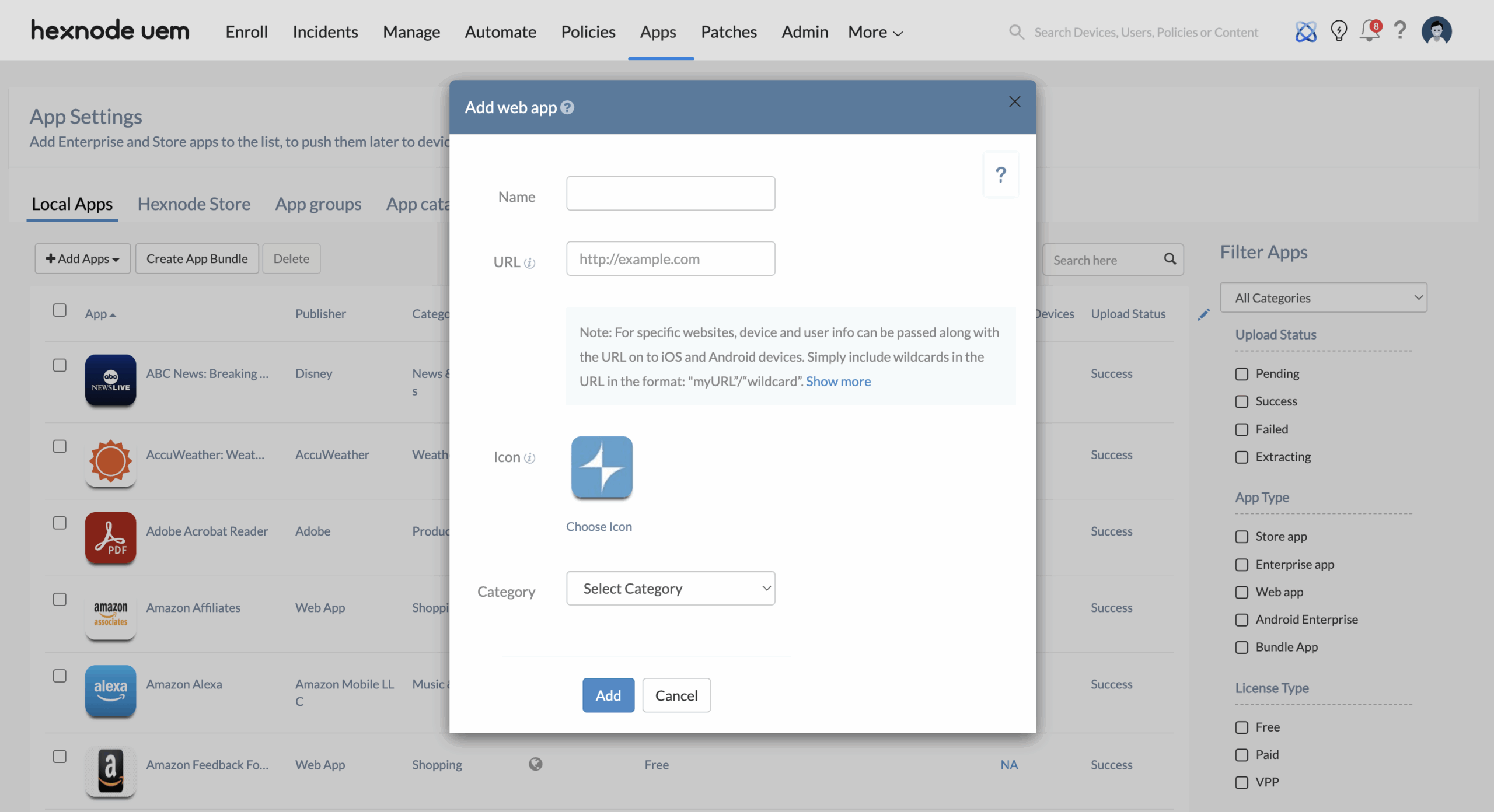
Before deploying a Web Clip to devices, you must first add it as a Web App within the Hexnode UEM App Repository.
- Navigate to the Apps tab in the Hexnode UEM portal.
- Select +Add Apps > Web App.
- Provide the following configuration parameters:
- Name: The name to be displayed under the app icon on the iOS device.
- URL: The web address that the shortcut will point to (see Special Configuration Cases for advanced URL formats).
- Icon: Upload an image to represent the Web Clip on the home screen.
- Category: Assign a category to organize the clip within your app inventory.
- Click Add.
The Web Clip is now successfully added to the Hexnode UEM App Repository.
Phase 2: Deploy Web Clips to iOS Devices
Once the Web Clip is in the Hexnode UEM app repository, use a custom policy to deploy it to the target devices.
- Navigation Path: Policies > New Policy > Create a fully custom policy
- Policy Identity: Provide a Policy Name and an optional description.
Note: You can also configure Web Clips on an existing policy by navigating to Policies > Click on the policy name > Manage > Modify.
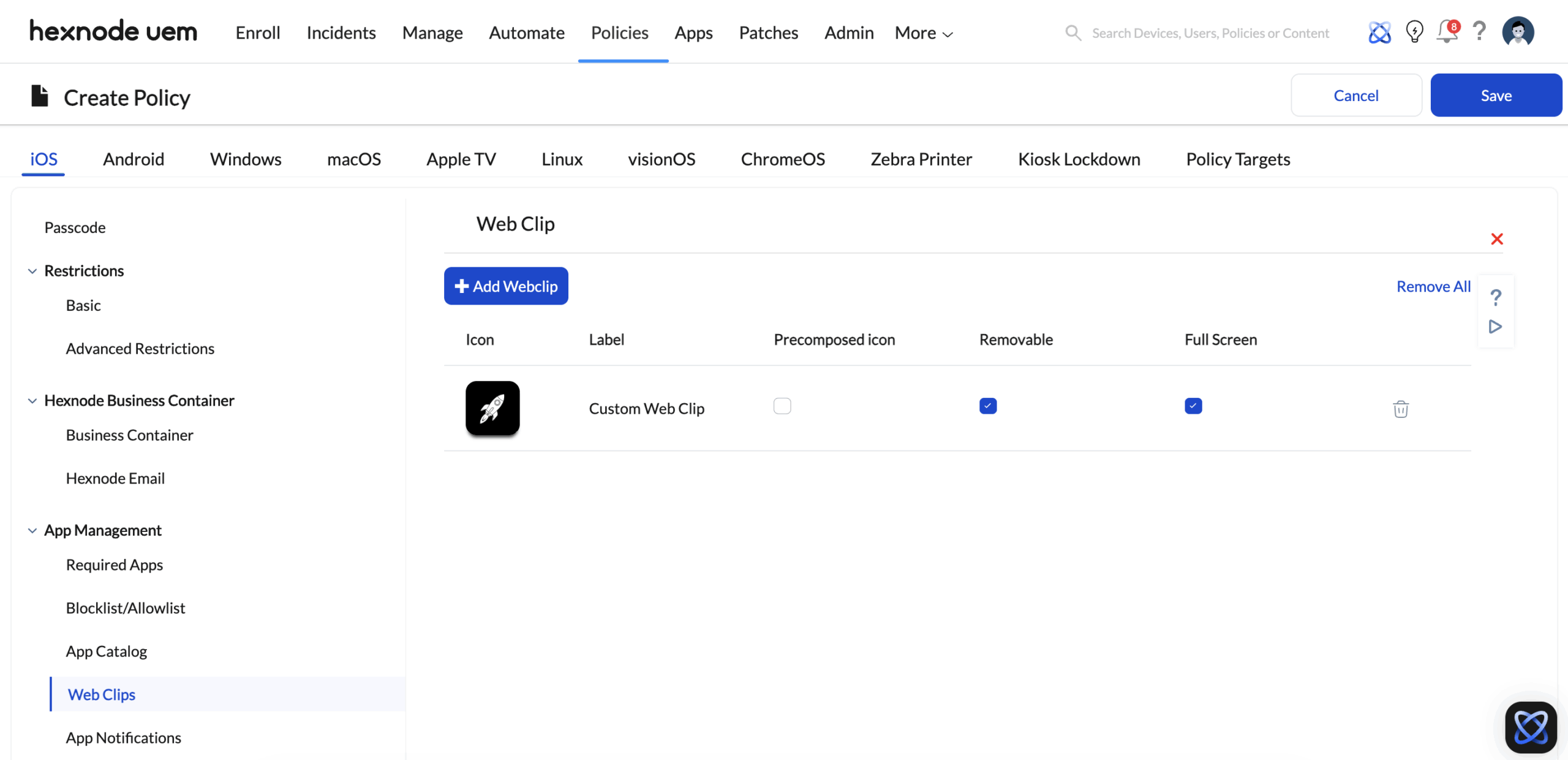
- Configure Web Clips: iOS > App Management > Web Clips > click Configure.
- Click +Add Webclip.
- Search for the previously created Web clip and click Select.
- Click Done.
- Configure Web Clip Settings: These are checkboxes that are displayed once a web clip is added to the policy.
- Precomposed icon: Tick this checkbox to prevent iOS from adding a visual “shine” effect to the icon.
- Removable: If unchecked, the user cannot delete the Web Clip from the device (requires Supervised mode).
- Full Screen: If checked, the URL opens in full screen, effectively without displaying any browser search bars or bookmarks.
- Targeting: Navigate to the Policy Targets tab > +Add Devices > Select your devices > Click OK. (You can also associate the policy with Users, User Groups, Device Groups, or Domains).
- Finalise: Click Save.
Device-End Behavior
Once the policy is successfully associated with the device:
- Installation: The Web Clip icon appears automatically on the device home screen.
- Launching: When a user taps the icon, the saved website or resource opens in the Safari browser.
- Icon Retention: In some cases, the custom icon uploaded to Hexnode UEM may be replaced by the website’s native favicon after the first launch.
- Solution: To ensure the custom icon is retained, enable the Full Screen option in the associated policy settings.
Special Configuration Cases
Hexnode UEM supports various URL protocols to trigger specific actions or open content in alternative browsers. Use the table below to identify the correct URL structure for your specific use case when adding a Web Clip to the Hexnode UEM App inventory.
| Shortcut Type | URL Prefix/Format | Example URL | Result on Device |
|---|---|---|---|
| Google Chrome | googlechrome:// or googlechromes:// | googlechromes://www.hexnode.com/ | Opens the link specifically in the Chrome browser. |
| Mozilla Firefox | firefox://open-url?url= | firefox://open-url?url=https://www.hexnode.com/ | Opens the link specifically in the Firefox browser. |
| PDFs & Videos | Direct HTTPS link to file | https://example.com/manual.pdf | Opens the hosted file directly in your default browser. |
| Email (Compose) | mailto: | mailto:support@hexnode.com | Opens the Mail app with the “To” field pre-filled. |
| Phone Call | tel:// | tel://1-415-636-7555 | Prompts the user to initiate a call to the number via Safari. |
| SMS/Text | sms:// | sms://1-415-636-7555 | Opens the Messages app with a new message to the contact. |
| Apple Maps | http://maps.apple.com/? | http://maps.apple.com/?q=Cupertino | Opens the specific location or search in the Maps app. |
| YouTube | Regular HTTPS link | https://www.youtube.com/watch?v=X-vn5UfVh3Y | Opens in Safari; prompts to open in YouTube app if installed. |
| iTunes Music | Create the link using iTunes Link Maker services | https://music.apple.com/K87LYdhY56hx | Opens the specific music file in the Music app/store. |
| FaceTime | facetime://facetimeid | facetime://user@example.com | Automatically initiates a FaceTime call to the specified ID. |
| FTP Sites | ftp://< serverURL> | ftp://server.example.com | Connects to the specified FTP server address. |
| Apple Books | ibooks://assetid/ID | ibooks://assetid/1446266036 | Opens a specific book from the user’s iBooks library. |
| iCloud Documents | shareddocuments:// | shareddocuments://[document_url] | Opens the shared document directly within the Files app. |
| App Store Link | itms-apps:// | itms-apps://itunes.apple.com/app/id1105383443 | Redirects the user directly to the app’s page in the App Store. |
Important Implementation Notes
- Mail Requirements: For
mailto:Web Clips, the user must be signed into the native iOS Mail app. If not signed in, they will be prompted to do so upon opening the Web Clip. - Visual Confirmation: Ensure you upload a custom icon for these special use cases so end-users can easily distinguish between a “Call Support” button and a “Manual PDF” link on their home screen.


