


Category filter
Hexnode UEM: Auditing and Managing Remote Action History (Action Reports)
This comprehensive guide details the use of Hexnode UEM’s Action Reports to provide IT administrators with an immutable, auditable log of all remote actions executed across the managed device fleet. This centralized reporting is essential for maintaining a clear chain of command, ensuring security compliance, and verifying the success of critical deployments.
Document Summary
| Criterion | Detail |
|---|---|
| Topic | Hexnode UEM Remote Action Auditing and Action Reports |
| Explanation | Hexnode UEM’s Action Reports provide a chronological log of every remote command (e.g., Device Wipe, App Install, Script Execution) sent to managed devices, detailing the action name, initiation time, completion time, and Success/Failure status for mandatory security auditing. |
| Supported Actions | All remote actions executed from the Hexnode UEM console |
| Key Function | Security Auditing, Compliance Verification, Forensic Timelining. |
The Value of Action Reports in the Enterprise
In large organizations, the ability to execute remote actions (like locking a lost device or deploying an emergency patch) is critical, but so is the ability to prove when and if that action occurred. Action Reports provide this necessary accountability layer.
Enterprise Use Cases
| Use Case | Challenge | Description and Value |
|---|---|---|
| Security and Forensics | A terminated employee’s device must be wiped immediately. | The Action Report provides an exact Completed Time and Success status for the Corporate Wipe, creating an immutable log for legal and security teams. |
| Compliance and Auditing | The organization must prove that a critical security configuration (e.g., BitLocker activation) was successfully deployed to 100% of Windows devices. | Filters the report by the action name (“Force BitLocker Encryption”) and Failed status to quickly identify the few devices requiring manual remediation. |
| Deployment Verification | A new version of a mandatory enterprise application was deployed in bulk. | Filters by the action name (“Install Application”) to confirm installation success rates across thousands of endpoints and ensure zero-touch provisioning functioned correctly. |
| IT Troubleshooting | A technician executed a Custom Script to fix a device configuration, but the fix failed. | Provides the full chronological order of actions taken on the device and the precise Failed status, helping the technician understand exactly where the process broke down. |
Generating the Action History Report
The Action History Report (simply referred to as the Action Report) is generated from the Hexnode UEM portal.
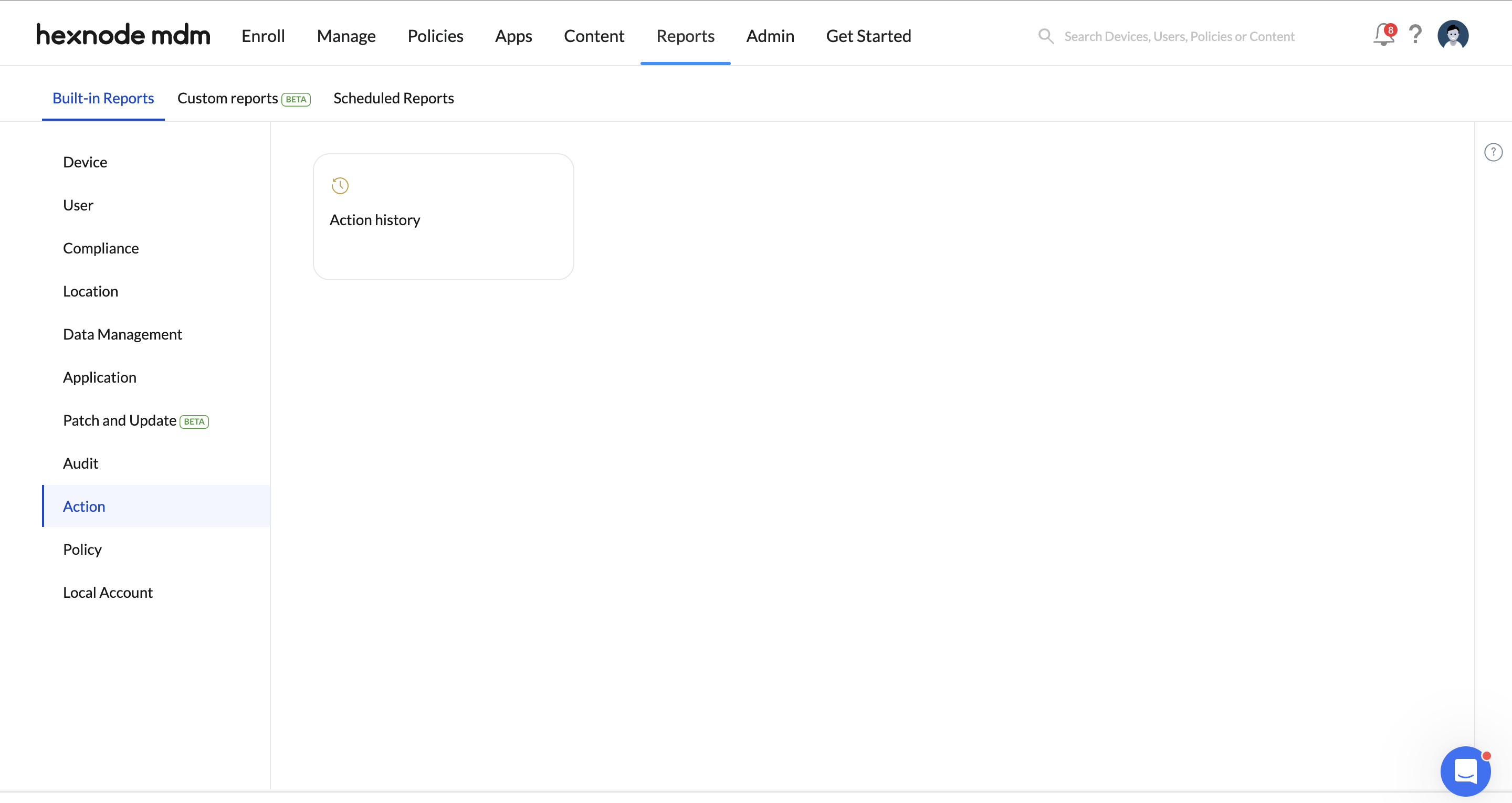
Step 1: Access Built-in Reports
- Log in to your Hexnode UEM portal.
- Navigate to the Reports tab.
- Select Built-in Reports from the left-hand panel.
Step 2: Filter and Generate the Report
- Click on the Action report type.
- Select Action History.
- The report table will generate with current data.
Step 3: Advanced Filtering
Use the filtering options to narrow the scope of your audit:
| Filter Type | Options | Purpose |
|---|---|---|
| Action Status | Initiated, Success, Failed, In progress, Pending, Prompting, Queued at Device End, Bypassed, Partial Success, Cancelled. | Isolates critical failures or confirms successful actions. |
| Created Time | Today, Last 7 days, Last 30 days, Custom duration. | Essential for forensic reporting that requires precise time framing. |
| Completed Time | Today, Last 7 days, Last 30 days, Custom duration. | Measures the time-to-completion for complex remote actions. |
Key Data Columns for Auditing
The report fields provide the complete context required for a professional audit trail.
| Data Column | Significance for Auditing |
| Device Name | The recognizable name of the endpoint targeted by the action. |
| Action Name | The specific command executed (e.g., Corporate Wipe, Scan Device Location, Execute Custom Script). |
| Action Status | The definitive result of the command: Success (validated execution) or Failed (execution attempted but failed on the endpoint). |
| Created Time | The precise timestamp when the administrator initiated the command from the Hexnode portal. |
| Completed Time | The precise timestamp when the command successfully finished or officially timed out/failed on the target device. |
Enhanced Security Auditing and Cross-Platform Visibility
Hexnode UEM’s Action Reports offer a clear advantage over basic MDM platforms by providing a unified, platform-agnostic view of remote command execution.
| Feature | Hexnode UEM Advantage |
|---|---|
| Action Detail | The report tracks granular actions, including custom scripts (Execute Custom Script), which are vital for non-standard IT tasks. |
| Unified Console | Consolidates action history for Windows, macOS, iOS, Android, and Linux endpoints into a single, unified report. |
| Time-to-Completion | Includes both Created Time and Completed Time, allowing IT to measure the latency and efficiency of their deployment infrastructure. |
| Compliance Proof | Provides the necessary auditable trail required for regulatory frameworks (like HIPAA, GDPR, or SOC 2) to demonstrate the rapid and verified response to a security event. |
Troubleshooting Remote Action Reports
| Issue | Potential Cause | Action to Take |
|---|---|---|
| Action Status is Stuck on “Pending” | Device is offline or UEM agent/service is delayed in processing the command. | Force a Device Sync from the Hexnode console. Check the device’s internet connectivity and power status. |
| “Failed” status for a critical action (e.g., Wipe) | Device restrictions preventing the action or incorrect admin credentials. | Check if any device-side policy is blocking the command (e.g., restrictions on factory reset). For security actions, verify the administrator password entered for confirmation was correct. |
| Missing action in the report | Incorrect time filter applied. | Adjust the Created Time or Completed Time filters to a broader range (e.g., “Last 30 days”) to ensure the command’s timestamp is captured. |
| Action is marked “Success” but the result is incorrect | The device accepted the command but failed to execute the intended task (common with complex scripts). | Check the device’s Action History page for any local error messages or script output that was returned upon completion. The primary report only shows MDM command status. |
Frequently Asked Questions (FAQs)
1. Can I see who initiated the remote action in the report?
While the primary Action History report details the command and device, the identity of the administrator who executed the action is tracked in the Audit Logs (under Reports > Built-in Reports > Audit Logs). These two reports should be cross-referenced for a full chain of custody.
2. Are unmanaged devices included in the Action Report?
No. Action Reports only log commands sent to devices successfully enrolled in Hexnode UEM, as only enrolled devices can receive and acknowledge MDM commands.
3. Is there a limit to how long the Action History is kept?
Hexnode UEM can retain action history for up to a year. It can also depend on your subscription plan. It is best practice to regularly export critical Action Reports (e.g., all “Wipe” or “Failed” actions) for long-term archiving in your internal systems.


