


Category filter
Managing Audit Reports in Hexnode UEM
Audit reports in Hexnode UEM provide a complete, fully traceable history of activities within the management console, including technician actions and event occurred. These reports are essential for security auditing, compliance reviews, and troubleshooting system behavior.
1. Procedure: Generating an Audit Report
- Log In: Log into your Hexnode UEM portal.
- Navigate: Go to the Reports tab.
- Select: Choose Built-in Reports from the left navigation.
- Access: Click the Audit category.
- Choose Report Type: Select the desired audit report (e.g., Audit History or Live Terminal).
- Customize: Click the edit icon to choose or omit required data columns.
- Generate: Apply filters and generate the final report.Moreover, you can schedule reports at specific intervals to send to different recipients via email and also export the report to your device as a PDF or CSV file.
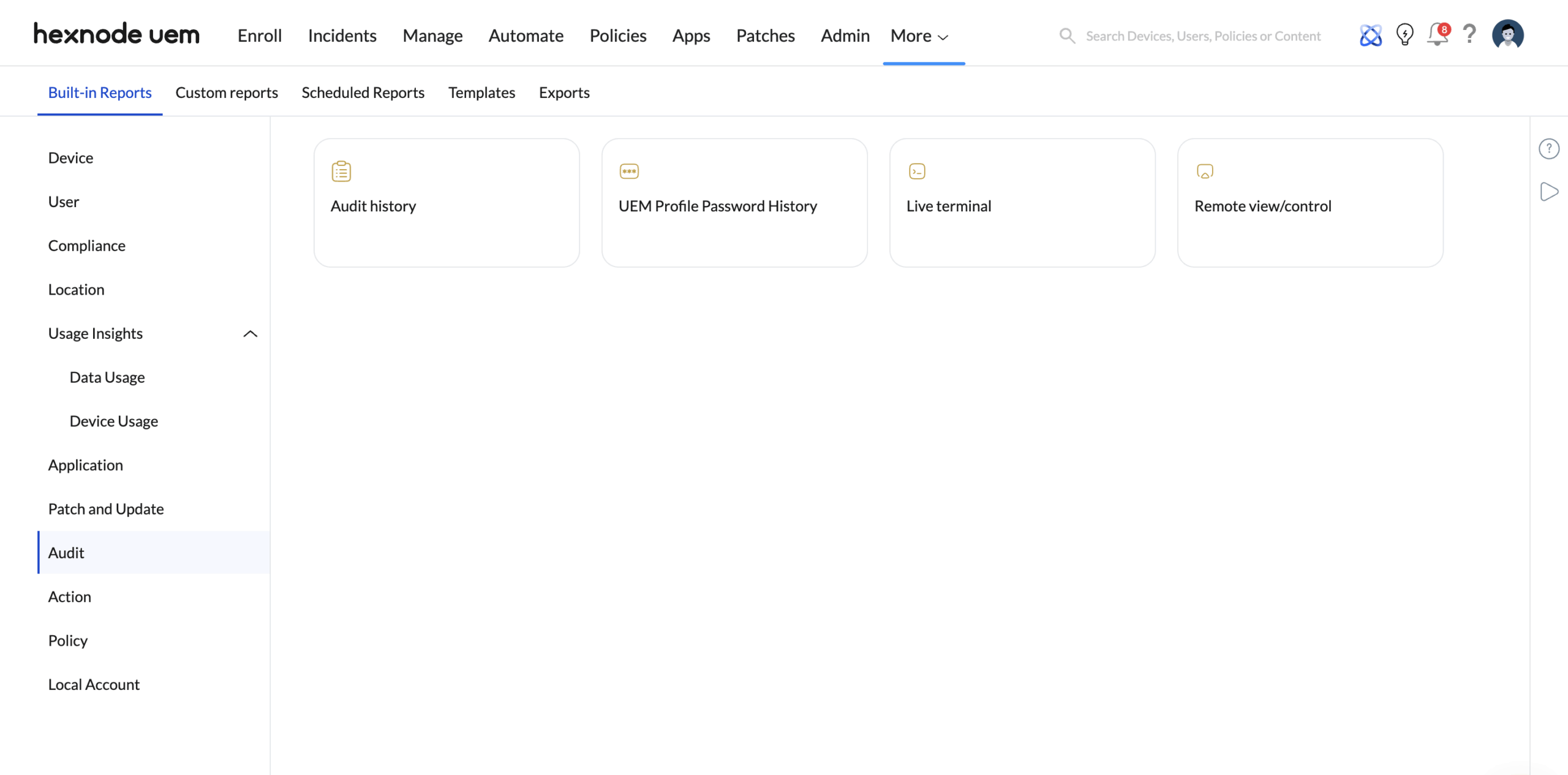
2. Types of Audit Reports
Hexnode UEM provides specific audit reports designed to track different types of security and management events.
| Report Type | Primary Focus / Purpose | Key Modules Tracked |
| Audit History | Provides a complete log of all events occurring in the portal (technician actions, policy associations, device synchronizations). | Device, Devicegroup, Policy, User, System, Domain, OU, Usergroup. |
| UEM Profile Password History | Tracks all updates and changes made to the password required for MDM profile removal on macOS devices. | Technician, Device, UEM Profile Password. |
| Live Terminal | Logs all events related to SSH/Live Terminal sessions (initiation, stopping, restarting) executed from the console. | Device, Technician, Event, Created Time. |
| Remote View/Control | Logs detailed records of every screen sharing or remote control session initiated or terminated by a technician. | Device, Technician, Event, Created Time. |
3. Data Columns and Filters
Audit History Data Columns
The Audit History report is the most comprehensive and includes detailed data fields to trace the origin and context of any action.
| Data Column | Definition |
| Subject | The name of the entity on which the event occurred (e.g., Device Name). |
| Event | The specific action that took place (e.g., Policy associated, Device group synchronized). |
| Created Time | The precise date and time the event was logged. |
| Event Module | The area of the Hexnode portal where the event originated (e.g., Device, Policy, System). |
| Technician | The email of the administrator who triggered the event. (System for Hexnode server-triggered events). |
Report Filters
Audit reports can be segmented using these filters to narrow search results:
- Event Module: Filter by the type of entity involved (Device, Policy, User, System, etc.).
- Created Time: Filter by time range (All, Today, Yesterday, Last 7 days, Last 30 days, or Custom duration).
Frequently Asked Questions
1. Why does the Technician column show ‘System’?
‘System’ indicates that the event was automatically triggered by the Hexnode UEM server (e.g., a scheduled device scan, a server-side synchronization, or an automatic policy application).
2. What is the purpose of the Audit History report?
Its main purpose is non-repudiation and compliance. It creates a verifiable record to prove who did what and when within the UEM console.
3. How can admins check for unauthorized remote access?
Use the dedicated Remote View/Control report to review the complete history of initiated, stopped, and restarted remote sessions, including the technician’s identity and the event time.
4. Can admins track changes to the password used to remove the MDM profile?
Yes, the UEM Profile Password History report specifically logs every time the password for removing the MDM profile on macOS devices is updated or changed.


