


Empowering generations through quality education with Hexnode UEM
Learn how Hexnode UEM secures school devices, automates app updates, and removes distractions to improve student learning.

Get fresh insights, pro tips, and thought starters–only the best of posts for you.
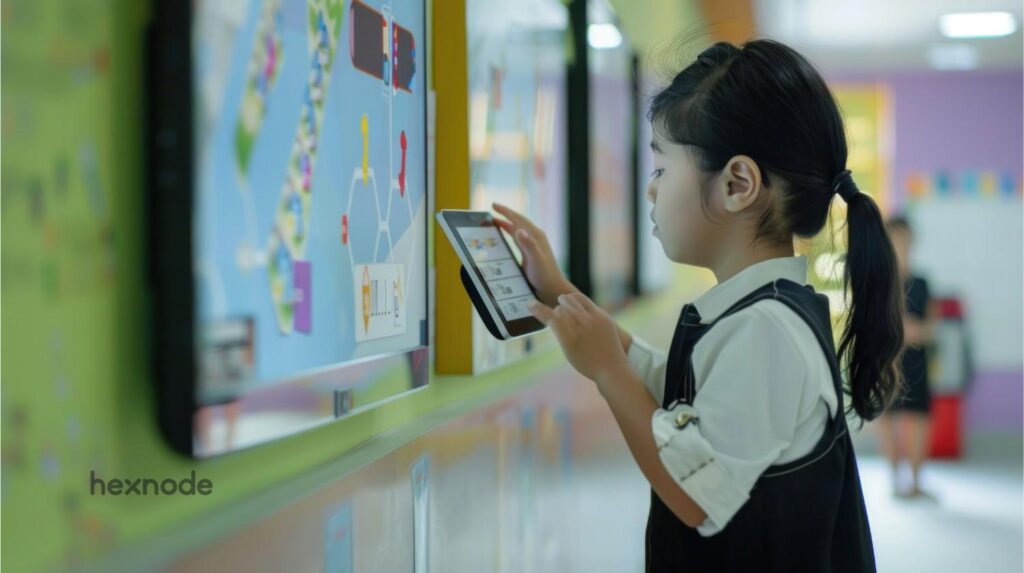
Digital classrooms have changed. It is no longer just about giving students tablets. Now, IT teams must use kiosks for schools to ensure devices stay secure. These devices must stay dedicated to learning. A library catalog or a classroom lockdown device needs a smart strategy. This guide shows how to manage these tools using a robust Unified Endpoint Management (UEM) solution.
A kiosk for schools is a device restricted to one task, providing a secure strategy to keep students focused and protect school hardware.
IT teams use kiosk for education software to lock devices into specific apps. This prevents students from opening unauthorized apps, which protects sensitive data. These interactive kiosks for schools also work as education kiosks for digital signage. In a modern school, a kiosk ensures that technology serves a specific pedagogical goal. It removes the risk of students accessing non-educational content.
Using education kiosks helps IT admins in three main ways:
Without a strategy, devices often become high-maintenance toys. Kiosk mode turns them into specialized tools. It ensures the school’s return on investment (ROI) remains high. It also keeps the IT department from constant troubleshooting.
The best solution offers cross-platform support and remote hardware control.
Look for these features in a kiosk for education platform:
| Feature | Single-App Mode | Multi-App Mode | Kiosk Browser |
| Primary Use | Exams | E-Learning | Research |
| Control | Strict | Moderate | High |
| Admin Effort | Low | Medium | High |
Kiosk management uses a UEM policy to override the standard user interface.
When you deploy an educational kiosk, the UEM agent talks to the OS. It sends a command to launch a restricted home screen. This replaces the standard mobile or desktop view. It becomes a dedicated terminal for students.
Hexnode leads the industry with native multi-platform support, a user-friendly interface, and cost-effective plans.
While many competitors focus on only one platform, Hexnode provides a truly unified experience for kiosks for schools. For school districts with mixed fleets of iOS/iPads, Android tablets, ChromeOS, Fire OS and Windows laptops, Hexnode kiosk Management is the most versatile choice.
At St. Katherine of Sienna (SKS), IT admin Joshua McHugh faced a massive hurdle managing a hundred student iPads. Initially relying on manual configurations and Apple Configurator, the process was cumbersome and “fiddly.”
By switching to Hexnode, Joshua was able to:
Source: Read the full SKS School Success Story
Each operating system requires a unique approach to kiosk management to ensure a secure, tamper-proof educational environment.
Android offers great flexibility for education kiosks. Using Android Enterprise, you can use Hexnode for deep control over the device. You can hide the status bar and disable the “Recent Apps” button. Android kiosk mode prevents students from bypassing the kiosk.
Apple devices are popular in schools. To use kiosk mode effectively, devices should be “Supervised.” This is often done via Automated Device Enrollment (ADE) via Apple School Manager. Once supervised, Hexnode can put the iPad into iOS Single app mode. This is perfect for a classroom lockdown device.
Windows laptops or PCs can also be kiosks. Hexnode can transform a Windows 10 or 11 Pro machine into a Windows Single app kiosk. This is ideal for school computer labs or education information kiosks.
Many schools use Amazon Fire tablets because they are budget-friendly. Fire OS kiosk lockdown software allows you to treat Fire OS as an Android-based platform. You can lock these devices into a kiosk for education mode to run specific learning apps.
In corridors and lobbies, Apple TVs are often used for digital signage displays in schools, such as announcements and event boards. Hexnode can lock an Apple TV into a single-app mode. This turns the screen into a dedicated digital signage terminal for displaying school announcements.
While Chromebooks are managed primarily via the Google Admin Console, they are vital educational kiosks. They are frequently used as classroom lockdown devices for testing. Hexnode can complement this by providing visibility across mixed device fleets.
The Definitive Guide to Kiosk Management and Strategy (2026 Edition)
Setting up a school kiosk involves enrolling devices and pushing a policy.
Step 1: Device Enrollment
First, put the device under Hexnode management. For schools, Hexnode automates this process through bulk enrollment tools. This ensures you have full control over the device. This “Zero-touch” enrollment saves IT teams hundreds of hours.
Step 2: Creating the Kiosk Policy
Step 3: Configuring the Environment
Step 4: Policy Association
Save the policy. Click Policy Targets. Select your device group to apply the lockdown. The devices will update instantly over the air.
The Hexnode Kiosk Browser provides a safe gateway to the internet for students.
Standard browsers like Chrome allow too much freedom. The Hexnode Kiosk Browser is different. It is built specifically for kiosks for education.
Managing a fleet of kiosks comes with unique environmental and behavioral hurdles.
Students are curious. They will try to find a way out of the kiosk.
Solution: Use rugged cases that hide the home button. Combine this with Hexnode’s peripheral lockdown.
OS updates can sometimes break kiosk settings.
Solution: Use Hexnode patch management to delay OS updates. Test the update on one device before pushing it to the whole school.
If a kiosk loses internet, it might not update its app content.
Solution: Use Hexnode’s Remote management to force the device to reconnect. You can also set alerts for offline devices.
Routine maintenance ensures your school kiosks remain reliable for years.
Kiosk software from Hexnode is a top choice. It supports many operating systems and is easy.
Use Hexnode to enable Single-App Mode. This locks the iPad remotely.
It is a device locked to one app. This prevents cheating during school tests.
Yes. Admins use UEM to update apps and settings from any location.
They allow students to search for books. They also help with digital check-ins.
Yes. It prevents access to the file system. It also blocks unauthorized data sharing.
Hexnode can send an alert to the admin. The device will reboot into kiosk mode once powered.
AI is making school kiosks smarter and more personalized for every student.
In the near future, interactive kiosks for schools will use AI. They will adapt to a student’s learning pace. If a student struggles, the kiosk can offer extra help. Hexnode is already preparing for this. We are adding support for AI-driven app deployment and predictive maintenance.
Deploying kiosks for schools is vital for a modern campus. Using Hexnode UEM makes this process very fast and secure. It protects student data and keeps them focused on tasks. Hexnode provides the security you need and the flexibility teachers want. Whether you are managing five tablets or five thousand, a centralized strategy is the key to success.
Manage your entire education fleet from Hexnode's dashboard.
SIGN UP NOW