Kiosk mode locks a device to a specific app, website, browser session, or approved set of apps. It prevents users from accessing settings, system functions, unapproved apps, external websites, ports, and controls outside the intended workflow. Native kiosk features can support basic or temporary use cases, but enterprise deployments need UEM-managed kiosk mode for policy enforcement, remote troubleshooting, app control, peripheral lockdown, compliance visibility, and fleet management.
Kiosk mode is a core endpoint management strategy for enterprises that deploy shared, public-facing, or task-specific devices across retail, healthcare, education, logistics, hospitality, manufacturing, banking, and corporate environments.
The concept is simple: a device should perform a defined function and nothing else. That function may be customer check-in, self-service ordering, visitor registration, inventory lookup, digital signage, employee training, field reporting, or controlled web access.
For IT teams, the challenge is keeping the device secure, available, and recoverable after user activity, app crashes, network drops, failed updates, or device movement.
That is where kiosk mode matters. It limits user access, reduces misuse, protects workflows, and helps IT control non-standard devices. In enterprise environments, kiosk mode is a security, operations, and compliance control that becomes stronger through Unified Endpoint Management (UEM).
What is kiosk mode?
Kiosk mode is a configuration that locks an endpoint to one application, one website, a browser-based workflow, digital signage content, or a limited set of approved apps. Its purpose is to make the endpoint serve a specific business function while blocking everything outside that function.
A kiosk device may appear simple to the user. They may only see a check-in screen, product catalog, payment app, feedback form, training app, or company portal. Behind that experience, kiosk mode controls what users can access, which system functions remain available, and how the device behaves after reboot, app crash, or network interruption.
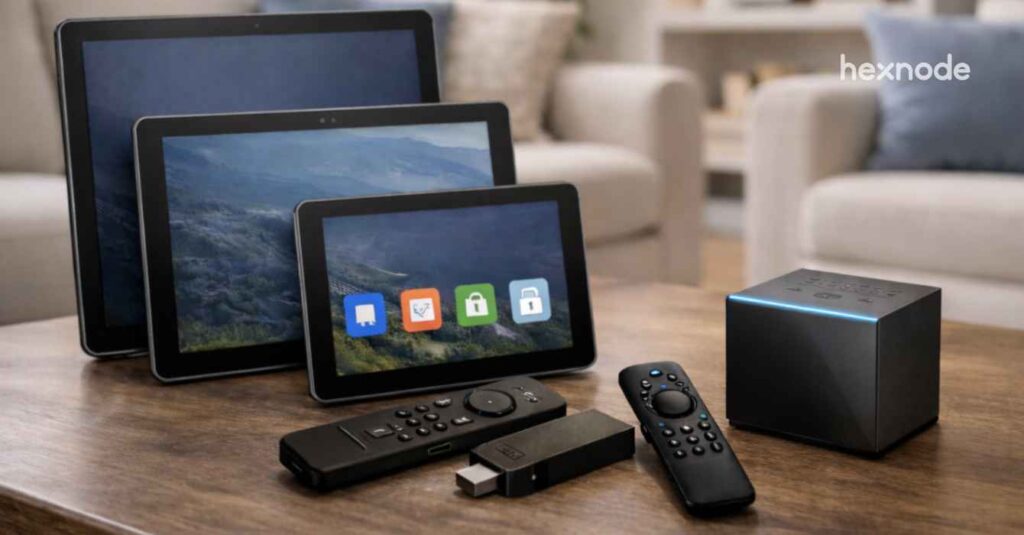
Kiosk mode is commonly used on tablets, smartphones, rugged devices, Windows devices, interactive displays, and shared workstations accessed by customers, visitors, contractors, frontline employees, or multiple users.
In short, kiosk mode turns a general-purpose endpoint into a controlled, purpose-built device.
Why kiosk mode matters for enterprise IT
A device placed in a lobby, retail store, clinic, warehouse, classroom, hotel, or factory floor has a different risk profile from an assigned employee endpoint. It is often shared, exposed, and used without direct IT supervision.
Without kiosk mode, users may exit the required app, open settings, browse unapproved websites, access notifications, change Wi-Fi, connect USB or Bluetooth peripherals, open other business apps, follow external links, leave sessions behind, or tamper with buttons and ports.
These are not just usability issues. They can create data exposure, service disruption, compliance gaps, and support overhead.
For IT leaders, kiosk mode supports four practical goals:
Security: Reduce unnecessary access to apps, settings, browsers, and device functions.
Operational resilience: Keep devices in the intended state after disruption.
User consistency: Ensure every device launches the same approved workflow.
Scalability: Standardize management across devices, sites, and operating systems.
Kiosk mode provides the restriction layer. UEM provides centralized enforcement, monitoring, remediation, and lifecycle management.
Common kiosk mode use cases
Kiosk mode can be applied to many supported devices that need a controlled user experience, not only customer-facing screens.
Common use cases include self-service ordering, registration, check-in, payments, interactive displays, digital signage, web kiosks, employee shared devices, healthcare intake, education devices, warehouse scanning, inventory workflows, and visitor management terminals.
The common requirement is controlled access that limits exposure to unnecessary apps, settings, and operating system functions.
Types of kiosk mode
Kiosk mode can be configured in different ways depending on the workflow, user type, device ownership model, and security requirement.
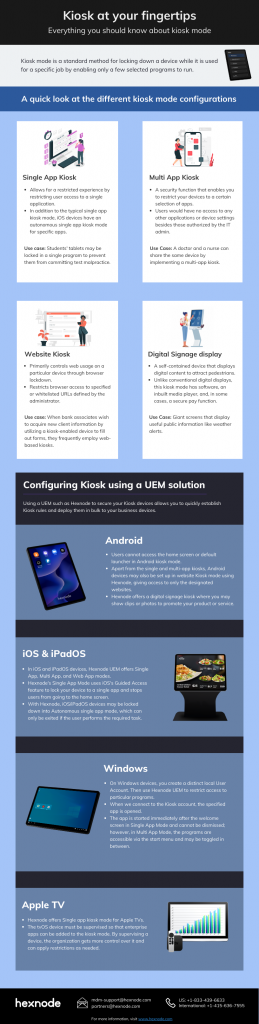
Single-app kiosk mode
Single-app kiosk mode locks a device to one approved app. It is suited for dedicated devices where users should complete one task and have no need to access anything else. Examples include patient intake tablets, ordering devices, check-in kiosks, payment terminals, retail catalog tablets, and event registration screens.
Multi-app kiosk mode
Multi-app kiosk mode allows access to a limited set of approved apps. It is useful for shared employee devices where users need multiple tools but should not have full device access. Examples include warehouse tablets with scanning and inventory apps, training devices with a learning app and internal portal, or frontline devices with scheduling and task tools.
Web kiosk mode restricts the device to one or more approved websites or web apps. It is common for visitor registration, feedback forms, booking systems, service portals, and controlled internet access.
For enterprise use, web kiosk mode should include URL allowlisting, browser lockdown, blocked downloads, hidden address bars, session cleanup, and restrictions on external links.
Digital signage mode
Digital signage mode runs approved content continuously. It may be used for announcements, menus, product promotions, safety instructions, or information screens. When signage becomes touch-enabled or interactive, it should be managed like any other kiosk endpoint.
Scheduled or dynamic kiosk mode
Scheduled kiosk mode changes the device experience based on time, location, or operational need. A device might run digital signage during business hours and switch to training mode after closing.
What should kiosk mode control?
A strong kiosk policy defines what the user can access, what the device can do, and how IT can recover the device when something fails.
A production-ready kiosk configuration should control app or website launch, app exit behavior, home screen access, status bars, notifications, system settings, approved URLs, external links, downloads, hardware buttons, USB, Bluetooth, camera, microphone, keyboard, screen timeout, network settings, app updates, remote restart, wipe, troubleshooting, and policy behavior after reboot or app crash.
The difference between a basic kiosk and an enterprise-ready kiosk is policy depth. A device is not secure simply because one app is visible. IT must also control the surrounding system environment.
Major platforms such as iOS/iPadOS, Android, and Windows include built-in controls that can support basic kiosk-style experiences. These native tools are useful for basic lockdown, demonstrations, small deployments, or temporary supervised use.
Native kiosk features are useful when IT is testing the experience, the deployment is small, devices are physically supervised, the use case is temporary, or security exposure is low.
They become limiting when devices are deployed across locations, policies must persist after reboot, users may tamper with the device, IT needs remote troubleshooting, apps require controlled updates, compliance requires auditability, peripheral access must be restricted, or device groups need different policies.
Native kiosk controls
Native kiosk tools solve the visible problem of keeping an app or restricted experience on screen. Apple’s Guided Access, Android App Pinning, and Windows Assigned Access can support basic kiosk scenarios.
However, native options are not always enough for public, distributed, or business-critical deployments. They may lack central visibility, advanced restrictions, remote recovery, fleet reporting, and policy consistency.
Managed kiosk controls
Managed kiosk mode uses UEM to enforce kiosk policies centrally. IT can enroll devices, assign policies, deploy apps, configure restrictions, monitor compliance, troubleshoot remotely, and retire devices from one console.
For enterprise deployments, the goal is not simply to open one app. The goal is to keep every kiosk device in a known, secure, compliant, and recoverable state throughout its lifecycle.
Why native controls are not enough for public kiosk deployments
Public and semi-public kiosk devices face real-world risks that native controls often do not address well.
Common issues include users exiting the kiosk app, external links opening a full browser, devices losing connectivity, frozen screens, app updates breaking workflows, local users changing Wi-Fi or accessibility settings, unauthorized USB access, devices moving outside approved areas, and poor uptime visibility.
A professional kiosk deployment needs policy persistence so the device returns to the intended state after reboot, app crash, network interruption, or user interaction.
IT should not depend on local staff to relaunch apps, reapply restrictions, or report issues manually. The more distributed the deployment, the more important centralized management becomes.
How UEM strengthens kiosk mode
A UEM platform turns kiosk mode from a local device setting into a centrally governed endpoint strategy.
With UEM-based kiosk management, IT can enroll devices before deployment, assign kiosk policies by device group or location, push apps and certificates, configure Wi-Fi profiles, lock devices into kiosk modes, disable unnecessary hardware functions, apply browser controls, monitor compliance, restart or wipe devices remotely, troubleshoot supported screens, update kiosk apps, apply geofencing, and remove corporate data if a device is lost.
This matters because kiosk fleets often fail at the operational layer. If IT cannot enforce settings, recover devices, or validate uptime, the deployment becomes expensive to support.
Where Hexnode fits in kiosk management
Hexnode supports enterprise kiosk deployments through centralized management and platform-native controls across supported operating systems.
Supports kiosk management across iOS, Android, Windows, tvOS, ChromeOS, macOS, and Linux.
Provides cross-platform kiosk management using platform-native controls and centralized policy enforcement across supported operating systems.
Configures single-app kiosk, multi-app kiosk, website kiosk, digital signage, website restrictions, peripheral restrictions, remote actions, remote view or control, and geofencing capabilities, with feature availability varying by OS and device configuration.
Reduces local intervention by enabling IT to monitor devices, perform supported remote actions, and assign or update policies from the management console instead of relying on technicians or on-site staff.
Hexnode provides centralized monitoring, policy enforcement, and supported remote actions to help administrators manage kiosk deployments across supported platforms.
Kiosk mode for interactive displays
Interactive displays are one of the most common kiosk mode use cases. These touch-enabled screens allow users to interact with apps, websites, services, or content. Examples include ordering screens, wayfinding displays, check-in tablets, feedback terminals, product catalogs, and information kiosks.
Without kiosk mode, an interactive display can become an exposed endpoint. Users may exit the intended interface, browse unapproved websites, change settings, or access other apps. With kiosk mode and Hexnode UEM, IT can lock supported devices to approved workflows and use supported remote actions for management and troubleshooting, depending on the platform.
First-hand setup considerations for enterprise kiosks
Configuring kiosk mode is not just selecting “single app mode.” The policy must reflect how the device behaves in real-world conditions.
A retail catalog tablet may look simple in testing. It launches a product app, stays on a stand, and lets shoppers browse inventory. In production, users may try to open the status bar, change network settings, force-close the app, adjust brightness, connect accessories, or follow external links.
Before rollout, IT should validate app auto-launch after boot, user exit restrictions, status bar restrictions, screen awake behavior, hardware button restrictions, USB and Bluetooth controls, approved domains, download restrictions, app relaunch after crash, app update behavior, remote restart, and support workflows.
During pilot testing, IT should check what happens when the device loses Wi-Fi, reboots, receives an OS update, drains battery, crashes the app, or reconnects after being offline.
Featured Resource
The Ultimate Guide to Kiosk Management
Manage kiosk devices with centralized policies, remote troubleshooting, and enterprise-grade security using Hexnode UEM.
The right kiosk setup method depends on deployment scale, exposure level, support model, and required control after deployment.
Method 1: Native OS kiosk features
Native tools can be used for small tests or limited internal scenarios.
iOS and iPadOS Guided Access
Guided Access can restrict an iPhone or iPad to a single app and control certain buttons or screen areas. It is useful for temporary sessions, but enterprise deployments usually require supervised devices and UEM enforcement.
Android App Pinning
App Pinning keeps one app on screen and can require authentication before unpinning. It is useful when handing a device to another user, but it lacks the remote management depth required for public kiosks.
Windows Assigned Access
Assigned Access supports single-app and multi-app kiosk experiences. It is suitable for some shared-device use cases, but advanced control requires deliberate configuration around allowed apps, user experience, and restrictions.
Method 2: UEM-managed kiosk mode with Hexnode
For production deployments, IT can use Hexnode UEM to configure, enforce, and manage kiosk mode across supported devices from a centralized console.
A typical Hexnode-based setup includes:
Enroll the device in Hexnode using the appropriate enrollment method for the OS and ownership model.
Group devices by location, OS, department, or use case to apply the right kiosk configuration at scale.
Deploy required apps, certificates, Wi-Fi profiles, and browser settings before locking the device into kiosk mode.
Create a kiosk policy using single-app, multi-app, web kiosk, or digital signage mode based on the workflow.
Configure device restrictions for buttons, ports, settings, radios, notifications, navigation, and other system functions.
Apply web controls such as URL or domain allowlisting, blocking navigation to unapproved websites, clearing browsing data, and removing browser UI elements such as address bars and navigation buttons for web-based kiosks.
Push the policy to pilot devices first and validate reboot behavior, app relaunch, network loss, update impact, and user tampering scenarios.
Scale the policy to production groups once the configuration is stable.
Monitor and remediate remotely using supported Hexnode actions such as Scan Device, Lock Device, Wipe Device, Restart, app actions, and supported remote view or control, depending on the platform.
This approach gives IT centralized control across deployment, monitoring, support, updates, remote actions, and device removal or wipe workflows where supported. It also reduces dependency on local staff because kiosk issues can be investigated and corrected from the Hexnode console.
Top 10 kiosk management software
Compare the top kiosk management software for enterprise deployments.
Business benefits of managed kiosk mode
Managed kiosk mode creates business value when devices are reliable, secure, and easy to operate.
Reduced downtime: IT can use supported remote actions, including restart and remote view or control, to troubleshoot kiosk devices without on-site support, depending on the platform and device configuration.
Lower support costs: Centralized policy management reduces manual configuration, repeat tickets, and technician visits.
Improved security posture: Kiosk restrictions limit access to apps, settings, browsers, ports, and unapproved websites.
Consistent user experience: Every device launches the approved app, website, or workflow without exposing unnecessary options.
Operational consistency: IT can apply the same configuration across locations, departments, and device groups.
Lower data exposure: Use session controls, browser restrictions, and app lockdown to reduce the risk of leaving user or business data behind.
Better asset protection: Use location-aware controls, remote lock, and remote wipe to reduce risk when devices are lost, moved, or stolen.
Scalable deployment: IT can manage large kiosk fleets without configuring each device manually.
As adoption grows, unmanaged kiosk fleets increase support load and attack surface. Managed fleets give IT a repeatable operating model.
Security considerations for kiosk app deployments
A kiosk app should not be treated as safe just because it is the only visible app. The surrounding controls matter.
IT teams should review:
External links: Check whether the kiosk app opens third-party links, embedded pages, or full browser sessions outside the approved workflow.
Session handling: Ensure the kiosk app clears authentication sessions after each user interaction, especially on shared or public devices.
Local data storage: Review whether the app caches sensitive data, stores offline records, or leaves user information on the device.
App logs: Verify that logs do not retain personal, transactional, or business-sensitive data unnecessarily.
App-to-app access: Check whether the kiosk app can call other apps, launch system tools, or expose unintended workflows.
Uploads and downloads: Restrict file upload and download options unless they are required for the kiosk use case.
Device permissions: Limit access to camera, microphone, Bluetooth, location, and other permissions to what the workflow actually needs.
WebView behavior: Validate whether embedded webviews inherit browser risks such as redirects, external links, downloads, or session persistence.
Offline mode: Store offline data securely and sync or clear it according to business requirements.
Update impact: Test whether app updates change kiosk behavior, permissions, navigation paths, or session handling.
For public or semi-public deployments, apply the principle of least privilege: allow only the apps, permissions, services, and network paths required for the workflow.
FAQ
Is kiosk mode the same as a kiosk app?
No. A kiosk app provides the user-facing workflow, such as check-in or ordering. Kiosk mode controls the device environment around that app so users cannot access unrelated apps, settings, browsers, or system functions.
Can kiosk mode work on regular tablets?
Yes. Many tablets can be configured for kiosk use if they support the required app, browser, and management controls. For enterprise use, IT should also evaluate enrollment, restrictions, updates, peripherals, and remote troubleshooting.
When should IT use single-app kiosk mode instead of multi-app kiosk mode?
Use single-app kiosk mode when the device has one dedicated purpose. Use multi-app kiosk mode when users need a small, controlled set of approved tools for a business workflow.
Why is UEM important for kiosk mode?
UEM helps IT enforce kiosk policies centrally, monitor devices, push apps, apply restrictions, troubleshoot remotely, and recover devices without physical access. This is critical for public, distributed, or business-critical kiosk fleets.
What should IT test before launching kiosk devices?
IT should test reboot behavior, app crashes, Wi-Fi loss, OS updates, battery drain, external links, peripheral access, and whether users can exit the kiosk experience.
Can kiosk mode secure an interactive display?
Yes. Kiosk mode can restrict an interactive display to the approved app, website, or workflow. For enterprise environments, pair kiosk mode with UEM controls for remote management, policy persistence, and recovery.
Turn Any Device into a Secure Kiosk with Hexnode
Configure, monitor, and manage kiosk devices across Android, iOS, Windows, and more from a single, centralized console.
Content Writer at Hexnode, a curious mind with a knack for words, I dive into ideas worth unpacking and craft narratives worth sharing. I enjoy turning complex concepts into clear, engaging stories that connect with people and spark thought. From tech trends to everyday insights, I’m driven by curiosity, clarity, and creativity, always learning, always refining, and always looking for the next story that deserves to be told well.