TL;DR:
Unattended public browsers are prime security targets, but a kiosk browser locks them into secure, single-purpose endpoints.
- Standard browsers expose organizations to malware, data leakage, drive-by attacks, and lost productivity.
- A kiosk browser enforces website whitelisting, wipes session data, and locks down device settings and hardware keys.
- Hexnode pairs browser lockdown with enterprise UEM across Android, iOS, and Windows, adding remote management, geofencing, and zero-touch provisioning.
The internet drives modern business. However, it introduces significant security risks. Unattended public browsers are easy targets. Hackers and data thieves often exploit them.
How can you secure these endpoints? The answer is a kiosk browser. This tool locks down open devices. It transforms them into secure endpoints. You manage them via Unified Endpoint Management. This guide explores how it works.
What is a Kiosk Browser?
A kiosk browser is a secure app. It restricts users to specific websites. Unlike standard browsers, it blocks other device functions.
A kiosk browser operates in a “lockdown” environment. This state is often called kiosk mode. It disables navigation bars, address bars, and system settings.
This ensures the device serves a single purpose. It remains dedicated to its task. Common uses include digital catalogs, check-in terminals, or interactive displays.
The Definitive Guide to Kiosk Management and Strategy (2026 Edition)
The Critical Role of Secure Browsing
Secure browsing protects data and keeps users focused by filtering malicious content.
Standard internet browsers are vulnerable to many threats. They are key entry points for malware. Without a kiosk browser lockdown, organizations face serious risks:
- Reduced Productivity: Employees get distracted by social media or non-work content.
- Data Leakage: Users may accidentally click phishing links or grant harmful permissions.
- Drive-by Attacks: Hackers use open browsers to inject malicious code.
Key Benefits of Using a Kiosk Browser App
A kiosk browser app reduces risks by blocking unauthorized websites and system changes.
Public workstations need controlled environments. A secure browser is essential for deploying reliable Digital Signage or interactive kiosks.
Security and Compliance
- Blocks Malicious Traffic: It helps prevent access to phishing and malicious websites by enforcing URL allowlists.
- Prevents Data Retention: Reduces local data retention by clearing cache, cookies, web storage, browsing history, and downloaded files on page reload or home-page load.
- Enforces Corporate Policy: Only approved URLs are accessible via strict website whitelisting.
Operational Efficiency
- Data Cost Control: It can help reduce load with cache and refresh controls, but the kiosk browser docs do not document bandwidth throttling or video-streaming restrictions.
- User Interface Lockdown: Users cannot tweak system settings or exit the app.
- Brand Consistency: Customize the interface with the browser title, theme color, fullscreen mode, and app icon.
What is a web-based kiosk and how can it help your business?
Learn what a web-based kiosk is and how Hexnode UEM locks down Android and iOS devices for better security.
The Hexnode Kiosk Browser: A Closer Look
The Hexnode Kiosk Browser is a purpose-built secure browser application for enterprises.
It transforms Android and iOS devices into dedicated browsing terminals by restricting access to approved websites and providing configurable kiosk browser controls.
Core Features and Capabilities
Hexnode packs several capabilities into its kiosk browser. Each one tackles a specific security or usability need. Here’s a closer look at what sets it apart, starting with how it locks devices down.
1. Advanced Lockdown Modes
- Single-Tab Mode: Forces the user to stay on one website, similar to iOS Single app mode. Ideal for check-in desks.
- Multi-Tab Mode: Allows navigation between approved tabs. This is useful when deploying an Android Multi app kiosk where users need access to specific resources.
- Hexnode Browser Lite: It is a restrictive browser for Android and iOS that can be configured to block file downloads and restrict external links to administrator-approved allowlists.
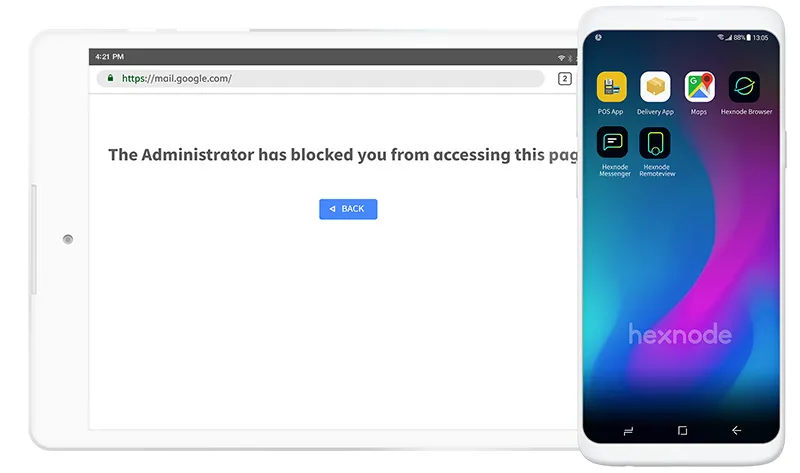 Hexnode Kiosk Browser
2. Peripheral and Hardware Control
Software security is not enough; physical access must also be controlled.
- Disable Hardware Keys: Configure supported hardware and software key restrictions to help prevent users from leaving kiosk mode.
- Connection Restrictions: Hexnode documents Wi-Fi and Bluetooth controls in Android kiosk peripheral settings, along with kiosk hardware/software key restrictions.
- Status Bar Blocking: Hide the notification bar. This stops users from accessing system settings.
3. Custom Branding and UI
Devices can be customized to align with brand identity, rather than appearing as generic tablets.
- Visual Customization: Customize the browser appearance with the browser title, theme color, screen orientation, toolbar controls, and app icon options.
- Clean Interface: Remove address bars and navigation buttons for a sleek, distraction-free look.
Comparison: Standard Browsers vs. Kiosk Browsers
Standard browsers prioritize exploration, while kiosk browsers prioritize restriction and security.
| Feature |
Standard Browser (Chrome/Edge) |
Kiosk Browser (Hexnode) |
| User Access |
Unlimited web access |
Restricted to Whitelist |
| Navigation |
Full URL bar, tabs |
Hidden URL bar |
| Session Data |
Saved (History, Cookies) |
Wiped on exit |
| Device Settings |
Accessible by user |
Locked down |
| Primary Use |
Personal browsing |
Digital signage, Self-service |
What is an Android Kiosk Browser?
Field Experience: Configuration Best Practices
Setting up a kiosk browser requires a strict policy to ensure usability and security.
In large kiosk deployments, careful policy configuration is essential because misconfigured restrictions, network settings, or allowlists commonly lead to deployment issues. Here are the steps:
- Define the Scope: Determine if the device is a passive display or requires interactive web app kiosk mode.
- Whitelist Strategy: Do not just block bad sites. Only allow necessary ones.
- Peripheral Control: Users often exploit USB ports. Ensure the kiosk browser app disables them.
- Timeout Configuration: Set an “Idle Timeout.” This refreshes the kiosk after inactivity.
Expert Note: “Admins often forget to disable the Android notification bar. Savvy users can pull this down to access settings. Always disable the status bar.”
Troubleshooting with Hexnode: Common Issues & Fixes
Troubleshooting involves checking network permissions, SSL certificates, and content filtering conflicts.
Even the best setups have hiccups. Administrators can solve these efficiently using Remote management tools.
Issue 1: The Kiosk App Crashes
Diagnosis: Resource-intensive web applications or browser bugs can cause excessive memory consumption or, in some cases, memory leaks that reduce browser stability.
Hexnode Fix: Configure Scheduled Refresh to automatically reload the web application after inactivity or at defined intervals, helping restore the intended kiosk experience.
Issue 2: Whitelisted Sites Not Loading
Diagnosis: The site uses external scripts not on the whitelist.
Hexnode Fix: Use developer tools to find these domains. Add them to the whitelist.
Issue 3: Users Exiting Kiosk Mode
Diagnosis: Physical buttons such as Home or Power generate system input events that may allow users to leave kiosk mode unless the operating system or device policy restricts them.
Hexnode Fix: Configure the available hardware and software key restrictions in the kiosk policy to prevent supported keys from allowing users to leave kiosk mode.
Did You Know?
The non-malicious human element causes 68% of all data breaches. Kiosk lockdowns help prevent this by restricting user access to safe, managed environments only. (Verizon 2024 DBIR Press Release)
Why Hexnode is the Kiosk Browser Solution Leader
Hexnode integrates robust browser lockdown directly with enterprise-grade Unified Endpoint Management (UEM). Other solutions lack the infrastructure to manage the device itself. Hexnode bridges this gap effectively.
Unmatched Security Features
- Multi-Platform Support: Hexnode manages kiosk browser for Android, iOS, and Windows devices.
- Remote Management: On supported platforms, administrators can remotely view or control devices to assist with troubleshooting.
- Location Intelligence: Use geofencing to lock devices when they move.
Specific Capabilities
- Hexnode Browser Lite: A secure browser optimized for strict lockdown.
- Peripheral Lockdown: Depending on the operating system and device capabilities, administrators can restrict peripherals and connectivity settings such as Wi-Fi, Bluetooth, and USB through applicable device policies.
- No-Touch Provisioning: Enroll hundreds of devices in minutes.
Frequently Asked Questions
Can a kiosk browser work offline or with intermittent connectivity?
A kiosk browser depends on network access to load whitelisted web content, so full offline use is limited. For unstable connections, administrators can configure an idle timeout that refreshes the session and reloads approved pages once connectivity returns. Scheduled refresh settings also help recover the browser after network interruptions.
How does a kiosk browser help with regulatory compliance?
A kiosk browser supports compliance by restricting devices to approved URLs and wiping session data such as history and cookies after each use. This limits data retention and reduces exposure to phishing or unauthorized sites. Enforcing these controls through a UEM creates an auditable, consistent policy across all endpoints.
Can Hexnode manage kiosk browsers across different operating systems from one place?
Yes, Hexnode manages kiosk browser deployments on Android, iOS, and Windows devices through a single UEM console. Administrators can push whitelists, lockdown settings, and branding remotely without visiting each device. This centralized approach simplifies managing large, mixed-OS fleets.
What happens if a user tries to exit kiosk mode using hardware buttons?
Depending on the platform and kiosk configuration, supported hardware and software key restrictions can prevent users from leaving the locked kiosk environment. Hiding the status bar further blocks access to system settings through the notification shade. Together, these controls keep the device confined to its intended task.
How is a kiosk browser different from Chrome’s built-in kiosk mode?
Chrome kiosk mode runs in full-screen mode but, by itself, does not provide comprehensive device management. Depending on the operating system and kiosk configuration, users may still be able to exit kiosk mode unless additional enterprise restrictions are applied. A UEM-managed kiosk browser locks down hardware keys, system settings, and peripherals, closing these gaps. This makes it far more secure for unattended public devices.
How many devices can be deployed with a kiosk browser at once?
Kiosk browsers managed through a UEM can scale to large fleets using no-touch provisioning, which enrolls many devices in minutes. Administrators apply policies, whitelists, and configurations remotely across all endpoints simultaneously. This removes the need for manual, per-device setup during rollout.
Kiosk control, the Hexnode way
Turn any Android, iOS, or Windows device into a secure, single-purpose kiosk that stays exactly where you want it.
Sign Up Now