TL;DR:
Fire Tablet Kiosk Mode turns affordable Amazon tablets into locked-down business devices for apps, websites, digital signage, and controlled workflows. Because Fire OS differs from standard Android, a UEM like Hexnode helps enroll devices, apply kiosk policies, restrict navigation and hardware controls, deploy apps/content, and manage settings remotely.
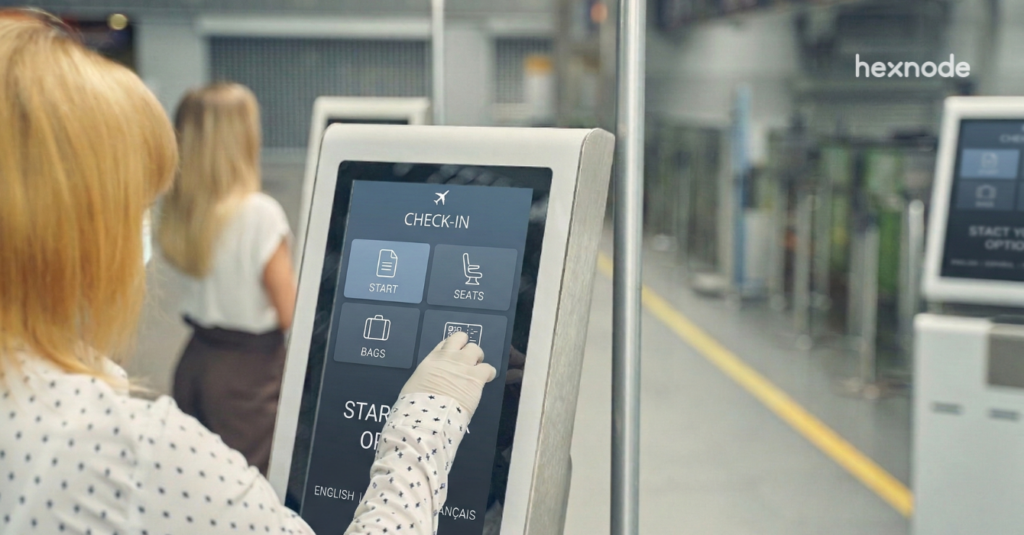
Kiosk setting does more than just lock a screen, it transforms a standard Amazon Fire tablet into a dedicated, distraction-free work tool. By restricting the device to specific apps or websites and disabling hardware buttons, you ensure your employees stay productive and your customers stay secure.
Amazon tablets are famous for being durable and affordable, making them a high-ROI choice for businesses. However, they run on Fire OS which is a unique operating system that lacks standard Google management tools. Without the right software, turning them into a secure Amazon Fire Kiosk can feel like a puzzle.
This guide decodes Fire OS for you and shows you exactly how to lock down your fleet using Hexnode UEM.
What is Fire OS? Why Choose It for Kiosks?
Fire OS is the engine under the hood of every Fire Tablet and Fire TV.
While it is built on the Android open-source project, Fire OS is a different beast. It skips Google services like the Play Store and Maps, in favor of Amazon’s own ecosystem.
So, why do businesses love it? Cost.
Fire Tablets are typically positioned as budget-friendly tablets, making them a cost-conscious option for dedicated kiosk use. This makes them the perfect high-ROI choice for dedicated tasks like customer check-ins, feedback forms, and inventory scanning.
Learn more about Fire OS management for enterprise devices.
The Definitive Guide to Kiosk Management and Strategy (2026 Edition)
Fire OS vs. Android OS: What You Need to Know
Before you lock Fire Tablet to one app, it’s critical to understand the differences.
| Feature |
Fire OS |
Android OS |
| Maker |
Amazon |
Google |
| App Store |
Amazon Appstore |
Google Play Store |
| Web Browser |
Silk Browser |
Chrome |
| Best For |
High-volume, low-cost kiosks |
General purpose flexibility |
| Based On |
Android/AOSP fork with version-specific Android API compatibility |
Android, with version support varying by device and manufacturer |
How to Lockdown Fire Tablet for Business
Standard “Parental Controls” are designed for kids, not savvy employees or curious customers. For a bulletproof Fire Tablet Kiosk Mode, you need a Unified Endpoint Management (UEM) solution. For scalable business deployments, a UEM solution is typically the most practical way to manage kiosk policies across multiple devices.
Step-by-Step Setup with Hexnode
Hexnode supports Fire OS device management, including kiosk lockdown, app management, file distribution, and network configuration for Amazon Fire tablets.
1. Prepare and Enroll the Device
Fire OS devices can be enrolled by downloading and installing the Hexnode app directly on the device.
- On the Tablet: Go to Settings > Security & Privacy and toggle on “Apps from Unknown Sources“.
- Download the Agent: Open the Silk Browser and navigate to your unique Hexnode enrollment URL (e.g., https://portalname.hexnodemdm.com/enroll).
- Install & Grant Permissions: Download the Hexnode app, tap Install, and grant the necessary “Device Administrator” permissions.
2. Create a Kiosk Policy
- Log in to your Hexnode portal and navigate to Policies > New Policy.
- Select Kiosk Lockdown > Android Kiosk Mode.
3. Choose Your Apps
- Single App Mode: Select your primary business app and configure it to launch automatically in kiosk mode.
- Multi-App Mode: Select a suite of tools to replace the default Amazon launcher.
4. Secure the Hardware
- Peripheral Settings: Use the policy to restrict the Power Menu and Volume Buttons.
- Immersive Experience: Ensure your app is set to run in full-screen mode to hide the system status bar.
5. Push and Go
Go to Policy Targets, select your devices, and click Save. Your Fire Tablets will apply the kiosk policy once the devices sync with Hexnode.
Tailor Your Experience with Flexible Kiosk Modes
Adapt the device experience to your exact business needs. Customize your lockdown to fit your exact business needs.
Single App Kiosk Mode
Perfect for public-facing displays. This mode locks the tablet to a single application. The kiosk app can be configured to launch automatically when the device starts.
- Lock Fire Tablet to One App – Eliminate access to settings and the home screen entirely.
- Background Apps – Background apps can run in kiosk mode while their icons remain hidden from the kiosk launcher.
- Disable Navigation – Remove “Back” and “Home” buttons to keep users focused on the task at hand.
What is Fire OS single app mode?
Multi-App Kiosk Mode
Ideal for your workforce. Create a controlled environment where employees can access a specific suite of tools like email, CRM, and files without the distractions of games or social media.
- Custom Interface – Hexnode allows customization of the kiosk launcher experience and layout for managed devices.
- Controlled Wi-Fi – Allow users to connect to networks without giving them the keys to the full settings menu.
Web App Kiosk Mode
Transform your tablet into a secure browser. Restrict access to a specific list of approved websites (whitelisting) while blocking everything else.
- Hexnode Kiosk Browser – It is a restrictive browser that allows access only to approved websites in kiosk mode.
- Tab Control – Allow multiple tabs for research or lock it down to a single page.
Turn idle screens into active marketing. Convert your tablets into digital billboards that loop promotional images or videos.
- Loop & Shuffle – Keep your content fresh with continuous playback options.
- Remote Orientation – Force the screen into portrait or landscape mode from your dashboard.
Why Hexnode is the Fire OS Expert
Hexnode UEM supports management and kiosk lockdown for Fire OS devices.
While other tools treat Fire OS like a “broken” Android version, Hexnode gives you deep control over the unique quirks of Amazon devices.
- Remote View: Troubleshoot issues instantly by viewing your device screens in real-time from your desk.
- Location Tracking: Hexnode supports location-related device management features for managed devices.
- App Compatibility Solved:
- The Problem: Some Android apps may require changes on Fire OS if they depend on Google Play services or other unsupported Google APIs.
- The Solution: Hexnode allows you to easily distribute Enterprise apps (APKs). Hexnode supports deployment of enterprise APK applications to managed devices.
- Remote Content Management: Since Fire Tablets lack Google Drive integration, transferring files can be a nightmare. Hexnode lets you silently push PDFs, videos, and product catalogs directly to the device storage without requiring any user action.
- Wi-Fi Configuration: Don’t share sensitive passwords with employees. Push secure Wi-Fi profiles directly to the device so it connects automatically.
- Kiosk Screensaver: Don’t let a black screen go to waste. Push promotional images remotely to engage customers even when the device is idle. Need to send an alert? Pop a message directly over the Kiosk screen to grab immediate attention.
- Automated Compliance: “Budget-friendly” shouldn’t mean “insecure.” Hexnode supports security policies such as password enforcement and device restrictions on managed devices.
Did You Know?
Amazon Fire Tablets can offer a cost-effective option for kiosk deployments. They cost nearly 3-5x less than comparable enterprise-grade kiosks. Despite being consumer devices, their low entry cost (often under $60/unit) has made Amazon a top global tablet vendor for businesses scaling large fleets of POS terminals and displays. (Source: StatCounter Global Stats)
Simple Troubleshooting for Fire OS Kiosks
Mastering Fire OS is easy with the right knowledge. Here is how to solve common headaches:
- Issue: Ads (Special Offers) interrupt the workflow
- Fix – Budget Fire Tablets display lock-screen ads. For a professional Fire Tablet Kiosk Mode, we highly recommend paying the small one-time fee to Amazon to remove “Special Offers.”
- Issue: My App Won’t Run
- Fix – Does your app rely on Google Play services, Google Maps APIs, or other unsupported Google services?
Before deployment, verify that the application is compatible with Fire OS devices or replace those dependencies with Fire OS-compatible alternatives.
Fire OS kiosk security: How to keep your devices safe?
Learn how to secure Fire OS kiosk devices and protect Amazon tablets from common security risks.
FAQs about Fire Tablet Kiosks
Can I lock my Fire Tablet to a specific website?
Absolutely. Using Web App Kiosk Mode, you can restrict the device to a secure browser that loads only the URLs you approve, blocking the address bar and unauthorized navigation.
Is Fire OS good for business Kiosks?
Yes. The cost savings are massive compared to iPads. When paired with effective Fire Tablet Kiosk Mode software, they become powerful, cost-effective tools for digital signage, forms, and point-of-sale.
How to lockdown Fire tablet for business?
Start by enrolling your device in Hexnode. Create a Kiosk policy, select your business app as the “Single App,” and restrict hardware buttons like volume and power. Push the policy over Wi-Fi, and your device is instantly secured.
Secure Fire OS kiosks with Hexnode UEM
Lock Fire tablets to apps, websites, and business workflows with Hexnode UEM.
Sign Up Now