Android fleet automation turns repetitive, high-volume device management into consistent, scalable workflows while preserving administrator oversight for complex or high-impact decisions.
Hexnode uses time- or activity-based triggers, precise target filters, sequenced actions, and configurable delays to automate provisioning, app operations, security responses, frontline tasks, and supported OS updates.
IT teams should verify device, enrollment, OEM, permission, agent, and licensing prerequisites, then pilot workflows with representative devices and narrow targeting.
Measuring outcomes against a baseline and continuously reviewing failures, conflicts, and exceptions helps improve efficiency, consistency, visibility, and fleet readiness.
Why manual Android fleet management breaks down at scale
As Android fleets expand, routine management quickly becomes a volume problem. Administrators must repeatedly configure devices, deploy applications, assign policies, verify security settings, coordinate OS updates, and remediate failures. Tasks that seem manageable across a small deployment can consume substantial time when performed across hundreds or thousands of endpoints.
Scale also magnifies Android’s operational complexity. Fleets may include multiple manufacturers, hardware models, OS versions, and vendor-specific capabilities. Devices can belong to employees, the organization, or shared frontline teams, while enrollment modes determine which controls are available. Distributed users, unreliable networks, and intermittently connected endpoints make it harder to execute every task at the right time and in the correct sequence.
These variables create gaps that manual processes struggle to close. Delayed actions can leave devices waiting for apps, configurations, or security responses. Inconsistent execution contributes to configuration drift, uneven security controls, avoidable support tickets, and incomplete fleet visibility. Administrators may also spend more time identifying exceptions than resolving the underlying issue.
Android fleet automation helps turn suitable, rules-based tasks into repeatable workflows. Standard triggers, targeting criteria, and predefined actions can improve consistency and make operations easier to scale. Automation still requires administrator oversight: IT teams must define the rules, validate results, investigate failures, and retain human approval for ambiguous or high-impact decisions before expanding workflows across the wider production fleet safely.
How does Hexnode Android automation work?
Android fleet automation uses schedules, device events, conditions, and predefined actions to perform routine device-management tasks with less manual intervention. In Hexnode UEM, this follows a simple logic: trigger + target filter = action execution. A trigger starts the workflow, filters identify eligible devices, and configured actions run on those endpoints.
Triggers can be time-based or activity-based. Time-based options can start an automation immediately, once at a specified time, or on a recurring schedule. Activity-based triggers respond to changes such as device enrollment, compliance status, SIM insertion, removal or switching, and device inactivity. SIM activity and inactivity triggers are Android-specific; inactivity detection also requires the Alarms and reminders permission for the Hexnode UEM app.
Target filters keep an automation from affecting every device indiscriminately. Administrators can evaluate device attributes such as model, OS version, ownership, or battery level; user details such as department or office; network information such as Wi-Fi SSID or carrier; and status attributes including enrollment, compliance, kiosk, or activity state.
Multi-action sequencing arranges several actions in a defined order. Configurable delays help accommodate dependencies between them. Policies and Automations serve different purposes: policies maintain configurations and restrictions, while Automations execute tasks in response to schedules or events. Before deployment, administrators should confirm supported actions, permissions, plan availability, OEM dependencies, management mode, agent version, and Android-specific requirements in Hexnode documentation.
What should IT teams prepare before introducing automation?
Before introducing automation, IT teams should map the fleet and the workflows they intend to automate. Inventory Android versions, manufacturers, ownership types, enrollment modes, business roles, and network conditions. This baseline reveals where one workflow may behave differently across devices.
Available controls can depend on Android Enterprise management mode, Device Owner status, OEM-specific behavior, and permissions granted to the Hexnode agent. Confirm these prerequisites for each proposed action before treating a process as broadly applicable.
Begin with frequent, rules-based tasks that have clear outcomes and low operational risk. Group devices by function, location, ownership, risk level, or hardware profileinstead of applying the same workflow fleet-wide. For each automation, document its dependencies, expected result, responsible owner, failure path, and recovery procedure. This supports careful pilot testing before wider production deployment.
Automating post-enrollment provisioning and configuration
Post-enrollment automation coordinates tasks after an Android device has enrolled and checked in to Hexnode UEM. It does not mean Automations perform or support every Android enrollment method. Enrollment compatibility and available controls still depend on the management mode and device configuration.
A typical onboarding workflow can follow this sequence:
Enrollment trigger: Start when the newly enrolled device completes its initial scan.
Target filter: Evaluate attributes such as ownership, device model, department, user, or device group.
Baseline configuration: Associate the appropriate policy before installing required applications.
Additional setup: Import contacts, update device attributes, and enable kiosk mode after assigning a supported kiosk policy.
Validation: Scan the device or application inventory and review execution records for failures or skipped actions.
Filters allow warehouse scanners, retail kiosks, field-service phones, and knowledge-worker devices to receive configurations suited to their roles. Ordered actions and configurable delays can help prevent later steps from running before their dependencies are ready. This reduces setup time, missed configurations, and variation in first-day readiness. Administrators should confirm every action’s enrollment-mode, OEM, Hexnode agent, permission, and licensing requirements before deployment.
Feature Resource
Android Platform Capability Statement
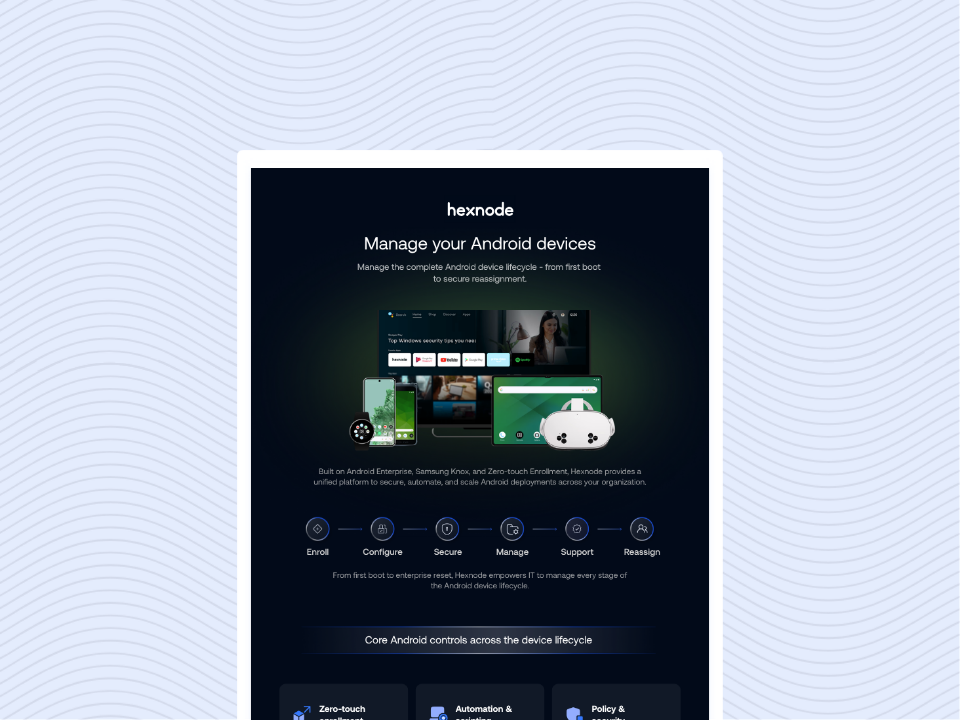
Download the infographic to explore how Hexnode simplifies Android device management across every stage of the endpoint lifecycle.
Automating app, security, and compliance responses
Hexnode Automations can coordinate app, security, compliance, and frontline responses, but each workflow should address a defined operational event.
App operations: Schedule supported application installations and app-inventory scans. Update behavior depends on app type, deployment method, management mode, and device support, so teams must verify it before automating. This is not equivalent to Hexnode’s Windows-style third-party patch catalog.
Security response: A compliance-status change can initiate supported security responses. Android inactivity triggers can initiate actions such as Lock Device, Enable Lost Mode, or Wipe Device, subject to the applicable device and permission requirements. High-impact actions require narrow filters and human oversight.
SIM monitoring: Android-specific triggers can respond to SIM insertion, removal, or switching on corporate devices, helping administrators investigate unexpected connectivity or ownership changes.
Frontline operations: Compatible kiosks and dedicated devices can use scheduled kiosk transitions, restarts, shutdowns, or broadcast messages to support opening hours, maintenance, and shift changes.
A compact workflow might be: device becomes non-compliant → filter for corporate-owned field devices → notify the user and lock the device → review action history and recheck compliance. The response helps enforce organizational policy, but it does not by itself demonstrate regulatory compliance.
Automating Android OS updates accurately
Android OS update management in Hexnode uses baseline scheduling and enforcement provided through Android Enterprise and OEM-dependent mechanisms. It should not be presented as equivalent to Hexnode’s advanced Windows and macOS patch engine. Android currently does not receive that engine’s CVE-based targeting, third-party patch-catalog deployment, patch rollback, or patch approval workflows.
For Android Enterprise devices, administrators can configure the default device behavior, install updates automatically, restrict installation to inactive hours, or postpone updates within the platform’s permitted period. These controls manage manufacturer-provided over-the-air updates rather than selecting individual security patches.
Start with a representative pilot group. Define update windows and assess battery, storage, bandwidth, and application compatibility before expansion. After installation, validate the OS version, connectivity, application operation, kiosk behavior, and failed or pending commands.
At the Android platform level, OTA update policies can be configured by a device policy controller operating in Device Owner mode or in Profile Owner mode on an organization-owned device. Deploying a specific firmware package through the Update OS action additionally requires a compatible custom ROM and an OEM-signed Hexnode System Agent installed as a system app. Teams should verify these specific requirements before deployment.
Best Practices for Managing Company-Owned Android Devices
Explore best practices to secure, deploy, and manage company-owned Android devices with Hexnode.
How to build and safely roll out an Android automation
Build an Android automation around one repeatable task with a measurable outcome. A controlled setup process is:
Choose the task and define what successful completion looks like.
Select the Android action and an appropriate time- or activity-based trigger.
Configure narrow target filters for the intended devices or users.
Arrange multiple actions in dependency order and add delays where necessary.
Review the trigger, filters, sequence, prerequisites, and potential impact before saving.
Test the workflow with a small, representative device group. Track completed actions alongside exceptions such as skipped devices, offline endpoints, permission failures, incompatible hardware, or commands that remain pending. These signals help determine whether the workflow is ready for broader deployment.
Before expansion, check for overlapping or conflicting automations. Account for unreliable connectivity, local time zones, action dependencies, and recovery steps if part of the sequence fails. Wipe, lock, shutdown, and firmware deployment require especially narrow targeting, appropriate technician access controls, documented approvals, and a tested recovery or escalation procedure.
Continue monitoring automation activity after rollout and investigate failures rather than treating creation as a one-time task. Retain human approval for ambiguous or business-critical decisions. Do not assume execution will be silent unless that behavior is confirmed for the specific action, Android version, OEM, management mode, and Hexnode agent configuration.
Measuring the value of Android fleet automation
Measure Android fleet automation against a documented pre-automation baseline. Track provisioning turnaround time, administrator effort per device, action success and exception rates, OS-update adoption, configuration consistency, and related support tickets. Review skipped, failed, pending, or repeatedly offline devices to identify weak filters and workflow dependencies. The goal is measurable operational improvement, not the elimination of security or operational risk. Treat automation as an iterative cycle: automate, monitor, refine, and expand.
What is the difference between a Hexnode policy and an Automation?
Policies maintain device configurations and restrictions, while Automations execute tasks when a schedule or device event triggers them. IT teams can use policies to establish a desired configuration and Automations to coordinate actions around operational changes.
What happens if an Android device is offline when an automation runs?
Offline or intermittently connected devices may show commands as pending or fail to complete the workflow as expected. Administrators should monitor execution records, investigate exceptions, and include connectivity issues in recovery and escalation procedures.
Can Hexnode Automations install individual Android security patches?
Android update controls manage manufacturer-provided over-the-air updates rather than individual security patches. They do not provide the CVE-based targeting, patch approval, rollback, or third-party patch catalog capabilities associated with Hexnode’s advanced Windows and macOS patch engine.
How can IT teams prevent overlapping Android automations from causing conflicts?
Use narrow target filters, arrange actions according to their dependencies, and review existing workflows before expanding a new automation. Pilot testing should also account for timing, local time zones, device connectivity, and recovery steps if only part of a sequence succeeds.
Which Android devices should be included in an automation pilot group?
A pilot group should be small but representative of the production fleet’s Android versions, manufacturers, ownership types, enrollment modes, business roles, and network conditions. This helps reveal differences caused by OEM behavior, permissions, management mode, hardware compatibility, or agent requirements before wider deployment.
How should IT teams measure whether Android fleet automation is working?
Compare results against a documented baseline using measures such as provisioning time, administrator effort per device, action success and exception rates, OS update adoption, configuration consistency, and related support tickets. Failed, skipped, pending, or repeatedly offline devices can reveal weak filters and unmet workflow dependencies.
Put your first Android workflow into practice with Hexnode
Identify one repetitive, high-volume Android workflow and test how Hexnode could simplify it. Start a Hexnode trial or schedule a product demonstration to evaluate the workflow in your environment. Validate its triggers, target filters, supported actions, permissions, and device prerequisites before extending it across the wider Android fleet with confidence.
Automate your Android fleet with Hexnode
Start your free 14-day trial to simplify routine Android tasks and build repeatable workflows.
I’m a technical content writer at Hexnode who loves simplifying tech. I break down complex ideas, remove the fluff, and help readers clearly understand our product for what it actually is: simple, reliable, and built to solve real problems.