CardDAV should be built into Mac onboarding so employees receive synchronized work contacts from day one.
Missing contacts disrupt productivity, drive avoidable support requests, and encourage duplicate or outdated records across the Mac fleet.
IT should standardize server, identity, authentication, SSL, and account settings, then pilot and validate contact availability and synchronization before rollout.
Hexnode UEM can remotely configure and target CardDAV policies, including email-based username mapping, reducing manual setup and configuration drift while enabling consistent contact delivery at scale.
New Mac, but where are the employee’s work contacts?
On day one, a newly onboarded employee signs in to their Mac, opens required work apps, and connects to corporate services without issue. Then they open Contacts and find no colleagues, customers, or internal teams. The device is operational, but a basic collaboration dependency is missing.
Rebuilding an address book manually forces the employee to search old messages, copy contact details, and verify whether each record is current. That work disrupts first-day productivity and often becomes an avoidable help-desk request.
Contact provisioning should therefore be treated as part of Mac onboarding, not as an optional follow-up. IT should plan it alongside identity assignment, email and calendar configuration, network connectivity, and application access so employees receive a usable workspace from the start.
Why missing contacts become an IT operations problem
When contact access varies across Macs, inconsistent address books become an operational problem. Employees may delay messages or meetings while searching for details, submit help-desk tickets, or create duplicate contact records from old email threads and exports. These workarounds preserve outdated information and weaken an otherwise structured onboarding experience.
Manual account setup also creates configuration drift. A mistyped hostname, incorrect username format, wrong port, or incorrect transport-security setting can stop synchronization. Differences in account descriptions and server details then make fleet-wide troubleshooting slower because IT must diagnose a different setup on each device.
Reliable contact delivery turns this dependency into a repeatable onboarding control. Standardized provisioning matters for distributed employees without desk-side support, replacement Macs that must restore access, and large deployments where small configuration gaps can generate support demand.
How to introduce AI agents into IT operations with human oversight?
Learn how to introduce AI agents into IT operations with human oversight, approval gates, and controlled pilots.
What is CardDAV, and how does it work on a Mac?
CardDAV is an open protocol based on WebDAV and vCard that allows compatible clients to access and synchronize contacts stored on a server. On a Mac, it provides the connection between an organization’s contact service and the built-in Contacts app.
IT or the user configures a CardDAV account in macOS with the required server and authentication details. The Mac connects to the CardDAV server and displays synchronized contacts under the configured account in Contacts. Availability of additional or shared address books depends on client and server support, so IT should verify that the expected contact collections appear during pilot testing. When an authorized contact changes on the server, subsequent synchronization makes the updated record available on the Mac.
These synchronized organizational contacts remain separate from entries saved only under a local account, which do not automatically move to the server or other devices. CardDAV supplies the standardized connection and data exchange mechanism; it does not correct an invalid hostname, port, username, password, server path, certificate, or access permission. Successful synchronization therefore depends on both a reachable CardDAV service and accurate account settings on macOS. Both endpoints require consistent configuration.
Where does CardDAV fit in Mac onboarding?
CardDAV belongs in the account-provisioning stage of Mac onboarding, so an employee’s work contacts are available when the device is handed over or shortly after enrollment. Treating contact access as a required account service keeps it aligned with the identity and application configuration already applied to the Mac.
Configure the employee’s work accounts, including CardDAV.
Confirm that each account synchronizes successfully.
Validate that expected contacts appear in the Contacts app.
Before deployment, IT should also formally define the authoritative contact source and who owns the resulting records. This is especially important when employees already use personal or legacy contact accounts. Clear ownership helps prevent duplicate sources, accidental storage in the wrong account, and confusion over which address book IT supports during onboarding.
Why does account consistency matter for contact sync?
Account consistency matters because CardDAV synchronization depends on multiple settings matching the intended server and user identity. Standardized account descriptions, server hostnames, ports, username formats, authentication details, and transport-security settings reduce configuration drift across the Mac fleet. They also give administrators a predictable starting point when synchronization fails.
User-to-account mapping is equally important. A CardDAV account may be installed correctly but remain unable to authenticate if an email address uses the wrong username format, stored credentials are outdated, or the account points to another employee’s directory identity. At scale, a small mapping error can affect every device receiving the configuration.
IT should maintain a documented baseline for each non-secret field and its approved value or format. Administrators can then compare a failing Mac with the expected configuration without recording passwords, tokens, or other sensitive authentication material in internal troubleshooting notes.
How should IT prepare CardDAV for a Mac rollout?
IT should prepare CardDAV by validating every server, identity, security, and synchronization dependency before deploying the account across the Mac fleet. Use a documented predeployment checklist:
Confirm the CardDAV service is reachable from every required network.
Record the approved account and username format for each user type.
Verify the server hostname or FQDN.
Confirm the required port and server path.
Identify the supported authentication method and credential source.
Validate the certificate chain and trust status on managed Macs.
Require encrypted transport under the organization’s security baseline.
Test the complete configuration with a small pilot group that represents different user types, office and remote networks, and any relevant identity variations. On each pilot Mac, verify that the account appears, expected contacts populate in the Contacts app, and a controlled server-side contact change reaches the device.
Before rollout, assign ownership for CardDAV server data and identity records, then document escalation routes for access, certificate, and synchronization failures. Define what the employee should see after enrollment and create a repeatable post-deployment check that confirms account presence, contact availability, and update synchronization. Record failures against the approved baseline before expanding deployment to production users.
Feature Resource
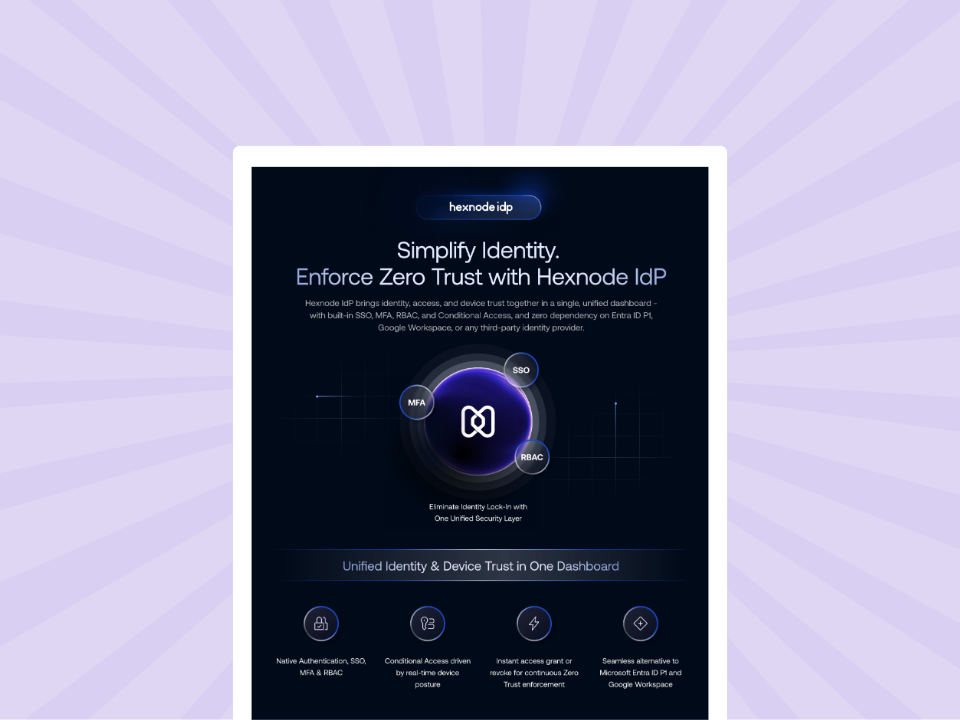
Hexnode IdP Info sheet
Secure Your Digital Perimeter with Hexnode IdP—The Unified Path to Zero Trust
What should IT check after an authentication failure?
An authentication failure commonly indicates incorrect credentials, an unexpected username format, an identity-mapping error, or an account-side access problem. IT should verify the user-to-account relationship before changing server or synchronization settings.
Check in order:
Confirm the identity assigned to the affected Mac.
Compare the configured username with the organization’s approved format.
Validate credentials securely without recording or sharing the password.
Review recent password resets, expirations, or directory changes.
Test whether the same identity can access the CardDAV server.
If a mismatch is found, correct the managed configuration or authoritative identity record, then redeploy and retest. Do not ask the employee to create a separate manual account, which can introduce duplicate settings and obscure the original fault during any future troubleshooting.
What if the CardDAV account appears but contacts do not sync?
If the CardDAV account exists but contacts are absent, investigate connectivity and server configuration separately from account installation. The visible account confirms that configuration reached macOS, not that the Mac can retrieve data from the contact service.
Verify the configured hostname or FQDN, the organization-specific port, and the server path where the service requires one. Check whether SSL is required, whether the presented certificate is valid and trusted, and whether the Mac can reach the server from its current network. Confirm that the CardDAV service itself is available before changing the account payload.
Correct the source configuration, redeploy it to a test Mac, confirm contacts appear in the macOS Contacts app, and then extend the verified fix to affected users.
How Hexnode configures CardDAV accounts for macOS
Hexnode UEM provides a macOS CardDAV policy configuration at Policies > macOS > Accounts > CardDAV. From this policy, an administrator can remotely add a CardDAV account by specifying its account description, server hostname, port, username, password, and Use SSL setting. Hexnode documents port 8443 as the default in this configuration and enables SSL by default; the organization must still use the values required by its CardDAV service.
The username field supports the %email% and %alternateemail% wildcards, allowing Hexnode to populate the value from assigned user information rather than relying on manual entry. Administrators can associate the policy with devices, device groups, users, user groups, or domains. These targeting options help apply a consistent account description, server configuration, and username mapping during Mac onboarding.
After association, the configured CardDAV account is added to the Mac and its synchronized contacts become available in the Contacts app. IT should first deploy the policy to a test Mac, confirm the assigned username resolves correctly, and verify contact synchronization before any broader production rollout. If authentication or synchronization fails, verify the credentials and wildcard mappings, check the hostname, port, and SSL settings, and redeploy the corrected policy. Check any server-path requirements separately with the CardDAV service administrator.
FAQs
What is the difference between CardDAV contacts and locally saved contacts on a Mac?
CardDAV contacts synchronize with an organization’s contact server, while locally saved contacts remain only on that Mac. Local entries do not automatically transfer to the server or appear on the employee’s other devices.
Can Hexnode configure CardDAV accounts during Mac onboarding?
Hexnode UEM can remotely add a CardDAV account to macOS through a policy containing the server, port, username, password, and SSL settings. Administrators can assign the policy to devices, device groups, users, user groups, or domains.
How can IT prevent duplicate contact accounts during Mac onboarding?
IT should define the authoritative contact source and determine who owns the records before deployment. Employees should not create separate manual accounts when a managed configuration fails, because duplicate settings can complicate troubleshooting and create conflicting contact sources.
How should IT test CardDAV before deploying it across a Mac fleet?
IT should pilot the configuration with representative users, identity formats, and office and remote networks. Each test should confirm that the account appears, expected contacts populate in the Contacts app, and a controlled server-side change synchronizes to the Mac.
Can Hexnode automatically map a user’s email address to the CardDAV username?
Hexnode supports the %email% and %alternateemail% wildcards in the CardDAV username field. IT should verify on a test Mac that the selected wildcard resolves to the username format expected by the CardDAV server.
Deliver work contacts as part of every Mac onboarding
Start a Hexnode trial or request a demo to evaluate policy-based CardDAV account deployment for macOS. Give employees consistent contact access during onboarding while reducing manual account-configuration steps for IT.
Try Hexnode free for 14 days
Use Hexnode UEM to configure CardDAV accounts on managed Macs. For centralized identity and application access, explore Hexnode IdP as a separate solution
I’m a technical content writer at Hexnode who loves simplifying tech. I break down complex ideas, remove the fluff, and help readers clearly understand our product for what it actually is: simple, reliable, and built to solve real problems.