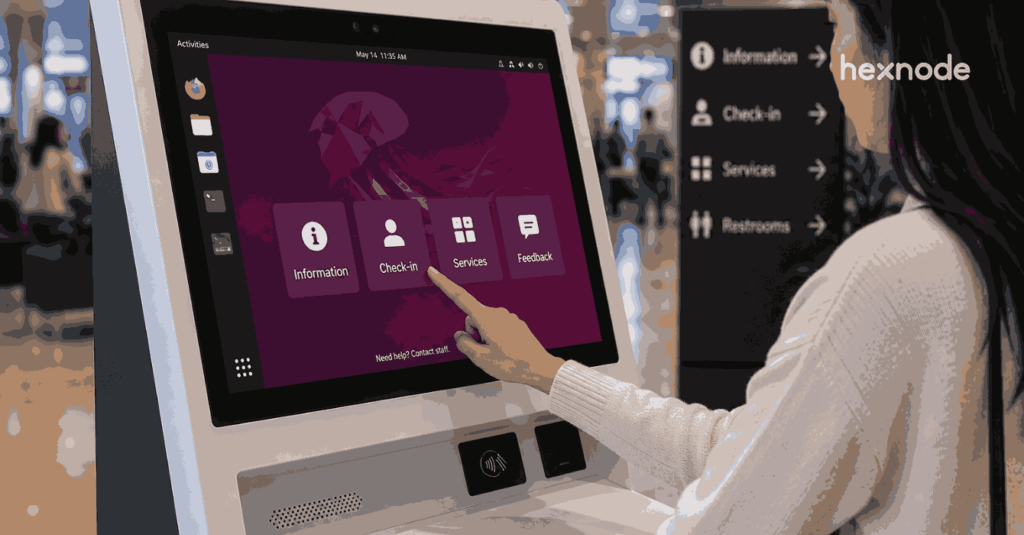
iOS kiosk lockdown software transforms iPhones and iPads into secure, single-purpose business devices by restricting access to specific apps or websites. While Apple’s built-in Guided Access and Single App Mode offer basic app lock for iOS functionality, they lack scalability, remote management, and enterprise-grade security. Hexnode UEM solves these gaps with over-the-air deployment, centralized control, customizable kiosk modes, and remote troubleshooting—making large-scale iOS single app mode deployments secure, scalable, and easy to manage.
iOS Kiosk Lockdown Software is a security tool that restricts an iPhone or iPad to a single app or a specific set of allowed apps. This converts a standard consumer device into a dedicated business tool.
By leveraging app lock for iOS features, organizations can secure unattended devices, prevent misuse, and keep users focused in retail, education, healthcare, and other customer-facing environments.
Customers interact with touchscreens daily, making iOS devices a popular choice for kiosks because of their security and ease of use. However, placing an expensive iPad in public requires a digital safety net. Restricting your device into iOS single app mode minimizes distractions and helps ensure the device stays focused on its intended task.
This guide covers everything you need to know. We will explore basic Guided Access for quick fixes and enterprise-grade app lock for iOS solutions using Hexnode UEM.
Kiosk Lockdown Without Software
Apple provides built-in accessibility tools that function as a temporary app lock for iOS. These options are ideal for single-device use cases and require no third-party software. However, they lack remote management capabilities.
Guided Access Mode
Guided Access is a built-in iOS feature that temporarily locks the device to a single app and prevents users from switching apps.
Originally introduced as an accessibility feature, Guided Access can also function as a temporary guest mode for iPads. It is useful for temporary scenarios, such as letting a customer fill out a form or allowing a child to use an educational app safely.
What is Guided Access?
Guided Access locks iPhones and iPads to a single app for distraction-free and secure kiosk experiences.
First-Hand Setup Experience: Setting Up Guided Access
Go to Settings > Accessibility.
Toggle on Guided Access.
Tap Passcode Settings > Set Guided Access Passcode.
Enter a memorable 4-digit PIN. This is crucial for exiting the mode later.
Optional: Enable Face ID or Touch ID as an easier exit method.
How to Start Guided Access
Open the target app.
Triple-click the Side button on iPhone X or later, or the Home button on iPhone 8 or earlier.
Tap Start.
How to Exit Guided Access
Triple-click the Side or Home button.
Enter your Guided Access passcode to end the session.
If Touch ID or Face ID was configured, double-click the Side or Home button to exit immediately.
Expert Tip: Users often accidentally sleep the device, which disrupts the kiosk experience. Before tapping “Start,” click “Options” in the bottom left and disable the “Sleep/Wake Button” to keep the screen always on.
Single App Mode Using Apple Configurator
Single App Mode is an advanced lockdown state that forces a supervised iOS device to run exactly one app. The app relaunches immediately, even if the device reboots.
Unlike Guided Access, iOS single app mode cannot be exited by the user. This makes it suitable for permanent public installations. However, it requires a Mac and a physical USB connection to set up.
First-Hand Setup Experience: Setting Up Single App Mode Using Apple Configurator
Configuring iOS Single App Mode requires a physical connection to a Mac. This is highly secure but labor-intensive for managing multiple devices.
Prepare: Download and install Apple Configurator from the Mac App Store.
Connect: Plug your iPhone or iPad into the Mac using a USB cable.
Supervise: Use the Prepare tool to supervise the device. Note that this wipes the device data.
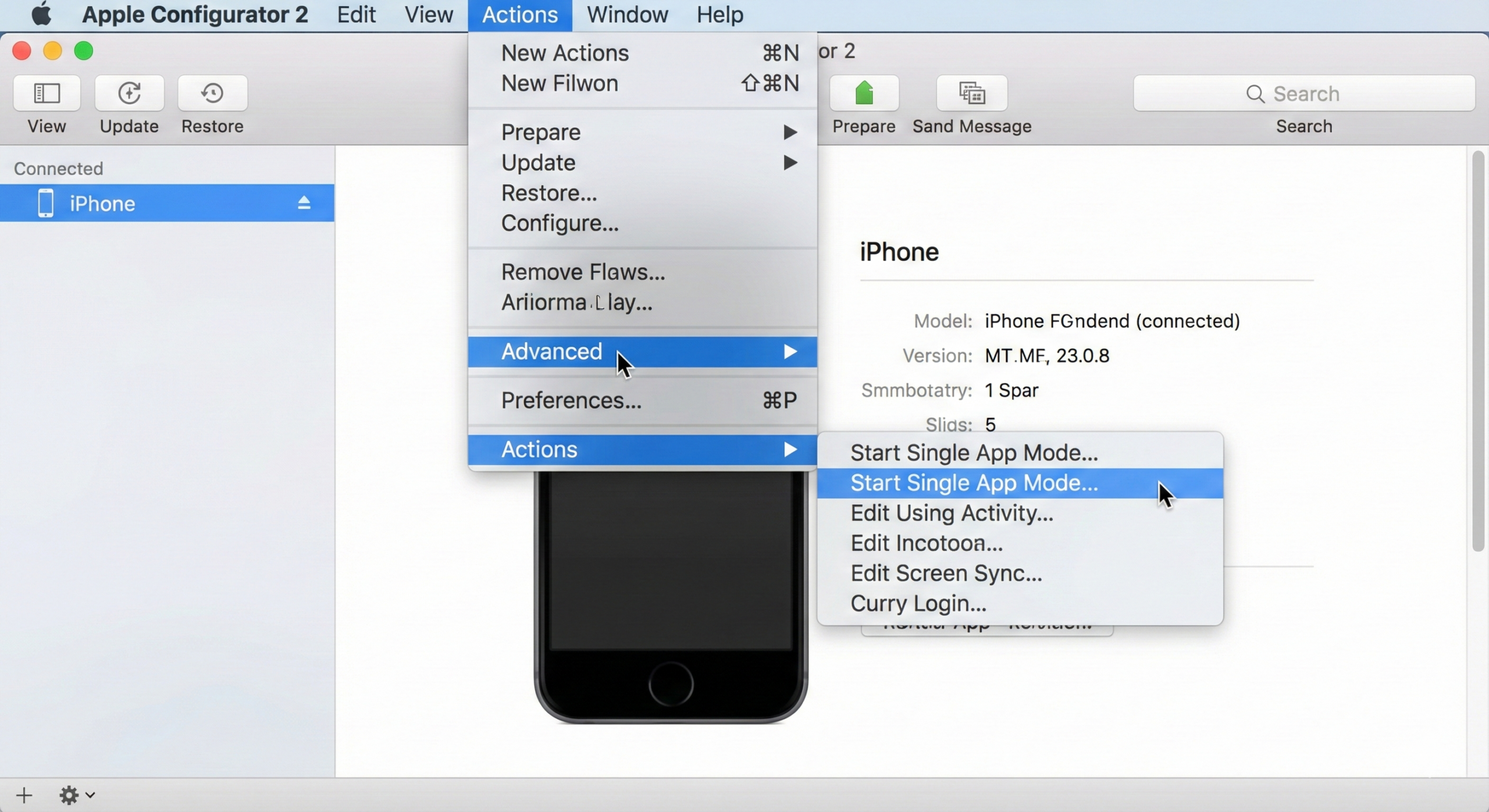
Activate: Select the connected device. Click Actions > Advanced > Start Single App Mode.
Apple Configurator 2 application on macOS, showing menu path to enable Single App Mode
Configure: Select your target application from the list. Click Options to disable hardware buttons like volume or touch input.
Finish: Click Select App. The iPhone or iPad is now hard-locked into the app.
Exiting Single App Mode
To unlock the device, reconnect it to the Mac. Open Apple Configurator, right-click the device, and select Remove > Profiles.
Relying on manual methods exposes businesses to security loopholes. Dedicated software eliminates these scalability issues. While shortcuts like Guided Access work for one device, they fail in professional environments.
Drawbacks of Using Guided Access Mode
Security Vulnerability
Guided Access is not a serious business solution. Weak passcodes can make it easier to exit if unauthorized users learn or guess the PIN.
Temporary Nature
Guided Access is designed for short sessions, not 24/7 uptime.
Drawbacks of Using Apple Configurator
Scalability Nightmare
Managing devices solely through Apple Configurator can become labor-intensive because many configuration tasks require a physical connection to a Mac.
Hardware Dependency
A Mac computer is mandatory. If your field technicians use Windows, they cannot support the devices.
Apple’s native tools work for small deployments. For larger deployments, organizations often use a UEM solution to simplify centralized management and policy deployment.
Hexnode UEM connects your business goals with Apple’s strict security protocols. For devices enrolled through Apple Business Manager, Hexnode supports over-the-air supervision and allows admins to remotely deploy kiosk policies to managed devices.
Why Hexnode is the App Lock for iOS Solution Leader
Hexnode does not just lock the app. It creates a controlled ecosystem around it.
Zero-Touch Deployment
Using Apple Business Manager integration, admins can automate device enrollment and remotely apply kiosk policies during setup.
Hexnode Kiosk Browser
Hexnode Browser Lite enables secure web app kiosk deployments by restricting access to approved websites and browser actions.
Peripheral Control
Hexnode allows admins to configure kiosk restrictions such as screen orientation, touch input, and hardware button behavior on supervised iOS devices.
Types of iOS Kiosk Lockdown Modes
Hexnode offers flexible locking mechanisms tailored to specific business workflows, from strict single-app environments to custom interfaces.
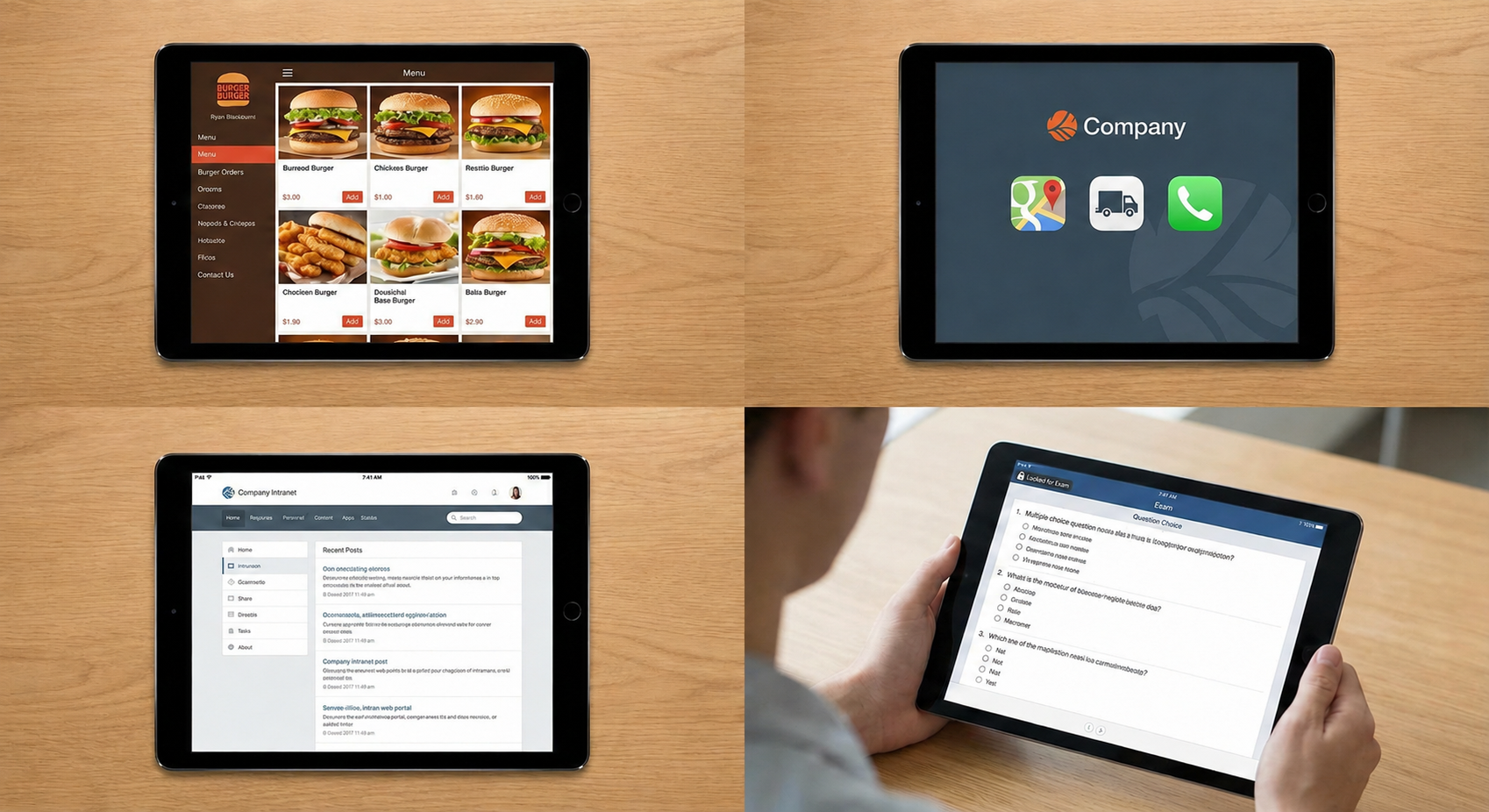
A composite image showing four different iOS kiosk modes: Single App Mode (top left), Multi App Mode (top right), Web App Kiosk (bottom left), and Autonomous Single App Mode (bottom right)
Single App Mode
The device is restricted to a single application. It runs in full screen and auto-launches on startup.
This mode allows a specific app to lock itself into Single App Mode for a critical task. It releases itself when the task is complete.
Best for: Online examinations or secure payment processing.
How it works: An exam app locks the iPad when the test starts to prevent cheating. It unlocks automatically when the student submits the exam.
Multi App Mode
Multi App Mode allows users to access a specific whitelist of apps. These appear on a custom, distraction-free home screen.
Best for: Logistics drivers or field workers who may need Maps, a delivery app, and a calling app, but nothing else.
Customization: You can customize the layout and wallpaper to match your corporate branding.
Web App Kiosk Mode
This transforms Safari or the Hexnode Kiosk Browser into a restrictive portal. It only allows access to whitelisted URLs.
Best for: Intranet portals, survey forms, and inventory management web tools.
Troubleshooting with Hexnode: Expert Solutions
Even the best setups encounter hiccups. Utilizing a UEM allows IT admins to resolve issues remotely without touching the device.
Issue 1: The Device is Stuck in a Boot Loop or Frozen Screen
Cause: In some cases, software conflicts or interrupted updates may cause a device to become unresponsive.
Fix: Log into the Hexnode UEM portal, navigate to the device under Manage, and select Actions > Disable Kiosk Mode. If the device is offline, force restart it using the appropriate button combination for your model. For Face ID models, press Volume Up, press Volume Down, then hold the Side button. This re-establishes network connectivity so the device can receive the unlock command.
Issue 2: I Can’t Connect to Wi-Fi After Locking
Cause: The device was locked before saving the Wi-Fi credentials. Now, the user cannot access Settings to fix it.
Fix: Use Hexnode’s Network Policy to push the Wi-Fi configuration profile remotely. The device will auto-connect without user intervention.
Issue 3: Users Are Guessing the Guided Access PIN
Cause: 4-digit PINs are easy to see over someone’s shoulder in public areas.
Fix: Use Hexnode UEM kiosk mode, which supports administrator-defined exit passcodes and remote kiosk removal from the UEM console.
Featured resource
Hexnode Kiosk Browser
Understand the full capabilities of Hexnode’s Kiosk browser for your organization and implement cutting-edge web browsing features with top-notch security.
For personal use, enable Guided Access in Accessibility settings and triple-click the side button. For business use, enroll the device in a UEM like Hexnode. Then, create a Kiosk Policy and push it to the device wirelessly.
How to restart/ shut down a device in Single App Mode?
You cannot shut down a device using the on-screen slider in Single App Mode. You must force restart it using the hardware button combination specific to your device model (e.g., Vol Up, Vol Down, Hold Side Button for modern iPhones). Or, send a “Restart Device” command remotely from your UEM console.
What happens when you lock down your iPhone?
Depending on the kiosk configuration, access to features such as the Home screen, Notifications, and Control Center may be restricted. Hardware buttons like Volume and Sleep/Wake may be disabled to prevent user interference.
Conclusion
Securing your devices is critical for operational efficiency. While native Apple tools offer a temporary fix, they fall short for growing businesses. Implementing a robust app lock for iOS strategy requires a dedicated solution like Hexnode UEM.
Hexnode helps organizations deploy scalable and remotely manageable iOS kiosk environments with centralized policy control. Do not leave your digital endpoints vulnerable. Upgrade to professional kiosk software that protects your data and simplifies IT management.
Secure iOS Devices with Hexnode Kiosk Lockdown
Lock iPhones and iPads into secure kiosk mode with Hexnode UEM’s powerful app management features.
Content Writer at Hexnode, a curious mind with a knack for words, I dive into ideas worth unpacking and craft narratives worth sharing. I enjoy turning complex concepts into clear, engaging stories that connect with people and spark thought. From tech trends to everyday insights, I’m driven by curiosity, clarity, and creativity, always learning, always refining, and always looking for the next story that deserves to be told well.