TL;DR:
iOS offers four ways to lock a device to one app – Guided Access, Single App Mode, ASAM, and Automatic Assessment Configuration – and picking the wrong one leaves devices exposed.
- Guided Access is manual and user-level; it doesn’t survive a reboot, making it unsafe for unattended kiosks.
- Single App Mode is an administrator-enforced lock that persists across restarts, while ASAM allows an UEM-authorized app on a supervised device to enter and exit Single App Mode programmatically; AAC is an app-driven assessment mode that requires no device management.
- Pairing Apple Business Manager/ADE with Hexnode enables zero-touch enrollment and remote deployment of supported policies and apps at scale; kiosk app update and recovery options depend on the device state, connectivity, OS version, and app type.
iOS offers four ways to lock a device to a single app, and they differ on three questions IT cares about: does it need a UEM, does the lock survive a reboot, and is it administrator-enforced or app-triggered. Guided Access is a manual, user-level accessibility feature. Single App Mode requires a supervised device, and you can configure it through a device-management service or Apple Configurator, while ASAM requires a supervised device and UEM authorization for the participating app. Automatic Assessment Configuration (AAC) is an app-driven exam mode that needs no UEM at all.
The wrong choice has real consequences: a retail iPad in Guided Access reboots to an unlocked home screen after a power loss, while the same device in Single App Mode relaunches straight back into its locked app.
This guide covers iOS and iPadOS. For Android, the equivalent mechanism is LockTaskMode, configured separately — see Hexnode’s Android kiosk lockdown documentation.
Quick comparison
| Feature |
Guided Access |
Single App Mode |
ASAM |
Automatic Assessment Config |
| UEM required |
No |
No; it can be configured through MDM/UEM or Apple Configurator |
Yes |
No |
| Supervision required |
No |
Yes |
Yes |
No |
| Lock type |
User-triggered |
Admin-enforced, persistent |
App-triggered, event-driven |
App-triggered, exam session |
| Setup |
Manual, per device |
Remote, bulk |
Remote policy + app API |
App-side entitlement |
| Survives reboot |
No — returns to home |
Yes — auto-relaunches |
Releases by design |
Ends with session |
| Disables autocorrect/screen recording |
No |
No |
No |
Yes, automatically |
| Minimum OS |
iOS 6+ |
iOS 7+ |
iOS 7+ |
iPadOS 9.3.2+ (granular 14+) |
| Best for |
Attended focus, demos |
Unattended kiosks, signage |
Sign-in sessions |
Proctored testing |
What is Guided Access on iOS?
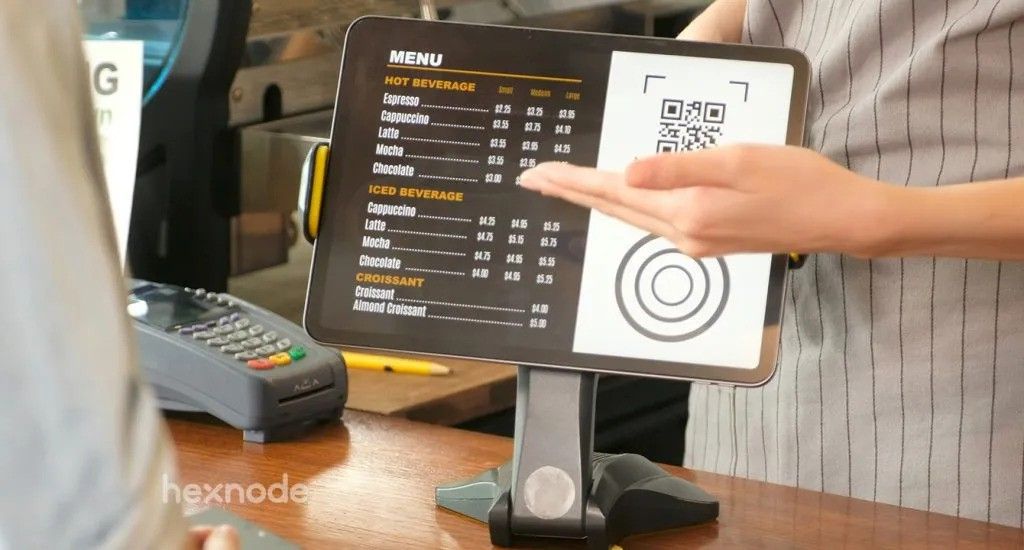
Guided Access is a native accessibility feature that restricts a device to a single app and lets you disable screen regions, hardware buttons, and input methods. It is a user-level setting — anyone with the device and passcode can start or stop it. It needs no supervision, enrollment, or third-party software, making it the fastest way to build a temporary, attended kiosk. Typical fits: a restaurant iPad menu, a parent limiting a child’s app, or a product demo.
How to set up Guided Access
- Settings → Accessibility → Guided Access, then toggle it on.
- Tap Passcode Settings and set a dedicated PIN (or enable Face ID / Touch ID).
- Launch the target app and triple-click the Side button (Home button on older devices).
- Tap Options to disable touch zones, buttons, keyboard, or volume, then tap Start.
Limitations for enterprise fleets
- No remote management — every device is configured by hand.
- Not reboot-safe — after a restart the device boots to the home screen, not the locked app.
- Authentication protects exit from Guided Access — users can authenticate with the configured Guided Access passcode or, when enabled, Face ID or Touch ID.
- Guided Access does not provide centralized fleet recovery; ending or pausing a session normally requires the configured Guided Access passcode or an enabled biometric authentication method.
Power Management: Auto-Lock and Screen Sleep Behavior
There’s a power-management difference that rarely makes it into kiosk comparisons, but it changes how a device behaves on the floor.
Guided Access suppresses the standard Auto-Lock setting while a session is active. The screen stays awake, even past the timeout you’d normally expect. That’s useful for demo devices you want visibly “on,” but it also means the display never dims to save battery or the panel’s lifespan.
Single App Mode behaves differently. Auto-Lock still applies. If you’ve configured a sleep timeout, a device in SAM will dim and lock on schedule, then wake and relaunch the kiosk app when touched — without ever leaving the locked state.
For battery-powered kiosks, that distinction has real operational weight. A Guided Access display left running overnight burns through charge; the same hardware in SAM can sleep on your schedule.
This is one more reason IT teams standardize on Single App Mode for anything unattended: it’s not just about remote enforcement, it’s about predictable power behavior too. Guided Access wasn’t built with fleet-level battery management in mind — because it wasn’t built for fleets.
For unattended deployments these are disqualifying. The administrative alternatives below close every gap.
What is Guided Access?
What is Single App Mode on iOS?
Single App Mode (SAM) is an administrative lock that confines a supervised device to one app permanently, disabling the Home button and multitasking gestures. Unlike Guided Access, it is a UEM-enforced policy that persists across reboots — if the device restarts or loses power, it automatically relaunches the designated app. That makes SAM the standard for unattended self-service kiosks and digital signage.
SAM has two prerequisites: you must supervise the device, and you must install the kiosk app beforehand. Only one kiosk profile applies per device, and if you push a policy for an app you haven’t installed, the device can freeze until you remove the policy.
How to enable Single App Mode in Hexnode UEM
- Log in to the Hexnode portal → Policies → New Blank Policy.
- Under Kiosk Lockdown → iOS Kiosk Lockdown, select Single App and click Configure.
- Click the + icon and choose the app from your inventory.
- Use Advanced Kiosk Settings to allow or restrict features like the Sleep/Wake button (iOS 7.0+).
- On the Policy Targets tab, select devices or groups, then Save to push over the air.
Why businesses upgrade from Guided Access
The distinction is session versus policy. Guided Access is a manual session a person starts and stops; with SAM, the UEM enforces a persistent state. For dedicated unattended kiosks, Single App Mode keeps the designated app enforced and reopens it automatically after the device restarts, as long as the App Lock profile remains active.
What is single app mode and how to set it up?
Learn what single app mode is and how to set it up across iOS, Android, Windows & tvOS with Hexnode UEM.
Apple Configurator: the manual middle ground
Apple Configurator can enable Single App Mode over USB, without a full UEM — a more robust lock than a Guided Access PIN, and a reasonable step up for small static fleets. Its ceiling is scale: every change needs a physical USB connection, so fleet-wide updates stay slow. With a UEM like Hexnode, administrators can configure and deploy Single App Kiosk policies remotely to supported devices and groups without physically connecting each device over USB.
Does Single App Mode Work on Apple TV?
Single App Mode isn’t limited to iPhone and iPad. Apple TV supports it too, and that matters for any business running lobby displays, waiting-room screens, or branded video walls.
The mechanics are the same as on iPad: the device must be supervised, and the lock persists across power cycles. A supervised Apple TV running a single approved app will relaunch that app automatically after a power outage or reboot — no different from a retail iPad.
Guided Access, by contrast, isn’t available on Apple TV at all. It’s an iPhone and iPad-only accessibility feature. That means for tvOS signage, Single App Mode via UEM isn’t just the better option — it’s the only administrative lockdown option.
For mixed fleets — iPads at the counter, Apple TVs on the wall — this is worth flagging early. Hexnode lets you lock down both form factors with dedicated Single App Kiosk policies — configured under iOS Kiosk Lockdown for iPhones and iPads, and under Apple TV Kiosk Lockdown for Apple TVs — so mixed fleets can be managed from the same console without separate third-party tools, though each platform has its own setup steps. Digital signage teams often overlook this cross-device consistency until they’re asked to lock down five different screen types with five different methods.
If your kiosk footprint includes any tvOS hardware, plan for Single App Mode from the start. Don’t treat it as an iPad-only conversation.
What is Autonomous Single App Mode (ASAM)?
ASAM lets a specially built app lock and unlock the device into a kiosk state on its own, in response to a user action. Unlike SAM’s permanent lock, ASAM is event-driven: the iPad works normally until a task (an exam, patient intake, or POS session) triggers the lock, which releases when the task ends.
ASAM’s key dependency: developers must build the app to request the lock using the UIAccessibilityRequestGuidedAccessSession API, so you can’t apply it to arbitrary apps. The device must run in supervised mode (iOS 7.0+), and in Hexnode you must associate the app through the ASAM policy itself, or the self-locking behavior won’t work.
How to enable ASAM in Hexnode UEM
- Confirm the app supports ASAM (built with the UIAccessibilityRequestGuidedAccessSession API).
- Log in → Policies → New Blank Policy.
- Go to Kiosk Lockdown → iOS Kiosk Lockdown → Autonomous Single App Mode.
- Click Configure, then the + icon, and add the ASAM-supported app (in-house, App Store, or VPP).
- On Policy Targets, assign supervised devices or groups, then Save.
What is Automatic Assessment Configuration (AAC)?
Automatic Assessment Configuration — often called Assessment Mode — is a specialized exam lockdown that an approved testing app invokes to secure a device, with no UEM or supervision required. When an AAC-enabled app starts a session, iOS locks the device to that app and disables features that could compromise test integrity — autocorrect, spellcheck, Dictionary lookup, predictive text, screen recording, sharing, and Siri — until the test is complete. From iOS/iPadOS 14, apps can request granular control (enabling autocorrect for a math test, restricting it for a spelling test). Assessment Mode is supported on iPadOS 9.3.2 and later.
Two points distinguish AAC from ASAM and are frequently confused:
- Different framework. AAC uses Apple’s Automatic Assessment Configuration framework (AEAssessmentSession), not the ASAM Guided Access API, and the developer must obtain a special education assessment entitlement granted only to approved assessment developers.
- No management needed. Because the app carries the entitlement, it works on an unsupervised, personally owned iPad with no device management.
Conflict behavior: If Single App Mode or Guided Access is active in iPadOS, it supersedes assessment-mode restrictions. Avoid combining these modes unless the assessment provider explicitly supports that configuration. Don’t layer a SAM policy on a device meant to run a native AAC exam.
Apple’s guidance: if your testing app supports AAC, let it handle the lock. If it doesn’t — or you run diagnostic or formative assessments — use a UEM to place the device in Single App Mode instead.
Troubleshooting: Recovering a Frozen or Unresponsive Kiosk
Kiosk lockdowns occasionally misbehave, and the fix depends on which mode you’re using.
Guided Access stuck on: Triple-click the Side or Home button and enter the configured passcode, or use Face ID/Touch ID if enabled. There’s no remote override — someone has to be at the device.
Single App Mode frozen: This usually happens when a policy references an app that isn’t yet installed. Remove the kiosk policy from the Hexnode portal; the device should recover once the policy unassigns. If it’s unresponsive to that, a remote restart can clear a hung state without physical access.
ASAM not releasing: Confirm the app was added directly through the ASAM policy screen, not a separate app-inventory push. A mismatch here is the most common reason a device stays locked after a task should have ended.
AAC session won’t exit: This is controlled entirely by the testing app’s entitlement, not by any UEM. If a session appears stuck, the fix sits with the assessment vendor, not your MDM console.
The pattern across all four: administrative modes (SAM, ASAM) are recoverable remotely; user-triggered and app-triggered modes (Guided Access, AAC) require the app or the person at the device to resolve it. That’s one more argument for keeping unattended fleets on UEM-managed modes.
Which iOS lockdown mode should you choose?
- Attended kiosk or quick demo, no IT → Guided Access.
- Unattended public kiosk, signage, self-checkout → Single App Mode.
- Shared or session-based device (check-in, POS) → Autonomous Single App Mode.
- High-stakes proctored testing → Automatic Assessment Configuration, if your vendor’s app supports it.
- Formative testing where the app has no AAC support → Single App Mode via UEM.
- Small static fleet, no UEM budget → Apple Configurator Single App Mode.
By industry
- Retail — SAM for self-checkout terminals; ASAM for staff-facing POS sessions.
- Healthcare — ASAM for patient check-in kiosks that reset between patients.
- Education — AAC for standardized exams (SBAC, ACT Aspire); SAM for shared learning iPads.
- Logistics — SAM for warehouse scanners that must relaunch after a reboot.
How to reinforce your business with self-service kiosks
The supervision prerequisite
Supervision is a heightened management state giving a UEM elevated control over a device — required for both SAM and ASAM. Guided Access and AAC don’t need it; without supervision, the kiosk policies above won’t apply. Two routes:
- Apple Business Manager (ABM) + Automated Device Enrollment (zero-touch) — Recommended for company-owned devices; Apple supervises them automatically on activation, and they enroll into Hexnode out of the box.
- Apple Configurator — Supervise devices individually over USB; workable for small numbers, impractical at scale.
For at-scale deployments, Apple Business Manager/ADE with Hexnode automatically enrolls and supervises devices during setup when you enable supervision in the ADE Enrollment Profile. An associated kiosk policy then places eligible devices into kiosk mode.
Why Hexnode for iOS lockdown
- Zero-touch deployment: ABM/ADE + Hexnode automatically enroll devices and apply preconfigured policies during setup; devices enter kiosk mode once they meet the required kiosk policy and app prerequisites.
- Peripheral and network control: configure kiosk hardware-button behavior, restrict users from modifying Bluetooth settings, and limit supervised devices to UEM-configured Wi-Fi networks where supported.
- Kiosk app updates: On supervised devices running iOS 11.2+, Hexnode supports silent updates of enterprise apps in Single App Kiosk; update behavior and availability vary by app type.
- Remote maintenance: Hexnode remotely restarts supported supervised iOS devices and manages kiosk policies while devices are online. Note that Hexnode documents instant Enable/Disable Kiosk Mode actions on iOS for Web App Kiosk with Hexnode Browser Lite, not standard Single App Kiosk.
FAQs
Does Single App Mode need an internet connection to stay locked?
No. Once you deploy it to a supervised device, the device stores the restriction locally and enforces it offline. Connectivity is only needed to push policies, update apps, or send a remote unlock.
What’s the difference between ASAM and AAC?
ASAM uses Apple’s UIAccessibilityRequestGuidedAccessSession API to let an UEM-authorized app on a supervised device enter or exit Single App Mode programmatically. AAC uses Apple’s separate assessment framework, needs a special entitlement but no supervision or UEM, and additionally disables exam-sensitive features. AAC is built for testing; ASAM is general-purpose.
Is supervision mandatory for enterprise kiosks?
Yes, supervision is required for these managed Single App Mode configurations. Supervision gives organizations additional control over device configurations and restrictions. Supervise at scale with Apple Business Manager plus a UEM like Hexnode.
Which mode suits a device shared across sessions?
Autonomous Single App Mode — it locks and unlocks around each task and stays usable in between. SAM is better for permanently dedicated kiosks.
How do I recover a device if a Guided Access passcode is lost across many units?
Guided Access does not provide Hexnode-based centralized management. You can change or remove Hexnode-managed kiosk configurations remotely while supported devices are online; the available remote kiosk actions depend on the kiosk type.
Can I run an AAC exam on a device already in Hexnode Single App Mode?
Active Single App Mode or Guided Access supersedes AAC assessment-mode restrictions. For an AAC-based exam, follow the assessment provider’s deployment requirements rather than assuming that the app will detect or abort an incompatible configuration.
Conclusion
The right iOS lockdown depends on scale, who’s present, and how sensitive the task is. Guided Access suits attended, temporary focus but offers no remote management or reboot security. SAM and ASAM add UEM-enforced, supervision-backed control for unattended kiosks and session-based devices, while AAC handles high-stakes testing with no management overhead. For anything beyond a handful of attended devices, pairing supervision through Apple Business Manager with a UEM like Hexnode is what turns a consumer iPad into a tamper-resistant business tool.
Lock it, leave it, let Hexnode handle it
One app, no escape. Hexnode locks down your whole fleet and gets it back on its feet after every reboot.
Free For 14 Days!