9 reasons why Mac may be better than Windows in the enterprise
Learn more about why many enterprises consider Macs a stronger choice than Windows

Get fresh insights, pro tips, and thought starters–only the best of posts for you.
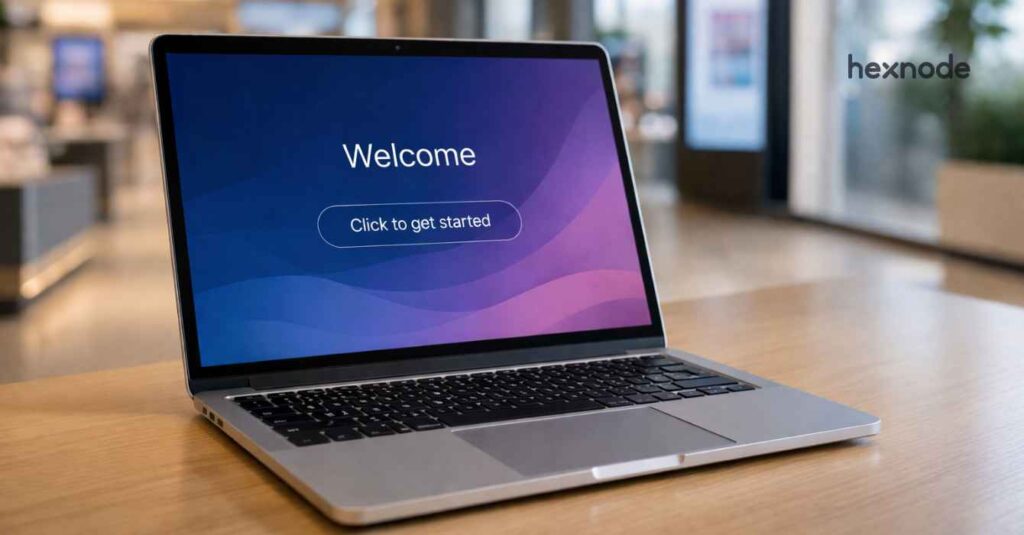
Kiosk devices play an important role in digital interactions across domains, from retail to corporate environments. As kiosks evolve from simple displays to interactive experience points, Apple’s Mac devices, with their design, platform stability, and security, have become a strong platform for implementing Mac kiosk mode in enterprise environments.
But buying a Mac for kiosk use isn’t the same as buying a Mac for personal or office work. In a kiosk environment, the device may be mounted, locked down to a single app, and used by multiple users.
This is exactly where Mac kiosk mode becomes essential for creating secure and controlled public-facing experiences. That means, you would need the right setup, enrolled in the right way, locked down correctly, and allowed to be managed remotely.
So, here’s the question: How do you choose the right macOS device for Mac kiosk mode deployments?
Whether you’re planning on setting up a kiosk for digital signage or a trade show demo, here is your definitive Mac kiosk buyer’s guide that will help you choose the right device and management solution that will deliver the outcome you’re looking for.
Apple’s Mac devices are increasingly used in enterprise deployments that require Mac kiosk mode, thanks to their stability, performance, and security architecture, due to:
Mac devices, with their cutting-edge range of chips, have been and are a preferred choice for creative work and software development. They are built for long-running intensive workloads with minimal crashes or system interruptions, resulting in better performance, system stability, and power efficiency.
With Apple’s Unified Memory Architecture, memory is shared across the CPU, GPU, and other components within the system-on-chip. This allows different processing units to access the same pool of high-bandwidth memory, improving efficiency compared to traditional systems where CPU and GPU rely on separate memory pools. As kiosks would need to handle rich media, extensive databases, and even high-resolution content, Apple’s efficient RAM along with its scalable storage, makes it a preferred choice for kiosks.
As a result, Mac devices and macOS running macOS kiosk mode have become a trusted choice for kiosk use cases that demand a premium, reliable digital experience across:
Despite its advantages and uses, no device is perfect. macOS also has certain trade-offs. They feature a complex form factor that may not suit every kiosk type, and they carry a higher initial cost than entry-level alternatives like Android or Windows devices. However, these setbacks are often overlooked by the platform’s superior total cost of ownership (TCO) advantages over the long term.
Once you’ve decided that macOS is the right fit for your kiosk project, the next big question is, “What should I actually look for when choosing a Mac for kiosk?”
Choosing the right option narrows down to your unique needs, which involves weighing the pros and cons of different hardware models, anticipating initial enrollment needs, and assessing the requirements for continuous lockdown and remote management.
Selecting the right hardware from Apple’s long list of devices is the single largest determinant of deployment cost and success. Factors like size, portability, connectivity, mounting flexibility, performance requirements, and power management become important criteria to consider.
So instead of choosing a device based only on specifications, it’s better to understand how each model fits into real Mac kiosk mode deployment scenarios.
If your Mac kiosk deployment involves a larger screen for use like digital signage, interactive product browsing, or check-in kiosk stations, Mac mini comes in as a natural choice. It is compact and relatively affordable (compared to other Mac models). They can be conveniently mounted behind displays or tucked inside kiosk enclosures and can handle high-resolution media without struggle.
If portability is a priority, then MacBooks are the go-to option. Whether it’s the lightweight MacBook Air or the power-packed MacBook Pro, these devices are commonly used for temporary macOS kiosk mode setups such as trade shows, training events, and demo stations.
Since they come with built-in displays, trackpads, keyboards, and webcams, their deployment requires minimal setup. Another operational advantage is their integrated battery. They can be operated without a dedicated power source, compared to iMac or Mac Mini counterparts.
The iMac is another prominent option for a kiosk setting. Its all-in-one design offers the simplest setup (after MacBook) with minimal cabling, anchored by a stunning Retina display, ideal for a visually stunning experience.
It emerges as a perfect option for setting up kiosks in open spaces or on desktop environments, providing a fully integrated hardware solution that merges display and computing components.
Though they might not be a very popular option for macOS kiosk devices, Mac Studio and Mac Pro do find their place. They are best suited for high-performance kiosk environments that require advanced computing or heavy-visual rendering like simulations and demos, which might not be the typical use case for a kiosk. Like the Mac mini, they also require additional peripherals like external monitors and touch screen displays.
While Mac devices provide the core foundation, external peripherals and accessories are also critical for successfully implementing a real-time, dedicated macOS kiosk. Depending on where and how you plan to deploy it, you may need:
| Use Case | Best Fitting Mac | Why It Works |
|---|---|---|
| Showroom displays and product catalogs. Also ideal for information counters. | Mac Mini | Uses a hidden mount with external screens. This setup is highly flexible. |
| School tests, lab training, and events. Great for demo stations and check-ins. | MacBook Air / Pro | Portable design with built-in peripherals. It offers efficient lockdown capabilities. |
| Corporate receptions and visitor check-ins. Perfect for guided product demos. | iMac | Premium and elegant all-in-one setup. It includes a high-quality built-in display. |
| 3D simulations and real-time data. Best for heavy-duty engineering demos. | Mac Studio / Pro | Offers unmatched computational power. It is designed for intensive applications. |
Once you choose the right hardware, the next question becomes: How do I turn this device into a true kiosk with lockdowns and restrictions? And that’s exactly where enrollment, supervision and lockdown kiosk modes come in.
Kiosks are often placed in remote, unsupervised public locations away from IT admins access. Therefore, even before configuring the Mac kiosk mode, you must ensure the device can be remotely controlled, locked down, and monitored. This level of control is achieved through a Unified Endpoint Management (UEM) solution like Hexnode, which provides a single platform to manage and secure all your devices. And this starts with enrolling the device.
When deploying kiosks without relying on physical intervention, either during provisioning or for ongoing management, ADE offers the most secure and ideal enrollment solution.
ADE works via Apple Business Manager (ABM) or Apple School Manager (ASM) and enables a secure enrollment even before first login. This means the device enrolls automatically in UEM solution the moment it powers on and connects to Wi-Fi, without any manual configuration. It also ensures users cannot bypass management, skip setup steps, or alter configurations before the kiosk lockdown applies. This zero-touch setup is a critical advantage when you must ship the device directly to the kiosk location and enable a consistent user experience across multiple kiosks.
If you are setting up one or more Macs, especially for demos or events, using Apple Configurator to enroll your device can be a practical choice. It lets you manually supervise and enroll Mac into the UEM solution through a physical data cable, even those which are not purchased through an authorized reseller. You can easily create reusable kiosk configurations called “blueprints”, which can deploy to multiple devices.
Though Apple Configurator is less automated than ADE, it offers a reliable enrollment experience, especially for single-location kiosk setups, prototyping, and legacy device conversion.
| Enrollment Method | Best For | Advantages |
|---|---|---|
| Automated Device Enrollment (ABM) | Multi-site and large-scale deployments. It enables zero-touch setup. | Fully automated and secure. It is ideal for unattended kiosk setups. |
| Apple Configurator | Small-scale events or legacy devices. Use this for devices not in ABM. | Great for consistent setups via blueprints. It uses a simple cable connection. |
The above two configuration methods enable a state of Supervision. While enrollment allows for basic management, Supervision provides the deeper control required to enforce macOS kiosk mode restrictions on public-facing devices. It provides options like enforcing single-app mode, blocking system preferences, preventing device reset, or disabling unwanted features.
This is a primary safeguard for any kiosk device that is public facing, unmanned, or used by multiple people. basic management, Supervision grants kiosk-level control like enforcing single-app mode, blocking system preferences, preventing device reset, or disabling unwanted features. This is a primary safeguard for any kiosk device that is public facing, unmanned, or used by multiple people.
A complete Mac kiosk buyer’s guide must include how to implement proper lockdown mechanisms.
Once your device is enrolled in the UEM, you can easily lockdown the device in its kiosk mode. This immediate security measure is important because in a public environment, you can’t afford users tampering with the device and its functionalities. Lockdown configurations are what transform a normal Mac into a dedicated Mac kiosk mode device.
When most people think of a Mac kiosk running a single application, they often refer to “Single App Mode.” However, the equivalent and far more accurate term on macOS is Autonomous Single App Mode (ASAM).
ASAM automatically restricts the device to a specified single app. Unlike traditional single app mode, the device will be locked down until the defined time limit is reached, the user logs out of the app, or the assigned task is completed. This makes it a more flexible approach than a complete OS-level lockdown, offering session-specific controls and temporary restrictions.
Also, this flexibility makes it ideal for use cases like testing centers, educational labs, digital learning platforms, or enterprise apps where the kiosk logic is controlled by the application itself rather than just forcing a persistent system lockdown. This makes ASAM particularly useful for organizations building flexible Mac kiosk mode deployments.
For the best performance and security, the Mac must be supervised. Be it a Store app, web-app, or an enterprise app, they must be specifically built to support this feature.
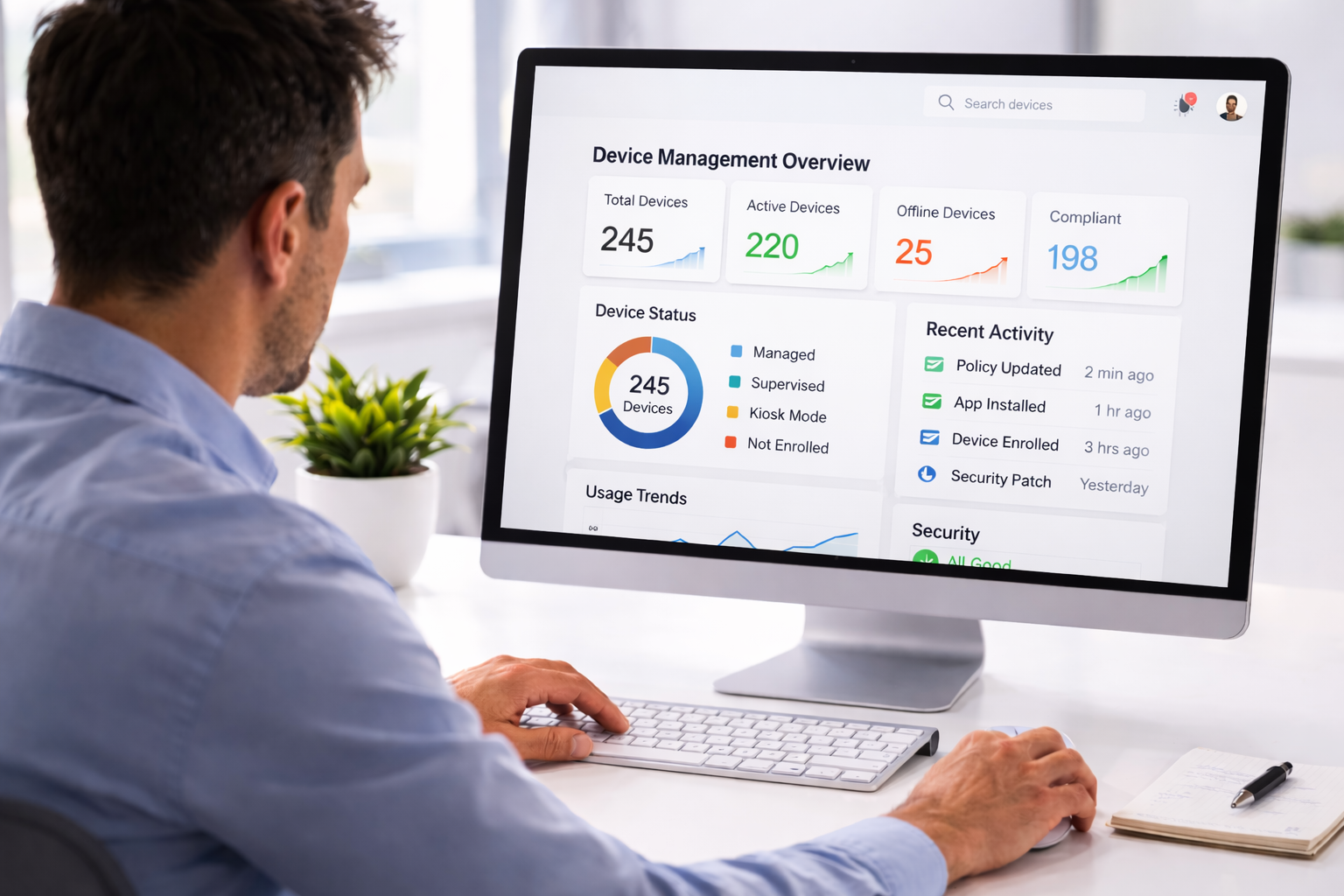
A Mac kiosk buyer’s guide is incomplete without understanding how to choose the right UEM solution.
While the right device and a strong lockdown mode like Autonomous Single App Mode (ASAM) are critical, the long-term success of your kiosk deployment depends heavily on how well the devices are maintained, monitored, and controlled. Routine tasks such as updates, policy enforcement, and security patches must be handled carefully, as improper changes can disrupt kiosk functionality and interrupt the user experience.
Managing Mac kiosk mode deployments at scale requires a capable Unified Endpoint Management platform. A capable UEM platform allows IT teams to remotely configure, secure, and monitor kiosk devices from a single console. For macOS kiosk deployments, selecting a solution with comprehensive macOS management capabilities, such as Hexnode UEM, ensures your kiosks remain secure, stable, and easy to manage at scale.
The following capabilities are important when choosing a UEM platform for macOS kiosks.
Not all UEM solutions provide deep macOS management capabilities. A robust macOS agent determines how effectively administrators can control, monitor, and secure devices beyond basic enrollment.
Hexnode UEM provide a dedicated macOS agent that enables advanced device management, remote monitoring, policy enforcement, and system configuration. This level of control is especially important for public-facing kiosks where devices must remain secure, stable, and consistently locked down.
Autonomous Single App Mode (ASAM) is one of the primary mechanisms used to lock a Mac into a kiosk experience. A capable UEM platform should support configuring and managing ASAM policies while ensuring devices remain properly supervised and managed.
With Hexnode UEM, administrators can configure kiosk restrictions, enforce device supervision through enrollment methods like ADE, and manage application-level lockdown policies required for macOS kiosk environments.
An ideal UEM platform should support multiple enrollment methods to accommodate different deployment scenarios.
Hexnode supports several macOS enrollment methods, including:
This flexibility allows organizations to deploy kiosks across multiple locations while maintaining consistent configuration and management.
Since kiosk devices are often deployed in remote or public locations, administrators must be able to monitor device health without being physically present.
Hexnode provides centralized dashboards, device reports, logs, and alerts, allowing IT teams to track device status, monitor uptime, review system activity, and quickly troubleshoot issues. Remote management capabilities also allow administrators to apply updates, modify policies, or resolve problems without disrupting the kiosk deployment.
Security is one of the most important aspects of managing kiosk devices. A reliable UEM platform should enable administrators to enforce strict security policies across all devices and ensure that macOS kiosk mode deployments remain secure in public environments.
With Hexnode UEM, administrators can configure password policies, deploy certificates, manage firewall settings, restrict peripherals such as USB and Bluetooth, and enforce compliance rules across macOS devices. These capabilities help ensure kiosk devices remain secure even in public or unattended environments.
Kiosk deployments can range from a single demo device to hundreds of devices across multiple locations. Managing such deployments requires a centralized platform that can scale with organizational needs.
Hexnode’s unified management console enables administrators to manage devices across different locations, create device groups, automate policy deployment, and apply configuration profiles based on device roles or use cases. This allows organizations to scale kiosk deployments without increasing operational complexity.
When evaluating a UEM platform for macOS kiosks, pricing should be considered in terms of long-term operational value rather than just licensing costs.
Hexnode offer flexible pricing models that support both small pilot deployments and large-scale enterprise rollouts. By combining device management, security enforcement, monitoring, and automation within a single platform, organizations can reduce manual administrative effort and lower long-term support costs.

Download the whitepaper to learn how you can adopt the right kiosk management strategy for your business.
Get the WhitepaperDeploying Mac kiosk mode successfully requires more than just choosing the right hardware. This decision is shaped by multiple criteria, from selecting the right Mac model and implementing the correct lockdown strategy to choosing the right UEM solution.
And the success of your deployment aligns with your key choices:
Overall, the best kiosk isn’t defined by the Mac model alone, but by how well the hardware, software, and management strategy are perfectly aligned with your purpose. And with the right strategy, every touchpoint stays secure, engaging, and effortless for users, while being efficient and manageable for you.
1. Can Mac kiosk mode support multiple apps instead of just one?
Yes. While many deployments use single-app lockdown through Autonomous Single App Mode (ASAM), organizations can also configure controlled multi-app environments using a UEM solution. This allows users to access only a predefined set of applications while still maintaining a secure Mac kiosk mode setup.
2. Can Mac kiosk mode be managed remotely across multiple locations?
Yes. With a Unified Endpoint Management (UEM) solution, administrators can remotely configure, monitor, and update Mac kiosk mode devices across multiple locations without needing physical access.
3. Is Mac kiosk mode suitable for long-term public deployments?
Yes. When combined with proper device enrollment, supervision, and remote management, Mac kiosk mode can support long-term deployments in environments like retail stores, corporate receptions, and digital signage installations.
Configure, secure, and manage Mac kiosk devices across multiple locations with powerful automation and centralized control.
Signup Now