TL;DR:
Choosing the best iOS kiosk device starts with the workflow, not the hardware spec sheet. Fixed, customer-facing tasks usually favor iPads, while mobile or staff-led workflows may work better on iPhones. IT should evaluate screen size, performance, storage, accessories, environment, security, web restrictions, and lifecycle before rollout. For web kiosks, plan browser controls early, especially when teams need to restrict iPad to one website or use a secure browser for iOS.
An iOS kiosk rollout succeeds when device choice, workflow design, restrictions, and support are planned together. The best device is not automatically the newest iPad or the cheapest iPhone. It is the option that lets users complete the intended task with minimal friction while giving IT enough control to reduce misuse, downtime, and manual intervention.
What is an iOS kiosk device, and why does device choice matter?
Before comparing models, IT needs clarity on workflow and restrictions.
Understanding iOS kiosk devices
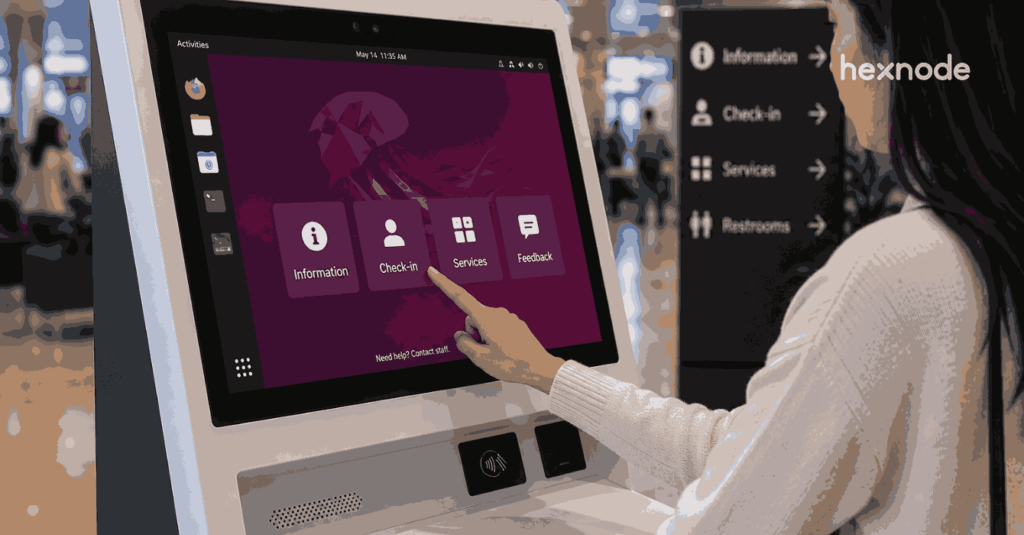
An iOS kiosk device is an iPhone or iPad configured for a dedicated workflow, such as visitor check-in, patient intake, product browsing, POS assistance, digital forms, surveys, or self-service portals.
Single-purpose business devices
The key requirement is control. A kiosk device should not allow unrestricted browsing, personal app usage, account changes, or unrelated systems.
Most deployments use single-app kiosk, multi-app kiosk, or web kiosk. A single-app kiosk locks the device to one app. A multi-app kiosk allows approved apps. A web kiosk restricts approved websites or web apps. Each model changes priorities around screen size, connectivity, browser controls, battery, camera quality, and accessories.
Start with the kiosk use case before comparing devices
Use case should drive hardware selection because each kiosk model places different demands on the device.
Customer-facing kiosks
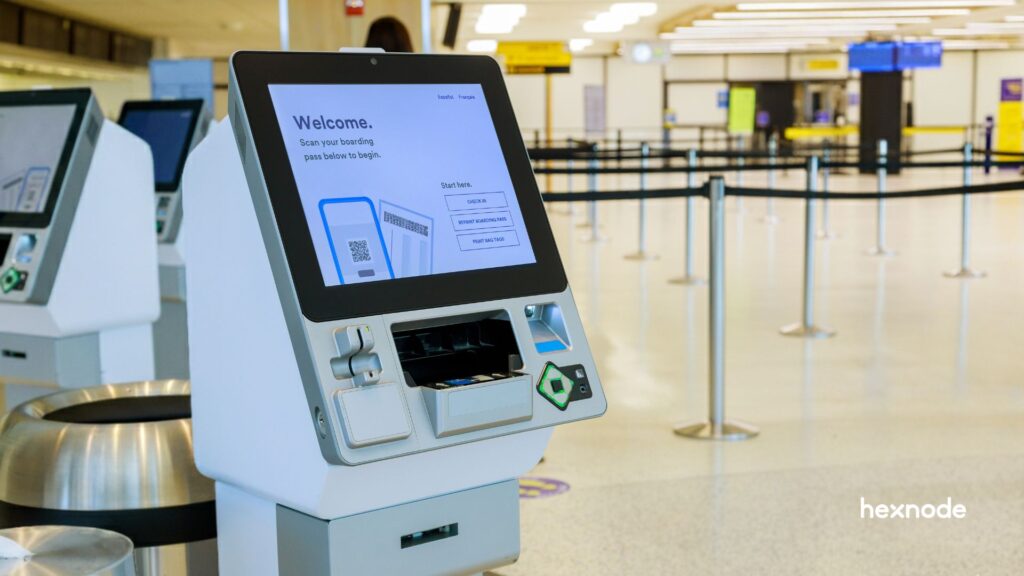
Customer-facing deployments support retail ordering, hotel check-in, appointment registration, patient intake, event registration, visitor sign-in, catalog browsing, and surveys.
Self-service and check-in workflows
Self-service kiosk workflows need larger screens, accessible layouts, and responsive touch input. If users must enter information, review options, sign forms, or move through several steps, the device must reduce friction rather than create abandoned sessions.
Employee-facing kiosks
Employee kiosks prioritize consistency, speed, and durability.
Shared and portable workflows
Employee kiosks support time clocks, inventory lookup, training, dashboards, warehouse checklists, document access, scanning, field checks, and event coordination. These devices may not need the largest display, but they need durability, authentication, repeatable access, battery life, rugged cases, scanner compatibility, and charging logistics.
What is a self-service kiosk?
Web-based kiosk workflows
Web kiosks need stronger browser planning because the workflow depends on site behavior, redirects, and access rules.
Single-website and controlled browsing
Web kiosks suit portals, forms, booking pages, order pages, surveys, and internal web apps. IT may need to restrict iPad to one website when the workflow depends on a single portal. The device should support layout, login, redirects, embedded content, and touch interactions. A secure browser for iOS can limit users to approved URLs.
iPad vs iPhone: Which works better for an iOS kiosk?
Neither form factor is universally better. The right choice depends on whether the workflow is fixed, mobile, public-facing, or staff-led.
When an iPad is the better kiosk device
For fixed iOS kiosk deployments, iPad is often the stronger default. Larger screens improve readability, reduce input errors, and support forms, browsing, review, and signatures.
Larger iPads suit multi-step check-in, product catalogs, guided selling, digital forms, signatures, accessible self-service, visual menus, and customer-facing workflows. They also fit counter stands, wall mounts, floor stands, lockable enclosures, and reception setups.
When an iPhone can work as a kiosk device
An iPhone can fit staff-led, mobile, or space-constrained workflows such as barcode scanning, queue support, inventory checks, field verification, stockroom tasks, and event coordination. It is less suitable for long forms, public self-service, browsing, or extended reading.
Repurposed iPhones may reduce upfront cost, but older devices can create trade-offs in battery health, app performance, screen size, accessory support, and OS compatibility. IT should standardize on a limited set of models.
Key hardware factors to evaluate before buying an iOS kiosk device
Hardware selection should focus on daily operating conditions, not only technical specifications.
Screen size and display quality
Screen size should match task complexity. Check-in, browsing, signatures, long forms, and customer self-service usually need larger iPads. Smaller devices should be reserved for quick actions, staff-assisted tasks, or mobile operations.
Display quality depends on placement. Retail stores, reception areas, event venues, and outdoor-adjacent spaces can introduce glare, variable lighting, and awkward viewing angles. Test brightness, mounting position, and viewing distance under real conditions.
Processor, memory, and performance
A kiosk device should load apps quickly and respond consistently. Slow launches, lagging forms, delayed pages, or frozen screens create queues, abandoned sessions, and staff intervention.
Choose hardware with enough performance headroom because apps get updated, websites become heavier, iPadOS changes, and teams add workflow steps. Before purchase, test login, media, redirects, forms, timeouts, and error states.
Storage requirements
A web-based iOS kiosk usually needs less local storage than an app-heavy deployment. More storage may be justified for offline catalogs, training videos, cached files, diagnostics, logs, media-heavy apps, and large app packages.
Leave storage headroom for OS updates, app updates, cached assets, temporary files, and future workflow changes. Limited storage can turn routine updates into support work.
Camera, NFC, scanners, and accessories
Some workflows require cameras for QR codes, document capture, check-in, identity verification, or inventory tasks. NFC or payment capabilities may matter for retail, access, or service scenarios.
Validate scanners, printers, card readers, stands, enclosures, charging access, Bluetooth reliability, cable routing, and accessory availability before standardizing.
iPad Kiosks Buyer’s Guide: Choosing the Best Device in 2026
Find the right iPad kiosk with expert tips on hardware, security, and deployment.
Deployment environment: Match the device to where it will be used
A capable device can still fail in the wrong enclosure, network, or environment.
Physical location and durability
A device that works on a desk may not hold up at a store entrance, warehouse counter, hospital reception area, or event venue. High-traffic kiosks often need stronger enclosures and screen protection.
Customer-facing devices must also remain readable under bright lighting, window glare, crowded spaces, and repeated touch interactions.
Mounting, power, and connectivity
Mounts, stands, lockable enclosures, and tamper-resistant cases keep the kiosk stable and protected. Cable protection prevents accidental unplugging.
Most kiosks run throughout business hours, so teams should evaluate charging docks, hidden cables, battery health, heat, power interruptions, reliable Wi-Fi, cellular backup, network segmentation, and offline behavior.
Did You Know?
The interactive kiosk market is set to hit over $44 billion by 2032.
Data Bridge Market Research forecasts the interactive kiosk market to grow at a 5.10% CAGR from 2025 to 2032, driven by adoption of self-service technologies, demand for contactless solutions, and expanding applications across sectors such as retail, healthcare, transportation, and banking. Organizations planning long-term self-service or signage deployments should consider how kiosk hardware and management requirements may scale over time.
Security considerations for an efficient iOS kiosk setup
Security and efficiency are linked. A kiosk that users can escape or misconfigure becomes a support burden.
Preventing users from leaving the kiosk experience
Block unrelated apps, settings, notifications, app switching, account changes, and controls that can disrupt a session. Strong restrictions reduce misuse, accidental misconfiguration, and support noise.
When users leave the kiosk flow, staff may need to reopen apps, reset browsers, reconnect Wi-Fi, or escalate to IT. A secure iOS kiosk setup should prevent those resets.
Restricting web access
For web-only workflows, IT may need to restrict iPad to one website or a small group of approved sites. URL allowlisting keeps users inside the required workflow while reducing misuse, privacy risk, and exposure to unrelated content.
Test the full web journey
Login pages, payment gateways, help links, embedded content, and subdomains may all be valid. Overly strict rules can break the kiosk; loose rules can allow navigation away. Hexnode can help define approved web destinations.
Admin access and shared-device security
Kiosk exit should be controlled, auditable, and practical. Admin passcodes, authorized exit workflows, and troubleshooting paths prevent unnecessary bypasses while giving IT a recovery path.
Shared kiosks must protect user data through resets, data clearing, logout, privacy controls, and prevention of previous-user exposure, especially in healthcare, education, hospitality, and public terminals.
Choosing between app kiosk, web kiosk, and secure browser experiences
The kiosk model should match the tools users need and whether the workflow is app-based or browser-based.
Single-app kiosk
A single-app kiosk fits one defined workflow, including POS, ticketing, check-in, healthcare intake, visitor management, inventory, and training apps.
Its advantage is focus, but app reliability becomes critical. Crashes, failed logins, broken integrations, or poor design affect the whole experience.
Multi-app kiosk
A multi-app kiosk works when users need approved apps for training, resources, communication, forms, checklists, or task workflows.
Too many apps undermine kiosk mode by creating confusion, slowing completion, and increasing support requests.
Secure browser or web app kiosk
A secure browser for iOS is useful when the kiosk depends on portals, dashboards, booking pages, forms, surveys, knowledge bases, or internal web apps.
Hexnode can support approved URLs, single or multi-web app access, and consistent browser behavior. Web kiosks still depend on network stability, redirects, sessions, and responsive design.
10 essential tips for successful kiosk management
Lifecycle, OS support, and total cost of ownership
Initial device price is only one part of kiosk economics. Downtime and support effort often decide real cost.
Look beyond the upfront device cost
Refurbished or older devices can reduce procurement cost, but may introduce battery degradation, shorter warranty coverage, weaker performance, limited accessories, or reduced OS support.
Kiosk fleets need AppleCare decisions, spares, repair planning, replacement stock, standardized accessories, and consistent models.
Plan for software and workflow changes
An iOS kiosk device should support future iOS or iPadOS updates for a reasonable period. This affects app compatibility, browser support, security patches, and performance over time.
Pilot with a few devices before rollout. Validate performance, mounting, restrictions, network stability, accessory behavior, and user interaction before defining the final standard.
Managing iOS kiosk devices with Hexnode
Key areas where Hexnode fits into an iOS kiosk deployment include:
- Single-app kiosk control: Lock supervised iOS devices running iOS 6 or later to one business-critical app for focused workflows such as check-in, POS assistance, intake forms, or visitor management.
- Multi-app kiosk access: Allow access to a selected set of apps or app groups on supervised iOS devices, noting that the Settings and Phone apps are added by default in iOS multi-app kiosk mode.
- Web app kiosk setup: Support browser-based kiosk experiences for portals, booking pages, dashboards, forms, surveys, and internal web apps.
- Website restriction: Help teams restrict supervised iOS devices running iOS 9.3 or later to one website or a defined set of approved web apps through iOS Web App kiosk mode.
- Secure browsing: Use Hexnode Browser Lite as a single-tabbed browser for iOS web app kiosk mode, allowing access to configured web apps and whitelisted external links.
- Consistent deployment: Apply repeatable kiosk settings across multiple devices and locations to reduce manual setup and support effort.
Keeping iOS kiosk devices efficient after deployment
After hardware selection, the next challenge is consistent kiosk behavior across devices and locations.
Lock devices into the right kiosk experience
Hexnode can help configure iOS kiosk experiences for single-app, multi-app, and web-based scenarios. This reduces distractions, accidental exits, changed settings, and support tickets across stores, clinics, schools, offices, events, and hospitality locations.
Control web access for browser-based kiosks
A web kiosk requires more than opening Safari. Hexnode can support approved websites or web apps, helping teams restrict iPad to one website or a defined set of business websites.
Secure browsing outcomes
Controlled browsing reduces accidental navigation, misuse, and exposure to unrelated content while supporting security, compliance, efficiency, and user experience. It gives users enough access without creating a general browsing endpoint.
Support distributed kiosk devices with less manual effort
Distributed kiosks make manual fixes inefficient. Hexnode can help teams manage kiosk behavior remotely by enabling or disabling kiosk mode from the portal and applying kiosk policies to devices, device groups, users, user groups, or domains.
Automation and repeatable policy application matter as deployments scale from a pilot to a larger fleet.
Choosing the right iOS kiosk device starts with the workflow
The best iOS kiosk device fits the workflow with the least operational friction. Evaluate use case, screen size, performance, environment, security, web restrictions, accessories, lifecycle, and management.
For web kiosks, plan browser control before rollout. Teams may need to restrict iPad to one website, allow business sites, or manage redirects and external links. Choosing hardware and kiosk controls together keeps users focused, reduces support issues, and improves efficiency, security, and user experience.
FAQ
Can an older iPhone or iPad be reused as an iOS kiosk device?
Yes, but it should be tested carefully before deployment. Older devices may reduce upfront cost, but they can also create issues with battery health, app performance, OS support, accessory compatibility, and long-term reliability.
Is an iPad always better than an iPhone for kiosk mode?
Not always. An iPad is usually better for fixed, customer-facing workflows that involve forms, browsing, signatures, or self-service. An iPhone can work well for staff-led, mobile, or scanning-based workflows where portability matters more than screen size.
What should IT test before rolling out iOS kiosk devices at scale?
IT should test the actual app or website on the selected device, including login flows, redirects, forms, timeouts, media, error states, and network interruptions. Teams should also validate mounting, charging, accessories, screen visibility, restrictions, and user behavior in real operating conditions.
When does a business need to restrict iPad to one website?
This is useful when the kiosk workflow depends on a single web portal, such as a booking page, form, survey, ordering page, or internal web app. Restricting access helps keep users inside the intended workflow and reduces browsing misuse.
How is a secure browser for iOS different from simply opening Safari?
Opening Safari does not, by itself, prevent users from navigating away from the intended page. A secure browser for iOS can help limit access to approved URLs or web apps, which is important for public-facing or shared kiosk devices.
Why should kiosk planning include management and support from the start?
Kiosk devices often run across multiple locations and are expected to stay available throughout business hours. Planning configuration, updates, restrictions, recovery, and troubleshooting early helps reduce manual fixes, support tickets, downtime, and inconsistent user experiences.
Choose the right iOS kiosk with Hexnode
Lock devices to apps or websites, simplify management, and keep iOS kiosks running smoothly with Hexnode UEM.
Sign Up Now