




Category filter
Managing Threat Incidents on Endpoints via Hexnode XDR
The Threats subtab provides administrators with the centralized visibility and execution controls required to investigate and neutralize active security risks across the enterprise.
What is a Threat?
In the context of the Hexnode XDR ecosystem, a Threat is defined as an actionable security event indicating confirmed malicious intent. These are detected via advanced heuristic analysis or behavioral pattern recognition. Unlike standard rule-based alerts, threats represent high-risk execution chains that demand immediate administrative intervention.
Modern cyberattacks rarely occur as isolated events; a single malicious payload execution typically spawns a chain of subsequent anomalous activities. The Hexnode XDR architecture correlates these localized telemetry events into a unified incident lifecycle mapped directly against the MITRE ATT&CK framework.
Why Immediate Triage is Critical?
Leaving a high-severity threat unattended introduces severe operational risks to the organization. The Threats dashboard provides the necessary tools to step in quickly and prevent:
- Lateral movement of an attacker across the corporate network.
- Unauthorized data exfiltration and credential theft.
- System-wide execution of destructive payloads, such as ransomware or wipers.
Navigating the Threats Dashboard View
To access the dashboard, log in to the Hexnode XDR console, navigate to the Incidents tab, and select the Threats subtab.
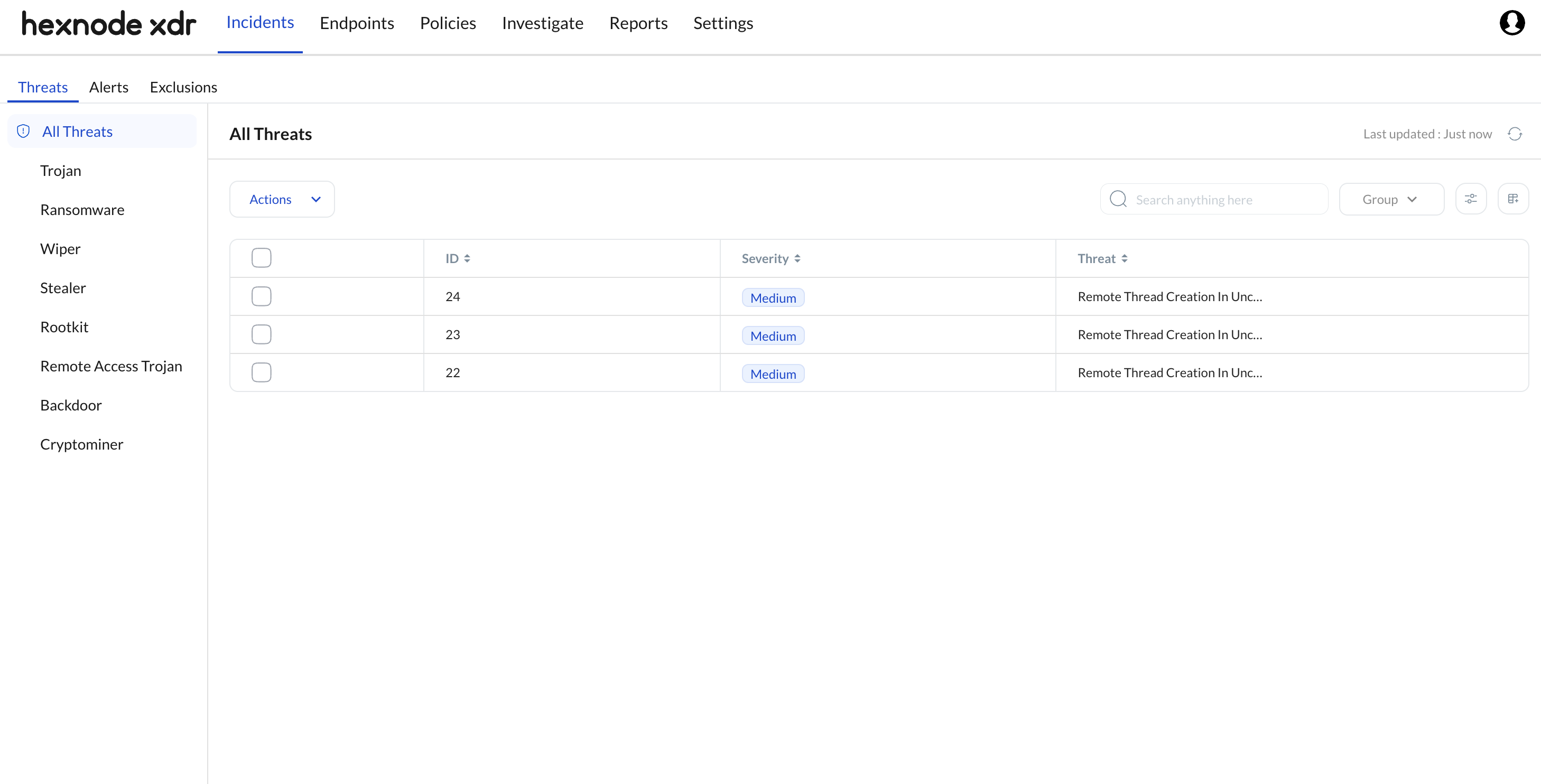
Threat Classification Categories
The left-hand navigation pane categorizes detected incidents based on their specific behavioral signatures and execution objectives. Administrators can filter the dashboard utilizing the following distinct threat types:
All Threats
A consolidated, unfiltered view of every malicious activity detected and classified across the enterprise environment. This view provides a macro-level perspective of the organization’s current threat landscape.
Trojan
Trojans remain the most prolific foundation of modern cyberattacks, accounting for over 60% of all detected malware globally. Disguised as legitimate, useful software to deceive users, Trojans do not self-replicate like worms. Instead, once a user inadvertently executes the file—often delivered via phishing campaigns or compromised software updates—the Trojan silently unpacks a hidden payload. This background execution typically establishes network persistence, drops secondary malware, or creates covert connections to external Command and Control (C2) servers.
Ransomware
Ransomware is highly disruptive extortion malware engineered to rapidly encrypt endpoint files and cripple system access until a financial demand is met. Driven by a mature Ransomware-as-a-Service (RaaS) economy, these attacks have surged over 20% year-over-year, frequently crippling critical infrastructure, manufacturing, and healthcare sectors. The malware traverses local file systems and connected network drives using strong cryptographic algorithms (such as AES paired with RSA). To maximize leverage and prevent easy restoration, modern ransomware payloads aggressively target and delete Volume Shadow Copies and local backups prior to deploying the encryption routine.
Wiper
Unlike ransomware, wipers are highly destructive payloads designed purely for sabotage and data annihilation rather than financial gain. Operating with similar infiltration tactics, a wiper lacks any decryption mechanism. Once executed, the software systematically overwrites the Master Boot Record (MBR), corrupts the master file table, or permanently shreds endpoint data. Frequently deployed by nation-state actors or advanced persistent threats (APTs), the primary objective of a wiper is to cause catastrophic operational disruption and destroy forensic evidence of a broader network intrusion.
Stealer
Infostealers are specialized, information-gathering payloads designed to silently collect and exfiltrate sensitive endpoint data. Representing one of the fastest-growing enterprise threats, recent telemetry indicates infostealer infections act as a direct precursor to nearly a third of all major enterprise ransomware events. Stealers operate stealthily to avoid user detection, hooking into web browsers, email clients, and system memory to scrape authentication credentials, active OAuth session cookies, and autofill data. This harvested telemetry is then compressed and transmitted to attacker-controlled infrastructure, fueling dark web credential markets and enabling attackers to bypass Multi-Factor Authentication (MFA).
Rootkit
Rootkits are stealth-oriented malware engineered to secure administrative (root) or kernel-level control over a system while actively masking their presence. By subverting the operating system at its deepest foundational levels, often hooking into core system APIs or modifying the kernel itself, the rootkit can intercept calls between the OS and the hardware. This allows the malware to continuously lie to the system, effectively hiding unauthorized network connections, spoofing file directories, and ensuring long-term, invisible persistence that easily evades standard, user-mode antivirus scans.
Remote Access Trojan (RAT)
A Remote Access Trojan is a malicious payload that establishes a persistent, unauthorized backdoor connection, granting an external attacker full remote command and control over the compromised endpoint. Ranking consistently as a top global malware variant with tens of thousands of new detections daily, RATs function similarly to legitimate IT remote support tools but operate entirely hidden from the user. Once the connection is active, an attacker can execute arbitrary shell commands, deploy keyloggers, exfiltrate files, activate hardware peripherals, and utilize the compromised machine as a staging ground to pivot laterally across the internal corporate network.
Backdoor
A backdoor is an unauthorized, covert method of bypassing normal security and authentication protocols to secure persistent access to a system. Typically dropped by initial access brokers or established during the early stages of a malware infection, backdoors modify foundational system configurations. They frequently create hidden administrative user accounts, open listening ports on the local firewall, or inject rogue SSH keys. This guarantees the attacker a reliable, quiet re-entry point into the network, ensuring access is maintained even if the initial vulnerability is patched or corporate passwords are reset.
Cryptominer
Cryptominers (or cryptojacking malware) are parasitic payloads that hijack an endpoint’s CPU and GPU processing power to mine cryptocurrency without the user’s consent. Designed for silent, long-term execution, the malware throttles the endpoint’s processing cycles to solve complex cryptographic hashes for digital currency networks. While not inherently destructive to endpoint data, widespread cryptomining severely degrades system performance, drastically increases enterprise power consumption, and accelerates hardware failure due to prolonged, unmanaged thermal stress.
The Threat Inventory Table
When navigating to “All Threats” or selecting any specific threat category from the left-hand pane, the central monitoring repository populates. This comprehensive, sortable grid allows administrators to rapidly assess risk and delegate investigation tasks.
| Column | Description |
|---|---|
| ID | A unique, system-generated identifier for the specific threat instance. |
| Threat | A concise behavioral description of the specific malicious activity detected. |
| User | The local username associated with the active session at the time of detection. |
| Threat Category | The broad classification of the malicious payload (e.g., Ransomware, Trojan). |
| Time | The exact timestamp when the Hexnode XDR agent detected the threat. |
| Status | The current investigation lifecycle state: Open, In Progress, or Closed. |
| SHA-256 | The unique digital fingerprint hash of the source file initiating the threat. |
| Severity | The assessed risk level of the incident: Low, Medium, High, or Critical. |
| Target | The specific endpoint hostname where the malicious activity originated. |
| Assignee | The designated security technician assigned to investigate and remediate the threat. |
| Process | The numerical identifier (PID) assigned by the OS to the active malicious process. |
| Verdict | The administrative classification of the event as a True Positive or False Positive. |
Dashboard Bulk Operations & Actions
To streamline incident response workflows, Hexnode XDR provides a suite of global administrative actions accessible via the Actions dropdown menu. Administrators can select one or more threats from the inventory list and execute the following operations:
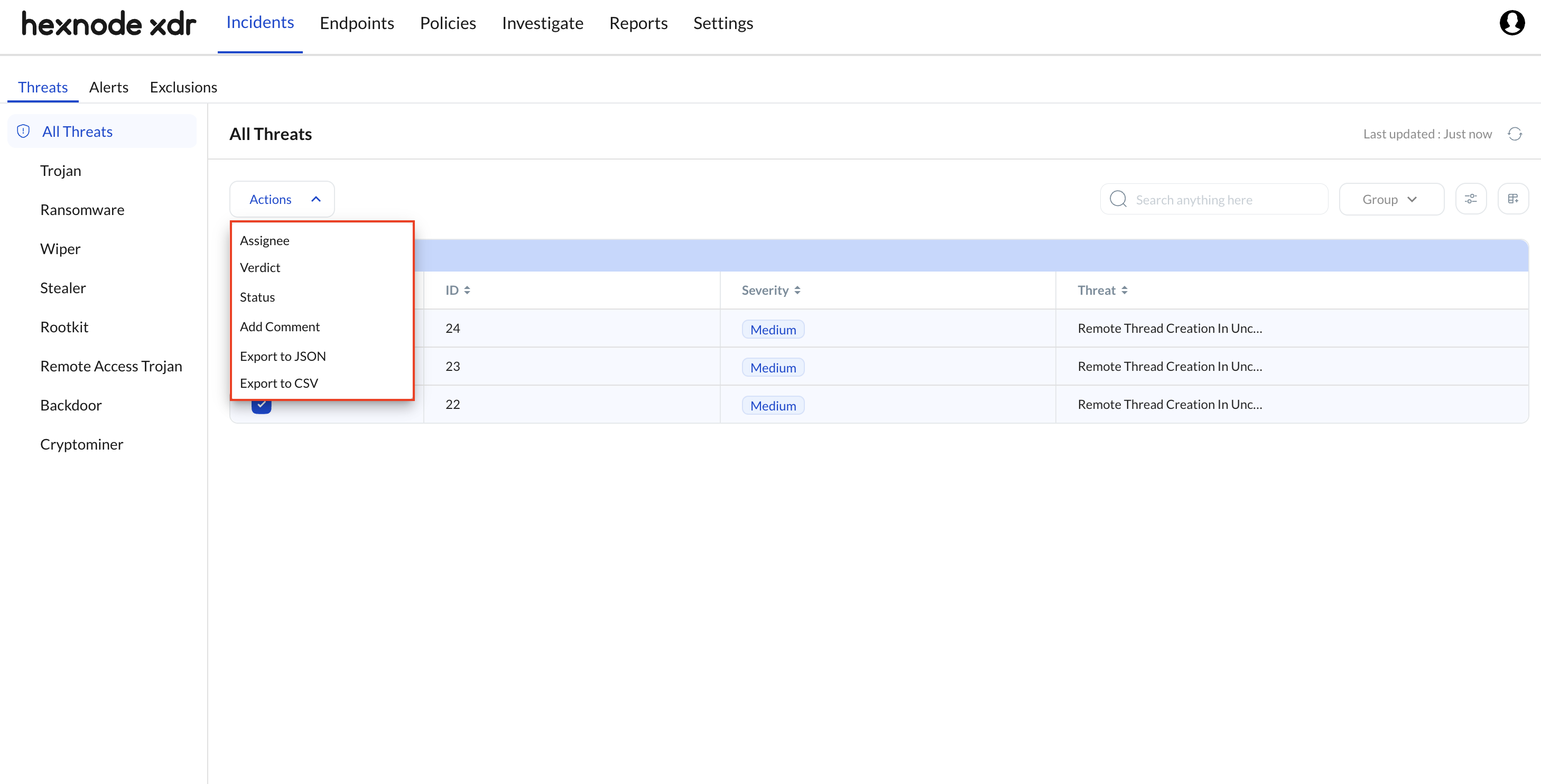
- Assignee: Administrators can assign the selected threats to a specific technician from the dropdown menu, delegating ownership and accountability for the investigation.
- Verdict: Allows administrators to explicitly classify the detection event. Marking it as a True Positive confirms the activity was genuinely malicious, while False Positive designates the behavior as benign or authorized.
- Status: Change the operational state of the selected threats. Administrators can update the status from Open to In Progress during active analysis, to Mitigated once the immediate risk is neutralized, and finally to Closed when the investigation is complete.
- Add Comment: Appends timestamped, auditable engineering notes directly to the telemetry record. This facilitates team collaboration and provides historical context for post-incident reviews.
- Export to JSON: Downloads the selected threat logs as a JSON file directly to the administrator’s local machine for external API or reporting ingestion.
- Export to CSV: Downloads the selected threat logs as a CSV file to the administrator’s local machine for spreadsheet-based auditing and compliance tracking.
Deep Dive: Individual Threat Overview Analytics
Clicking on an individual threat record from the inventory table opens its detailed overview page. The top level of this interface provides immediate context and global controls:
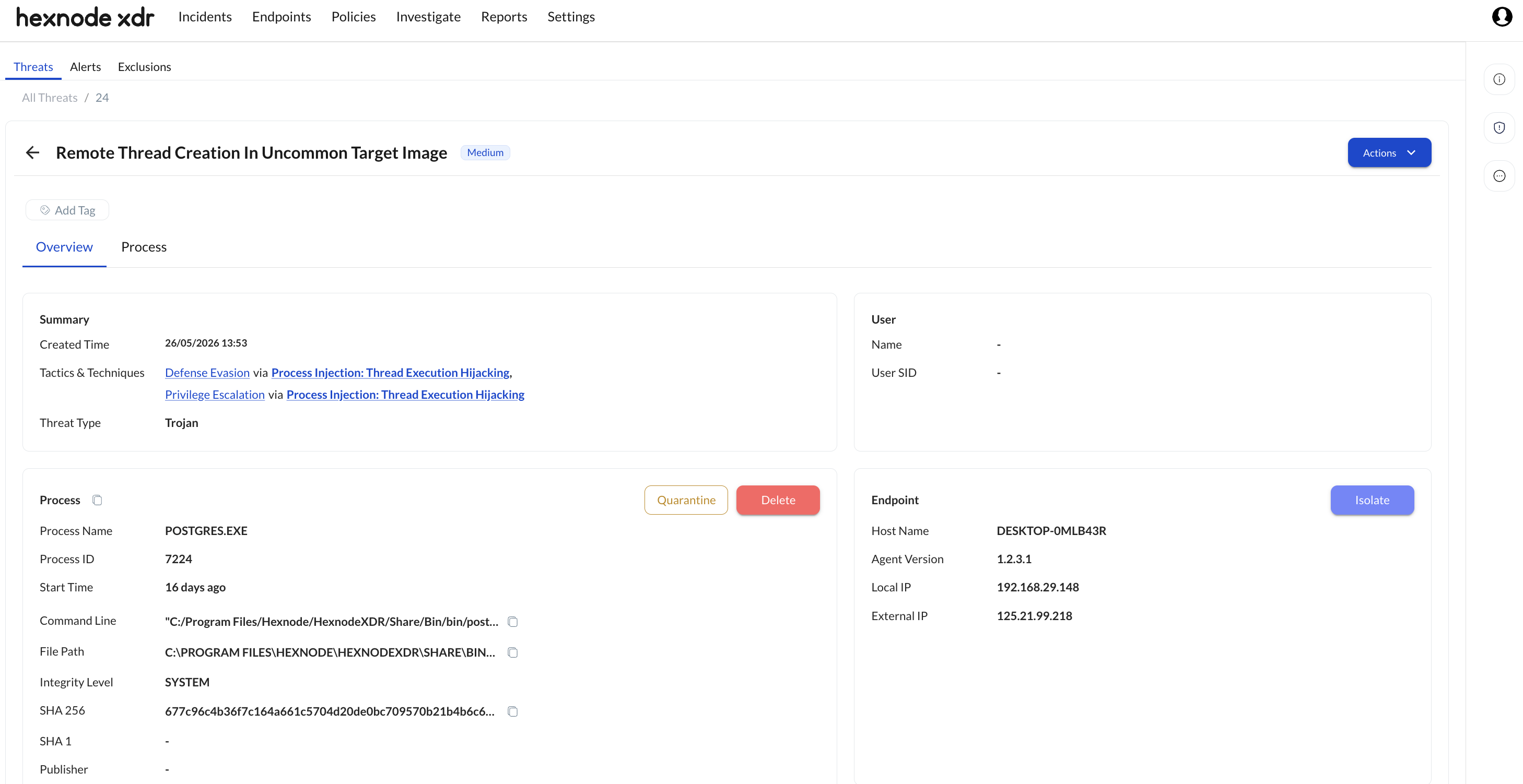
- Threat Name & Severity: Displays the specific behavioral flag (e.g., Remote Thread Creation In Uncommon Target Image) alongside its risk rating (e.g., Medium).
- Add Tag: Allows administrators to configure custom, searchable labels for the threat record to assist in sorting complex investigations.
- Actions Button: Hexnode XDR provides a suite of administrative actions accessible via the Actions dropdown menu. Administrators can execute the following immediate remediation and documentation operations:
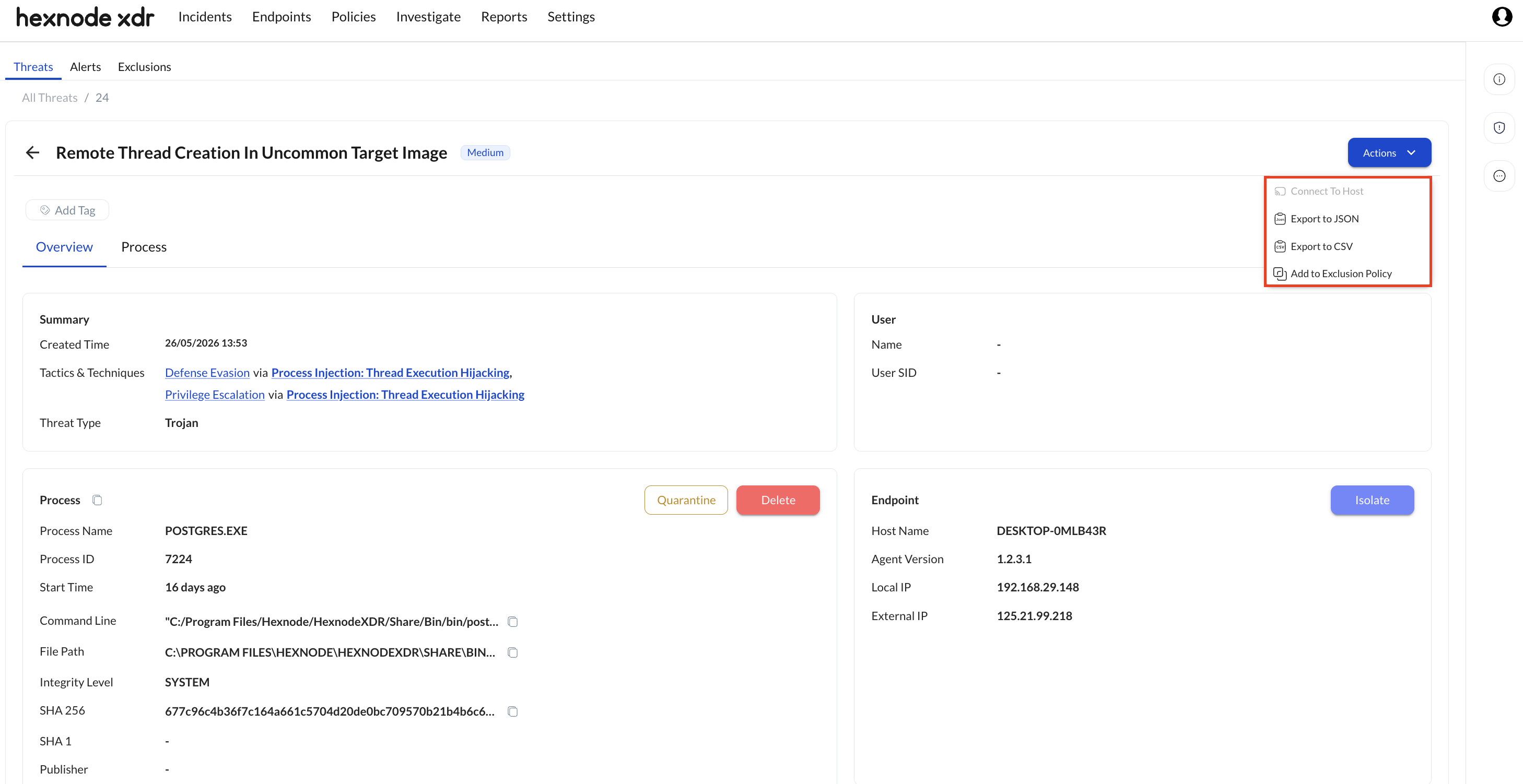
- Connect To Host: Launches a live remote terminal session directly to the compromised endpoint for manual command-line remediation.
- Export to JSON / Export to CSV: Local download options for the specific threat’s forensic data.
- Add to Exclusion Policy: Used to exempt confirmed false positives (e.g., a legitimate database process like postgres.exe executing a remote thread). This modal provides three ways to define the exclusion:
- File/Folder: Instructs XDR to ignore a specific file at an exact path (e.g., C:\PROGRAM FILES\HEXNODE\…\POSTGRES.EXE).
- Hash/SHA 256: Instructs XDR to ignore this exact version of the file regardless of its location or filename. This is the most secure and precise method for excluding a single legitimate file.
- File Extension: Instructs XDR to ignore all files ending in a specific extension (e.g., .EXE).
- Caution: Checking this box is highly insecure and not recommended, as it blinds the XDR to virtually all standard executable malware.
Once the exclusion is successfully created, it can be viewed within the Exclusions subtab located under the Incidents tab in Hexnode XDR.
Beneath these top-level controls, the investigation is split into two primary sub-tabs: Overview and Process.
Overview Sub-Tab
Summary Block
Provides the highest-level context of the incident, explaining exactly how the attacker is attempting to compromise the system.
- Created Time: The exact timestamp of the detection.
- Threat Type: The classification category (e.g., Trojan, Stealer).
- Tactics & Techniques: The explicit methodology mapped directly to the MITRE ATT&CK framework (e.g., Defense Evasion via Process Injection: Thread Execution Hijacking).
Process Metadata & File Actions
Since most threats originate from an executable file spawning a malicious process, this section details the root cause.
- Process Name & Process ID: The OS-level identifiers for the executing payload.
- Start Time: When the process initialized.
- Command Line: The exact string of code used to launch the process.
- File Path: The absolute directory location of the executable.
- Integrity Level: The privileges the process holds (e.g., SYSTEM).
- SHA-256 & SHA-1: The cryptographic fingerprints of the source file.
- Publisher: The cryptographic signer of the executable (if any).
Within this block, administrators have access to two immediate execution buttons:
- Quarantine File: Encrypts and moves the malicious root file to a highly restricted location on the endpoint, rendering it completely inaccessible to the OS and the user.
- Delete File: Permanently and irreversibly removes the threat file from the endpoint.
User Identity Context
Displays the identity parameters active during the execution of the threat to track potential credential compromise.
- Name: The local account username active during the event.
- User SID: The precise Security Identifier of the compromised user profile.
Endpoint Telemetry & Network Isolation
Provides critical network and agent identification data required for tracking the physical or virtual machine.
- Host Name: The designated name of the endpoint.
- Agent Version: The current build of the Hexnode XDR agent installed.
- Local IP & External IP: The internal routing and external public-facing addresses.
This section also houses the critical Isolate button. Executing this command immediately severs the compromised machine from all external internet access and internal lateral network pathways. The endpoint is effectively quarantined, preserving an exclusive, heavily secured communication loop back to the Hexnode XDR console to safely execute remote remediation commands.
Canary (Exclusively for Ransomware)
Ransomware canaries are strategically placed decoy files located within commonly targeted endpoint directories (e.g., C:\Users\…\Documents\Financial_Reports.docx) designed to act as an early-warning tripwire for ransomware execution. Hexnode XDR continuously monitors these files for unauthorized modifications, identifying threats before the encryption payload can spread across the broader file system. When a canary is tripped, this section details:
- File Name: The specific name of the decoy file that was unlawfully altered during the malicious activity.
- File Path: The absolute directory path indicating exactly where the targeted canary file resides on the endpoint.
- SHA-256: The unique cryptographic hash value of the canary file, utilized to verify the baseline file integrity.
- Trigger Reason: The explicit behavioral action that generated the threat flag (e.g., modified, encrypted, or decrypted), serving as a definitive indicator of active ransomware behavior.
Advanced Forensic Lifecycles via the Process Sub-tab
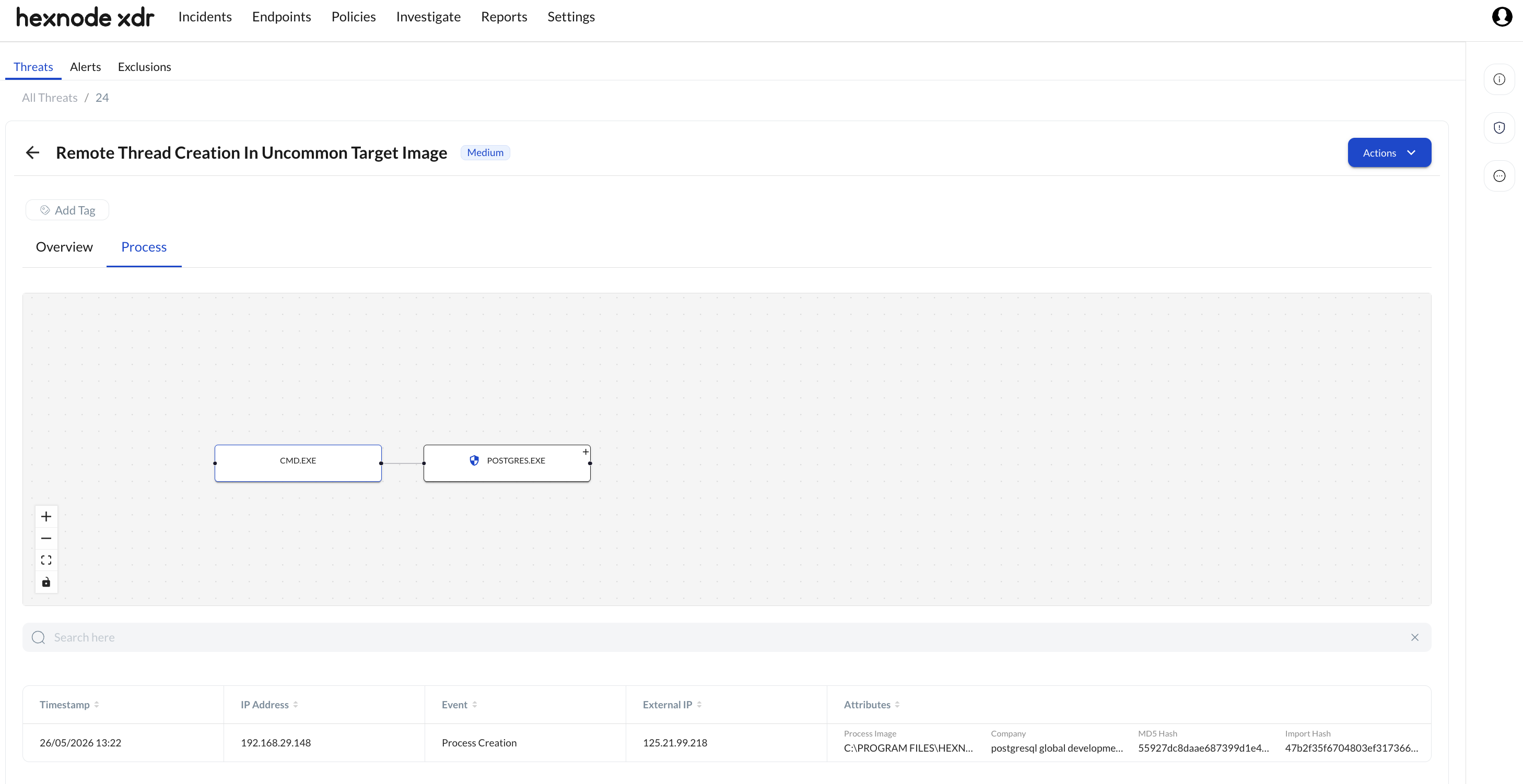
What is a Process?
At its core, a malicious file resting on a hard drive cannot inherently damage an endpoint; it is simply dormant code. A process is the active execution of that code within the operating system’s memory. When an attacker deploys a malicious executable or script, the OS spawns a process to carry out the payload’s programmed instructions. Consequently, while static file metadata tells you what the threat is, analyzing the active process reveals exactly how the attack is operating. The Process sub-tab transitions the investigation from static metadata into a dynamic, visual behavioral breakdown of the threat’s execution chain.
The Interactive Process Tree
This interface visualizes the threat lifecycle by mapping parent-child execution relationships. The processes are connected by Nodes, with each node clearly displaying the associated process name, allowing technicians to trace exactly how a malicious payload unpacked and executed across the operating system.
Hover Attributes
Hovering the cursor over any individual process node dynamically renders a tooltip containing critical metadata. This allows administrators to quickly assess a node without navigating away from the visual tree:
- Start Time: The exact timestamp when the process was initiated by the system or parent process.
- Process ID: The unique numerical identifier (PID) assigned to the active process by the operating system.
- Command Line: The precise string of code or arguments used to launch the process, revealing potential hidden execution flags.
- File Path: The absolute directory location of the executable file on the endpoint’s disk.
- Hash: The cryptographic signature of the file, allowing technicians to verify the payload against external threat intelligence databases.
- Integrity Level: The privilege level or execution rights granted to the process (e.g., SYSTEM, High, Medium).
Node Remediation Actions
Clicking the chevron down icon (down arrow) at the end of an individual process node reveals a menu with the following targeted remediation actions:
- Kill Process: Immediately terminates the execution of the selected running process in real-time.
- Delete Process: Permanently deletes the absolute root executable file from the endpoint’s disk that initiated the selected process.
- Expand / Collapse: Toggles the visibility of the underlying child processes spawned by the selected parent node.
- Kill Process Tree: Atomically terminates the selected parent process along with every single child process generated down that specific execution chain, instantly neutralizing the entire branch of the attack.
Telemetry Event Table
Positioned directly below the interactive process tree is a comprehensive tabular list tracking granular, chronological execution events associated with the selected node. This grid provides deep investigative context, detailing:
- Timestamp: The exact date and time the specific event occurred on the endpoint.
- IP Address: The local network routing address of the compromised machine.
- Event: The classification of the specific action executed (e.g., file creation, network connection, registry modification).
- External IP: The public-facing IP address utilized by the endpoint during the event.
- Attributes: Rich forensic metadata associated with the event. Depending on the event type, this exposes deep contextual details such as cryptographic hashes (MD5, SHA1, SHA256), exact command-line executions and arguments, source and target process images, specific process IDs and GUIDs, logon context, and thread start addresses in memory.
Frequently Asked Questions
What is the operational difference between a "True Positive" and a "False Positive" verdict?
Marking a threat as a True Positive confirms that the XDR agent properly identified genuinely malicious or unauthorized activity, moving the event into history for compliance tracking and post-incident review. Marking it as a False Positive indicates that the detected activity was safe, expected, or authorized administrative behavior. Assigning a False Positive verdict helps filter metrics and lets the security team know no further remediation is required.
When should I use "Kill Process Tree" instead of just "Kill Process"?
Use Kill Process if you only need to terminate a single rogue or stalled child process without disrupting its parent application. Choose Kill Process Tree when dealing with an active attack branch (e.g., a script execution hosting multiple malicious sub-processes). Killing the entire tree ensures that the root process and all associated child processes down the chain are neutralized simultaneously, preventing orphaned malware processes from continuing to execute.
If I click "Isolate" on an endpoint, will I lose my ability to manage it via the Hexnode XDR console?
No. The Isolate action cuts off all standard internet access and local subnet lateral paths to prevent the threat from spreading or communicating with an external C2 server. However, it intentionally maintains an exclusive, heavily secured, isolated control channel back to the Hexnode XDR console. This ensures you can still run remote actions, use the Connect to Host terminal tool, and apply remediation commands.
Why is excluding an entire file extension (like .exe) considered highly insecure?
Creating an exclusion by file extension instructs Hexnode XDR to ignore security events for every file matching that type across the entire environment. Because executable files (.exe) are the primary vehicle for Windows-based malware, blinding the XDR system to this extension would allow any executable threat or ransomware payload to run completely unmonitored. It is always recommended to use precise exclusions like Hash/SHA 256 instead.
Will "Delete File" automatically terminate the process currently running from that file?
No. If a process is actively running in system memory, the operating system will often lock the file on disk, which can prevent direct deletion, or the process may continue to execute from memory even if the disk file is successfully removed. The correct incident response workflow is to first stop execution using Kill Process or Kill Process Tree, and then proceed with Delete File or Quarantine File to remove the dormant payload from disk.
How do Ransomware Canaries detect zero-day ransomware before my regular backups are affected?
Ransomware canaries are specialized decoy files placed out of sight within high-target user folders. Because ransomware payloads systematically scour the local drive to encrypt as many documents as possible, they inevitably attempt to modify or encrypt these canary files early in their routine. Since the Hexnode XDR agent places a direct monitor on these exact filenames, any unexpected modification instantly flags the threat and allows administrators to execute immediate network isolation before the malware sweeps across legitimate company data.


