




Category filter
Policy Deployment Status: Tracking Fleet Configurations
Within Hexnode XDR, the Deployment Status subtab, under the Policies tab, bridges this critical gap between configuration and active defense. Rather than blindly assuming a newly deployed policy has seamlessly taken effect, IT administrators rely on this centralized dashboard to verify successful rollouts, monitor offline devices waiting in the queue, and pinpoint specific endpoint failures, allowing them to maintain compliance without disrupting the broader network.
Administrative Use Cases
IT and Security Administrators utilize the Deployment Status subtab for three primary operational workflows:
- Compliance Assurance: Guaranteeing that mandatory security frameworks have successfully reached and applied to all intended targets.
- Targeted Remediation: Instantly isolating the specific devices that failed to apply a policy. This allows technicians to troubleshoot underlying endpoint issues without needing to halt or roll back the deployment for the rest of the network.
- Fleet Rollout Management: Tracking the progression of large-scale, staggered deployments by monitoring offline or unreachable devices waiting in the pending queue, ensuring they eventually achieve compliance upon network reconnection.
Interface Navigation and Data Customization
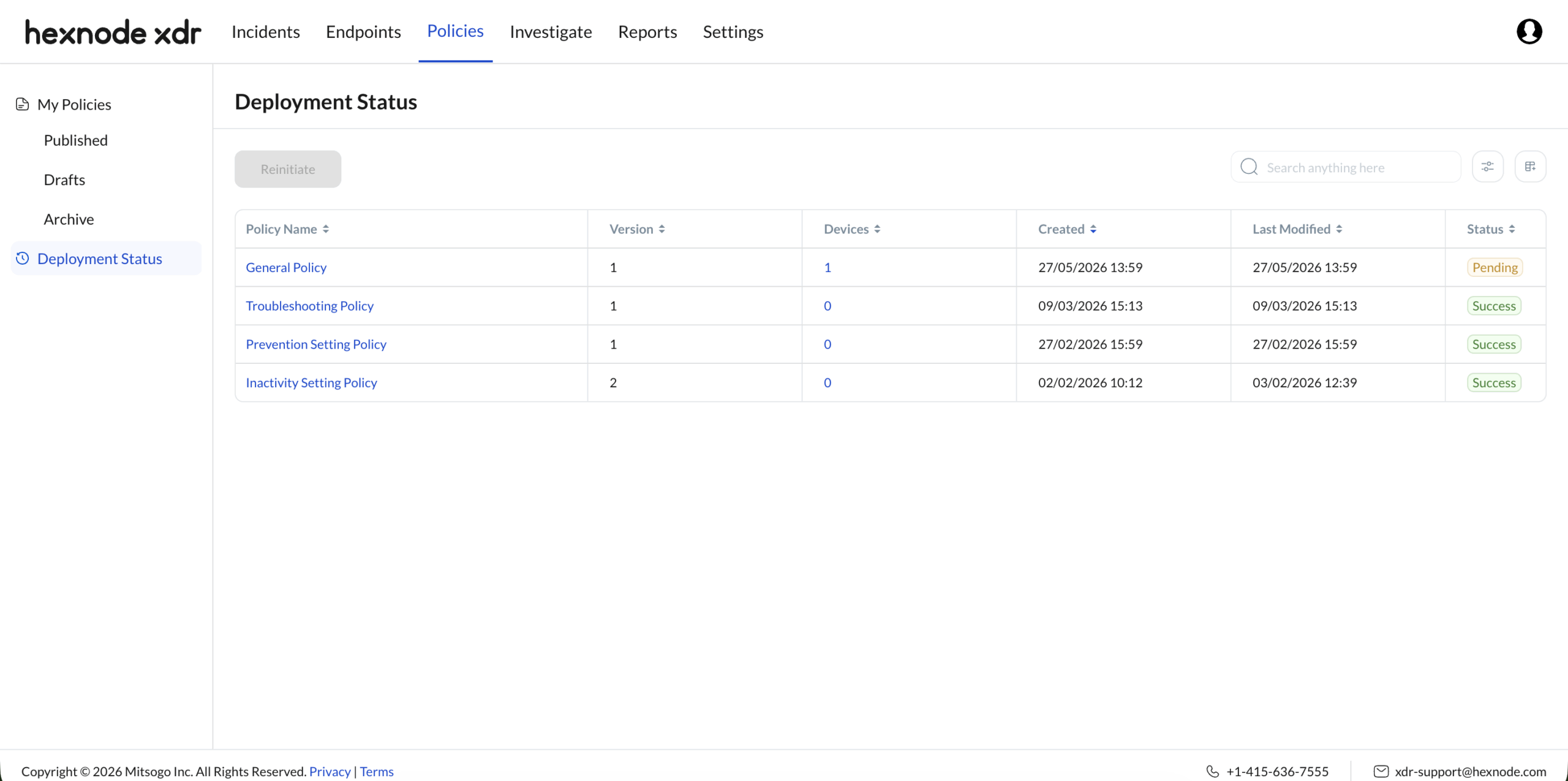
The Deployment Status subtab is built to provide both a macro-level overview of the entire fleet and micro-level endpoint diagnostics.
- The Policy Mini-Dashboard & Granular Tracking
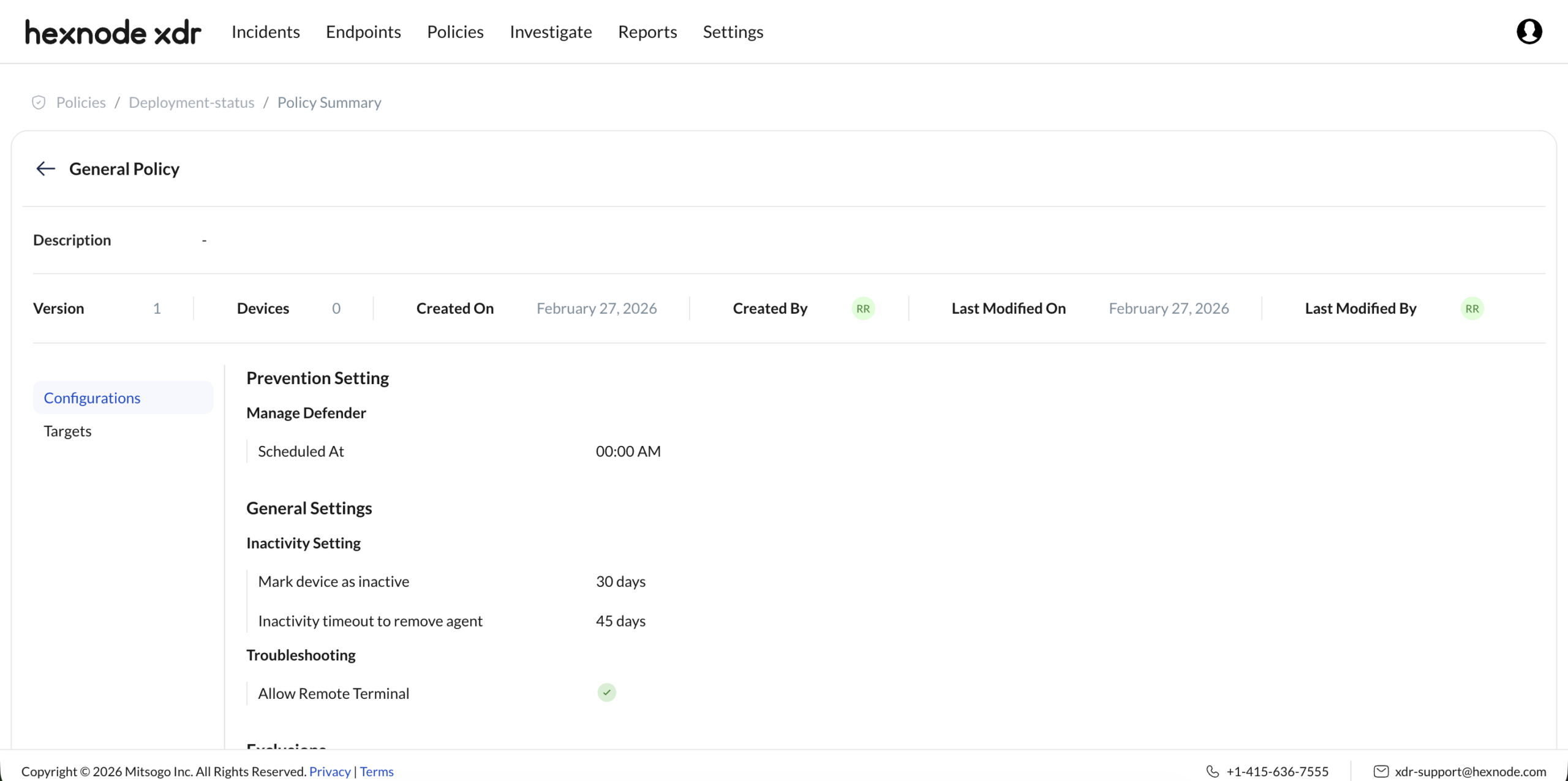
- Policy Verification: Clicking directly on any Policy Name triggers a read-only Mini-Dashboard. This displays the exact configured settings and the assigned target entities, allowing administrators to verify the rule set without navigating away from the deployment tracking view.
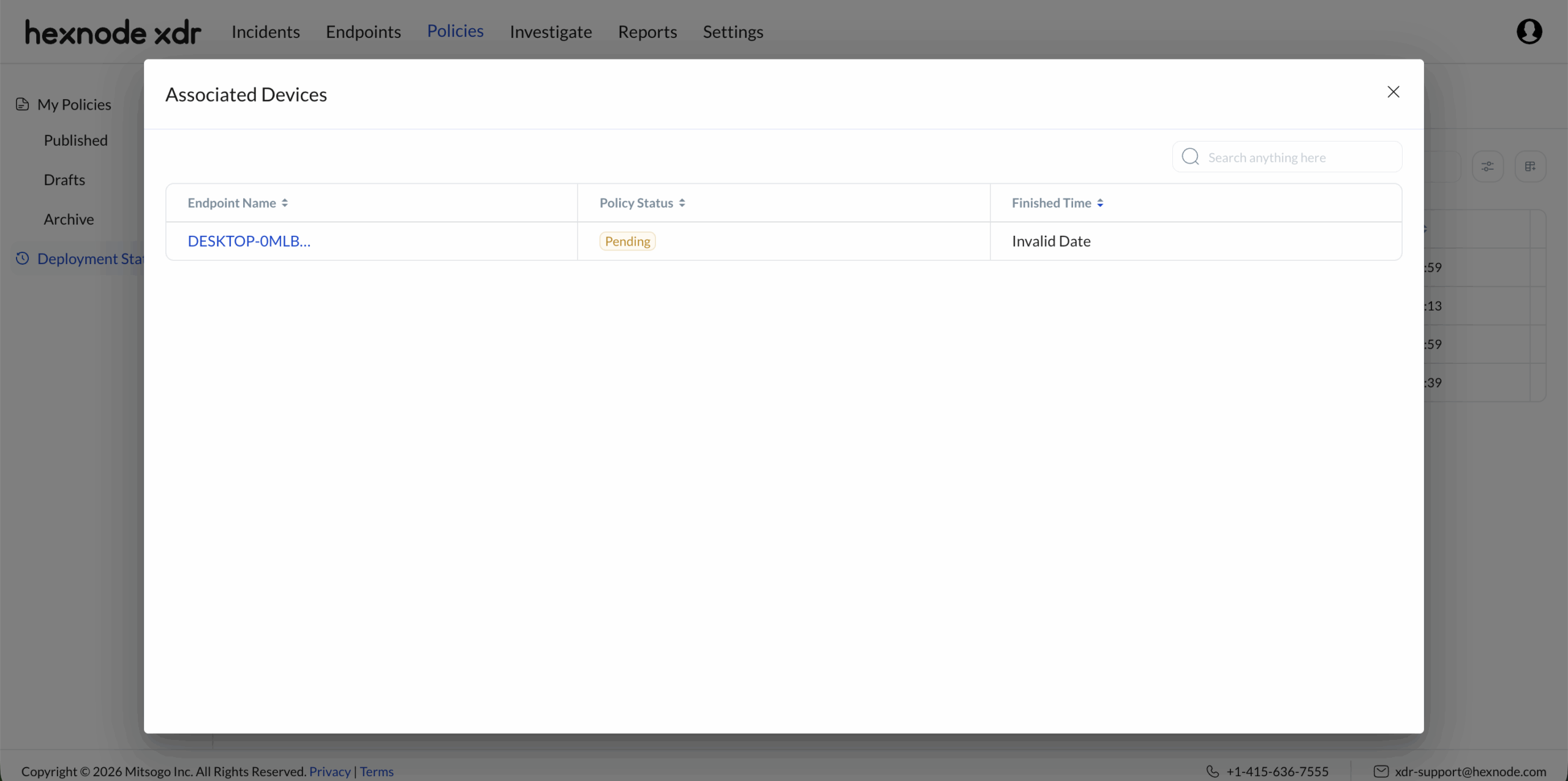
- Device-Level Diagnostics: To investigate specific device outcomes, administrators can click the numerical value in the Devices column. This action opens a granular, localized roster of all targeted endpoints. This detailed view is organized into three distinct columns:
- Endpoint Name: The name of the targeted device.
- Policy Status: A localized breakdown of the global deployment state, assigning one of three individual status tags to each device:
- SUCCESS: The policy configuration was successfully applied to this specific endpoint.
- FAILED: The policy association was unsuccessful and failed to apply to this specific endpoint.
- PENDING: The policy is yet to be associated with this specific endpoint (typically because the device is currently offline, powered down, or otherwise unreachable).
- Finished Time: The exact timestamp denoting when the policy association process concluded for that device.
- Customizing Table Columns
- Deployment Status Indicators
The tracking table utilizes strict state tags to define the current rollout progress of a published policy.
Status Tag Technical Definition SUCCESS The policy configuration was successfully applied to all targeted endpoints. PARTIAL SUCCESS The policy applied successfully to a subset of endpoints but failed or is pending on others (a mix of SUCCESS combined with FAILED and/or PENDING statuses). PENDING The policy association has been initiated but is yet to be successfully executed on the target endpoint (typically due to the device being offline or unreachable). FAILED The policy association was entirely unsuccessful and failed to apply to all intended targets. Note: Administrators can manually retry failed associations using the Reinitiate button. - Filtering the Dashboard
To handle large environments, the interface includes a robust filtering system to rapidly isolate specific deployments based on timeframe or rollout success.
Filter Category Available Parameters Administrative Function Status SUCCESS,PARTIAL_SUCCESS,FAILED,PENDINGInstantly filters the dashboard to display only the policies matching the selected deployment state. Created Start Date, End Date Filters policies based on the specific calendar window in which they were originally created. Last Modified Start Date, End Date Filters policies based on when their configurations were most recently updated or saved. - The ‘Reinitiate’ Action Workflow
The Reinitiate button allows administrators to manually trigger the deployment of previously published policies specifically onto endpoints that failed to apply them.
Core Logic: The system strictly limits the Reinitiate action to endpoints with a FAILED status. It will not disrupt devices that have successfully applied the policy, nor will it interact with devices in a pending state.
Administrators can customize the interface by clicking the column configuration icon to toggle specific metadata fields. The standard table displays six primary metadata fields: Policy Name, Version, Devices, Created Time, Last Modified Time, and Status.
| Column Name | Technical Definition |
| Policy Name (Default) | The designated title of the published policy. Acts as a hyperlink to the read-only mini-dashboard. |
| Version (Default) | The specific numerical iteration of the policy that is actively deployed. |
| Devices (Default) | The total number of managed devices targeted by the policy. |
| Created Time (Default) | The precise timestamp denoting the initial creation of the policy. |
| Last Modified Time (Default) | The precise timestamp of the final configuration save prior to the policy deployment. |
| Status (Default) | The aggregate rollout state across all targeted endpoints. |
Troubleshooting
- Issue: A large number of endpoints are stuck in a “PENDING” state.
Root Cause: The endpoints are likely powered off, disconnected from the internet, or the Hexnode XDR agent app is currently unable to communicate with the central server.
Resolution: No immediate administrative action is required within the policy tab. The system will automatically attempt to push the policy once the devices reconnect to the network. If a device is known to be online, verify the local network configuration and ensure the Hexnode XDR agent app is actively running.
- Issue: A deployment shows “FAILED” for specific endpoints.
Root Cause: This typically indicates a localized configuration conflict, an unsupported payload for the target operating system, or a systemic network block preventing payload delivery.
Resolution: Click on the Devices count to identify the specific endpoints. Verify that the target devices support the specific rules defined in the policy. Once the underlying endpoint issue is resolved, use the Reinitiate button to retry the deployment on those specific devices.
Frequently Asked Questions
How do I find out exactly which devices failed to receive the policy?
In the Deployment Status subtab, click on the numerical value in the Devices column for the specific policy. This will open a detailed list showing the individual deployment status for every targeted device.
Does "Partial Success" mean the policy is broken?
No. A “Partial Success” status simply means the deployment has mixed results across your fleet. It successfully applied to some devices, while others are either still waiting to receive it (Pending) or rejected it (Failed).
Can I force a policy to retry if it fails?
Yes. If a policy fails on specific devices, administrators can select the policy and click the Reinitiate action. This action specifically targets and retries the deployment only for devices with a FAILED status.


