




Category filter
Hexnode XDR Published Policies: Managing Active Configurations
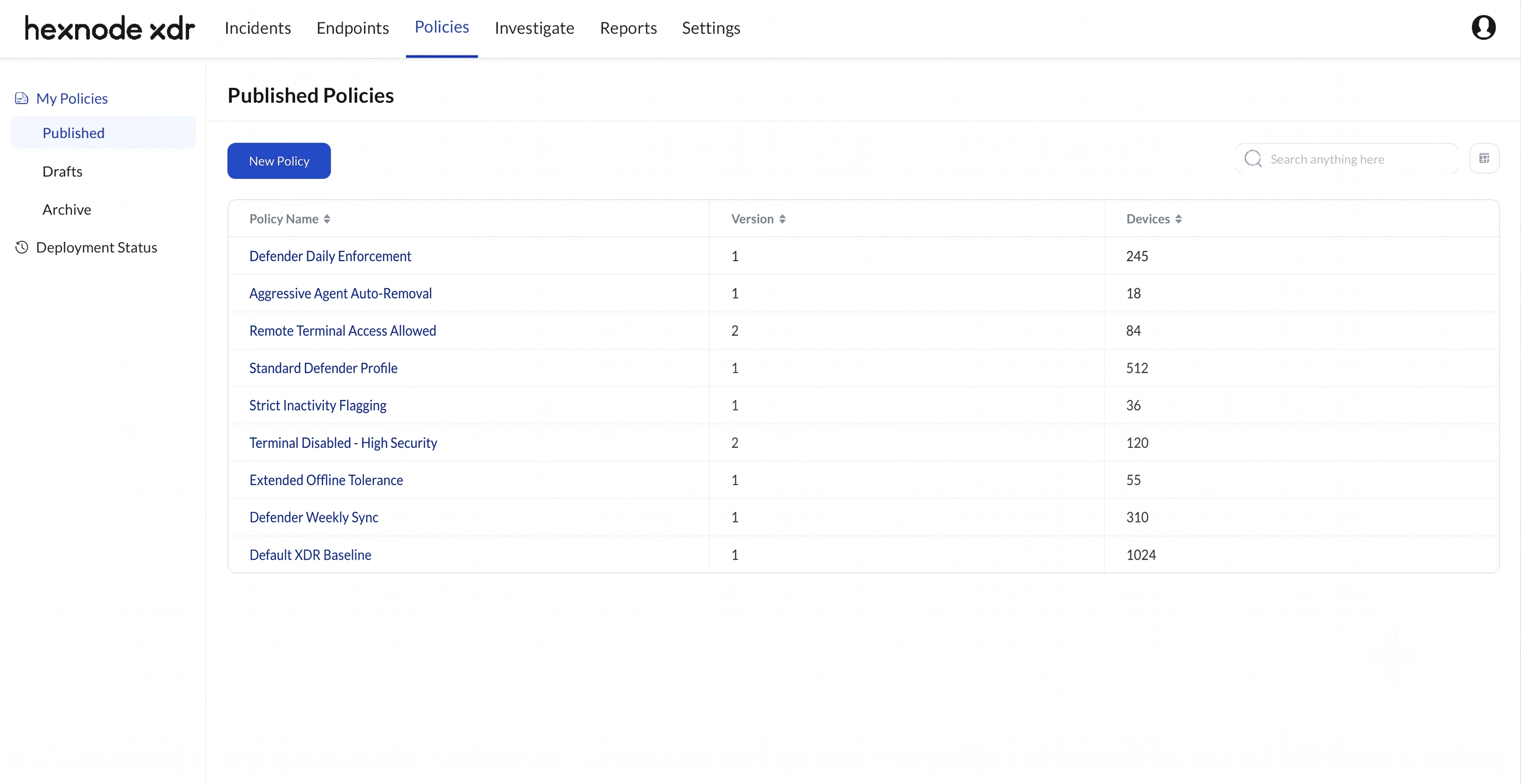
The Published section is a dedicated sub-tab within the My Policies dashboard representing the active security posture of your network. A policy lands in this tab when an administrator clicks Publish at the end of the policy creation workflow. Once published, these configurations are actively deployed to and enforced on the target endpoints, representing the live security posture of your network.
Core Operations & Active Enforcement
What is a Published policy in Hexnode XDR?
A Published policy is a live configuration profile that is actively enforced on designated target endpoints. Unlike Drafts, which are in the planning phase, publishing a policy immediately deploys your defined security rules (such as inactivity thresholds and Defender management) to the selected devices or endpoint groups.
How do I safely update a live policy without causing immediate network disruptions?
Hexnode XDR protects live environments by decoupling the editing process from the deployment process. You can open a Published policy, click Edit, and modify parameters (like changing the Defender enforcement schedule). However, these changes will not impact your endpoints until you explicitly click Save > Publish. This allows administrators to stage updates on live policies before deploying them out.
Conflict Resolution & Overlaps
How does Hexnode XDR handle conflicting settings if a device is assigned multiple published policies?
In complex IT environments, a single endpoint often belongs to multiple groups (e.g., “All Windows Devices” and “Executive Laptops”), resulting in overlapping policies. Hexnode XDR resolves these conflicts by prioritizing security and recency. If settings clash, the system enforces either the most restrictive parameter or the most recently published policy (identified by the highest version number). For example, if one overlapping policy enables the Remote Terminal and another disables it, Hexnode XDR will default to the more restrictive setting (disabled) to ensure the device maintains the strongest possible security posture.
Can I target both individual devices and bulk groups with the same published policy?
Yes. Hexnode XDR supports mixed targeting. Within a single policy, administrators can select predefined Endpoint Groups for bulk deployment and manually add Individual Endpoints (via Host Name or ID) to include specific devices that fall outside those groups but need the same security settings.
Troubleshooting & Emergency Rollbacks
How do I quickly stop a published policy from enforcing a problematic configuration?
If a live policy causes unexpected issues, such as prematurely triggering the “Inactivity Timeout” or blocking remote terminal access, you should immediately move it to the Archive. Archiving instantly halts the policy’s enforcement on all endpoints. The configuration remains safely stored in your database, allowing you to audit the original settings, fix the problematic parameters, and restore or reassign the policy when you are ready.
What happens if a published policy fails to reach an endpoint because the device is offline?
Publishing a policy does not guarantee immediate application if the target endpoint is unreachable. To manage this, administrators should check the Deployment Status tab. If an endpoint shows a “Failure” status, you do not need to republish the entire policy. Instead, use the Reinitiate action to selectively retry the deployment only for the devices that failed the initial deployment.
Best Practices for IT Teams
When should I create a new Published policy versus updating an existing one?
- Update an existing policy when you are making incremental tweaks to an existing security baseline for the same group of users (e.g., adjusting the “Mark Device as Inactive” threshold from 14 days to 30 days).
- Create a new policy when you are introducing a fundamentally different security posture for a new subset of users, or when you need to maintain the original policy as a fallback.


