Centralized Zebra Link-OS printer management replaces inconsistent, device-by-device administration with controlled workflows across the printer lifecycle.
Configuration drift, outdated firmware and limited visibility can increase downtime, failed print jobs, security exposure and on-site support.
Build model-specific baselines, secure connectivity, validate firmware and files through pilot groups, monitor fleet health and remove stored credentials during retirement.
Hexnode UEM supports enrollment for Link-OS 5.0-or-later printers, with dedicated policies, deployments, scripts, maintenance and remote-recovery actions.
Why Does Managing Zebra Link-OS Printers Become Difficult at Scale?
Managing Zebra Link-OS printers becomes difficult at scale because individually configured devices gradually develop inconsistent settings, firmware versions, label templates and security controls. This configuration drift prevents IT from maintaining a reliable standard across locations.
In warehouses, retail stores, manufacturing facilities and healthcare environments, technicians may need to inspect printers individually. Manual checks slow maintenance, increase on-site support requirements and make recurring failures harder to diagnose consistently.
This extends beyond print-job management. Printer fleet management covers the complete lifecycle: provisioning, configuration, network connectivity, firmware maintenance, security, troubleshooting, reassignment and retirement. Reliable operations require centralized visibility and repeatable controls—not just monitoring print queues and failed jobs.
What Are the Risks of Poor Zebra Printer Management?
Poor Zebra printer management can turn a device failure into a wider operational disruption. Printer downtime may stop barcode generation, delay shipping and inventory movement, interrupt patient identification, or prevent point-of-sale teams from producing receipts and labels.
Configuration drift can produce inconsistent label layouts, incorrect print settings and failed print jobs. Outdated firmware may leave known defects unresolved, while unnecessary or improperly secured network services expand the printer’s attack surface. These issues also generate avoidable support tickets.
Without centralized status and configuration visibility, IT must diagnose failures manually. Slow fault isolation increases mean time to repair (MTTR) and may require costly on-site intervention.
What Is Zebra Link-OS Printer Management?
Zebra Link-OS printer management is the centralized administration of compatible Zebra printers across enrollment, configuration, security, deployment, maintenance and recovery. It replaces isolated, device-by-device administration with consistent controls applied throughout the printer lifecycle.
Link-OS is Zebra’s printer operating system and the foundation for Zebra DNA for Printers. This software ecosystem includes applications, utilities, development tools and management capabilities for configuring printers, securing communications, deploying operational files, maintaining firmware and diagnosing problems.
Support cannot be assumed solely because a printer carries the Zebra brand. Before deployment, IT must verify the printer model’s Link-OS compatibility, installed firmware version and available interfaces, such as USB, Bluetooth, Ethernet or Wi-Fi. The selected management platform must also support the required model, version and administrative workflow.
Note:
Link-OS support alone does not guarantee access to every management control. Confirm the printer model, firmware version, installed interfaces and management-platform compatibility before deployment.
How Do Link-OS and Zebra DNA for Printers Work Together?
Link-OS provides the operating-system layer controlling printer hardware, connectivity, storage and core printing functions. Zebra DNA for Printers surrounds this foundation with tools for setup, security, integration, application development and remote management.
Relevant components include Printer Setup Utilities for initial configuration, PrintSecure for hardening, Weblink for connecting printers to web-based services, printer management software for fleet administration and the Link-OS Multiplatform SDK for integrating printing into applications.
These components use different command paths. Zebra Programming Language (ZPL) defines label formats and printing instructions. Set-Get-Do (SGD) commands retrieve or modify printer settings, while supported management interfaces expose these controls to local utilities, custom applications or centralized platforms.
What Can Administrators Manage on Link-OS Printers?
Administrators can manage a Link-OS printer’s identity, connectivity, configuration, security, operational files and maintenance state. The available controls depend on how the printer is connected and managed.
Management area
Practical controls
Inventory
Model, serial number, firmware version, network identity and assigned location
Network connectivity
Wi-Fi profiles, Ethernet settings, IP configuration, Bluetooth and Weblink connectivity
Printer configuration
Print speed, darkness, media handling, calibration, device language and time settings
Security
Certificates, encrypted protocols, interface restrictions, protected settings and access controls
Operational content
Label formats, templates, graphics, fonts and printer-resident files
Local utilities suit staging and individual repairs. Centralized platforms support repeatable configuration across locations. The final choice depends on whether IT requires specialized, printer-only administration or unified management alongside laptops, mobile devices and other enterprise endpoints.
How Do Local Utilities, Zebra-Native Tools, and UEM Differ?
The main differences are management scale, remote reach and endpoint scope.
Approach
Scale and reach
Workflows
Infrastructure and scope
Local setup utilities
Individual or nearby printers
Initial setup, connectivity changes and repair
Technician device; printer-specific
Zebra-native management tools
Centralized Zebra printer fleets
Configuration, security, monitoring and maintenance
Dedicated printer-management environment
UEM
Distributed printers and other endpoints
Policy deployment, inventory, maintenance and remote actions
Consolidated endpoint-management console
Local utilities suit staging and individual repairs. Centralized platforms support repeatable configuration across locations. The final choice depends on whether IT requires specialized, printer-only administration or unified management alongside laptops, mobile devices and other enterprise endpoints.
Unified IoT Device Management Strategy: Why It Matters Now
Learn how unified management improves control across printers and other purpose-built enterprise endpoints.
How Should IT Implement Zebra Link-OS Printer Management?
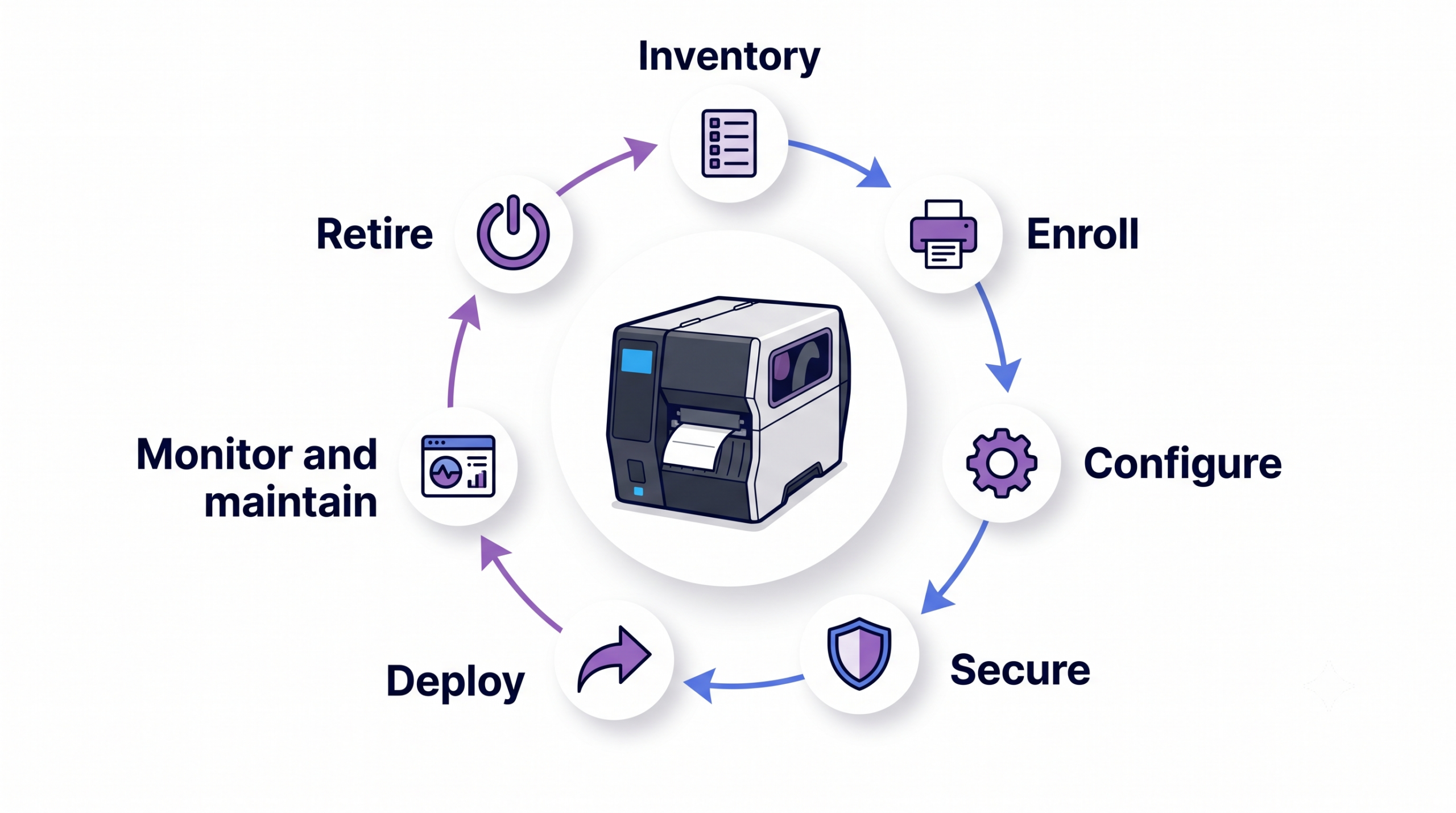
IT should implement Zebra Link-OS printer management as a structured lifecycle: assess requirements, enroll printers, establish configuration baselines, secure connectivity, deploy operational resources, monitor health, maintain firmware, troubleshoot failures and retire devices safely.
This lifecycle must operate as a continuous management program rather than a one-time setup project. The following steps provide a repeatable deployment framework that IT teams can apply to new printers, existing fleets and replacement devices across distributed locations.
Zebra Link-OS printer management lifecycle
Step 1: Inventory Printers and Define Management Requirements
Start by creating an authoritative inventory that reflects each printer’s technical state, operational role and support priority.
Record the model, serial number, Link-OS version, firmware version, location, owner, network interface, print language, business function and criticality of each printer.
Segment the fleet by site and use case. Separate desktop, industrial, mobile, RFID, card and healthcare printers where applicable because their configurations, workloads and recovery priorities differ.
Define approved configuration baselines, firmware versions, certificate requirements and maintenance windows for each segment. Assign administrative ownership and establish recovery objectives based on how long the associated business process can tolerate printer downtime.
Pro tip:
Assign each printer segment a baseline ID and record it in the inventory. This makes configuration exceptions, firmware targeting and post-deployment validation easier to track.
Step 2: Choose an Enrollment and Connectivity Model
Define how each printer segment will be staged, registered and assigned before selecting an enrollment workflow. Account for technician-led provisioning, authenticated enrollment, batch staging, replacement devices and printers deployed at remote locations.
Map the connectivity required at each stage. USB or Bluetooth may support initial staging, but production connectivity can use USB, Bluetooth, Wi-Fi or Ethernet depending on the printer model and operational workflow. Keep temporary staging access separate from the final network configuration to prevent test credentials or provisional settings from remaining on deployed printers.
Before rollout, verify firewall rules, DNS resolution, time synchronization and certificate trust. Confirm that each printer can establish the required outbound communication and reliably reach the selected management service from its production network and location.
Step 3: Build and Secure a Standard Configuration Baseline
Create a documented baseline for every printer segment. Standardize network settings, print speed, darkness, media handling, calibration, device language, time settings and other approved operational defaults. Validate the baseline on a representative printer before wider deployment.
Apply least privilege to administrative access and least functionality to printer configuration. Disable unnecessary interfaces, protocols or services where supported, restrict unauthorized setting changes and use encrypted connections for administrative and printing traffic. Deploy trusted certificates when required for network authentication, HTTPS or other secure communication workflows.
Do not apply one universal profile to the entire fleet. Maintain separate baselines for different models, firmware branches, locations and operational roles. This prevents incompatible settings from reaching printers with different hardware capabilities, media requirements or connectivity configurations.
Step 4: Deploy Templates, Fonts and Firmware Safely
Store approved label templates, formats, graphics, fonts and other printer-resident files in a controlled repository. Track file versions, deployment targets and dependencies, and retain validated earlier versions to support rollback.
Before distributing firmware or operational files, verify compatibility with the printer model and installed Link-OS version. Deploy first to a representative pilot group during a maintenance window. Firmware updates require stable power and connectivity because an interrupted transfer or restart can leave the printer unavailable.
After deployment, confirm that the printer returns online with the intended configuration. Test barcode readability, field positioning, media calibration, print darkness and speed. Validate output against downstream scanners and business applications before expanding the deployment to production groups.
Warning:
Do not interrupt printer power or connectivity during a firmware update. Pilot the exact firmware file on the target model before deploying it across the fleet.
Step 5: Monitor, Troubleshoot and Retire Printers
Monitor signals that reveal both printer availability and management health. Track network reachability, firmware version, configuration state, error conditions, remote-action status and recurring failures by site or model. Use trends to identify systemic issues rather than treating every alert as an isolated fault.
Troubleshoot in a consistent sequence. Verify power and network connectivity first, followed by DNS, time, certificates, enrollment status and communication with the management service. Then inspect configuration deployment, label files and output, firmware state and physical components.
Before disposal or reassignment, remove locally stored templates and files, network credentials, certificates and custom settings. Reset the printer as appropriate and remove its management assignment and inventory association so stale records or credentials do not persist.
What Zebra Link-OS Management Best Practices Should IT Follow?
IT should prioritize controlled change, clear ownership and measurable fleet health.
Use phased rollouts, model-specific baselines and named configuration owners. Store scripts, templates and settings as version-controlled files, document approved exceptions and schedule periodic configuration reviews.
Track enrollment success, configuration compliance, firmware coverage, failed remote actions, printer downtime and on-site interventions. Segment results by model and location to expose recurring problems.
Never deploy untested commands, firmware or label files directly to production fleets. Validate changes on representative devices first, and do not assume that every Link-OS model or firmware version exposes identical management controls.
How Does Hexnode UEM Support Zebra Link-OS Printer Management?
Hexnode UEM brings supported Zebra Link-OS printers into the centralized console used to manage other enterprise endpoints. IT can enroll printers and apply dedicated printer policies and remote actions without maintaining a separate interface for routine workflows.
Zebra printer enrollment in Hexnode requires Link-OS 5.0 or later. Management uses Hexnode’s dedicated Zebra Printer workflows. These are distinct from Zebra OEMConfig, which extends Android Enterprise management for Zebra rugged mobile devices rather than Link-OS printers.
Enroll, Configure and Secure Zebra Printers with Hexnode
Hexnode provides Open Enrollment and Authenticated Enrollment for supported Zebra printers. Open Enrollment supports technician-led provisioning through Android or iOS devices using Bluetooth, or through Windows using USB. Authenticated Enrollment uses a Windows device and supports Local User or Self Enrollment workflows. It can also require the organization’s configured pre-shared key.
After enrollment, IT can create Zebra Printer policies for Base Settings, Ethernet, Wi-Fi, Certificates, Weblink, Restrictions and Real Time Clock. These controls help standardize printer behavior, production-network connectivity, certificate trust, remote-service connections and permitted device functions.
For comparable printer models and roles, Mirror Printer Configuration can copy a validated configuration from a known-good printer to other deployments. Hexnode’s Certificates policy can remotely deploy multiple certificates in supported PEM and DER formats, helping administrators establish consistent certificate-based trust across managed printers.
Featured Resource
Manage endpoints from one console
See how Hexnode UEM centralizes endpoint enrollment, configuration, security and lifecycle management.
Deploy, Maintain, Diagnose and Recover Zebra Printers with Hexnode
Hexnode provides dedicated workflows for Zebra Printer Label Settings, Deploy Zebra Label Format or Template, Updating Zebra Printer Firmware and Deploy Custom Print Font. These controls let IT distribute approved printing resources and firmware without configuring each printer locally.
For requirements beyond predefined policies, Execute Custom Script supports ZPL, ZBI and SGD commands. Supported script file types include .zpl, .nrd, .txt, .lbl and .zbi. Administrators should test every script against the target printer model and firmware version before production deployment because available commands and resulting behavior may differ.
For remote diagnosis and recovery, IT can perform a Factory Reset, reset network settings, run Print Label to obtain configuration details, and use Restart Network Interface to restart both the print server and the wired or wireless network interface card. Action History helps administrators verify execution results and investigate unsuccessful remote actions.
FAQs
How can I check whether a Zebra printer supports Link-OS management?
Check the printer model, installed Link-OS version, firmware level and available connectivity interfaces. Then confirm that the selected management platform supports that exact model, version and required workflow.
Should every Zebra Link-OS printer use the same configuration profile?
No, configuration baselines should reflect the printer model, firmware branch, location and operational role. Separate profiles reduce the risk of deploying incompatible network, media or print settings across dissimilar printers.
What should IT test before deploying Zebra printer firmware at scale?
Verify model and firmware compatibility, then deploy the update to representative pilot printers during a maintenance window. Confirm that each printer reconnects successfully and that label output, media calibration, barcode readability and downstream scanning still work correctly.
What is the difference between ZPL and SGD commands?
ZPL primarily defines label formats and printing instructions, while SGD commands retrieve or modify printer configuration settings. Supported management tools may use both command types for different printing and administrative workflows.
What should IT remove before retiring a managed Zebra printer?
Remove stored templates, fonts, network credentials, certificates and custom configuration data before disposal or reassignment. Reset the printer appropriately and remove its management and inventory associations to prevent stale access or records.
What Link-OS version does Hexnode require for Zebra printer enrollment?
Hexnode supports Zebra printer enrollment on devices running Link-OS 5.0 or later. IT should also verify model compatibility and the requirements of the intended configuration, deployment or remote-action workflow.
Bring Zebra Printers into Your Unified Management Strategy
Distributed printer fleets become easier to govern when enrollment, configuration, security, deployment, maintenance and recovery follow repeatable workflows. This approach reduces configuration drift, improves troubleshooting consistency and gives IT lifecycle control.
Assess your printer models, Link-OS versions, network design and management controls before choosing an approach.
Manage Zebra printers with Hexnode UEM
Use Hexnode UEM to enroll, configure, secure and maintain supported Zebra Link-OS printers from one console.
Associate Product Marketer at Hexnode focused on SaaS content marketing. I craft blogs that translate complex device management concepts into content rooted in real IT workflows and product realities.