TL;DR:
Android TV Single App Mode locks a device to one application, creating secure, distraction-free displays that are easy for IT teams to manage remotely.
- Restricts access to the home screen and settings, improving focus, security, and usability for digital signage, kiosks, and shared business displays.
- Hexnode UEM lets admins deploy Single App Mode through a kiosk policy, remotely manage devices, and configure options like auto-launch and hardware button restrictions.
- Built-in remote management and file kiosk support help simplify large-scale Android TV management and reduce maintenance effort.
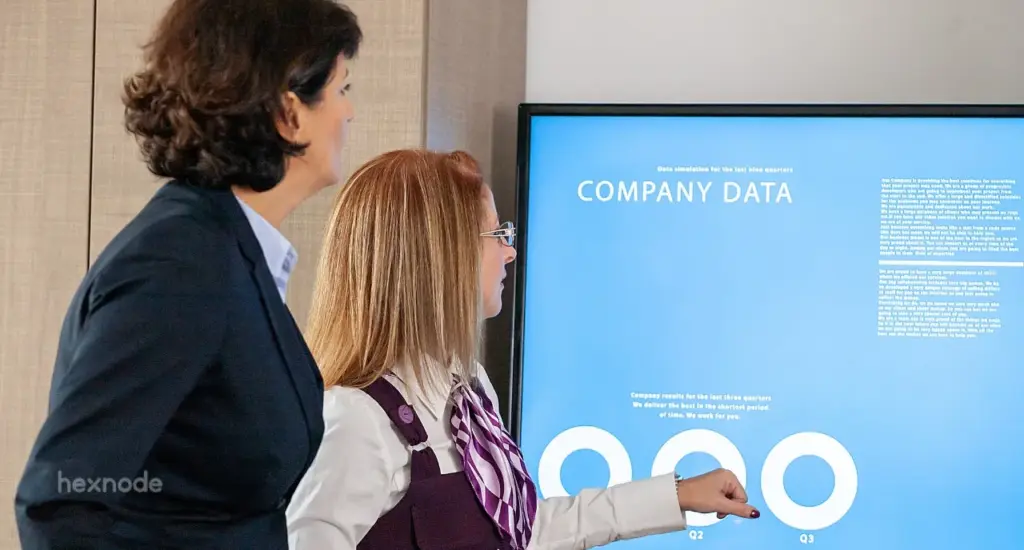
Imagine presenting a report on a large Android TV. Suddenly, a random notification pops up. A coworker accidentally switches the app. Your professional presentation is now ruined. These interruptions disrupt focus and lower productivity. Luckily, there is a simple way to stop this using Hexnode. You can lock your TV to one specific application. This ensures your screen stays dedicated to its task.
What is Android TV Single App Mode?
Android TV Single App Mode is a lockdown tool. It restricts a TV to one specific app. Users cannot access settings or the home screen. This feature turns standard TVs into dedicated Digital Signage or kiosks. It is essential for professional, distraction-free displays.
Single App Mode vs. Multi-App Mode
Single app mode locks the TV to one foreground app. Multi-App Mode allows access to a small, approved list. Use Single App Mode for signage. Use Multi-App Mode for shared office tools.
| Feature |
Single App Mode |
Multi-App Mode |
| User Freedom |
Locked to 1 app |
Access to several apps |
| Best Use Case |
Public Signage |
Training Rooms |
| Exit Security |
High Security |
Managed Access |
Benefits of Using Android TV Single App Mode
Android TV single app mode turns a standard TV into a dedicated business tool. It ensures the device stays on a single, vital task without fail. This feature is perfect for lobbies, stores, and meeting rooms.
1. Enhanced Focus
Locking your TV into one app stops all outside distractions. Employees and customers only see the content you choose. This keeps every presentation and display on track.
2. Increased Security
Kiosk mode protects your TV from unauthorized changes. It prevents users from opening settings or unapproved apps. This keeps your private business data and network safe.
A quick guide to Android TV security in kiosk mode
3. Simplified User Experience
This mode creates a very simple interface for every user. It is ideal for self service kiosks or public guests. Users can interact with the app without getting lost in menus.
4. Reduced Maintenance
Managing only one app is much easier than managing many. There are fewer software updates and bugs to handle. This results in lower costs and less work for IT teams.
5. Better Remote Control
Hexnode lets IT admins remotely manage kiosk devices, monitor their status, and troubleshoot issues to help keep digital displays operational.
Did you know?
Android TV and Google TV together surpassed 300 million monthly active devices in 2026, making them one of the world’s leading smart TV platforms. The global Android TV Box market is projected to grow at a 25.2% CAGR in 2026, reflecting increasing demand for Android TV hardware across consumer and commercial markets. By utilizing Unified Endpoint Management, you can turn these affordable consumer devices into powerful, secure enterprise tools.
Prerequisites for Android TV Kiosk Lockdown
Before you begin, make sure your setup meets the following requirements:
- An Android TV running Android TV OS 5.0 or later.
- A Unified Endpoint Management account for remote management.
- The target app must be installed on the device first.
- A stable internet connection on the TV.
How to Set Up Android TV Single App Mode using Hexnode
Setting up this mode is fast. You create a policy in Hexnode and assign it to your TV.
First-Hand Setup Experience: Step-by-Step
- Open Policies: Click “New Policy” in your Hexnode dashboard.
- Select Kiosk: Go to “Android kiosk mode” then “Single App.”
- Pick Your App: Choose the app you want to display.
- Set Auto-Launch: Auto-launch is enabled by default for Single App Kiosk with a launch delay of 0 seconds. Adjust the delay only if you want different kiosk launch behavior.
- Lock Buttons: Configure supported peripheral settings, such as hardware button restrictions, where available on the target device.
- Publish: Save the policy and assign it to your TVs.
Why Hexnode is the Android TV Single App Mode Solution Leader
Hexnode UEM offers the most reliable way to manage Android TVs. It provides silent app installs and Remote management features. Most competitors only offer basic locking. Hexnode gives you deep control over the hardware itself.
Key Hexnode Advantages:
- Website Kiosk: Lock Android TVs to approved websites using Hexnode Browser Lite or a supported third-party browser.
- Digital Signage Mode: Configure Android TVs as dedicated digital signage displays for images, videos, and other media content.
- File Kiosk Support: Add PDF and video file shortcuts alongside kiosk apps for quick access to business content.
- Background Apps: Run supporting apps in the background without displaying them on the kiosk home screen.
- Remote View: Monitor Android TV screens in real time to simplify remote troubleshooting.
Android TV kiosk mode: The quick way to set up Android TV for remotely managed digital signage
Turn Android TVs into secure, remotely managed digital signage and kiosks with Hexnode UEM.
Troubleshooting with Hexnode: Common Challenges
Check your permissions if the lockdown fails. Ensure the Kiosk launcher is the default launcher on the TV. Most issues stem from old OS versions or blocked app installs.
- App Not Loading: Verify the app is installed on the device.
- Kiosk Exits: Configure the Hexnode Kiosk Launcher correctly and activate kiosk mode by following the documented setup steps.
- Connectivity: Use a LAN cable for the most stable signage.
Frequently Asked Questions
Can Android TV Single App Mode be updated remotely without accessing the TV?
Yes, Android TV Single App Mode can be managed remotely through a Unified Endpoint Management (UEM) solution. IT admins can update kiosk policies, change the assigned app, and monitor devices without needing physical access to each TV.
When should I use Android TV Single App Mode instead of Multi-App Mode?
Android TV Single App Mode is best when the device should always stay on one dedicated application, such as digital signage, information displays, or customer-facing kiosks. Multi-App Mode is more suitable when users need controlled access to a limited set of approved business apps.
Does Android TV Single App Mode prevent users from changing device settings?
Yes, Android TV Single App Mode restricts access to the Android home screen and system settings. This helps prevent unauthorized configuration changes and keeps the device focused on its intended purpose.
Can I change the app assigned to Android TV Single App Mode remotely?
Yes, if the device is managed through a UEM solution, you can update the kiosk policy remotely. After assigning a different app in the policy, the managed Android TV applies the new configuration without requiring manual changes on the device.
Can Android TV Single App Mode be used for digital signage and interactive kiosks?
Yes, Android TV Single App Mode is suitable for both digital signage and interactive kiosk deployments. It keeps the selected application running continuously while preventing users from switching to other apps or exiting the kiosk experience.
Lock Your Android TVs with Hexnode Single App Mode
Deploy secure, distraction-free Android TV kiosks and digital signage - managed remotely from a single Hexnode dashboard.
Free For 14 Days!