Top Windows security tips you need to know
Discover how to secure your Windows fleet with advanced encryption, TPM protection, and strict access controls.

Get fresh insights, pro tips, and thought starters–only the best of posts for you.

BitLocker is Microsoft’s built-in answer to full-disk encryption. If you’re running Windows and want your data locked down, it’s the first tool you reach for. Normally, BitLocker teams up with a Trusted Platform Module (TPM) chip — the little piece of hardware that keeps your encryption keys safe and makes sure nothing shady slips in at boot.
But here’s the catch: not every machine has a TPM. Whether you’re working with older hardware, running virtual machines without TPM passthrough, or operating under policies that limit TPM use. You can still run BitLocker without TPM — guides like Microsoft Docs and How-To Geek outline how.
The question is: how secure is it?
The short answer: Yes, but only if you understand the trade-offs. BitLocker without TPM can still guard against casual data theft, but its strength depends on the startup protector you choose (password, USB key, or both) and the threats you’re defending against. Across IT admin communities, including platforms like Reddit, there’s broad agreement that skipping TPM increases exposure to physical attacks and misconfiguration risks.
Here, we’ll breaking down:
By the end, you’ll know when BitLocker without TPM is “secure enough,” when it isn’t, and how to lock it down the right.
At its core, BitLocker is Microsoft’s full-disk encryption tool. Turn it on, and every file, folder, and system file on your drive is encrypted, making the data unreadable without the proper unlock key. It’s one of the easiest ways to keep sensitive information safe if a device is lost or stolen.
Where things get interesting is how BitLocker manages those encryption keys. By default, Windows relies on a Trusted Platform Module (TPM) — a small chip built into modern motherboards. The TPM acts as a secure vault, storing cryptographic keys away from the main operating system. It also performs measured boot, which checks whether the boot process has been tampered with, and can automatically release the key to unlock your drive if everything looks clean.
The protection BitLocker offers is centered on the Volume Master Key (VMK), which is the 256-bit symmetric key that secures the Full Volume Encryption Key (FVEK) used to encrypt the data. The VMK itself is encrypted using a key protector.
In a TPM-enabled system, the key protector is sealed inside the TPM chip, which uses a process called measured boot to verify the system integrity before releasing the key.
This hardware-backed security is the gold standard, as it protects the drive not just from theft, but from unauthorized changes to the boot environment.
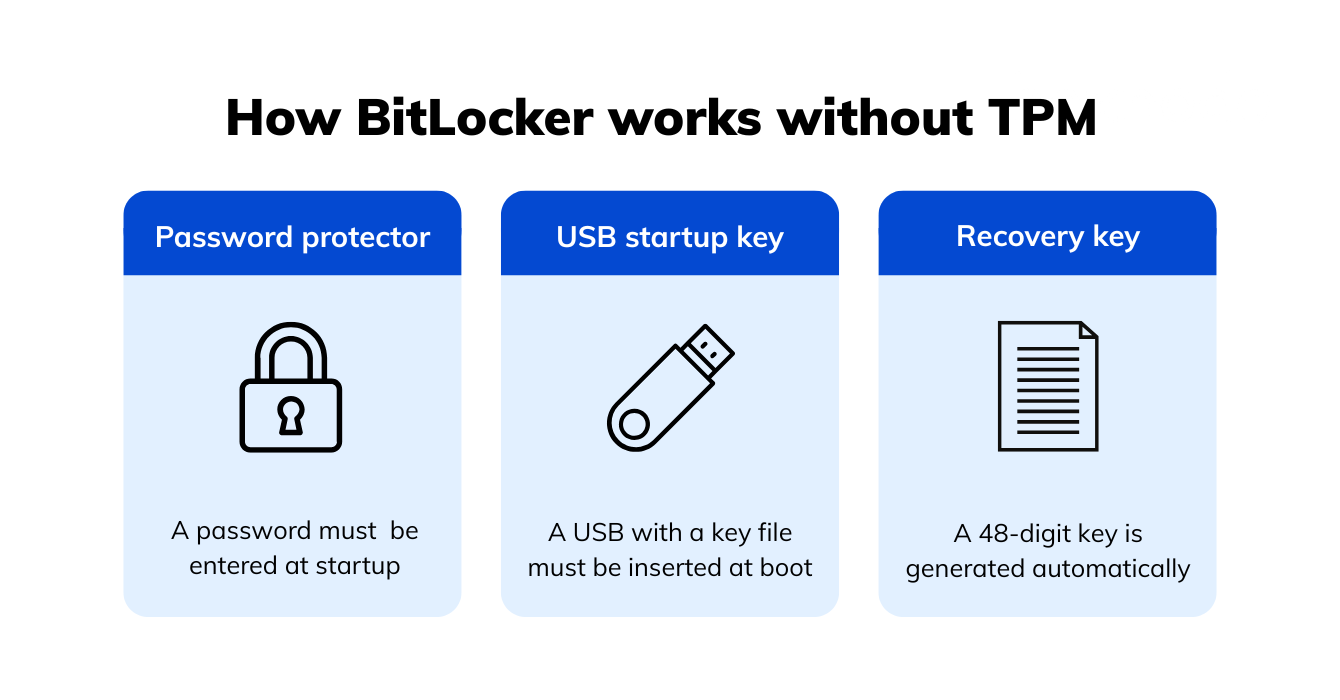
Without TPM, BitLocker can still work — but it has to rely on less secure alternatives, like asking the user for a password at startup or requiring a USB key with the unlock file. The VMK is no longer sealed in hardware; it is protected by a key derived from user input or stored on external media.
That’s the fundamental trade-off:
Here’s how that works in practice:
Under the hood, BitLocker still uses strong encryption algorithms — AES with XTS or CBC mode.
The main difference is that the encryption key is either derived from your password or stored on the USB drive, rather than securely sealed inside a protected hardware chip based on verified boot integrity.
By default, Windows prevents BitLocker activation if a TPM is not detected. To use BitLocker without a TPM, an administrator must explicitly override this requirement using a Group Policy Object (GPO).
This is the single most important step for enabling BitLocker on non-TPM hardware.
gpedit.msc.|
1 2 3 4 5 |
Computer Configuration → Administrative Templates → Windows Components → BitLocker Drive Encryption → Operating System Drives |
gpupdate /force, then reboot the machine.|
1 2 3 4 5 |
Policy Path: \Computer Configuration\Administrative Templates\Windows Components\BitLocker Drive Encryption\Operating System Drives Setting: Require additional authentication at startup Action: Enabled, and ensure 'Allow BitLocker without a compatible TPM' is checked. |
This policy tells BitLocker that it is acceptable to use alternative protectors (password or USB key) instead of the sealed TPM key protector.
Once the GPO is configured and the machine is rebooted, you can initiate BitLocker encryption via the Control Panel or PowerShell.
Before deciding whether BitLocker without TPM is “secure enough,” it helps to ask a simpler question — secure enough against whom? The absence of TPM-backed measured boot and hardware key isolation opens distinct security gaps.
While BitLocker successfully deters opportunistic thieves, non-TPM configurations are vulnerable to skilled, targeted attackers with physical access.
The key takeaway? BitLocker without TPM can still hold its ground, but TPM-backed devices have a clear advantage against more advanced physical or forensic attacks—thanks to hardware key isolation and measured boot validation.
| Threat | With TPM | TPM + PIN / USB Key (Gold Standard) |
Non-TPM (Password / USB Key) |
| Lost/Stolen laptop | Strong protection; key sealed in TPM. | Strongest protection; multi-factor required. | Secure if password/USB key separate. |
| Offline brute-force | Strong (key sealed, password not the protector). | Strongest (PIN attempts are TPM-limited/locked). | High risk (Depends heavily on password strength). |
| Bootloader tampering (Evil maid) | Detected via measured boot (PCR check). | Detected via measured boot | Undetected (No boot integrity check). |
| USB key theft | Not applicable. | Protected by the PIN/second factor. | High risk if the key is stolen or copied. |
| Advanced forensic | Extremely difficult. | Nearly impossible. | Possible with weak key management. |
Knowing the risks is one thing, but securing a non-TPM BitLocker setup is all about disciplined configuration and consistent management. Most vulnerabilities in non-TPM environments can be effectively minimized with a few key practices.
Enforce a high-entropy passphrase – 14+ characters with a mix of symbols, numbers, and uppercase/lowercase letters.
If TPM isn’t available, pairing a USB startup key with a strong passphrase creates a two-factor setup that offsets the lack of hardware security.
Tune your Group Policy to choose stronger encryption algorithms like AES 256-bit XTS (recommended) over 128-bit modes.
Enable Secure Boot and modern UEFI native mode (disable Legacy/CSM boot) to block unauthorized bootloaders. This is the closest software-based defense against an Evil Maid attack.
Disable booting from external media (USB/DVD) in BIOS or UEFI settings to block attackers from bypassing the BitLocker startup process.
Managing encryption manually across multiple devices (some with TPM, some without) can get messy fast. Hexnode provides unified platform to automate the entire hardening and compliance process for your Windows fleet.
Through Hexnode, IT teams can:
With centralized management and reporting through Hexnode, IT teams can ensure consistent security across every endpoint — reducing manual overhead while maintaining compliance.
At an enterprise scale, BitLocker without TPM isn’t just a technical challenge, it’s a policy decision that requires careful operational oversight.
IT admins must maintain continuous visibility into non-TPM devices, as they pose a higher operational risk.
| Metric | How to check manually | Hexnode monitoring |
| Encryption status | manage-bde -status |
Real-time status in the **Hexnode Dashboard**. |
| Protector type | (Get-BitLockerVolume).KeyProtector |
Report on **TPM Status and Protector Count** for compliance. |
| Recovery key status | Check Azure AD/Active Directory | Verify **Key Escrow status** and last backup date in the console. |
| Policy compliance | Run gpresult /r |
Automated reports flagging devices not meeting passphrase or algorithm requirements. |
Even with the correct GPO, issues can arise when enabling BitLocker without TPM.
gpupdate /force in an elevated command prompt and reboot immediately. Reconfirm the GPO setting is checkedmanage-bde -protectors -disable C: -id {protector GUID}) and resume it (manage-bde -protectors -enable C:).BitLocker without TPM isn’t inherently insecure — it just shifts more responsibility onto configuration, physical security, and user behavior. Whether it’s a good idea depends entirely on your environment and risk profile.
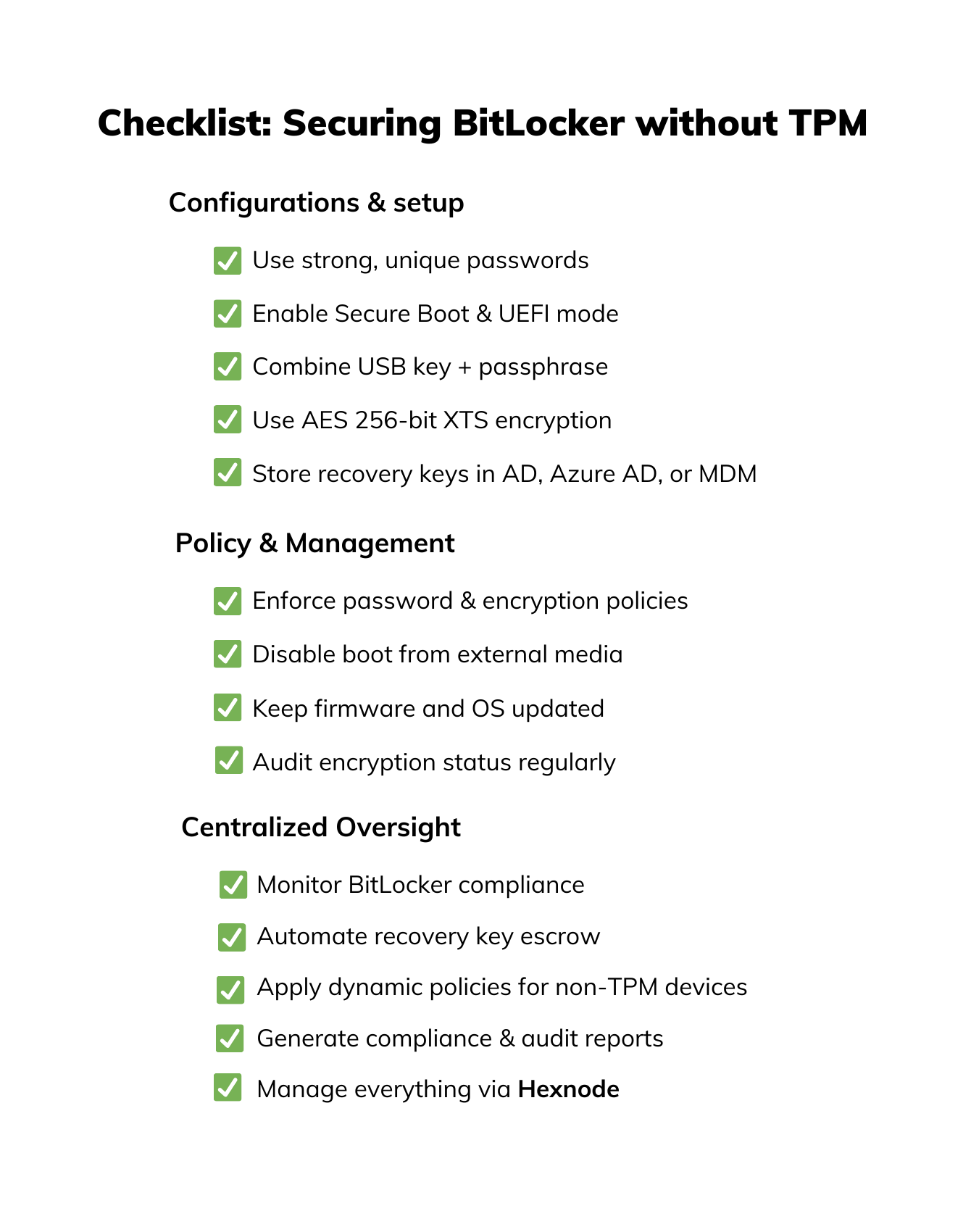
When BitLocker runs without TPM, every layer of security depends on configuration and consistency. Here’s a quick checklist to help IT admins and security teams ensure their non-TPM devices are properly locked down.
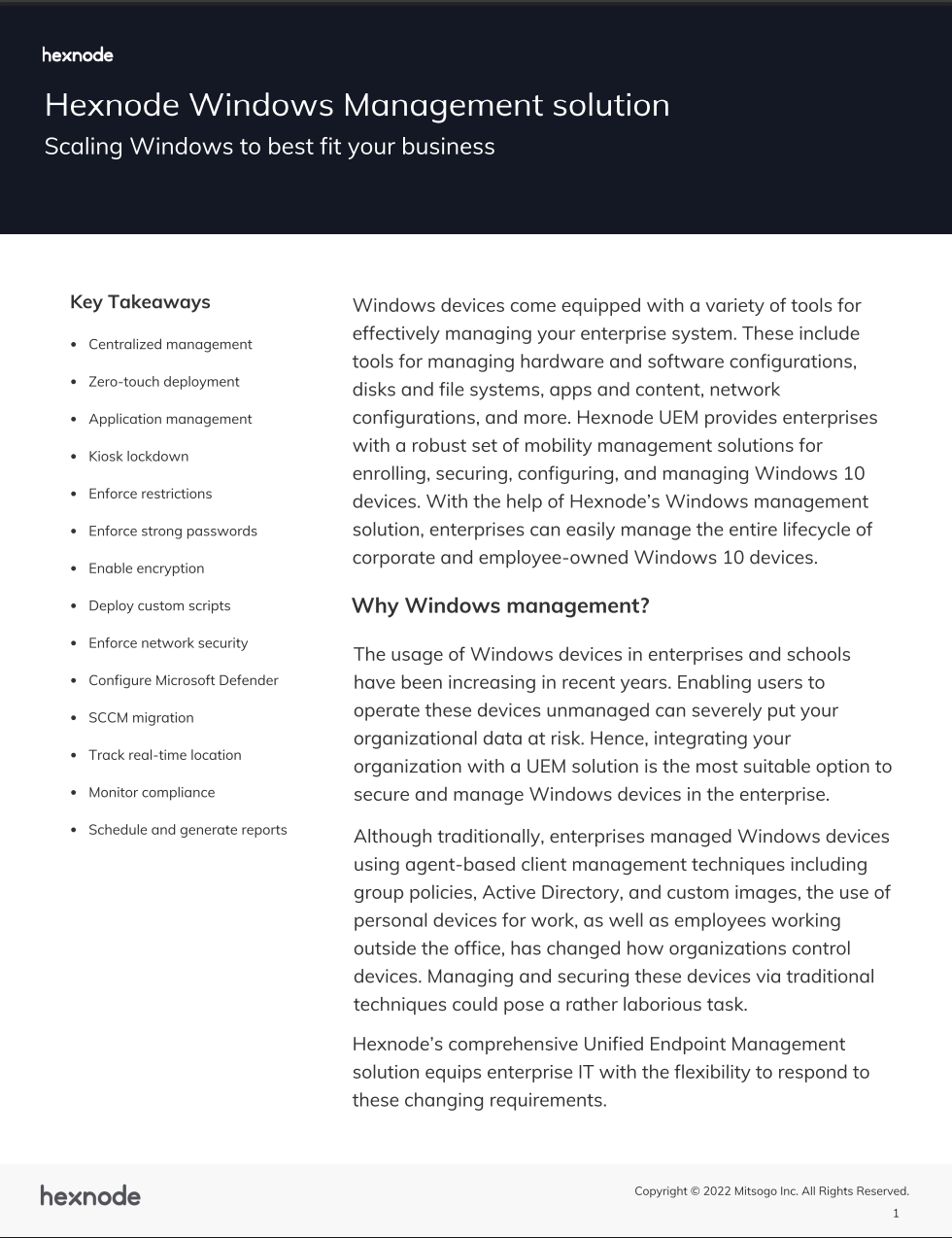
Get started with Hexnode’s Windows Management solution to improve security, increase productivity, save time and overhead costs of managing your corporate devices.
Download the datasheetOnce BitLocker is configured — especially without TPM — the final step is confirming that everything actually works as intended. Encryption isn’t truly protecting your data until you’ve tested it under real-world conditions.
After setup, restart the device to confirm that the startup protector (password or USB key) prompts correctly before Windows boots. If the system bypasses this step or unlocks automatically, your Group Policy or MDM configuration might not be applying properly.
This short screencast can visually demonstrate how to enable the local policy, encrypt the drive, and verify the unlock prompt — perfect for visual learners.
Next, verify that recovery keys are properly backed up. Try accessing one from wherever it’s stored — Azure AD, Active Directory, or Hexnode’s recovery key vault — to ensure retrieval works before you actually need it.
Run a quick command to check BitLocker status:
|
1 |
manage-bde -status |
This displays whether encryption is on, which protector type is being used (TPM, password, or USB), and the encryption percentage.
For a more targeted check, you can also use PowerShell:
|
1 |
(Get-BitLockerVolume).KeyProtector |
This command lists the protector types currently applied — useful for confirming that the device is indeed running without TPM but still properly secured.
If you’re managing devices with Hexnode, confirm that your BitLocker compliance policy is reporting correctly:
Finally, simulate a recovery event. Remove the USB startup key or intentionally change a boot setting, then boot the device to trigger BitLocker’s recovery mode. Confirm that the system accepts the recovery key and that the process aligns with your IT policy.
? Is BitLocker safe without TPM?
Yes, if it’s configured properly. BitLocker without TPM still encrypts data effectively, but it depends on strong passwords, Secure Boot, and proper key management. For sensitive or regulated data, TPM-backed protection is still recommended.
? Does an fTPM (Firmware TPM) count as a hardware TPM?
Yes, a firmware TPM (fTPM, common on AMD and Intel systems) is compliant with BitLocker and provides the measured boot feature. The same security recommendations (using TPM + PIN/USB) apply to fTPM as they do to discrete TPM chips.
? Which is better: password protector or USB startup key?
Both have trade-offs. Passwords are simpler but vulnerable if weak; USB keys add security but can be lost or copied. Using both together offers stronger two-factor protection.
? Can I manage non-TPM BitLocker devices with Hexnode?
Yes. Hexnode lets you enforce encryption policies, escrow recovery keys, and track TPM status across all devices — ensuring consistent protection and compliance from one dashboard.
? Does Secure Boot replace TPM in protecting BitLocker?
No. Secure Boot validates the boot process, while TPM securely stores encryption keys. They complement each other but serve different roles.
? Where should recovery keys be stored for maximum safety?
Store recovery keys in Azure AD, Active Directory, or an MDM like Hexnode — not locally. This keeps them safe, backed up, and easy to retrieve when needed.
BitLocker without TPM isn’t inherently unsafe — but it demands careful setup and disciplined management. When configured with strong passphrases, Secure Boot, and proper key storage, it still provides solid protection against everyday data theft.
That said, TPM-backed BitLocker remains the gold standard for defending against physical and advanced attacks. Wherever possible, use TPM + PIN for hardware-level assurance against physical threat actors.
For organizations managing mixed device fleets, platforms like Hexnode make it easy to enforce encryption policies, monitor compliance, and securely escrow recovery keys — whether TPM is present or not.
In short:
If TPM is available, use it. If not, harden everything else — and manage it smartly.
Control encryption, recovery keys, and compliance from one dashboard with Hexnode UEM.
Start your free 14-day trial!