Are you one of those people who think just because you have a strong password for your device, your data is safe? If yes, then you might want to go through this blog.
Data protection is becoming a major concern in the modern world. Whether it is your private files or highly confidential corporate data, if it reaches the wrong guys then the result would be devastating.
Almost all governments have released strict laws for organizations to provide strict data protection for both their employees and customers. Businesses and other organizations failing to ensure this will have to face legal actions.
From all this, it is pretty clear how important data protection is and the first step towards data protection is data encryption.
Hacker trying to access confidential data
Data encryption simply means the encoding of meaningful data into a non-readable format. Encryption is always based on a key so that only authorized personnel with the key can access the data. The primary idea of encryption is that even if data is breached and falls into the wrong hands, it would be useless without the key.
Data encryption can be categorized based on different criteria like the type of algorithm used, type of encryption key used, and so on. One of the most common and important ones is based on what part of a drive/disk is encrypted. In this category, there are two types:
Full-disk encryption (FDE)
File-based encryption (FBE)
What is Full-disk encryption or FDE?
Encryption of an entire disk drive is referred to as full-disk encryption. In the case of full-disk encryption, every piece of data in the disk is encrypted using a single encryption key.
Full-disk encryption is useful for protecting data that is at rest. This means that FDE can protect data that is stored in a device but cannot protect data in motion or use. When FDE is enabled in a device, data gets encrypted as it is stored in the device.
When an FDE-enabled device is locked, all the data in it is encrypted and it can be accessed only by entering a valid encryption key. Once the device is unlocked all the data in it gets decrypted and can be accessed by the user.
Full-disk encryption is normally done using tools provided by the operating system provider itself. Windows devices can be encrypted using BitLocker, whereas Mac devices are encrypted using FileVault.
BitLocker is the full-disk encryption tool provided by Microsoft for Windows devices. Encryption is done using AES algorithm having a block size of 128-bit. The key used here can be 128-bit or 256-bit.
Remote configuration of BitLocker is possible using UEMs like Hexnode. Using Hexnode, BitLocker for multiple devices in an organization can be configured very easily. Another huge advantage of remote configuration is that no user interaction is required.
Similar to BitLocker for Windows devices, FileVault is the full-disk encryption tool for Mac devices provided by Apple. FileVault also uses an AES encryption algorithm with a block size of 128-bit and a key size of 256-bit.
Advanced Encryption Standard algorithm is also known as AES algorithm. AES is an encryption technique introduced by two cryptologists, Joan Daemen and Vincent Rijmen. Another name for AES is the Rijndael algorithm.
AES algorithm uses a fixed block size of 128-bit. The key used here can be one of 3 sizes: 128-bit, 192-bit or 256-bit. AES algorithm uses symmetric encryption, meaning both encryption and decryption are done using the same key.
Featured resource
Hexnode Windows Management Solution
Get started with Hexnode’s Windows Management solution to improve security, increase productivity, save time and overhead costs of managing your corporate devices.
Full-disk encryption can ensure that no meaningful data can be extracted from a device without the device password/encryption key, whichever is used to lock the device. Thus, FDE can ensure the safety of device data at rest.
Data in drives/disks locked with a password can be accessed if the drive is put in another system. Data cannot be extracted from disks encrypted with FDE even if the disk is put on another system.
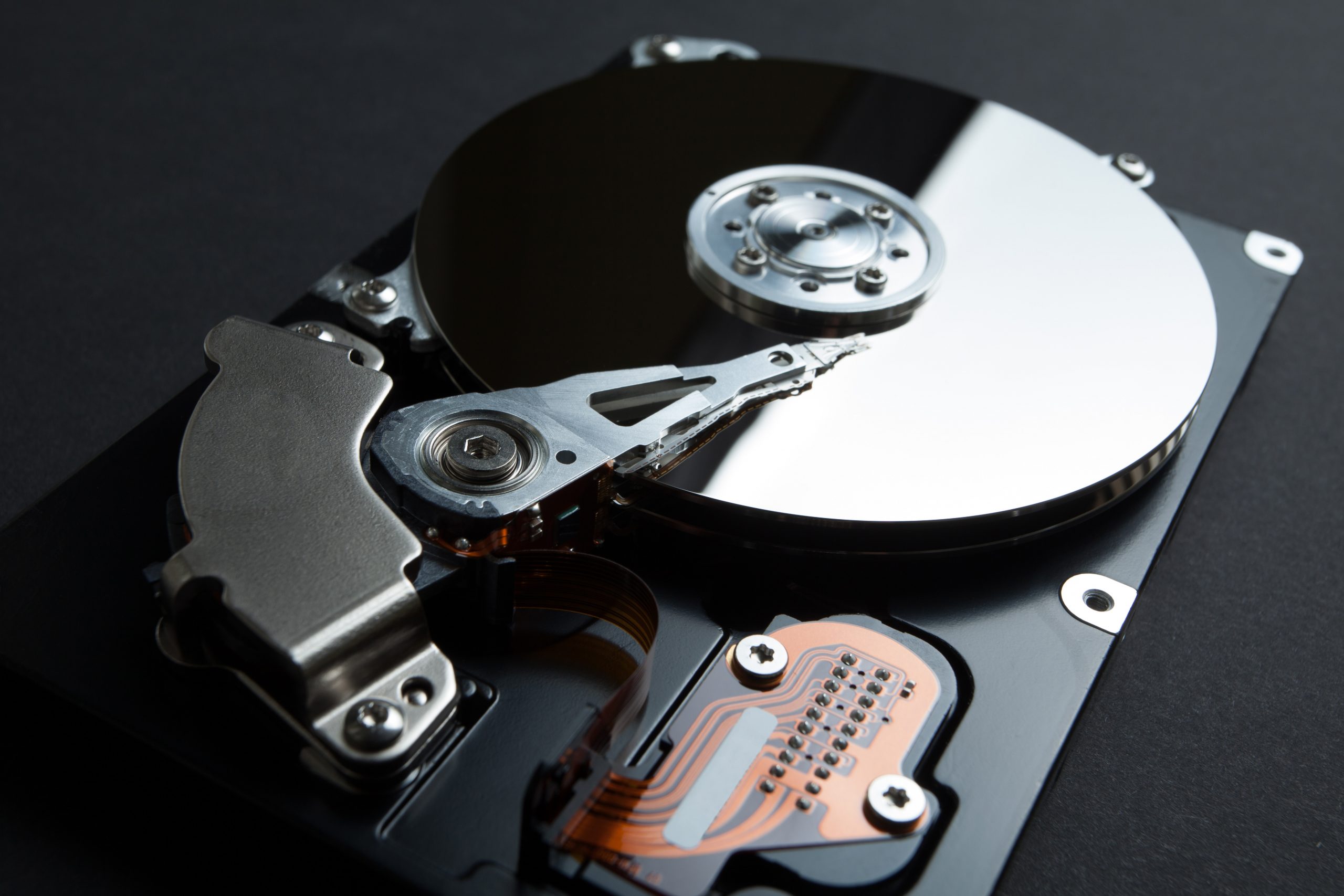
Hard drive without encryption can be used in other computer
One of the most important features of full-disk encryption is that once it is enabled on a device, all data that is written on the disk is automatically encrypted. Similarly, the decryption process also happens automatically as the data is read from the disk.
Drawbacks of full-disk encryption
Full-disk encryption is not a fool-proof technique to ensure data security. Once the device is unlocked pretty much anyone can access any piece of data in the device. In this modern age, hacking a device password might not be the hardest job there is.
It can take hours to initially set up full-disk encryption on a device based on the amount of data that is already stored in the device. FDE tends to take up a bit of device resources making the device performance a bit slower.
Data at rest vs. data in use: FDE’s hidden blind spot
Most discussions around FDE focus on data at rest. But what happens the moment a device is switched on?
Here’s the catch. Once the encryption key is engaged and the device boots up, FDE decrypts the entire disk. Every file becomes readable to any process running on that device, not just the ones the user intends to access.
This means a piece of malware, a malicious script, or even an unauthorized background process can freely read decrypted data while the device is in an unlocked, powered-on state. FDE simply wasn’t designed to police what happens after the disk is decrypted.
Think of it like a bank vault. FDE is the vault door. It’s excellent at keeping intruders out when it’s shut. But once the vault opens for business, everything inside sits out in the open until the doors close again.
This is precisely the gap file-based encryption is built to close. Because FBE keeps individual files encrypted even after the device is unlocked, it acts as a second checkpoint; one that doesn’t disappear just because the device booted up successfully.
For organizations handling sensitive data, relying on FDE alone means trusting that nothing malicious ever runs during business hours. That’s a risky bet.
What is file-based encryption or FBE?
Just as the name suggests, file-based or file-level encryption is a type of encryption where individual files or even small groups of files on a disk are encoded. Unlike full-disk encryption, each file in a disk/drive can be encrypted with a different key.
Files that are encrypted using FBE require the key to be decrypted even if the device is unlocked. Encrypted files sent to other devices will stay encrypted till the encryption password/key is entered. So, this keeps data in motion as well as in rest secured.
File-based encryption is normally achieved using third-party tools that are commercially available.
Why Android moved to file-based encryption by default
Here’s a shift many IT admins overlook. Since Android 7.0 (Nougat), Google moved away from full-disk encryption as the default and adopted file-based encryption instead.
Why the change? FDE on mobile meant the entire device stayed locked until the user entered their credentials, including features like alarms and accessibility services. FBE fixed this by encrypting files with separate keys, some tied to user authentication, others accessible right after boot.
This is what makes Direct Boot possible on Android devices. Certain apps and system functions can run in a limited state before the user unlocks the device, without exposing the rest of the encrypted data.
For enterprises managing Android fleets, this distinction matters. It affects how quickly a device becomes usable after a reboot, how work-profile data stays isolated from personal data, and how compliance policies interact with encryption states.
When configuring Android policies through a UEM solution like Hexnode, admins should be aware that modern Android devices are already leveraging FBE at the OS level. Understanding this helps IT teams set realistic expectations around device behavior, rather than assuming Android encryption works the same way as a Windows or Mac full-disk setup.
Benefits of file-based encryption
File-based encryption gives granular control to device admins on what data is to be encrypted and what data is to be left unencrypted. Individuals who use personal devices for work purposes can make the most use out of this. Personal files which the individual finds unimportant can be left unencrypted while critical work files can be encrypted.
Using FBE, each file in a device can be encrypted using a unique encryption key. This is very useful because even if someone cracks the key to any one of the files, it cannot be used to access any other data on the device.
Files that are encrypted using FBE can be safely transferred to other devices because even in other devices the password/encryption key would be required to open the file. In this way, file-based encryption can protect data in transit.
The main highlight of FBE is that even if a device is compromised or the device password is cracked using brute force attacks, the files remain encrypted, thereby ensuring data security.
Drawbacks of file-based encryption
Keeping track of encrypted and non-encrypted files might become a difficult task if too many files are encrypted. Also, if every file in a disk is encrypted using a different key/password, then keeping track of this might also become a tedious task for the device owner.
File-based encryption is normally done using a third-party software, unlike FDE. When using such software, there is a possibility of compatibility issues since these are not made exactly for particular operating systems.
Backing up encrypted files is a common practice. However, when there are too many files, backing up can become a hectic process.
Best practices to follow while encrypting data
Whether it is FBE or FDE, backing up encrypted files is always recommended if there is a need for fast and easy recovery. This is suggested because, in the event of a lost encryption key, it might be nearly impossible to recover the data.
Make sure to keep your passwords and keys safe. Never write it down or store them in a poorly secured device. There is one more thing to keep in mind – do not forget your passwords and keys.
When it comes to configuring FDE for a lot of devices, consider doing it using a UEM solution like Hexnode. Trust me, it will save you a lot of time.
If you are implementing data encryption for an organization with a complex hierarchy, you should specify who all has access to the encryption keys and passwords. If everyone has access, then what is the point of encrypting, right?
FDE vs. FBE: Quick comparison
Before diving deeper, here’s a quick side-by-side snapshot.
Encryption scope
FDE encrypts the entire disk with one key. FBE encrypts individual files, each with its own key.
Protection while unlocked
FDE offers none. Once unlocked, all data is readable. FBE keeps files protected even on an unlocked device.
Data in transit
FDE doesn’t protect files once they leave the device. FBE keeps files encrypted during transfer.
Setup and management
FDE is typically built into the OS (BitLocker, FileVault) and simple to enforce. FBE often requires third-party tools and more granular oversight.
Performance impact
FDE can slow initial setup, especially on devices with lots of existing data. FBE encrypts only what’s needed, so its footprint is usually lighter.
Best suited for
FDE is ideal as a baseline defense against physical theft. FBE is ideal for organizations needing control over specific sensitive files, especially in BYOD environments.
Neither is a replacement for the other. As covered below, the strongest security posture comes from layering both.
Comparing FDE and FBE in Detail
When it comes to data protection, full-disk encryption is the bare minimum you can do to secure data in a device. FDE is more like a device password with superpowers. Full-disk encryption can ensure one thing – data in the drive would be useless without the device password.
As mentioned before, one of the major drawbacks of FDE is that once the device is unlocked, pretty much all the data in it is accessible. Assume a simple scenario where you leave your unlocked devices somewhere, then anyone can access the data stored in them.
Weak device passwords can be bypassed or even cracked using brute force attacks. This can be avoided by making use of strong and complex passwords. IT admins can enforce strong password policies to be used in devices with a solution like Hexnode UEM. IT admins can specify requirements of passwords like password length, complexity, age, and so on.
This is where file-based encryption can help you. File-based encryption can act as an extra layer of security for files stored on your device. Even if a device is compromised, FBE can ensure that data is useless without encryption.
So, instead of using one type of encryption as a replacement for the other, consider using both of the encryptions together.
Layering of full-disk encryption along with file-based encryption is always considered a great practice when data security is considered. This is because both of the encryptions cover the flaws of the other as much as possible.
Sign up for a free trial
Sign up for a 14-day free trial with Hexnode and explore the data security features offered by Hexnode.
Can I use full-disk encryption and file-based encryption together on the same device?
Yes, layering FDE and FBE is a widely recommended practice for stronger data protection. FDE secures the device against physical theft when powered off, while FBE protects individual files even after the device is unlocked. Together, they cover each other’s weaknesses rather than leaving gaps.
Does enabling BitLocker or FileVault protect data if the device is stolen while turned on?
No, BitLocker and FileVault only protect data at rest, meaning when the device is powered off or locked. Once the device is unlocked, the entire disk is decrypted and accessible to anyone with access to the session. Additional controls like file-based encryption or strong lock-screen policies are needed to cover this gap.
How can a UEM solution help manage encryption across a mixed fleet of Windows, Mac, and Android devices?
A UEM solution lets IT admins remotely enforce and monitor encryption policies like BitLocker, FileVault, and Android’s built-in FBE from a single console. This removes the need for manual, device-by-device configuration and reduces inconsistent enforcement across an organization. Admins can also apply password policies alongside encryption settings to strengthen overall device security.
Do all Android devices automatically use file-based encryption, or does it need to be configured?
Most modern Android devices, starting with Android 7.0 (Nougat), use file-based encryption by default at the OS level. IT admins don’t need to manually enable FBE on these devices, but they should account for it when setting device policies. This is different from Windows or Mac, where full-disk encryption tools like BitLocker or FileVault require explicit configuration.
What happens if an encryption key or recovery password is lost?
Losing an encryption key or recovery password can make the encrypted data permanently inaccessible. This applies to both FDE and FBE, since neither offers a backdoor for recovery without the correct key. Regularly backing up encrypted files and securely storing recovery keys, such as through escrow features in a UEM console, helps prevent permanent data loss.
Is file-based encryption a replacement for full-disk encryption?
No, file-based encryption is not meant to replace full-disk encryption. FDE provides a baseline defense against physical theft, while FBE adds granular, file-level protection that persists even after the device is unlocked. Security experts generally recommend using both together rather than choosing one over the other.