TL;DR:
iPads make cost-effective digital signage only when supervised, locked down, and centrally managed through a UEM platform.
- Guided Access can locally restrict an iPad to a single app, but centralized device management and supervision are better suited to scalable enterprise signage deployments. Supervision can be enabled through Automated Device Enrollment with Apple Business or manually using Apple Configurator.
- Hexnode enforces Single App Mode, zero-touch enrollment, remote policy delivery, and live troubleshooting from one console.
- The result is a hardened, fixed-function display fleet that scales from one storefront to hundreds of locations with minimal on-site work.
iPads combine a high-resolution Retina display, a mature app ecosystem, and a lower price point than most commercial-grade signage panels. That makes them a practical foundation for business displays, but only if they are locked down, supervised, and centrally managed. This guide covers what iPad digital signage is, where it fits, the prerequisites for a stable deployment, and how to manage it at scale.
What Is iPad Digital Signage?
iPad digital signage is a managed display system that uses Apple tablets to present content in a locked, single-purpose mode. Typical content includes advertisements, menus, wayfinding, or room availability. The device runs one signage app or a single web URL in the foreground, with all other functions restricted so end users cannot exit the display or tamper with settings.
The core mechanism is kiosk mode, which pins the device to a designated app while allowing administrators to separately restrict functions such as touch, rotation, the Sleep/Wake button, and volume controls. For close-quarters, interactive placements such as a store countertop or a panel outside a meeting room, the iPad’s touch interface is an advantage over passive screens. Content can also be mirrored to a larger display via AirPlay when needed. The goal is constant: keep the message in the foreground and remove every path a user has to break out of it.
Top Use Cases for iPad Digital Signage
iPad signage suits any environment that needs a compact, updatable display. The most common deployments fall into three categories.
Retail: Interactive Product Catalogs
Retailers use iPads as endless-aisle displays, letting customers browse colors, sizes, and specifications that aren’t physically stocked. Shoppers can view extended catalogs and place online orders without consuming additional floor space.
Food Service: Dynamic Menu Boards
Digital menus replace static printed boards and let operators update pricing, daily specials, and dish imagery instantly across every location. Time-of-day menus that switch from breakfast to lunch automatically remove a recurring manual task.
Corporate: Meeting Room Management
Wall-mounted iPads outside conference rooms show real-time availability, sync with calendar systems, and let staff book or release a room on the spot. This is one of the most reliable ways to eliminate double-bookings and ghost meetings in a hybrid office.
How to choose a UEM solution that fits all your digital signage needs?
Prerequisites for Setting Up an iPad Kiosk
Before deploying, confirm your environment meets these technical requirements. Skipping any of them leaves the kiosk vulnerable to user tampering or unplanned downtime.
- Supervision: For a centrally managed single-app kiosk deployment, admins should supervise the iPad through Automated Device Enrollment with Apple Business or manually using Apple Configurator. Supervision unlocks the restriction and single-app-mode payloads that consumer-grade lockdown tools cannot reach.
- Stable network: Reliable internet connectivity is required for timely remote content updates and management commands. This can be provided through Wi-Fi or, on supported iPad models and deployments, cellular connectivity. Provision a dedicated SSID where possible to avoid contention with guest traffic.
- Continuous power: Use a compatible, appropriately rated cable and power adapter suitable for sustained operation.
- Management platform: Use a compatible device management service to create and remotely deploy policies, configurations, and commands.
- Content source: A chosen signage app or a single web URL to display.
- Physical enclosure: A secure, ventilated mount to deter theft and manage heat.
Supervision, Restrictions, and Device Security
Supervision is the single most important prerequisite, so it’s worth understanding what it actually enables.
A supervised iPad provides organizations with additional management capabilities, including supervised-only restrictions and controls such as App Lock/Single App Mode and certain Activation Lock management commands.
At minimum, a hardened signage device should have the following restrictions applied through policy:
- Disable app removal and app installation, so no one can delete the signage app or sideload another.
- Block modifications to Wi-Fi and network settings, preventing a user from knocking the device offline.
- Restrict access to Settings and the Control Center, closing the most common escape routes out of kiosk mode.
- Enforce Auto-Lock set to “Never” so the screen stays active during operating hours.
- Enable Lost Mode, which lets an admin locate a supervised device and lock it remotely if it goes missing.
These controls turn a general-purpose tablet into a fixed-function appliance. Without supervision, most of them are simply unavailable, which is why Guided Access alone is not sufficient for a production deployment.
Setting Up iPad Signage with Hexnode
A production-ready deployment follows three stages in the Hexnode console, from enrollment through to a locked, persistent display.
- Enrollment and supervision. Use Automated Device Enrollment (ADE) through Apple Business so organization-owned iPads can enroll during Setup Assistant with minimal hands-on provisioning. ADE automatically enables supervision on eligible iPads.
- Kiosk policy configuration. In the Hexnode portal, configure Single App Kiosk to lock the iPad to an installed signage app. To display a website instead, configure Web App Kiosk and add the required URL as a web app. Then layer the restriction set into the same policy, including disabled app removal, locked network settings, restricted Settings access, and Auto-Lock set to “Never.”
- Assignment and persistence. Publish the policy to the target device or device group from the console. Hexnode reasserts the single-app configuration automatically after a reboot or power loss, so the display returns to its locked state on its own rather than dropping to the home screen.
How to setup a digital signage using Hexnode UEM?
Set up secure digital signage on Android, Windows and Apple devices with Hexnode UEM, a step by step beginner's guide.
How Hexnode Manages iPad Signage at Scale
Hexnode is a UEM platform that handles each of the stages above from a single console. Its capabilities map directly to the requirements of a production signage fleet.
- iOS Single App Mode: Locks a supervised iPad to one application and automatically launches the designated kiosk app after a restart. For website-based signage, Hexnode provides a separate Web App Kiosk mode.
- Zero-touch provisioning: Automated Device Enrollment through Apple Business enables organization-owned iPads to enroll in device management without IT physically preparing each device.
- Remote policy delivery: Admins can deploy restriction profiles, Wi-Fi settings, and kiosk configurations remotely from the Hexnode console. In Single App Kiosk mode, the designated kiosk app automatically launches again after the device restarts.
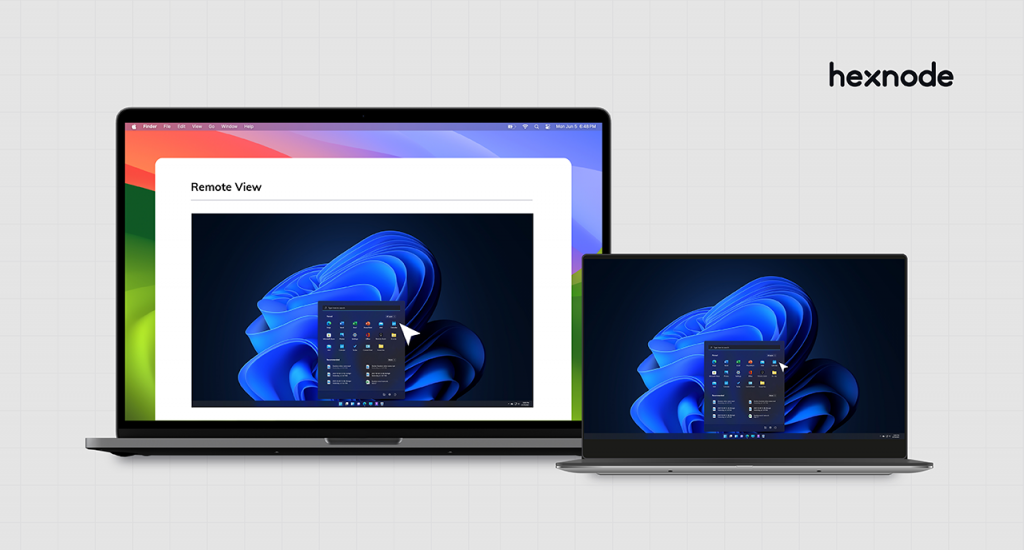
- Live remote management: Admins can use Hexnode Remote View to monitor supported iOS device screens and can perform supported remote actions such as restarting supervised iOS devices. Managed configurations can also be updated remotely through policies.
- Fleet-wide control: Policies apply to device groups, so the same configuration scales from a single storefront to hundreds of locations.
Note: confirm the current name and policy path of Hexnode’s single-app/kiosk feature against official Hexnode documentation before publishing, and validate any named third-party app integrations against the same source.
Troubleshooting Common Signage Issues
Remote management removes most physical service trips. A UEM console with live screen visibility lets you diagnose and resolve issues without walking to the device.
- App crashing or frozen: Remotely restart the supervised iPad where supported and then reassess the kiosk application.
- Screen locking unexpectedly: Disable Auto Lock in the iOS Advanced Kiosk Settings so the device does not lock itself after an idle period.
- Wi-Fi dropouts: Push a standardized Wi-Fi profile so the device rejoins the correct network automatically.
The Future of Signage: AI and IoT
Signage is becoming context-aware. AI-driven systems now adjust displayed content based on audience signals, and proximity sensors can wake a screen and surface a relevant message when a customer approaches. The direction of travel is toward personalization and data-driven content, where a display responds to who is in front of it rather than looping a fixed playlist. For managed fleets, this raises the value of centralized control, since content logic and device policy both need to be updated remotely and consistently.
Cost and ROI Considerations
The appeal of iPad signage is not only hardware price but the total cost of running and updating displays over their lifetime. Weigh these factors before standardizing on iPads.
- Upfront hardware: An iPad is typically cheaper than a commercial-grade panel of comparable resolution, with touch capability built in rather than added on.
- Enclosure and mounting: Budget for a rated, ventilated anti-theft enclosure per device. This is a recurring line item consumer buyers often overlook.
- Management licensing: UEM introduces an ongoing licensing cost, with pricing models varying by vendor and plan. Centralized management can reduce the need for manual, on-site configuration and routine updates.
- Operational savings: Remote content and policy updates eliminate travel and labor for routine changes, which is where fleet-scale ROI is realized.
- Lifecycle: Continuous signage deployments can accelerate battery aging when devices remain hot or spend long periods at a high state of charge, so account for thermal management and eventual battery or device replacement. Supervised devices can be re-enrolled and repurposed cleanly at end of life.
For a handful of screens, the difference versus purpose-built hardware is marginal. The economics tilt toward managed iPads as locations and update frequency grow.
Top 10 digital signage solutions for your business
FAQ
What is the difference between Guided Access and a UEM kiosk policy for iPad signage?
Guided Access is a built-in iOS feature that locks a single device to one app manually, with no remote control or persistence across reboots. A UEM kiosk policy enforces Single App Mode remotely across an entire fleet, reasserts itself after restarts, and layers in restrictions and profiles. Guided Access primarily handles a single device locally, while a centralized device management service handles multiple iPads more consistently.
Can I manage iPad and Android signage from the same console?
Yes, most UEM platforms manage iPadOS, Android, and other operating systems from one console. This lets IT teams apply kiosk policies, push content, and monitor devices across a mixed fleet without switching tools. Cross-platform management reduces overhead when signage hardware is not standardized on a single vendor.
How do I update content on iPad signage without visiting each device?
Content updates are pushed over the air through the UEM console or the signage app’s backend, so no physical access is needed. When the display uses a web URL, updating the source page can update signage remotely, but how quickly new content appears depends on page-refresh behavior, network connectivity, and HTTP caching. For app-based signage, admins can synchronize content remotely if the signage application or its backend supports centralized media or playlist management.
Does iPad signage need an Apple Business Manager account?
Apple Business isn’t strictly necessary for an iPad signage deployment, but it enables Automated Device Enrollment and automatic supervision for organization-owned devices. Admins can alternatively supervise devices using Apple Configurator, though this requires more hands-on preparation and suits large zero-touch deployments less well.
How many iPads can a single admin manage for digital signage?
There is no fixed limit, since UEM policies apply to device groups rather than individual devices. One admin can provision and manage hundreds of iPads because enrollment, restrictions, and content are handled centrally. The practical ceiling depends on the UEM platform’s licensing and the network infrastructure supporting the fleet.
What happens to iPad signage if the internet connection drops?
An iPad’s kiosk restriction can remain active during a network outage, but whether the signage content remains available depends on the app’s offline capabilities or the web content’s caching behavior. Remote management commands and live content updates pause until connectivity returns, then resume automatically. Web-based signage may show stale or blank content if the page cannot reload, so caching or offline-capable apps are recommended.
Every iPad, signage-ready with Hexnode
Turn your iPads into secure digital signage with Hexnode UEM, managed remotely from one console.
Sign Up Now