TL;DR:
Hexnode UEM turns standard Android, Windows, and Apple devices into secure digital signage, eliminating the need for expensive proprietary hardware.
- Traditional signage relies on costly hardware and technician-led digital signage setups that take days to deploy.
- Admins enroll devices, apply a Kiosk Lockdown policy, and remotely deploy digital signage to supported platforms. Android and Windows support the native Digital Signage Display feature, while Apple devices use kiosk mode with a dedicated app.
- The result is a secure, cloud-based signage solution that supports centralized remote management and content updates.
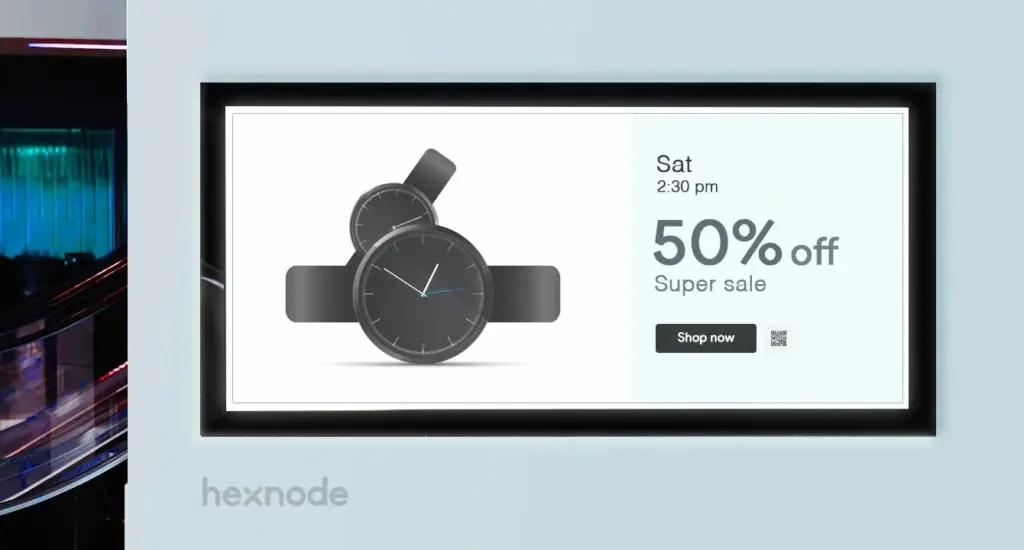
Digital signage turns screens into dynamic displays for advertisements or branding. Hexnode UEM offers a cost-effective solution for this. It removes the need for expensive proprietary hardware.
Modern malls and airports are full of high-definition ads. These are strategic communication tools. Business owners often fear the cost of a digital billboard setup. They assume it requires expensive hardware and IT teams.
That assumption is outdated.
Hexnode UEM provides a native Digital Signage Display feature for Android and Windows devices. Apple TVs can be configured for signage-like deployments using kiosk mode with a dedicated app. This guide provides technical steps for deployment.
First-Hand Setup Experience: Prerequisites
Success requires specific hardware and network environments. The right foundation prevents most setup failures.
Ensure these prerequisites are met before starting the digital signage setup.
Hardware
- Android: Use Android phones, tablets, or TV boxes. Best for video loops.
- Windows: Windows 10 or 11 PCs work well. Best for dashboards.
- Fire OS: Amazon Fire devices support images natively. Video requires workarounds.
- Apple: Apple TV and iPads are supported.
- Mounting: Use secure VESA mounts to prevent theft.
- Network: A stable Wi-Fi or Ethernet connection is needed.
Content
- Images: Hexnode supports JPG and PNG.
- Video: Hexnode supports MP4 and MKV.
- Audio: Hexnode supports MP3 and OGG.
The Definitive Guide to Kiosk Management and Strategy (2026 Edition)
Step-by-Step: How to Set Up Digital Signage on Android
Hexnode offers a powerful digital signage solution for Android. Follow this workflow to deploy a digital billboard.
This process ensures devices are locked down securely.
Step 1: Device Enrollment
Enroll devices into the Hexnode UEM portal. Use Android Zero touch enrollment for bulk deployments. This provisions devices without manual digital signage setup. Alternatively, you can utilize Samsung Knox Mobile Enrollment for compatible Samsung devices.
Step 2: Configure the Policy
- Navigate to the Hexnode UEM portal.
- Go to Policies and select New Policy.
- Choose Kiosk Lockdown, then Android settings.
- Select Digital Signage Display and click configure.
Step 3: Media Management
Upload media files and configure playback settings such as looping, transitions, audio, and display options.
Upload supported media to the Hexnode content repository or configure folders and files already present on the device for playback.
Display Settings:
- Orientation: Lock screen to landscape or portrait.
- Sleep: Configure the display’s “Sleep after” setting as needed, or enable “Keep Screen On” through Android Peripheral Settings for uninterrupted operation.
- Audio: Mute system sounds or add music.
Step 4: Deployment
Associate the policy with target devices. Devices will lock down immediately. They will begin looping the content.
What is Android kiosk mode?
Learn how Android kiosk mode works and how Hexnode UEM deploys and manages secure kiosks at scale.
Native Support: Windows Digital Signage
Hexnode’s Windows Digital Signage Display supports images, videos, and URLs. It requires a configured kiosk account and the Hexnode Kiosk Browser app.
This works well for corporate lobbies using a digital signage setup.
- Navigate to Policies then Kiosk Lockdown.
- Select Windows then Digital Signage Display.
- Upload or select supported media from the Hexnode content repository and enable video looping if required.
- Configure a supported website URL (http/https) to display web-based dashboards.
- Apply the policy to the Windows device.
Workarounds: iOS and Apple TV
Native signage mode is for Android and Windows. Apple devices use Single App Mode instead.
This replicates the Digital Signage experience.
- Enrollment: Enroll via Apple Business Manager (ABM). This ensures necessary supervision control.
- Policy: Go to Kiosk Lockdown for iOS/tvOS.
- App Selection: Select single app mode. Choose a media player app to loop.
- Autonomous Mode: Select Autonomous single app mode if apps need to lock themselves.
- Apple TV: Apple TVs can be configured in kiosk mode to run a dedicated enterprise application for signage deployments.
Expert Note: Apple TVs suit large conference rooms. iPads work best for counter-top displays.
What is iOS kiosk mode and how do I enable it?
Troubleshooting with Hexnode
Network connectivity issues can prevent policies and content updates from reaching devices. Administrators can verify device connectivity and resend commands from the Hexnode portal.
Even the best digital signage setup encounters hiccups. Here are common fixes.
Common Issues and Fixes
| Issue |
Potential Cause |
Troubleshooting Step |
| Black Screen |
File corruption. |
Verify file extensions like MP4. Re-upload assets. |
| Fire OS Video |
OS Limitation. |
Fire OS native signage is image-only. Use Android mode. |
| Not Updating |
Network disconnect. |
Check the device’s network connectivity and verify that the policy remains associated with the device. |
| Screen Sleeping |
Android settings. |
Check “Keep Screen On” in settings. |
Maximizing ROI: Use Cases and Kiosk Mode
A flexible digital signage setup adapts to various industries. This maximizes utility during peak hours.
A static digital billboard is useful. An interactive one is more profitable. Repurpose the same hardware for different needs.
- Retail: Switch to a POS app during rush hour.
- Feedback: Use iPads as survey kiosks.
- Info: Let users launch a restricted browser on self service kiosks.
Associate different kiosk policies with device groups to simplify switching deployments across multiple devices.
Did You Know?
According to Digital Signage Today, digital signage integrated with queue-management systems can reduce perceived wait times at checkouts by as much as 35% — by showing information like estimated wait times and calling customers forward. Keeping people occupied and informed makes the wait feel shorter.
Source: How Digital Signage Reduces Perceived Wait Times (Digital Signage Today)
Why Hexnode is the Digital Signage Solution Leader
Hexnode stands out as a premier solution. It combines device management with media controls.
Traditional software focuses only on content. Hexnode offers content delivery and device security. Hexnode leverages Unified Endpoint Management architecture. This ensures the kiosk solution is secure. It allows remote updates across any OS.
Comparison: Hexnode vs. Traditional Signage Players
| Feature |
Traditional Signage Hardware |
Hexnode UEM Solution |
| Hardware Cost |
High (Proprietary hardware) |
Low (Standard devices) |
| Setup Time |
Days (Technician needed) |
Minutes (Over-the-air) |
| Device Security |
Limited |
High (Kiosk Mode) |
| Scalability |
Difficult |
Cloud-based centralized device management |
FAQs: Common Questions About Digital Signage Solutions
How many devices can be managed as digital signage from a single Hexnode account?
Hexnode UEM provides cloud-based centralized device management for distributed deployments. Administrators can enroll devices over the air using supported bulk enrollment methods such as Android Zero-touch Enrollment and Samsung Knox Mobile Enrollment. Policies can be associated with device groups to simplify managing multiple devices.
Can I display live web dashboards instead of static media on a signage screen?
Yes. Windows Digital Signage Display supports configuring an HTTP or HTTPS URL to display web-based dashboards instead of uploaded media. This suits corporate lobbies or operations centers that need real-time data on screen. Administrators configure this under the Windows Digital Signage Display policy in Hexnode.
How do I remotely update content on signage screens after deployment?
Update the Digital Signage Display configuration in the Hexnode portal and associate the policy with the target devices to deploy the updated content remotely.
What is the difference between digital signage mode and single app mode for signage?
Digital signage mode is a native Hexnode feature for Android and Windows that loops uploaded media or URLs directly. Apple devices lack this native mode, so they use Single App Mode with a media player app to replicate the looping experience. Autonomous Single App Mode is used when an app needs to lock and unlock itself.
Can the same signage device be repurposed for other tasks during the day?
Yes, the same hardware can switch between signage and interactive modes, such as a POS app during rush hour or a survey kiosk. Administrators can associate kiosk policies with device groups to simplify managing multiple devices.
Why do signage screens go to sleep, and how do I prevent it?
Signage screens sleep when the device’s screen timeout or power-saving settings remain active. Disable the timeout in the display settings and confirm the “Keep Screen On” option is enabled to ensure continuous playback. On Android, configure the appropriate kiosk and peripheral settings, such as Keep Screen On, to support continuous device operation.
Every screen, signage-ready with Hexnode
Turn standard Android, Windows, and Apple devices into secure digital signage, managed remotely from one console.
Sign Up Now