Apple TV kiosk mode, also known as Single App Mode, locks an Apple TV to a single application for secure digital signage and business display use cases. Setting it up requires a supervised device and either Apple Configurator or a UEM solution like Hexnode. While Apple Configurator works for small-scale deployments, Hexnode simplifies large-scale management with remote configuration, automated enrollment, kiosk restrictions, and easier troubleshooting for enterprise Apple TV fleets.
When most people hear “Apple TV,” they picture streaming their favorite shows or movies. However, beyond entertainment, Apple TV is also used in enterprise and business environments for digital signage and kiosk-style deployments.
While primarily known as a consumer device, Apple TV can also be configured for business display and kiosk use cases. Unlike iPhone and iPad, which support Guided Access from Settings, Apple TV kiosk-style lockdown typically requires Apple Configurator or device management.
This guide explains Apple TV kiosk mode, including manual setup and scalable management options with Hexnode UEM.
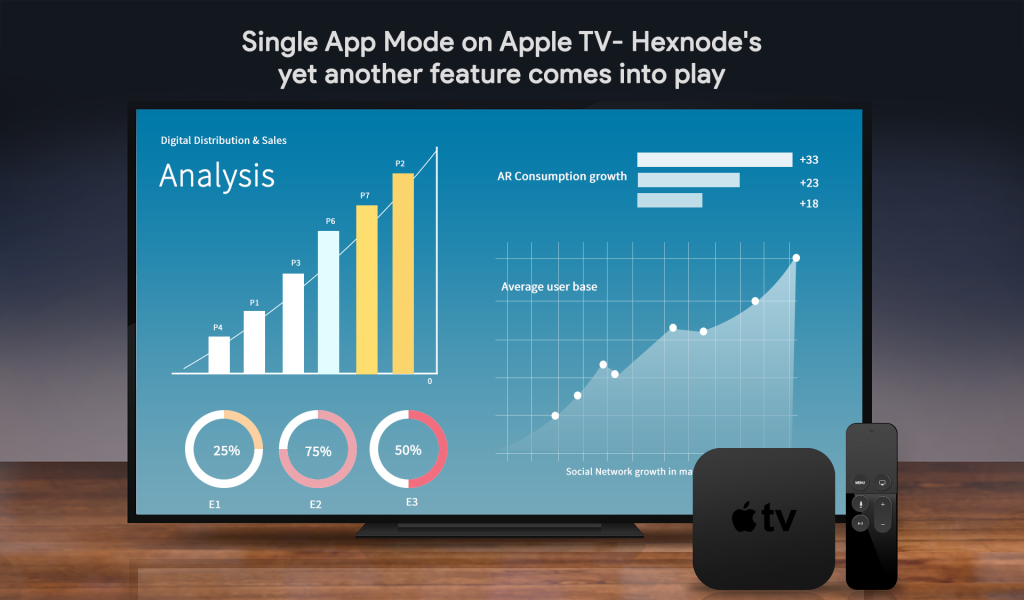
Apple TV kiosk mode, officially called Single App Mode, locks the device to one specific application. It restricts the remote control, preventing users from exiting to the home screen.
This creates a dedicated Apple TV kiosk mode setup. It is ideal for digital signage in lobbies, restaurant menus, or office displays. Once active, the device auto-launches the app on restart. It also prevents users from changing settings or exiting the content.
Key Terminology
Before diving into the setup, familiarity with these terms is essential:
Supervision: A special mode for corporate-owned devices that grants administrators deeper control (required for Apple TV kiosk mode).
Single App Mode: The specific tvOS payload that locks the device to one app.
Apple Business Manager (ABM): Apple’s web portal for IT administrators to deploy iPhone, iPad, Mac, and Apple TV devices.
Enterprise Apps: Custom in-house apps not published on the public App Store, often used for specific business kiosks.
Apple TV kiosk- Making it big with digital signage marketing
Discover how Apple TV and Hexnode simplify digital signage with kiosk mode and remote management.
Prerequisites for Apple TV Kiosk Mode
To enable Apple TV kiosk mode with Hexnode, the Apple TV must be enrolled in Hexnode UEM and supervised; additional kiosk restrictions are supported on tvOS 10.2 and later.
It is impossible to enable this feature on a personal, unsupervised Apple TV. One of the following methods must be used to supervise and configure the device:
Note: Hexnode strongly recommends the UEM method for business use. Manual configuration requires physical access to the device for every update, which is unscalable for digital signage fleets.
Method 1: Achieving Apple TV Kiosk Mode with Apple Configurator
Apple Configurator is a free macOS utility. It is best for setting up single devices or small batches that you can physically connect.
Setup Steps
Prepare the Device: Open Apple Configurator on your Mac. If using an older model, connect via USB-C. For Apple TV 4K models, ensure the Apple TV and Mac can connect over the network, then pair the Apple TV with Apple Configurator.
Supervise: Select the device and click Prepare. Choose Manual Configuration and ensure Supervise devices is checked.
Install the App: Ensure the apple tv kiosk app intended for use is already installed on the Apple TV.
Activate Kiosk Mode:
Select the supervised Apple TV
Click Actions > Advanced > Start Single App Mode
Select the desired app from the list to initiate Apple TV kiosk mode
The Drawbacks
While free, this method has limitations. Apple Configurator-based management is less scalable because many administrative tasks require direct access to the device or Mac-based management workflows.
Method 2: Apple TV Kiosk Mode with Hexnode UEM (The Professional Solution)
Hexnode UEM lets admins remotely configure and manage Apple TV kiosk mode on supervised, enrolled Apple TVs. It bridges the gap between basic Apple functionality and enterprise requirements. With Automated Device Enrollment via Apple Business Manager, an Apple TV linked to the organization can download the Hexnode profile during setup and enter a managed state; kiosk mode can then be enforced through an assigned Hexnode kiosk policy.
How to configure Single App Mode with Hexnode
Enroll the Device
Use Apple Business Manager for automatic enrollment or Apple Configurator to enroll the device into Hexnode.
Install the App
Store Apps
Ensure the app is installed via Apple Business Manager app distribution or manually.
Enterprise Apps
Upload the .ipa file to Hexnode and push it to the device.
Create the Policy
Go to Policies > New Policy
Select Kiosk Lockdown > Apple TV Kiosk Lockdown > Single App
Configure Settings
Click the + icon to select the app.
Apply to Devices
Associate the policy with the target Apple TVs.
Advanced Features Unique to Hexnode
Hexnode allows administrators to go beyond Apple’s basic lock. Configurations can include:
Disable Touch: Prevents input actions on the Apple TV while in kiosk mode.
Disable Auto Lock: Stops the Apple TV from locking itself. For 24/7 signage deployments, administrators can additionally configure a Power Management profile to disable screen saver and sleep settings.
Menu and Home Button Restrictions: In Apple TV kiosk mode, the Menu and Home buttons are disabled or unresponsive to prevent users from exiting the kiosk app.
Featured resource
Hexnode Kiosk Solution
Get a glimpse of how easy it is to achieve a purpose-specific environment in your organization with Hexnode.
Even with the best tools, issues can arise. Here is how to solve the most common Apple TV kiosk mode problems.
1. The “Frozen” Screen (App Missing)
Symptom
The device takes the policy but shows a black or white screen.
Cause
The policy was applied before the app finished installing.
Fix
In the Hexnode portal, disassociate the Kiosk Policy. Wait for the app installation status to show success, then re-associate the policy.
2. Network Disconnect Loop
Symptom
Kiosk mode cannot be removed because the device lost Wi-Fi.
Cause
Apple single app mode restrictions prevent accessing Wi-Fi settings to reconnect.
Fix
Ensure a Wi-Fi configuration profile is applied alongside the kiosk profile. If the device is offline and locked, reconnect it to the network so it can receive updated management commands.
Frequently Asked Questions
Does Apple have a kiosk mode?
Yes, Apple devices including the Apple TV, iPad, and iPhone support kiosk functionality. On Apple TV, this is commonly referred to as Single App Mode. It requires the device to be supervised and is typically managed using a UEM solution.
How do I turn on kiosk mode?
To turn on kiosk mode on an Apple TV, an administrator must use a management tool. It cannot be activated from the standard device settings menu. Users can use Apple Configurator (Actions > Advanced > Start Single App Mode) or a UEM like Hexnode to push an Apple TV kiosk mode policy to the device.
How to remove Apple TV restrictions?
To remove restrictions or exit kiosk mode, the management profile or kiosk policy must be revoked. If managed by Hexnode, remove the device from the associated policy targets in the portal. If configured manually, reconnect the device to Apple Configurator and choose Stop Single App Mode.
Why Hexnode is the Apple TV Kiosk Mode Solution Leader
When managing an apple kiosk or a fleet of digital signs, reliability is non-negotiable. Hexnode UEM helps organizations centrally manage supervised Apple TVs with kiosk configurations, app deployment, and remote policy management capabilities.
From kiosk lockdown controls to streamlined device enrollment, Hexnode enables businesses to build secure and scalable Apple TV digital signage deployments.
Manage Apple TV Kiosk Mode with Hexnode
Secure and manage Apple TV kiosk deployments remotely with Hexnode UEM.
Content Writer at Hexnode, a curious mind with a knack for words, I dive into ideas worth unpacking and craft narratives worth sharing. I enjoy turning complex concepts into clear, engaging stories that connect with people and spark thought. From tech trends to everyday insights, I’m driven by curiosity, clarity, and creativity, always learning, always refining, and always looking for the next story that deserves to be told well.