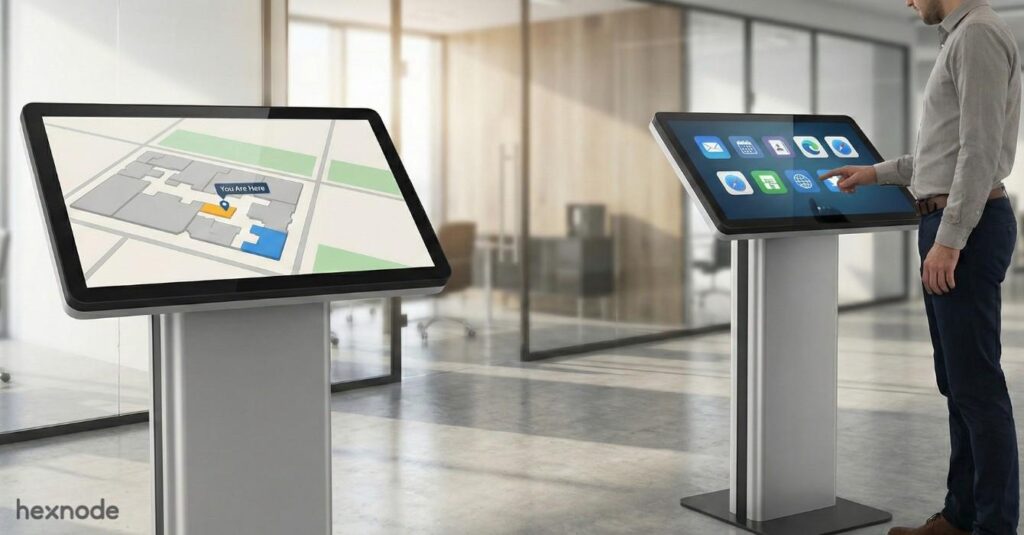
Single-app kiosk mode locks a device down to one application, maximizing focus and security (ideal for digital signage, POS terminals). Multi-app kiosk mode presents a restricted home screen with only pre-approved applications, balancing productivity with control (ideal for field service or inventory scanning). Choosing the right mode depends entirely on the device’s function. A Unified Endpoint Management (UEM) solution centrally manages and enforces both modes.
The kiosk mandate: Device management for a single purpose
Purpose-built devices, from retail tablets to logistics scanners, require purpose-built control. The strategic decision between single-app vs multi-app kiosk mode is the catalyst that transforms standard consumer hardware into focused, secure business instruments, ensuring that every digital interaction serves a specific operational goal.
Without this rigid oversight, the inherent versatility of mobile devices quickly becomes a liability. Unmanaged endpoints often lead to costly misuse, data compliance gaps, and a constant strain on IT support due to accidental setting changes or distractions. The key to mitigating these risks lies in selecting the precise level of lockdown that secures the device without hindering the user’s ability to perform their job.
Hexnode enables this balance through two robust configurations: Single-app kiosk (maximum control), which locks the device to a solitary function immediately upon boot, and multi-app kiosk (flexible control), which grants access to a specific suite of approved tools. This guide dissects these architectures to help you align the right mode with your specific operational needs.
Single-app kiosk mode is a restrictive endpoint configuration that locks a mobile device to a single application, effectively turning a general-purpose computer into a specialized appliance. This mode eliminates the user’s ability to navigate the operating system, access settings, or launch unauthorized applications, ensuring absolute focus on the designated task.
Defining the Single-app Lockdown
Single-app lockdown is the mechanism by which an MDM removes the “smart” features of a smartphone, leaving only the execution environment for one specific tool. The device boots directly into the app and suppresses hardware buttons (Home, Back, Recents) to prevent exit. The Administrator’s Golden Rule for this configuration is absolute: If the device has one job, use single-app kiosk mode.
Ideal use cases for Single-app mode
Single-app kiosk mode is the industry standard for securing devices in unattended public spaces or high-velocity work environments where distraction is a liability.
According to a Forrester Total Economic Impact™ study, properly empowering frontline workers with managed, dedicated digital tools can deliver a 291% Return on Investment over three years by reducing downtime and operational errors.
To realize these operational gains, organizations typically deploy this high-focus architecture in the following scenarios:
Digital Signage: Locking large-format displays to a content management player to stream ads or information without interruption.
Dedicated POS Terminals: Ensuring cashier tablets run only the payment processing software, preventing employees from browsing the web during shifts.
Manufacturing/Logistics: Ruggedized handheld scanners locked strictly to an inventory management (ERP) app to maintain focus on the assembly line.
Visitor Management: Tablets mounted in lobby stands, running a single check-in application (VMS) to capture guest data securely.
Key Hexnode setup steps
Kiosk policy configuration involves defining precise launch behaviors to ensure the app stays in the foreground.
Enabling Autonomous Mode (iOS) Autonomous Single-App Mode (ASAM) is an iOS feature that allows an app to lock itself down when a specific action occurs, such as starting a high-stakes assessment. For permanent kiosks, IT admins typically enforce standard single-app mode via the Hexnode policy to prevent any user exit.
Disabling Hard/Soft Keys (Android)
Peripheral lockdown is critical for Android kiosks to prevent users from bypassing the app using hardware buttons. Hexnode handles this via the Peripheral Settings policy. It leverages Android’s LockTaskMode to suppress the Home and Recents buttons.
Auto-Launch Configuration
Auto-launch is a fail-safe setting that forces the designated app to open immediately upon device startup. In the Hexnode console (under Policies > Kiosk Lockdown > Android Kiosk Lockdown > Single App), enabling this ensures that even if a device crashes or reboots, the agent immediately forces the target app back into the foreground.
The Definitive Guide to Kiosk Management and Strategy
Hexnode UEM provides secure, multi-platform kiosk lockdown, monitoring, and management.
Multi-app kiosk mode: Controlled flexibility
While single-app kiosk mode turns a device into a dedicated appliance, multi-app kiosk mode introduces a layer of controlled versatility. It creates a sandbox environment where users can switch between a specific set of applications necessary for their role, without ever gaining access to the underlying operating system or unauthorized distractions. This mode is the bridge between a fully locked-down terminal and a standard, open corporate device.
Defining the Multi-app lockdown
Core Mechanism – In multi-app kiosk mode, the device’s standard interface is replaced by a custom, administrator-defined home screen. This environment acts as a “safe zone,” displaying only the icons for the handful of pre-approved applications required for the user’s workflow.
Behind the scenes, the MDM strictly enforces this boundary. The notification bar, system settings, file manager, and the Google Play Store or App Store are completely hidden or disabled. If a user attempts to navigate away from the approved apps or reboot the device, the kiosk launcher immediately reloads, ensuring the user remains within the designated digital perimeter.
The administrator’s balancing act
Deploying multi-app mode requires a delicate balance between security compliance and employee productivity. The goal is to provide enough utility to prevent workflow bottlenecks while maintaining a rigid security posture.
For example, an administrator must determine if a user needs a full web browser or just a specific web app, or if they require the native camera app versus a third-party scanning tool. If the restrictions are too tight, employees cannot perform their duties; if they are too loose, the device becomes a vector for shadow IT or distraction. Multi-app mode solves this by strictly defining the “allowlist” of executables.
Ideal use cases for Multi-app mode
Field Service Technicians
For technicians working off-site, a single app is rarely enough. They require a suite of tools to operate autonomously. Multi-app mode is the ideal solution here. It allows simultaneous access to a Dispatch App for ticketing, navigation tools like Waze, and secure apps for documenting repairs. This setup ensures they have every tool needed to close a ticket without the ability to stream videos or browse social media during work hours.
Corporate Training/Testing Stations
In education or corporate training environments, devices must facilitate learning without offering distractions. A multi-app configuration can limit a tablet to a web browser locked to the Learning Management System (LMS). Additionally, it provides access to a calculator and a secure app for communicating with instructors. This creates a focused, proctored environment for exams and training modules.
Customer Service Kiosks
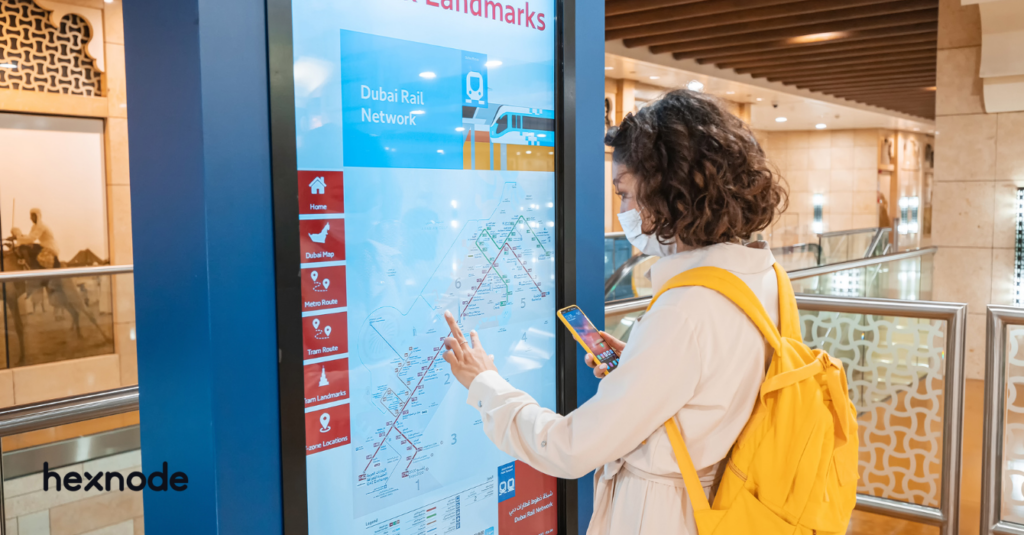
Interactive kiosks often need to offer more than just a single webpage. For instance, a retail kiosk might need a specific Web App for browsing the catalog and a separate feedback form. It could also run a video playback utility to loop promotional material when the device is idle. Multi-app mode allows the customer to navigate between these specific touchpoints seamlessly.
Key Hexnode setup steps
Custom Layout Design
Hexnode allows administrators to act as UI designers for the kiosk interface. You can customize the size of the app icons, the grid layout, and the wallpaper to match company branding. Administrators can arrange icons logically—grouping utility apps or placing the primary work app in the center—to ensure the user experience is intuitive and efficient.
Whitelisting Web Domains
When a browser is included in the multi-app mix, unrestricted internet access is rarely the goal. The kiosk browser settings allow admins to whitelist specific web domains. This ensures that users can access necessary sites, such as client-portal.com or company-intranet.net, but are blocked from navigating to unauthorized URLs. This turns the browser into a tool solely for business functions.
Exit Password Management
Hexnode enables the configuration of a secure Exit Password. This allows authorized personnel to temporarily dissolve the kiosk environment directly on the device, perform necessary maintenance, and re-enter the lockdown mode immediately afterward, without needing to push a new policy from the console.
Single-app vs Multi-app kiosk mode: A comparison
Choosing between single-app vs multi-app mode is a strategic decision dictated strictly by end-user workflow requirements. While both enforce security, they differ significantly in user flexibility and operational complexity.
Kiosk mode decision matrix
The following matrix provides a quick reference to help administrators match the deployment mode to the business need.
Feature
Single-app kiosk
Multi-app kiosk
User Focus
Absolute. Zero distractions; the user cannot exit the specific task at hand.
High. Controlled environment; users can switch tasks but remain within a managed perimeter.
Complexity
Simple. Only one application or URL needs to be managed and updated.
Moderate. Requires compatibility checks between apps and management of a custom launcher layout.
Security Level
Highest. The attack surface is minimized to a single executable.
High. Only trusted, whitelisted apps are exposed, though interaction between apps is possible.
Ideal For
Digital Signage, Point of Sale (POS), Self-service Ticketing, Time Clocks.
Field Service, Inventory Management, Logistics, Customer-facing tablets.
Help Desk Impact
Lowest. Users cannot get “lost” in settings or menus, drastically reducing support tickets.
Low to Moderate. Users have slightly more freedom, potentially leading to minor navigation questions.
Unique consideration: The kiosk browser
A critical component that bridges the gap between these two modes is the kiosk browser. In the modern enterprise, many “applications” are web-based SaaS platforms. The kiosk browser effectively turns any website into a secure, native-feeling application.
In a single-app deployment, the kiosk browser is often configured to launch a specific URL (like a digital menu or a check-in portal) in full-screen mode immediately upon boot. To the user, the device is the website; the browser chrome (address bar, back buttons) is hidden, creating an immersive experience.
In a multi-app deployment, the kiosk browser functions as a secure portal to the internet. Instead of locking to one URL, it can be configured with a “whitelist” of approved bookmarks. This allows an employee to access the company intranet, a vendor portal, and a web-based email client, without the ability to surf the open web or download malware. It transforms a standard web browser into a strictly regulated business tool.
Featured resource
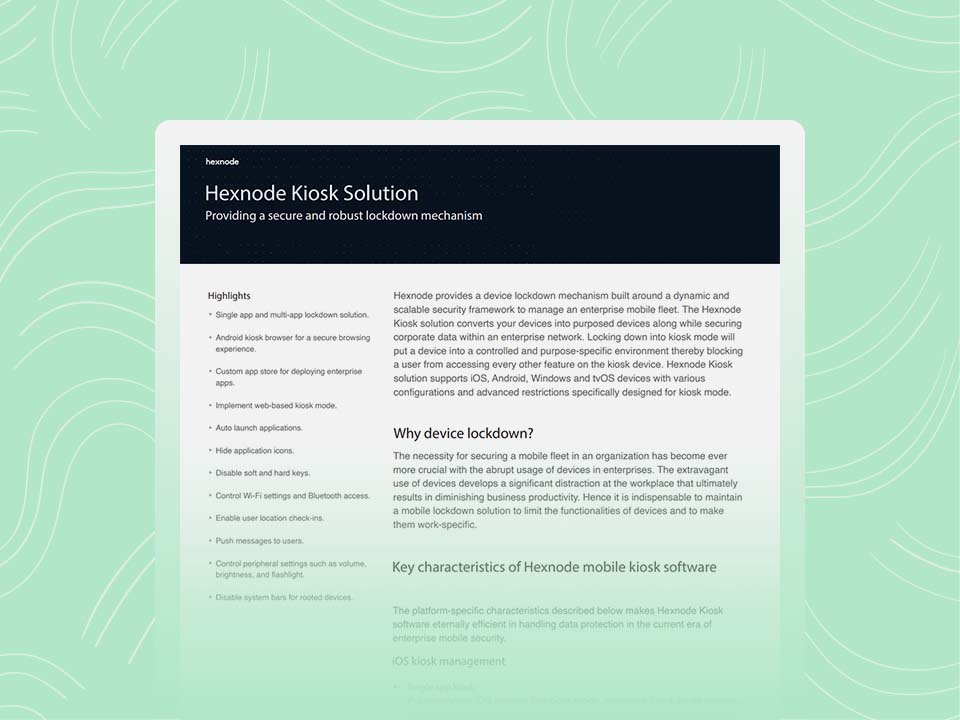
Hexnode Kiosk Solution
Single-app maximizes security, while multi-app remains safe by strictly restricting access to whitelisted applications.
Implementing kiosk mode is only half the battle; the real challenge lies in managing that environment at scale. Hexnode UEM streamlines this entire lifecycle with comprehensive support for setup, security, and ongoing management. It covers every configuration, from strict single-app deployments to flexible multi-app environments. By centralizing control, Hexnode addresses the complexities of fragmentation, remote support, and hardware customization.
Cross-platform deployment consistency
The Pain of Fragmentation
Managing kiosk mode in mixed environments is a logistical nightmare due to disparate native tools across Android, iOS, and Windows. This fragmentation forces administrators to navigate multiple workflows, inevitably leading to configuration drift and inconsistent security policies.
Hexnode UEM Solution: Single Policy Enforcement
Hexnode resolves this fragmentation via Single Policy Enforcement. Administrators define a single kiosk profile in the unified console, which the platform automatically translates into the necessary OS-level commands. This guarantees consistent fleet behavior and security, regardless of the underlying operating system.
Advanced kiosk monitoring and auditing
Remote Troubleshooting
Deploying kiosks in remote or public spaces makes physical maintenance costly. Hexnode’s Remote View and Control allows IT admins to mirror screens and troubleshoot issues instantly without on-site visits, a critical capability for MSPs managing dispersed fleets.
Compliance Reporting
Regulated industries require proof of security, not just claims. Hexnode’s compliance reporting generates detailed logs that verify kiosk status and app whitelists, providing the concrete evidence needed for security audits and continuous compliance.
Advanced kiosk customization features
Branding
Hexnode transforms generic tablets into branded corporate instruments through deep customization. Administrators can remotely push specific wallpapers, color schemes, and icon layouts to ensure the kiosk environment perfectly matches the corporate identity.
Peripheral Control
Hexnode extends security to physical ports via granular peripheral control. Administrators can enable essential peripherals like scanners while strictly blocking unauthorized USB drives, effectively preventing data theft and ensuring the device functions only as intended.
Navigating the Single-App vs Multi-App Kiosk Mode decision comes down to balancing strict security with everyday productivity. Whether you need a dedicated setup or a flexible environment, your choice defines how efficiently your team operates. While this decision is critical, implementing it should be effortless.
Hexnode UEM eliminates the complexity of this process, offering the most flexible and unified kiosk management solution on the market. Whether you need to lock down a tablet for a dedicated point-of-sale terminal or create a controlled workspace for field technicians, Hexnode empowers you to transform any device into a focused, secure business tool, regardless of the operating system.
Secure your devices with Kiosk Mode for safe, focused interactions.
Start your 14-day free trial with Hexnode UEM today.
1. Can kiosk mode be used on employee-owned (BYOD) devices?
Yes, but typically only through the multi-app kiosk mode via a secure containerization method. This protects employee privacy by locking down only the corporate workspace, while the employee retains control over their personal apps and settings outside the container.
2. Can a user break out of kiosk mode?
No. A properly configured kiosk mode enforced by UEM prevents users from exiting the lockdown without an admin password or a specific hardware key combination. Attempts to reset the device or bypass the policy typically result in the device returning to the locked kiosk state.
3. What are the main benefits of using a UEM for kiosk mode?
The main benefits are Centralized Management (managing hundreds of devices from a single console), Policy Consistency (enforcing the same lockdown rules across different OS types), and Remote Troubleshooting (viewing and fixing devices without physically visiting the kiosk).
4. Is a single-app kiosk safer than a multi-app kiosk?
Yes. When comparing Single-App vs Multi-App Kiosk Mode, the single-app version is inherently safer due to its minimal attack surface. Multi-app mode exposes slightly more components, but the risk remains low as only whitelisted apps are accessible.
A storyteller for practical people. Breaks down complicated topics into steps, trade-offs, and clear next actions—without the buzzword fog. Known to replace fluff with facts, sharpen the message, and keep things readable—politely.