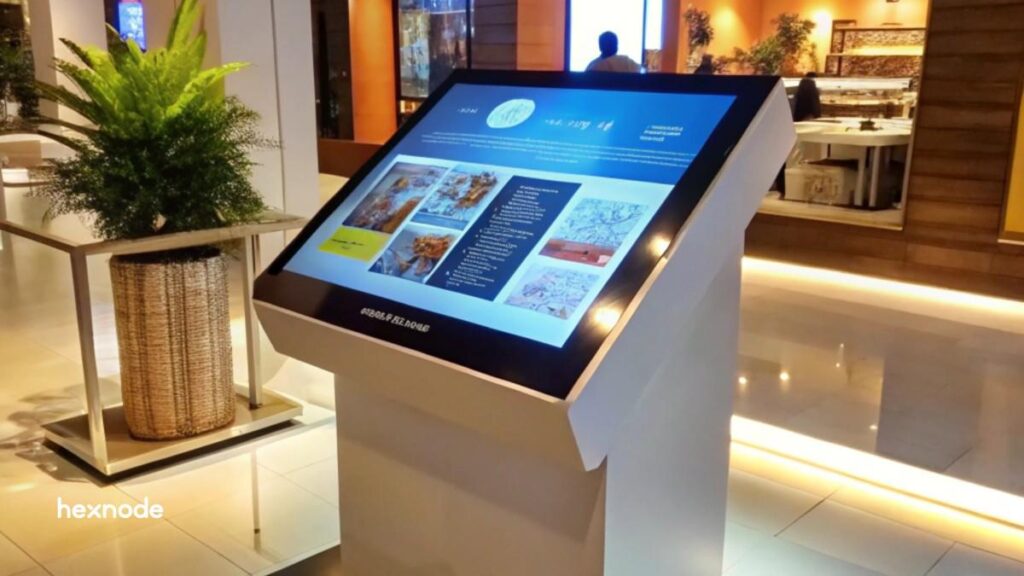
Android Kiosk Branding is the process of customizing a locked-down device’s user interface (UI) to reflect a specific corporate identity. Using a UEM like Hexnode, admins can transform a standard tablet or smartphone into a purpose-built terminal by applying custom wallpapers, brand-aligned color schemes (such as Material You), and bespoke app layouts while restricting access to unauthorized system settings.
A well-designed Android kiosk branding strategy can improve business metrics drastically.
However, many companies spend heavily on powerful hardware while neglecting ease of use. Customers are not the only ones affected by a cumbersome, annoying interface. Long lines and transaction abandonment have a negative effect on your bottom line and brand image.
This blog explains how to balance Android kiosk branding with simple, effective UI design. We’ll help you create a high-quality kiosk experience and deploy it safely to every device using Hexnode.
Effective Android kiosk branding UI design is more about smooth user flow than it is about eye-catching graphics. By following basic human-computer interaction principles, you can create interfaces users enjoy and trust. The fundamental pillars of this are:
Simplicity and Cognitive Load Reduction
Users often approach kiosks in a hurry, distracted, or completing the task for the first time. To reduce the amount of mental effort needed, the user interface must promptly convey what the user must do.
One action per screen: Each screen should focus on guiding the user towards one clear action. For example, an information kiosk should focus on navigation rather than complex login forms.
Whitespace is your ally: To visually divide elements, use plenty of padding and margins. Clutter overwhelms the eye.
Jargon-free words: Make use of plain, widely understood language. Steer clear of technical or business jargon.
Limit options: Don’t have more than five or seven options in your primary navigation categories. Logically arrange complicated options under distinct headings.
Touch Target Optimization and Accuracy
When users struggle to tap the right button, frustration increases and tasks often remain unfinished. This is especially true in public settings where people may wear gloves, have wet fingers, or larger hands.
Size matters: Your primary touch targets (buttons) need to be much larger, compared to a typical mobile device. A minimum of 44 by 44 pixels or about 20 mm wide, is the industry standard. For industrial or retail kiosks that receive a lot of traffic, aim for a larger size.
Spacing is essential: Make sure there is enough room between the interactive components to avoid any accidental taps.
Instant feedback: Always provide instant visual or haptic confirmation that a selection has been registered. The button should change color, animate briefly, or the trigger vibration to confirm action.
As people often complete tasks quickly and under pressure in public settings, this optimization is essential. An accurate and responsive interface builds confidence.
Linear, Predictable Workflow
A smooth kiosk experience keeps users aware of their progress, next steps, and remaining actions.
Progress indicators: Make use of visual aids such as progress bars or numbered steps (such as “Step 3 of 5”). This keeps the user from feeling stuck in a never-ending loop and controls expectations.
Consistent navigation: Put navigation buttons in the same places on all screens to provide consistent navigation. Place “Confirm,” “Next,” or “Pay” buttons in the bottom-right corner and “Back” or “Cancel” buttons in the top-left.
Session reset: User privacy is crucial in public-facing scenarios. Idle sessions should automatically reset to the home screen after a set amount of time.
Hexnode tools like Android Kiosk browser, let admins set inactivity timers that remove sensitive data automatically and secure the device for the next user. For security and compliance, this step cannot be negotiated.
Featured resource
Hexnode Kiosk Browser
Explore how Hexnode kiosk browser helps in kiosk management with security and compliance capabilities for enterprises.
Elevating Brand Identity and Ensuring Inclusive Design
Your Android kiosk UI serves as a digital storefront that reflects your brand instantly.
However, organizations also carry a responsibility to deliver an inclusive and accessible experience.
The Kiosk as a Brand Touchpoint (Aesthetics)
Android kiosk branding allows you to transform standard transaction tools into a way to showcase your company’s identity.
Seamless integration: Your user interface should feel like an extension of the website or physical store right away. This means using approved fonts, brand colors, and consistent logo placement (typically top-center or top-left).
Quality imagery: Use high-quality, product-specific imagery. The impression of quality is diminished by generic stock photos. An exquisitely rendered image of the product conveys its superior value.
Usability check: Visual design must support functionality, not overshadow it. For example, muted brand colors may look elegant but reduce button visibility.
The purpose should never be obscured by branding, which improves the experience.
Branding Checklist:
Logo placement: Consistent, non-intrusive placement (header/footer).
Color palette: Use 3–5 core brand colors; one must be reserved for primary actions.
Typography choice: Use a clean, legible, brand-approved font at scale.
Accessibility Beyond Compliance (Inclusivity)
Following WCAG or ADA guidelines is only one aspect of designing for accessibility. It’s about showing corporate responsibility and growing your prospective clientele.
High color contrast: Use tools to make sure that the text and buttons meet or exceed contrast standards (e.g., 4.5:1).
Text that can be adjusted: Giving users the ability to quickly enlarge font sizes to improve readability.
Support for audio and screen readers: Audio support and screen readers help visually impaired users navigate kiosks more easily.
Physical considerations: Keep in mind that the UI should enhance the hardware even though software is the focus. On screens designed for different heights, place key elements where users can see them easily (e.g., avoid placing critical information near the bottom edge).
Multi-Language and Localization
Your kiosk needs to be multilingual and ready for deployment in order to serve diverse communities.
Text expansion support: Some languages need more space than English. To convey the same meaning, languages like German or Spanish frequently need a lot more screen real estate than English. Make sure text fields and buttons have enough padding to allow for text expansion without overflow or clipping.
Prominent language toggle: Place the language switch clearly on the home screen for quick access. This enables the user to quickly choose their preferred language.
Customization at Scale: Hexnode Features for the Perfect Android Kiosk UI
Managing hundreds of kiosks is nearly impossible without the right software. A management solution ensures every screen looks perfect, stays consistent, and follows the rules.
Hexnode offers fine-grained control over every facet of the Android operating system and application layer, transforming design vision into scalable reality. This is how you manage and implement your branded kiosk user interface on a large scale.
Advanced Home Screen Customization
The home screen of the kiosk is the first thing a user sees. By replacing the default Android launcher, Hexnode gives IT teams the complete control over the kiosk interface.
Branded Experience: Admins can add branded wallpapers and logos to turn the home screen into digital signage. As soon as the device boots up, this instantly enforces your Android kiosk branding.
The Dynamic Launcher advantage: Hexnode lets you set up a specific HTML web application or a hosted URL as the central kiosk home screen.
As a result, IT teams can update kiosk content instantly without reinstalling apps.
Policy Automation and Peripheral Control
A great user interface is worthless if the device’s hardware does not support the application’s purpose. To support the intended UX, Hexnode locks down the device’s physical capabilities.
Purpose-Built Hardware Configuration: Depending on the function of the kiosk, administrators can remotely activate or deactivate hardware peripherals.
To facilitate transactions, you must activate the NFC reader, barcode scanner, and receipt printer. These actions directly correspond to the options shown in the user interface.
Forcing Optimal Viewing: Admins use Display controls in the Peripheral Settings to set brightness, screen timeout, and viewing conditions remotely. These remote configurations guarantee that the user interface displays correctly in any location.
Android Launcher customization: Hexnode replaces the default Android launcher with a custom-branded Kiosk Launcher, that auto-launch settings for the device, and add brand elements like logo to the kiosk, making it into a consistent, professional, and fully branded user interface.
Kiosk File Shortcuts – Admins add Kiosk file shortcuts – for example, a digital menu PDF or promotional content – directly to the kiosk home screen. This makes sure that the customers instantly access the relevant documents without navigating outside the kiosk mode.
File management – With File Management feature, admins update menus, pricing sheet, branding assets, and replace outdated media files remotely, eliminating the need for on-site updates.
Digital Signage – During idle hours, the admin can switch the device to a Digital Signage, playing promotional videos and product imagery. This turns every kiosk into a marketing display without sacrificing functionality.
This remote control highlights the governance layer of Hexnode. The IT admin achieved a precise, customized operational environment to support the custom UI across 50 devices centrally and instantly, without needing physical access to any of them. This gives maximum consistency and reliability on a scale.
For example,
A fast-food chain is deploying 50 self-ordering kiosks in outdoor drive-thru lanes. The kiosks must remain readable in bright sunlight and stay in portrait mode.
The solution involves creating a Kiosk Lockdown Policy and configuring key settings within the Peripheral Settings and Basic Restrictions for Android.
Kiosk lockdown and app whitelisting – The admin defines the Multi-App Kiosk first, whitelisting only the necessary applications like the ordering app, a PDF viewer, and the Hexnode Kiosk Browser. This makes the device secure and safeguards the designed UI.
Enforcing orientation (portrait lock) – Within the basic restrictions, the admin sets the screen orientation to portrait mode. This feature locks the screen vertically, preventing accidental rotation and confirming that the ordering app displays its UI consistently.
Forcing Maximum Brightness – Next, under the Display option in Peripheral Settings, the admin adjusts the Brightness option, setting the level to 100% (Max Brightness). This makes sure that the device display is at maximum illumination, guaranteeing high outdoor visibility even in direct sunlight.
Preventing Tampering (Stability) – To make sure that the UI remains active and stable, the admin also uses Peripheral Settings to disable the Power Button and Volume Buttons, preventing the users from turning off the device or disrupting the experience.
Deployment at Scale – Finally, the admin assigns the policy to the dedicated device group containing the 50 target devices. Hexnode instantaneously pushes the configuration settings. The devices immediately switch to the Kiosk UI, lock to portrait mode, and the screen brightness jumps to 100%.
How self-service kiosks improve customer experience in Quick Service Restaurants (QSRs)
Maximize your Android kiosk’s potential with Hexnode management.
Remote Troubleshooting and Monitoring (The Maintenance Layer)
The moment the gadget goes offline or runs out of battery, even the most flawless design fails. The crucial maintenance layer for mission-critical deployments is provided by Hexnode’s governance features.
Real-time governance: Hexnode offers real-time data usage, network connectivity, and battery life metrics for devices. The system immediately reports potential issues to administrators before they affect the user’s experience.
Remote view and control: IT teams uses Hexnode’s remote view and remote-control features to diagnose issues reported by users. Support personnel can see the kiosk screen and fix basic problems without having to visit the site.
Data-Driven Kiosk Design and Future-Proofing
Launching a branded kiosk marks the start of ongoing improvement. Vigilant security and data-driven iteration are essential for long-term success.
Data-Driven Iteration
The “perfect” user interface (UI) must constantly change in response to user interactions to make it a “perfect” Android kiosk branding.
KPIs, or key performance indicators: Use kiosk analytics to keep an eye on important metrics. Focus on these key metrics to understand user friction:
Drop-off points: Where users give up on a task.
Completion rates: The percentage of successful transactions.
Error rates: How often users misclick or trigger error messages.
Educating Policy Updates: A high drop-off at a particular screen indicates a UX failure (e.g., poor button placement or confusing language). IT teams should use this data to guide design changes and policy updates.
The Kiosk Security and Exit Strategy Pitfall
If users get out of kiosk mode, and access the underlying Android system, branding and security are at risk.
MDM-Level Lockdown Is Crucial: It’s easy to get around basic Android features like screen pinning. In contrast, Hexnode’s Kiosk Mode offers a genuine, unbreakable lockdown at the Device Owner level. This completely limits access to settings and other apps and disables sophisticated system gestures.
Hardware Button Control: Hexnode blocks system gestures and disable all hardware buttons, including the Power, Volume, and Recent Apps buttons. This helps users to interact only with the branded kiosk interface.
Android Kiosk UI/UX Design & Security Checklist:
UX: Main action buttons greater than or equal to 44 x 44 pixels and well-spaced.
Branding: Consistent application of logo, colors, and typography.
Flow: Linear workflow with clear progress indicators (Step X of Y).
Accessibility: High color contrast and option for larger font sizes.
Hexnode Control: System UI elements (status bar, notifications) are hidden.
Security: Device locked down using Hexnode’s Device Owner Mode.
Iteration: Monitoring Drop-off Points for continuous UI improvement.
Frequently Asked Questions on Android Kiosk Design
Q: What is the font size recommended for a typical kiosk screen?
A: Because users view kiosks from a distance, we recommend a base font size of 20–24 pixels for Android kiosk branding on a standard 1080p display. Headings and primary text should be larger to provide clear readability.
Q: Can I use my own custom launcher with Hexnode?
A: Absolutely. IT administrators can set up a custom APK as the dedicated kiosk launcher through Hexnode. This gives admins full control over Android kiosk branding and allows developers to implement highly specific, branded features that the system instantly enforces on the device.
Q: How do I handle content updates for a multi-app kiosk fleet?
A: Hexnode simplifies fleet management by centralizing remote content pushing and scheduled updates for apps and operating systems. This ensures all Android kiosks display the latest approved branding and UI revisions.
Conclusion
Designing the perfect kiosk requires a balance of thoughtful UX and strong device management. To begin with, innovative layouts, accessible touch targets, and clear workflows make sure that users can complete tasks effortlessly.
However, a great design alone isn’t enough. Ultimately, your kiosks must remain secure, stable, and consistent across every location to ensure long-term success.
Hexnode’s Android kiosk capabilities bring that reliability layer, helping you lock down devices, standardize branding, automate policies, and manage large fleets without a hitch.
Smart UX design combined with Hexnode management delivers a kiosk experience that boosts revenue, strengthens brand trust, and works flawlessly at scale.
Ready to deploy a perfectly branded, secure, and intuitive Android kiosk?
Start your free trial of Hexnode MDM and explore the advanced Kiosk Customization features today!
I write at the intersection of technology, process, and people, focusing on explaining complex products with clarity. I break down tools, systems, and workflows without any noise, jargon, or the hype.