TL; DR
Single app mode locks a device to one application, turning general-purpose hardware into a secure, tamper-resistant kiosk that only a UEM can enforce persistently at scale.
- Native tools like Guided Access are manual and exitable; UEM-driven lockdown survives reboots and can only be removed by an administrator.
- Setup differs per OS: iOS/iPadOS and tvOS require supervised devices, while Android single-app kiosk supports several management types, including Android Enterprise Device Owner. Windows uses the Windows kiosk configuration supported by Hexnode.
- Hexnode provides platform-dependent capabilities such as automated enrollment, kiosk peripheral controls, secure browsing, and Remote View on supported devices and kiosk modes.
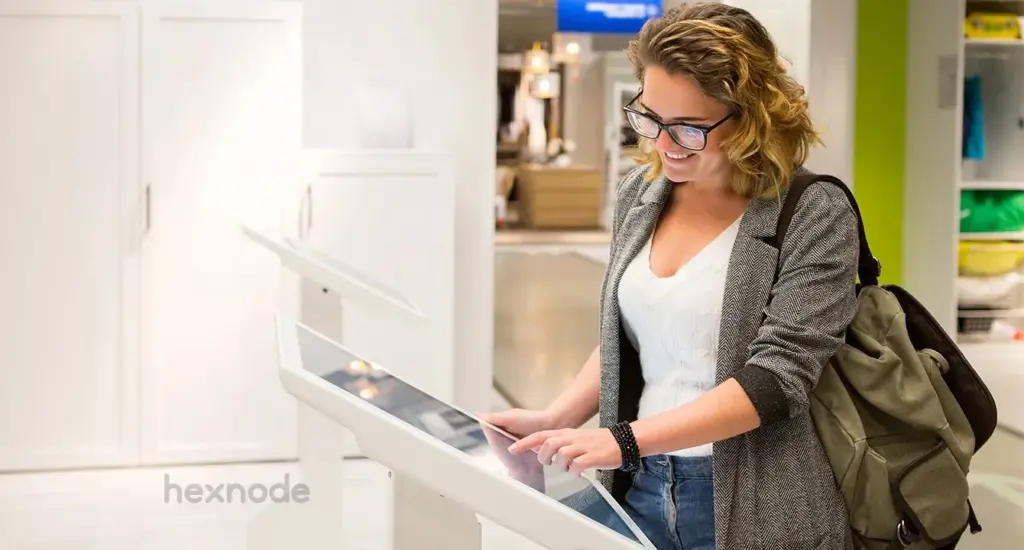
Single app mode is a device lockdown state that restricts an endpoint to one designated application, disabling navigation, multitasking, and access to system settings. It converts consumer or rugged hardware into dedicated-purpose devices – POS terminals, self-service kiosks, digital signage, and exam stations – where the user can interact with nothing but the assigned app. When enforced through a Unified Endpoint Management (UEM) platform, this lockdown becomes persistent, remotely managed, and resistant to user tampering.
This guide breaks down what single application mode does, how it differs from native OS tools, and the exact steps to deploy it across iOS, Android, Windows, and tvOS using Hexnode UEM.
Defining the Single Application Lockdown
A single application environment restricts the user interface so that only one designated application remains accessible while the operating system continues running its normal background services.
The device becomes a controlled environment where users cannot access the Home screen, Settings, or other unauthorized system interfaces, while policy restrictions prevent unauthorized configuration changes.
For IT and endpoint administrators, this delivers three concrete operational outcomes:
- Reduced distraction surface — Access to social media, games, browsers, and non-essential settings is removed entirely.
- Hardened security posture — Restricting browser access and system-level configuration shrinks the attack surface on public-facing hardware.
- Lower support overhead — Preventing accidental setting changes cuts the on-site troubleshooting tickets that dedicated devices typically generate.
Choosing the Right Device for the Job
Hardware selection depends on the deployment environment, durability requirements, and the platform’s native lockdown depth. iPads offer a stable OS and premium build for customer-facing retail; Android tablets provide rugged variants and lower per-unit cost for the field; Windows PCs handle peripheral-heavy check-in stations; and Apple TV drives always-on signage.
| Device |
Primary strength |
Ideal use case |
| iPad / iPhone |
High security, stable OS |
Retail POS, concierge, education |
| Android tablet |
Cost-effective, rugged device options |
Logistics, inventory, industrial control |
| Windows PC |
High processing, peripheral support |
Self-service check-in, library terminals |
| Apple TV |
Optimized media playback platform for digital signage and presentation applications |
Digital signage, corporate lobbies |
Single App Mode vs. Guided Access
The most common point of confusion is the distinction between Guided Access and UEM-driven single app mode. Guided Access is a temporary, manual lock initiated by hand on an individual iOS device. Single app mode is a persistent, policy-enforced state pushed from the management console.
The operational difference matters at scale. Guided Access can be exited by anyone who knows the passcode and does not survive reprovisioning cleanly. Hexnode can maintain single-app kiosk lockdown across reboots, but available exit mechanisms vary by platform and configuration; for example, Android can optionally permit passcode-based local exit, while Windows provides device-side kiosk-account exit methods. For a fleet of hundreds or thousands of kiosks, manual per-device locking is not a viable model – centralized policy is.
Single app mode vs Autonomous single app mode vs Guided access mode vs Automatic assessment configuration
Compare Single App Mode, Autonomous SAM, Guided Access, and Assessment Mode to pick the right iOS lockdown.
Setting Up Single App Mode: Platform Breakdown
Each operating system enforces the lockdown through a different native mechanism. Below are the verified configuration paths in the Hexnode UEM portal.
iOS Single App Mode (iPhone & iPad)
To enable Single App Mode on iPhone or iPad, the device must be supervised using Apple Business Manager (Automated Device Enrollment) or Apple Configurator. The device must also be enrolled in Hexnode UEM with a valid APNs certificate configured, and the kiosk application should already be installed before the policy is deployed.
To configure Single App Mode:
- Navigate to Policies and either create a New Policy or select an existing one.
- Go to Kiosk Lockdown > iOS Kiosk Lockdown > Single App.
- Click Configure.
- Click the + icon and select the Store app or enterprise app that will run in kiosk mode.
- (Optional) Configure Advanced Kiosk Settings and User Enabled Options if required.
- Open the Policy Targets tab and assign the policy to the required Devices, Device Groups, Users, User Groups, or Domains.
- Click Save to deploy the policy.
Once you apply the policy, the selected application launches automatically and remains the only accessible foreground application. You can also configure additional kiosk restrictions, such as disabling hardware buttons or screen rotation, through the same policy.
When to Use Autonomous Single App Mode
Autonomous Single App Mode (ASAM) is designed for applications that can automatically enter and exit kiosk mode based on their own workflow – for example, online assessment or testing applications that lock the device only while an exam is in progress.
To configure Autonomous Single App Mode:
- Navigate to Policies and create or edit a policy.
- Go to Kiosk Lockdown > iOS Kiosk Lockdown > Autonomous Single App Mode.
- Click Configure.
- Click the + icon and add the ASAM-supported application.
- Open Policy Targets and assign the policy to the required devices or groups.
- Click Save.
Note: The application must explicitly support Autonomous Single App Mode and be associated through the Autonomous Single App Mode policy. Assigning the app through another kiosk policy will not enable ASAM behavior.
Single-app vs. Multi-app Kiosk Mode: A Complete Guide
Android Kiosk Mode Deployment
Hexnode Single App Kiosk supports multiple Android management methods, including General Android, Android Enterprise Device Owner, Samsung Knox, LG GATE, Kyocera Business Phones, Custom ROM devices, and Android TV. On Android Enterprise Device Owner devices running Android 6.0 or later, administrators can optionally enable Lock Task Mode for additional system UI restrictions.
To configure Android Single App Kiosk:
- Navigate to Policies and create a New Policy or edit an existing one.
- Go to Kiosk Lockdown > Android Kiosk Lockdown > Single App.
- Click Configure.
- Select the application that will run in kiosk mode.
- (Optional) Configure kiosk settings such as peripheral controls, launcher behavior, or Lock Task Mode (where supported).
- Open the Policy Targets tab and assign the policy to the required devices or groups.
- Click Save.
Depending on your deployment, you can also:
- Lock the device to a single website using Hexnode Browser Lite.
- Silently install enterprise APKs on supported Android management types.
- Configure the kiosk app to relaunch automatically after device reboot or shutdown.
Windows Single App Kiosk
Windows Single App Kiosk uses Microsoft’s Assigned Access framework to restrict a device to a single application. It supports Windows 10 (version 1709 or later) and Windows 11, with app support varying by Windows edition.
To configure Windows Single App Kiosk:
- Ensure the kiosk application is installed and available to the kiosk account.
- Create a New Policy or edit an existing one.
- Navigate to Kiosk Lockdown > Windows Kiosk Lockdown > Single App.
- Choose the kiosk application type (UWP or Desktop App, where supported).
- Specify the kiosk account or configure Autologon if applicable.
- Open Policy Targets and associate the policy with the required Windows devices.
- Click Save.
When the kiosk account signs in, Windows automatically launches the configured application in kiosk mode.
Apple TV Digital Signage
Apple TV devices running tvOS 10.2 or later can be configured in Single App Mode when they are supervised and managed through Hexnode.
To configure Apple TV Single App Mode:
- Ensure the Apple TV is supervised and enrolled in Hexnode UEM.
- Navigate to Policies and create or edit a policy.
- Go to Kiosk Lockdown > tvOS Kiosk Lockdown > Single App.
- Click Configure and select the application.
- Associate the policy with the target Apple TV devices.
- Click Save.
Install Store apps on the Apple TV before using them in kiosk mode, or deploy supported enterprise applications through Hexnode. Once you apply the policy, the Apple TV launches directly into the selected application, making it well suited for digital signage and information displays.
Why Hexnode for Single Application Management
Hexnode provides cross-platform single app enforcement across iOS, iPadOS, Android, Windows, and tvOS from one console. Where native tools like Guided Access or Assigned Access are designed for local, manual configuration, Hexnode adds the remote-managed infrastructure that enterprise fleets require.
Capabilities that directly support single app deployments include:
- Zero-Touch Provisioning — Zero-touch enrollment can simplify large-scale deployment through Apple Automated Device Enrollment and Android Zero-Touch Enrollment. On iOS/iPadOS, preventing users from removing management requires a supported supervised ABM/ASM enrollment and an ADE profile configured to disallow UEM profile removal.
- Advanced Peripheral Controls — Remotely disable hardware buttons (Volume, Sleep/Wake), block USB connections, and lock screen orientation to prevent tampering.
- Remote View — Remotely inspect device screens on supported platforms and kiosk configurations to aid troubleshooting.
- Hexnode Browser Lite — Hexnode Browser Lite is a single-tabbed browser for kiosk web apps that can restrict navigation to approved URLs and provides configurable options for clearing cache and cookies.
Troubleshooting a Stuck Device
When a device becomes unresponsive in single app mode, work through this sequence:
- Network check — Confirm the device has not drifted into a Wi-Fi dead zone, which blocks policy updates from reaching it.
- Force a policy sync — Force a device sync using the documented Scan Device action from the Hexnode portal, or use Sync device with UEM on supported Android kiosk devices once you enable that Peripheral Setting.
- Emergency exit — On supported Android kiosk configurations, administrators can configure a local or global kiosk exit passcode for hands-on exit. Other platforms use their documented platform-specific kiosk exit procedures.
Frequently Asked Questions
What is the difference between single app mode and multi-app kiosk mode?
Single app mode locks a device to exactly one application, while multi-app kiosk mode presents a restricted home screen with a defined set of approved apps the user can switch between. Single app mode suits fixed-purpose endpoints like digital signage and POS terminals, whereas multi-app mode fits role-based workflows such as field service or inventory scanning. Both block access to everything outside the allowlist.
Can users exit single app mode without an administrator?
Exit behavior varies by platform. Android kiosks can optionally permit local passcode-based exit, Windows provides supported kiosk-account exit methods, and iOS/tvOS use their documented platform-specific kiosk removal procedures.
How do you remove single app mode when the device has no network connection?
For an offline iOS device in Single App Kiosk, connect it to a Mac running Apple Configurator and remove the profile; Hexnode documents Apple Configurator as the offline exit method.
Does single app mode support Win32 applications on Windows?
Windows Single App Kiosk supports UWP/Windows Store apps and Desktop Apps; however, Desktop App single-app kiosk is not available on Windows Pro devices. Confirm the target app type against the kiosk mode you intend to deploy before applying the policy.
Can single app mode be deployed remotely across a large device fleet?
Hexnode supports automated large-scale enrollment through Apple Automated Device Enrollment and Android Zero-Touch Enrollment. On iOS/iPadOS, making the UEM profile non-removable additionally requires the appropriate supervised ADE enrollment profile configuration.
What happens to a single app mode device if the locked application crashes?
Recovery behavior varies by platform. Android Single App Kiosk automatically relaunches the kiosk app after reboot and supports auto-launch settings, while Windows Desktop App kiosks let you configure app-exit actions such as Restart Shell. Remote View availability also depends on the platform and kiosk mode.
Build tamper-proof kiosks with Hexnode
Deploy single app mode across iOS, Android, Windows, and tvOS from one Hexnode console.
Try Out Now